When I ask AI to handle a website task, I still want to keep using my browser. ego lite works as a daily browser, with familiar tabs and navigation. When I need help, I can hand a task to an agent.
What drew me to ego lite is how it uses Spaces to separate tasks. Agents can work in the background and run several tasks at once, while I carry on with my own work. I can open the relevant Space whenever I want to check progress.
Why I Want AI to Handle Website Tasks
Some older systems only have a web interface, with no MCP integration or command-line tool. Looking up records or filling in forms still means opening the website and clicking through it. An AI agent that can use a browser can help with those steps.
I also use it for small, one-off scraping jobs. If I need announcements, search results, or a few tables from several sites, I can ask AI to collect them as it browses. I can adjust the fields and scope along the way, without first building a complete scraper for that one request.
Once I hand over that work, I want it to run in the background so I can do something else. Independent tasks can run at the same time. When a step needs me, I can take over, handle it, and let the agent continue.
Other Browser Tools I’ve Tried
Codex’s built-in browser uses a separate browser profile, so it doesn’t automatically reuse the signed-in sessions from my everyday browser. In my own use, I often end up signing in again. If a task needs access to an account, that becomes another step before I can get started.
Claude in Chrome can use websites where I’m already signed into Chrome. If you already use Claude and Chrome, installing the extension and connecting it gives you a straightforward way to start.
But when using Claude in Chrome across computers, I’ve had it connect to the browser on a different machine. I’d give it a task on the computer in front of me, then have to work out where it was actually operating before continuing.
Why I Chose ego lite
ego lite is a standalone browser built on Chromium. Opening tabs, browsing sites, and managing bookmarks feel familiar if you use another Chromium-based browser. I can use it every day and hand tasks to an agent when I need help, without making a big change to my browsing habits.
During setup, I can import data from browsers including Chrome, Firefox, Arc, Zen, and Safari, and choose which browser profiles to bring over. For Chrome, this includes signed-in sessions, bookmarks, and extensions, so I can keep using familiar sites and tools.

ego lite isn’t tied to one AI provider. Claude Code, Codex, Cursor, and other agents can operate it through the ego-browser Skill. I can switch agents and keep using the same browser.
The official GitHub repository also lists a few useful features:
- The browser is free to use and available for macOS and Windows.
- Browsing data, including signed-in sessions, cookies, and bookmarks, is stored on my computer.
- Agents can read a structured Snapshot of a page to find its content and interactive elements. The project also documents support for deeply nested iframes.
- Agents can combine several steps in one JavaScript script, reducing tool calls. Reading a page, filling in fields, and clicking a button can be part of the same sequence.
There is still some setup involved: installing another browser, getting my accounts ready, and connecting my agent through the ego-browser Skill. Whether I’d move more of my browsing over depends on how much work I actually give to AI, and how often I need background tasks or parallel runs.
Managing AI Tasks with Spaces
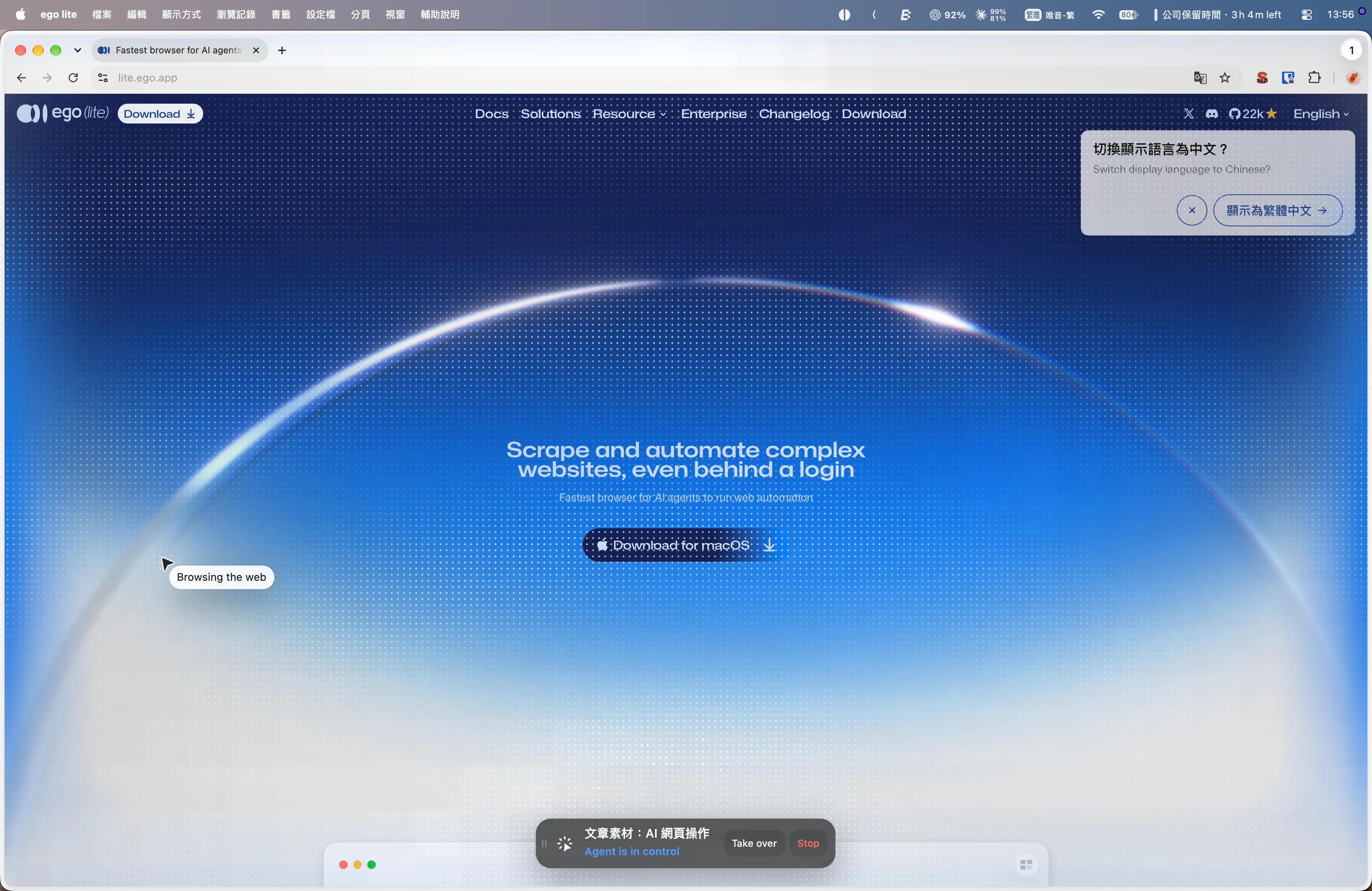
While an agent works, I can see its cursor and task name. The control bar at the bottom has Take over and Stop buttons, so I can step in or stop the task.
I give each task its own Space and keep the pages it needs there. To check progress or continue the work myself, I switch to that Space.
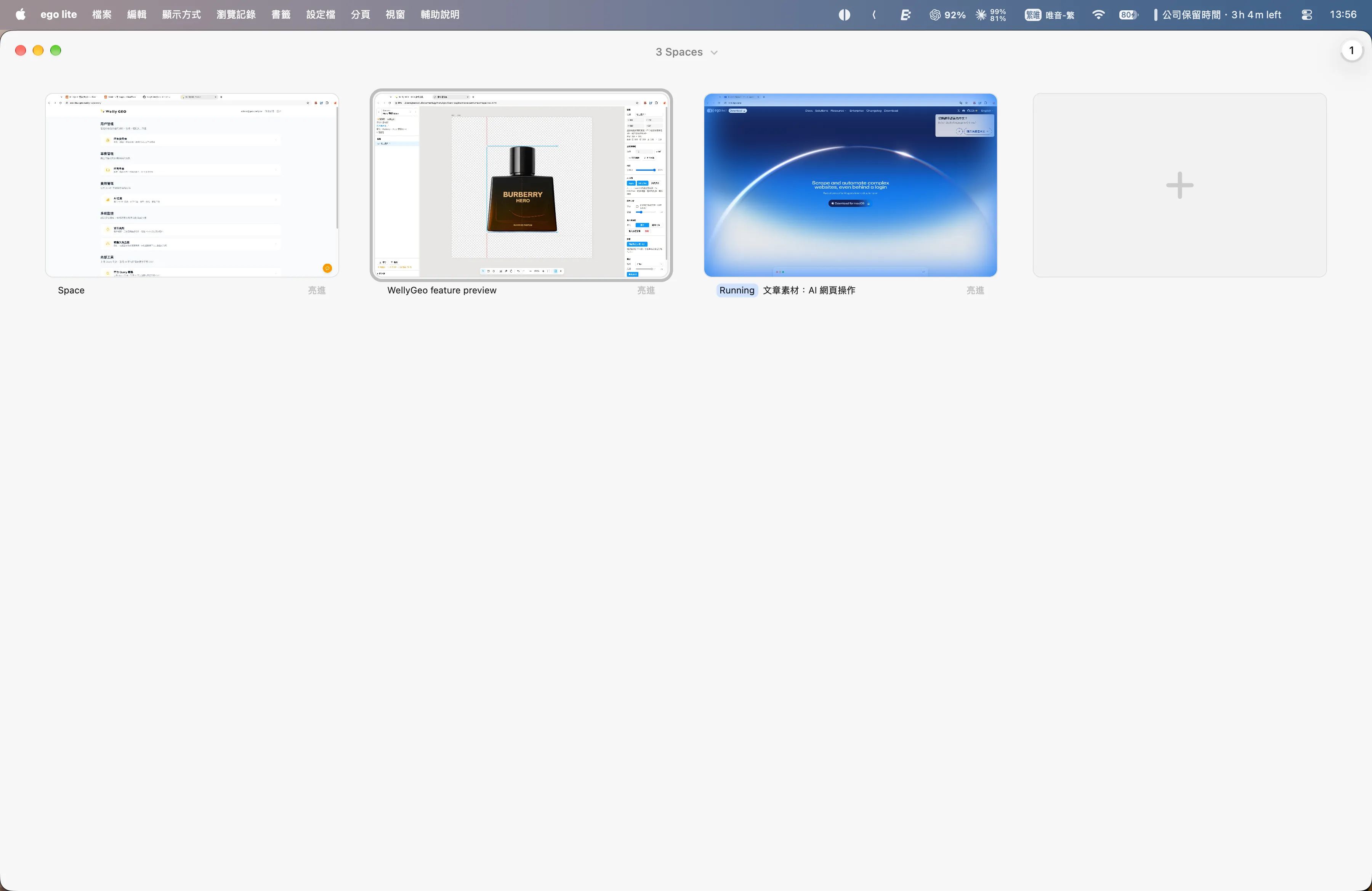
The Space overview shows each workspace’s page preview and name. Active tasks are marked Running, so I can find the work I want before switching into it.
When several tasks are running, I use the overview to find the right Space, see which page the agent has open, and review the result or take over.
Background Tasks That Let Me Stay in Flow
Another useful part of ego lite is that an agent can work in a Space in the background. I can keep doing my own work without staying on the page it’s operating. When I want to check progress, I open its Space.
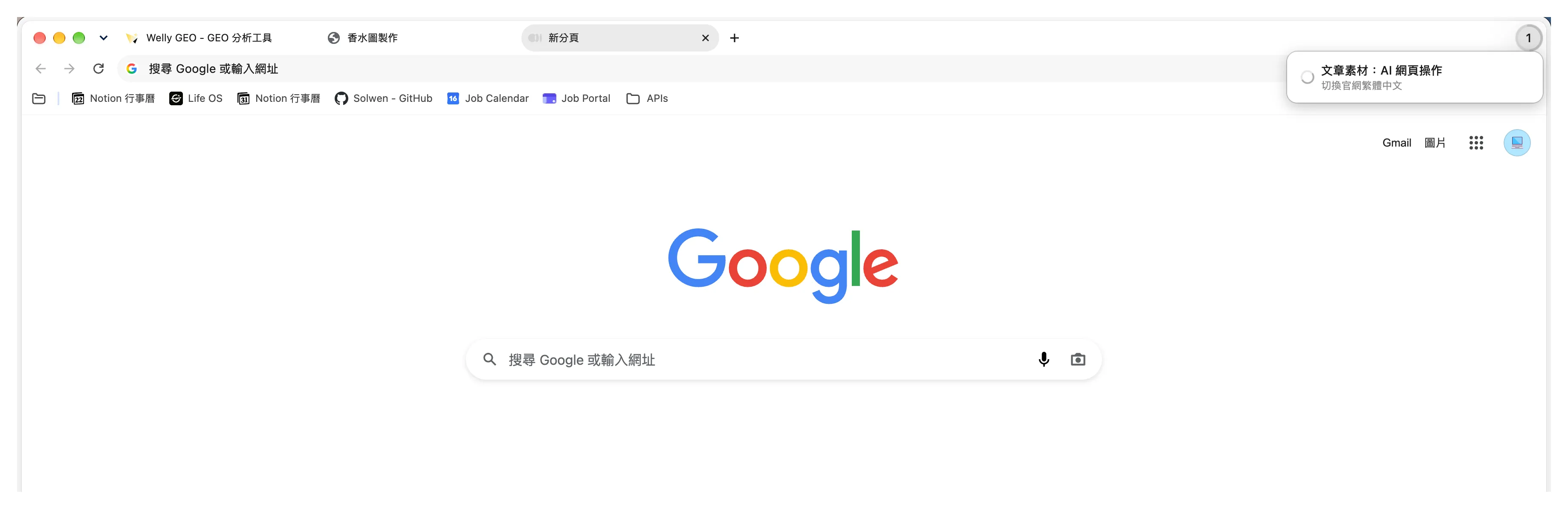
While AI works in the background, a notification in the top-right corner shows what it’s doing. I don’t have to switch back to its Space just to check the current action.
If a task needs to read several pages and organize information, I can use that waiting time for something else.
Some steps still need me, such as signing in again or making a choice partway through a task. A red dot in the top-right corner flags that it needs my attention. I can open the relevant Space, take over, handle the step, and let the agent continue.
Running Tasks in Parallel Across Spaces
With separate Spaces, several tasks can run at the same time. I don’t have to wait for the first one to finish before starting the next.
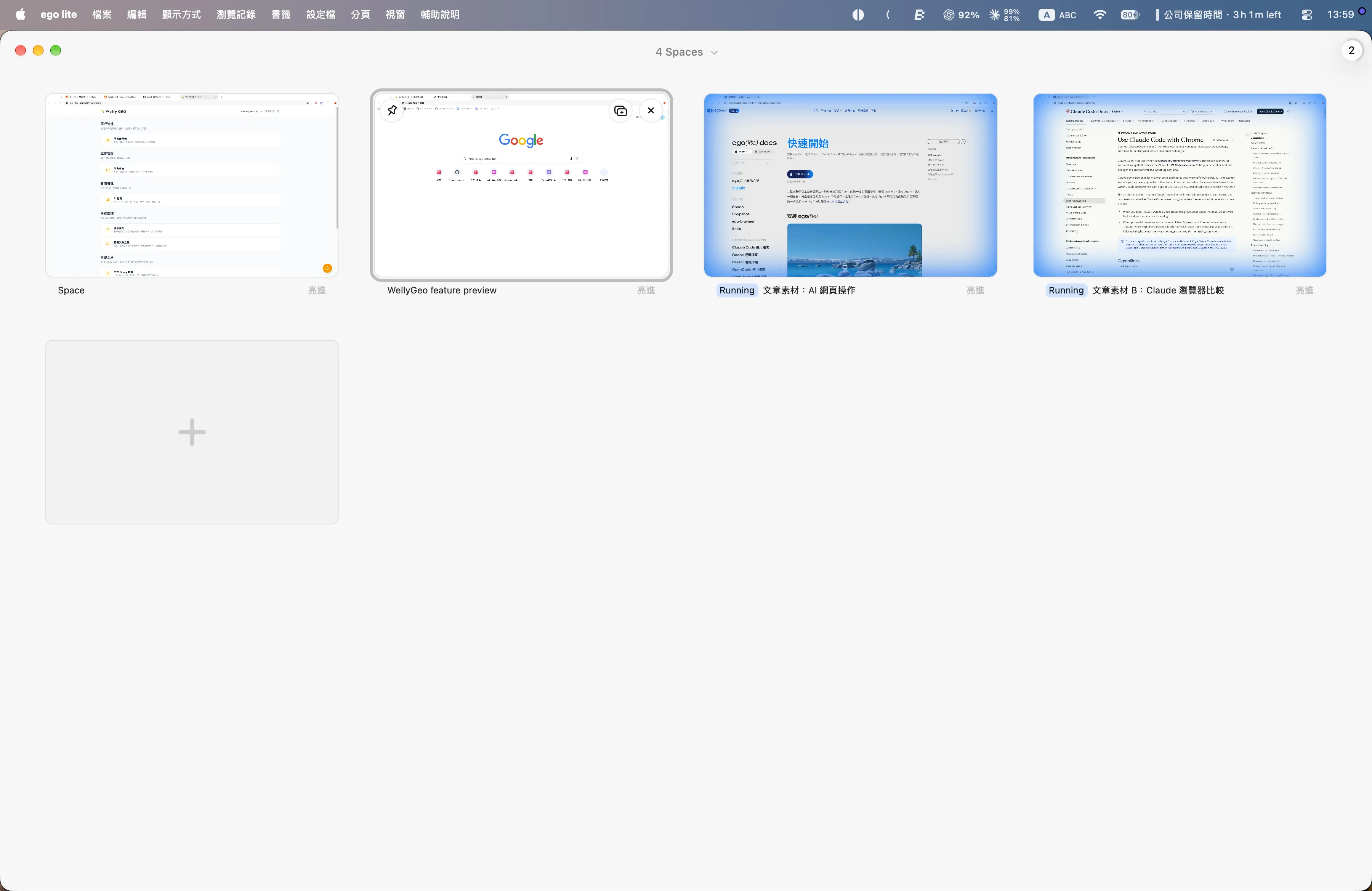
The Space overview lets me check the status of each task and open the relevant workspace when I need to take over.
For example, when gathering information from several websites, I can split the collection into independent tasks and put each one in a separate Space. Once the results are back, I can ask AI to compare them together.
If several tasks would edit the same data, I run them in sequence. Parallel work is useful for independent tasks: it makes each result easier to review and avoids conflicting edits.
Before giving an agent a task, I check which computer, browser, and account it will use. The same URL can show different information and allow different actions depending on the account.
Start with One Website Where You’re Already Signed In
I’d start with a small task whose result is easy to check:
- Install ego lite from the official website and check that the sites and accounts you need are ready.
- Follow the quick-start guide to connect your AI agent through the ego-browser Skill.
- Give it one clear task, such as collecting announcements from a specific page. Ask it to keep the original links, then open the Space to review the result.
- Let a task run in the background and see whether you can comfortably continue your own work and take over when needed.
- Once a single task works well, try two independent tasks in separate Spaces and check the process and results.
On the first run, I watch for three things: whether the agent is in the right environment, whether background work interrupts me, and whether it’s easy to take over when the task finishes. That gives me a practical basis for deciding how much work to hand over.