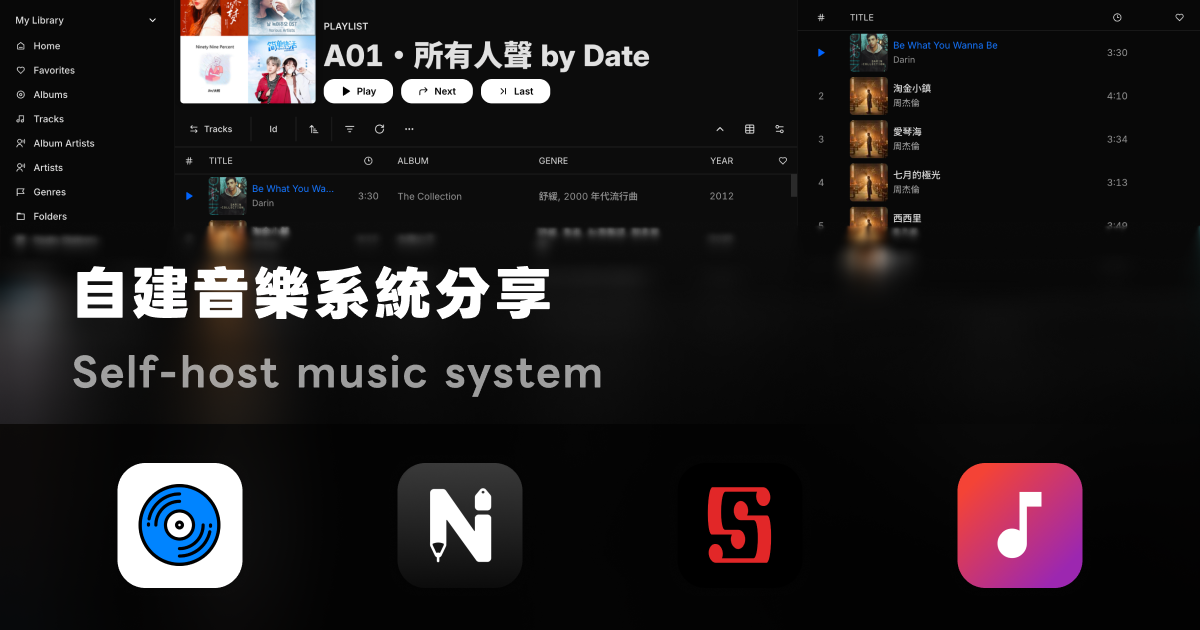
I have a habit of buying digital music — mostly Hi-Res audio from platforms like mora. Streaming services are convenient, but if you’re like me and actually buy songs, care about audio quality, and want complete tag metadata, managing those music files becomes something you have to deal with on an ongoing basis. Over the years I went from Plex, through Jellyfin, and eventually landed on Navidrome — then built my own tag management system on top of it to finally get the whole workflow sorted. This post is about that journey and what the final setup looks like.
Choosing Between Plex, Jellyfin, and Navidrome
Plex: The Easiest Starting Point

I started with Plex. The advantages are clear — just download an installer and run it. You get basic music management without having to deal with networking complexity, and the built-in remote access means you can reach your music from anywhere. If you want more advanced features, you pay for a subscription. For anyone getting started with self-hosted music, Plex has the lowest barrier to entry.
Plex has its own dedicated music player, Plexamp, which has pretty solid UI and playback experience. But the underlying problem remained: tag scanning was slow, and customizing tag fields was a pain.
Jellyfin: Feature-Rich, But With Issues

From there I moved to Jellyfin, a fully open-source alternative. Feature-wise it’s just as capable, and it also supports installer-based deployment with multiple music library folders. I used it for a long stretch and it got the job done.
But what made me eventually leave was the tag scanning problem. Jellyfin’s scanning speed was genuinely too slow, and there were some really frustrating caching issues — tags I’d clearly updated just wouldn’t show up on Jellyfin’s end, as if they were stuck in cache. For someone who cares about tag accuracy, that’s a dealbreaker.
Navidrome: Focused on Doing Music Right
I ended up choosing Navidrome. Compared to the other two, the tradeoffs are clear:
- Music only: No video support, but the music experience is more focused and polished
- Docker recommended for deployment: Newer versions also offer .msi installers and standalone executables, but Docker is still the most manageable option
- Fast and accurate tag scanning: This is the main reason I switched. After updating tags, changes appear almost instantly — none of the caching stalls you get with Jellyfin
For remote access, I use Cloudflare Tunnel for network traversal, so Plex’s built-in remote access wasn’t an advantage I needed.
One limitation with Navidrome is that it only supports a single music library folder. If you want to manage different types of music separately, you can run multiple instances behind an Nginx reverse proxy. I’ve included the configuration details at the end of this post.
Comparison
| Plex | Jellyfin | Navidrome | |
|---|---|---|---|
| Installation | Installer, run directly | Installer, run directly | Docker / Installer / Executable |
| Scope | Multimedia platform | Multimedia platform | Music streaming only |
| Multiple library folders | Supported | Supported | Single folder |
| Tag scan speed | Decent | Slow, caching issues | Fast and real-time |
| Remote access | Built-in | Handle yourself | Handle yourself |
| Cost | Free / Subscription | Completely free | Completely free |
Why I Built a Custom Tag Management System
Navidrome handles music streaming and playback, but tag management still needed other tools. There’s desktop software like MusicBrainz Picard and Mp3tag — both very capable, and Mp3tag in particular is highly efficient for bulk tag editing. But I had two fundamental problems with that approach.
First, they’re both desktop applications.
My music files live on a Windows mini PC. To edit tags I had to remote into it. Windows Remote Desktop isn’t great to begin with, and since I use a Mac day-to-day, switching back and forth was awkward.
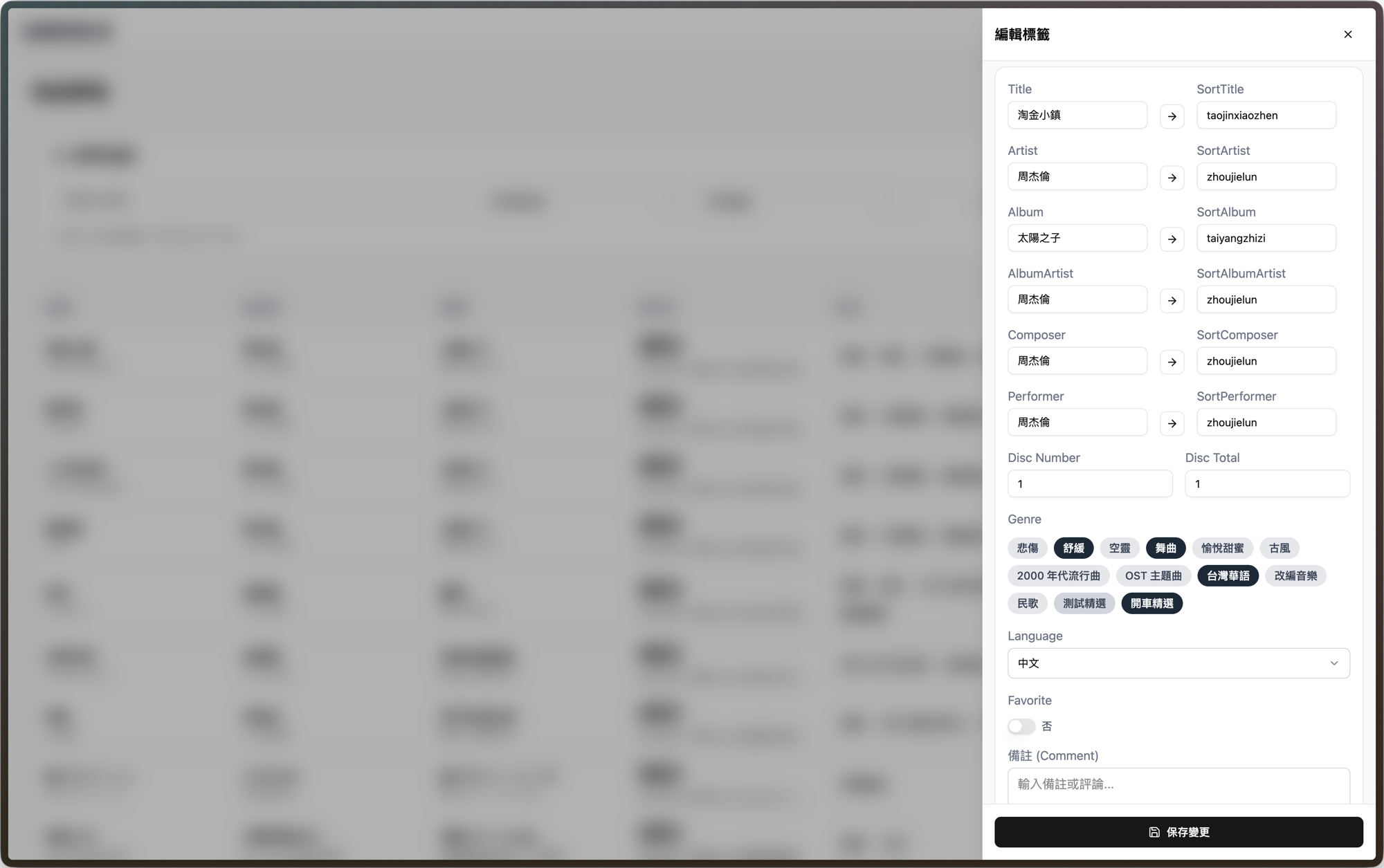
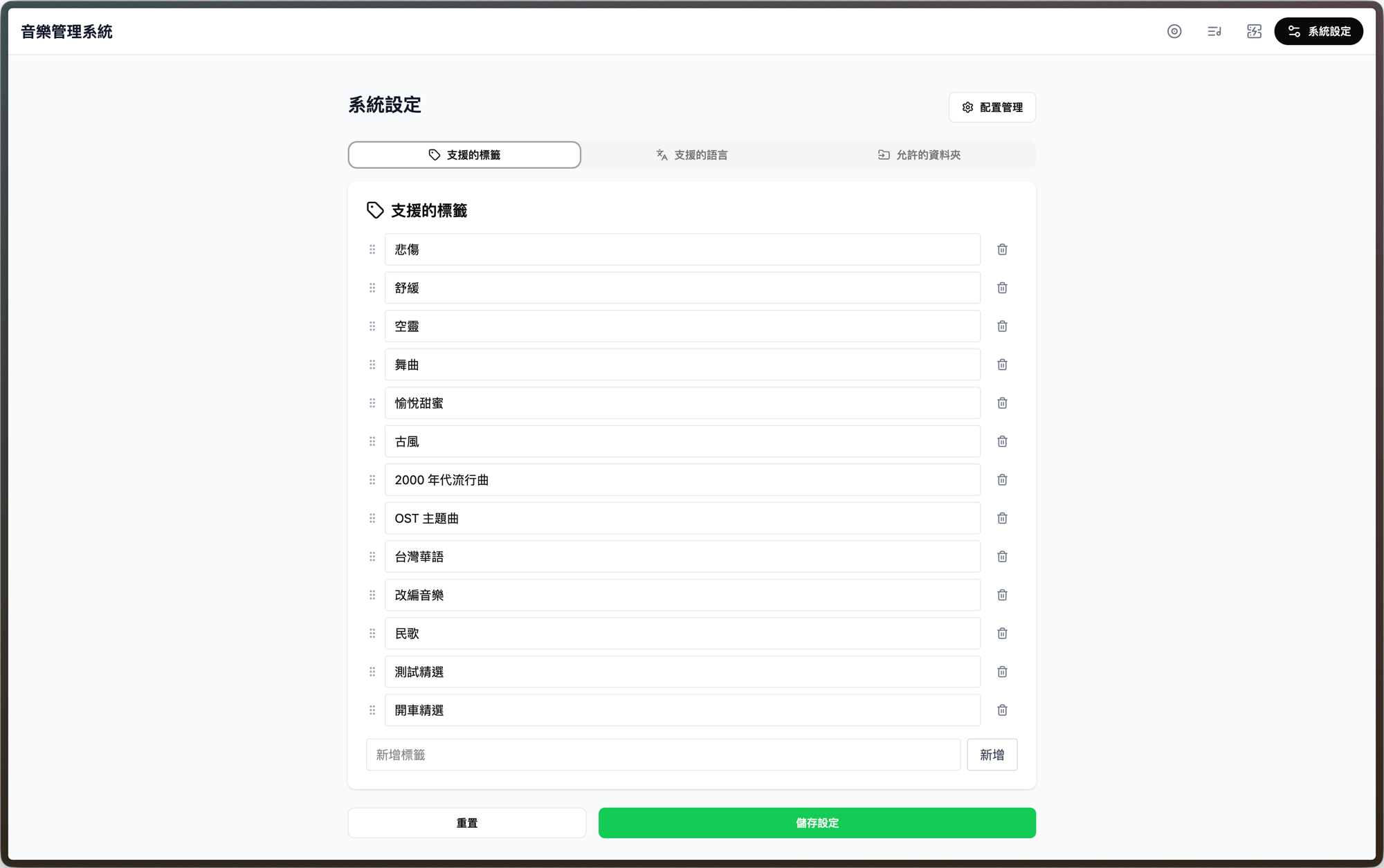
Second, fields like genre and language require manual text entry every time. These fields have a limited set of values, but in Mp3tag you can only type them in one by one — there’s no dropdown for quick selection. With a custom system, these fields can become dropdowns: pick from a list and you’re done. Much faster.
What I wanted was a web-based interface I could use from any browser — open a webpage on any device and manage tags, with repetitive fields simplified into menus. There was also one more benefit to building custom: I could integrate AI for organizing lyrics and translations, something no existing desktop tool could do.
After looking around and finding nothing that fit, I built my own.
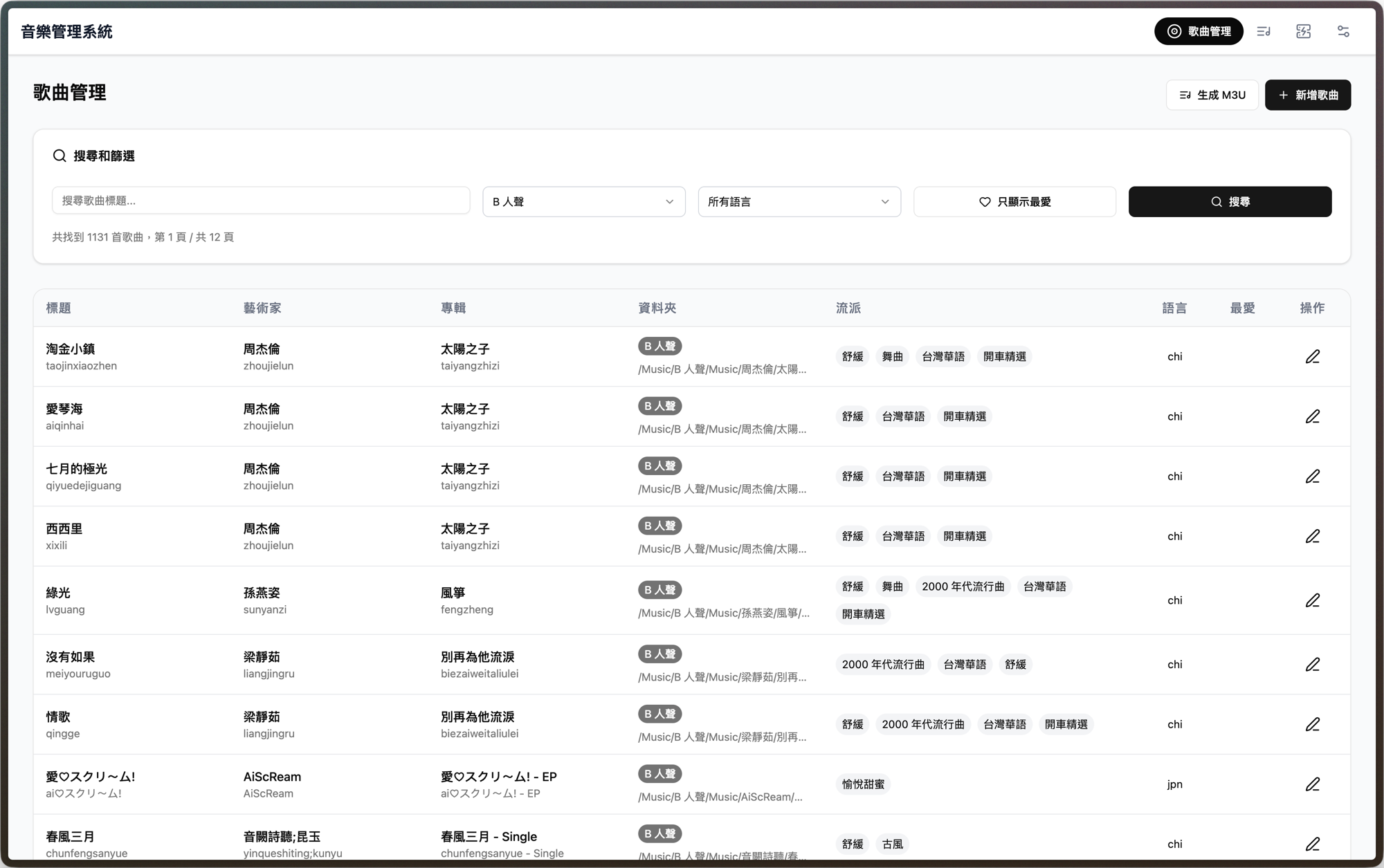
The Music Ingestion Workflow
This is the core feature of the whole system. After buying music, the complete flow from upload to filing looks roughly like this:
1. Upload and Convert
Drag the music files up through the web interface. If the uploaded file is in M4A format, the system automatically converts it to FLAC using FFmpeg.
2. Extract Tags and Normalize Volume
The system uses Mutagen to read the existing tag metadata from the file, and r128gain to calculate ReplayGain values — ensuring consistent playback volume across music from different sources.
3. Edit Tags
Open the tag editing interface to adjust song title, artist, album, genre, and any other fields. This is the most hands-on step in the workflow, since music from different sources can have very different levels of tag completeness and formatting.
4. Check Artist Folder
The system checks whether the target artist already has a folder. If it’s a new artist, it creates one automatically. You can also upload a cover image for the artist at this step.
5. File
After confirming, the system automatically moves the file to the correct location based on the tag data, following the Artist/Album/Track.flac folder structure. The album art is also automatically extracted from the music file and placed in the album folder. Once this runs, Navidrome picks up the new file almost immediately.
Two Useful Bonus Features
Beyond tag management, the system has two features I find genuinely useful.
Pinyin Sorting
Many players have trouble sorting Chinese songs because Chinese characters don’t have a natural alphabetical order. My system uses pypinyin to convert Chinese titles into pinyin and writes them into the SortedTitle tag field. On players that support this field, Chinese songs then sort correctly by pinyin.
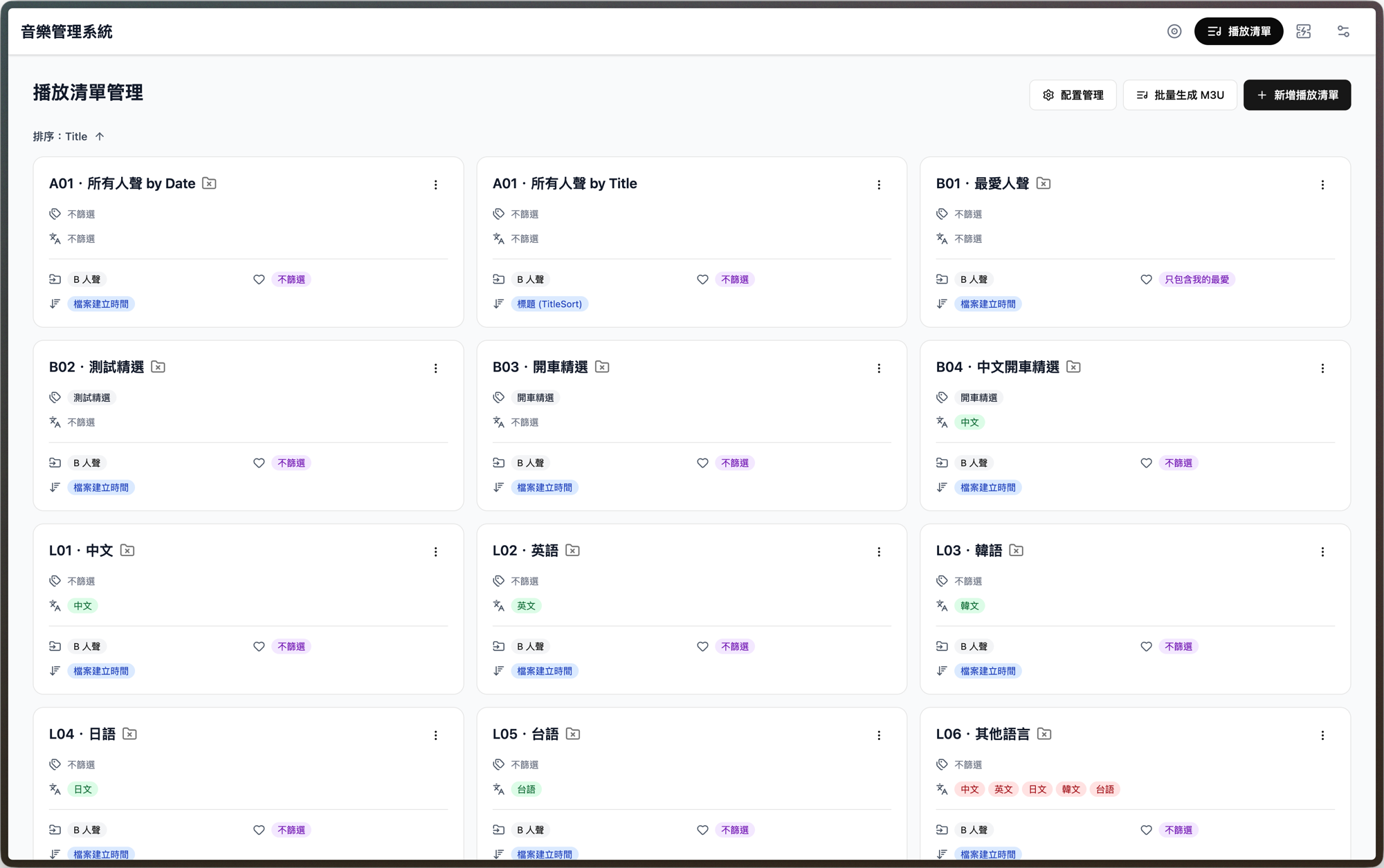
Smart Playlists
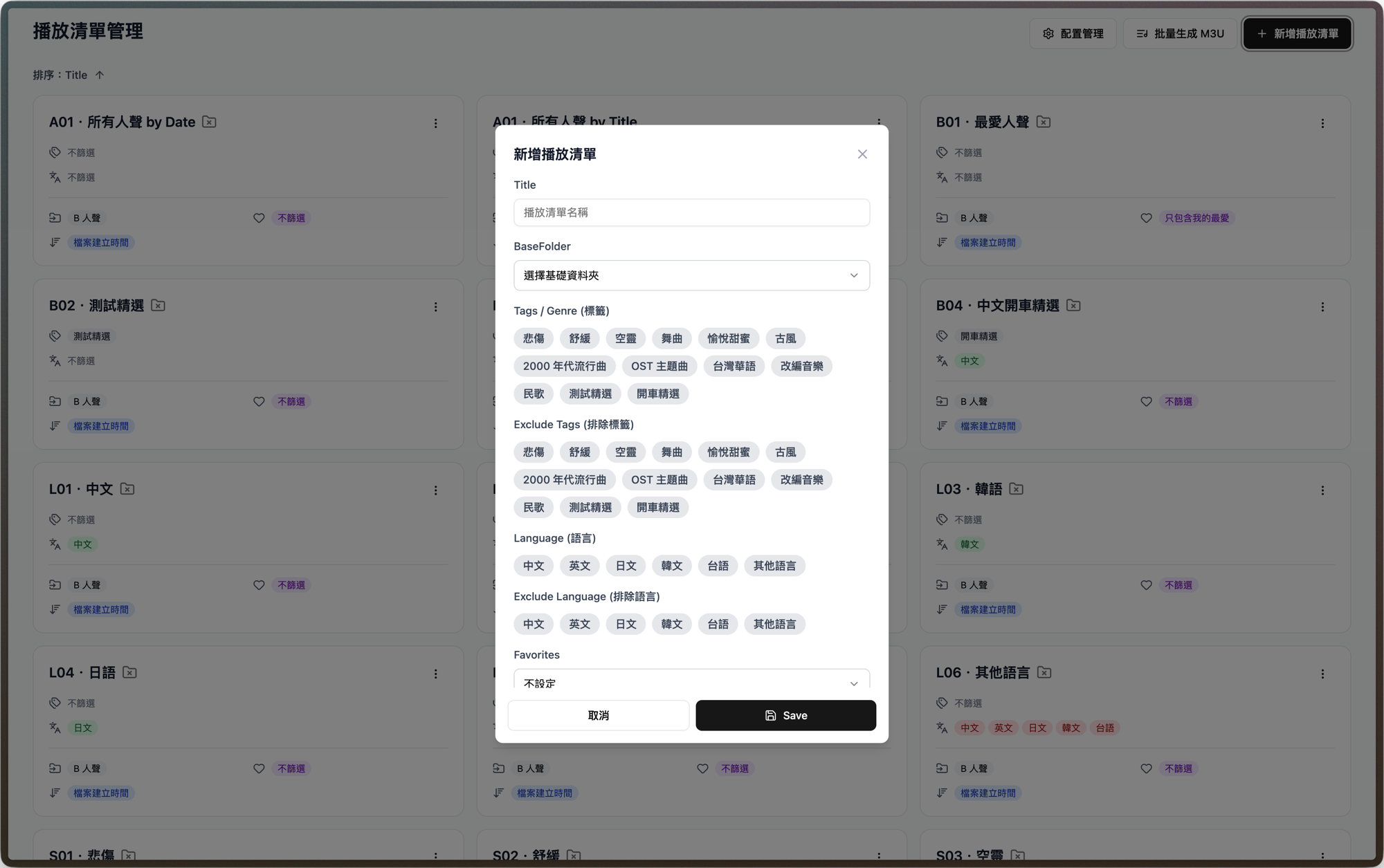
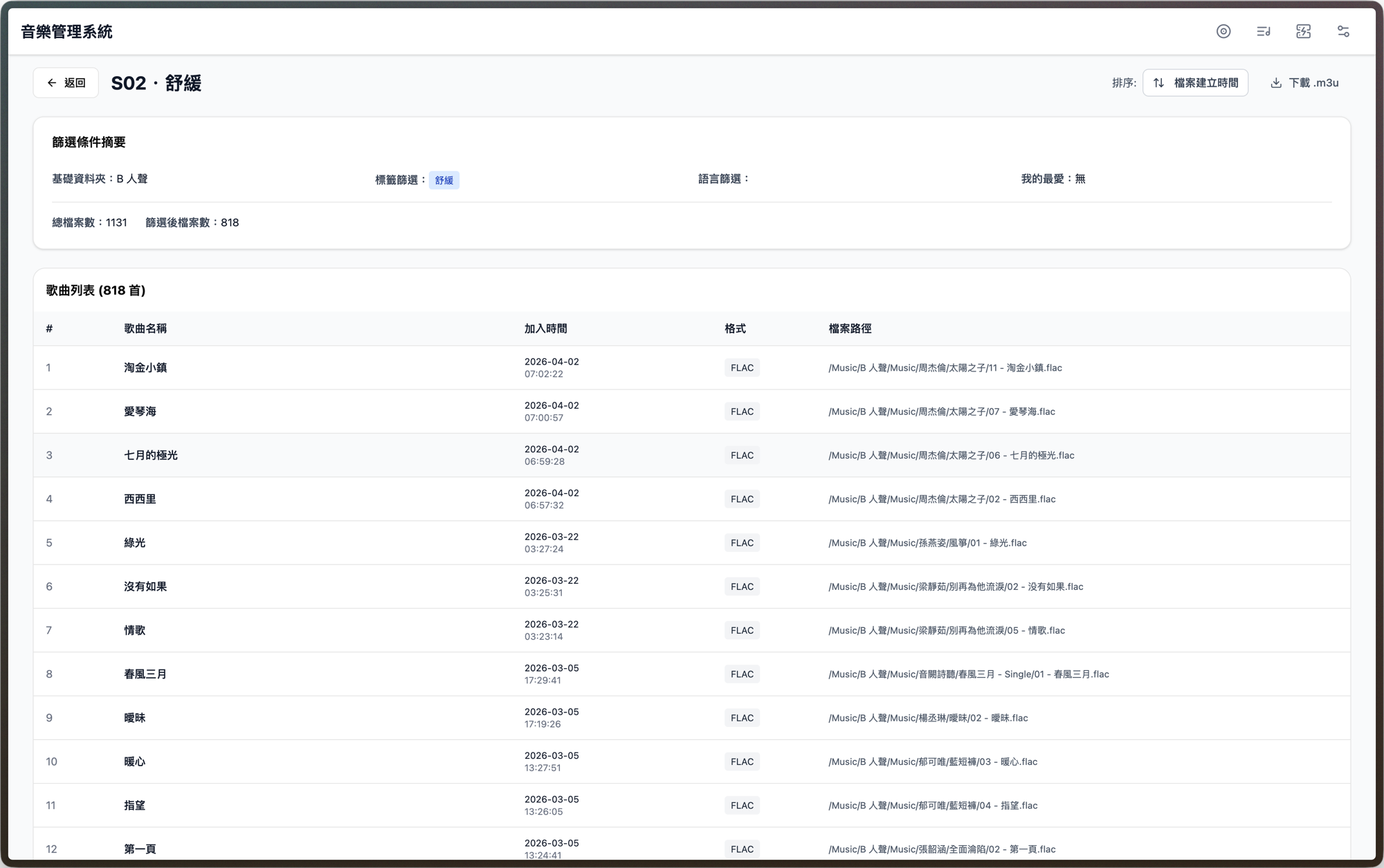
You can filter by language, genre, favorites, and other criteria in combination to automatically generate playlists. Set the conditions, and the system outputs an M3U playlist file that most players can read directly.
These two features solve the problem of “once everything is organized, how do you find what you want to listen to quickly?” The ingestion workflow handles music as it comes in; sorting and playlists handle every time you want to listen afterward.
Backup Setup
My music server runs on a Windows mini PC. Music files are stored locally and backed up to Google Drive via an rclone script. When I need to back up, I run the script and it automatically syncs the music folder up to the cloud. Simple, but it gets the job done.
Overall Architecture
Here’s the full picture of the system. Everything runs on the same Windows mini PC, managed with Docker Compose:
- Navidrome: Handles music streaming and playback
- Music Manager: Handles tag management and ingestion workflow (React + FastAPI + PostgreSQL + Redis)
- Cloudflare Tunnel: Handles network traversal so external devices can connect
- rclone: Handles backup, syncing music files to Google Drive
Player Recommendations
Once the server and tag management are sorted, the last piece is the player. Navidrome has a built-in web interface you can use to listen directly, but if you want a better playback experience, there are dedicated players worth pairing with it. Navidrome supports the Subsonic API, so most Subsonic-compatible players will work.
Here’s what I’m currently using:
Android: Symfonium
Paid Symfonium — clean interface, offline download support. The best mobile player experience I’ve tried.
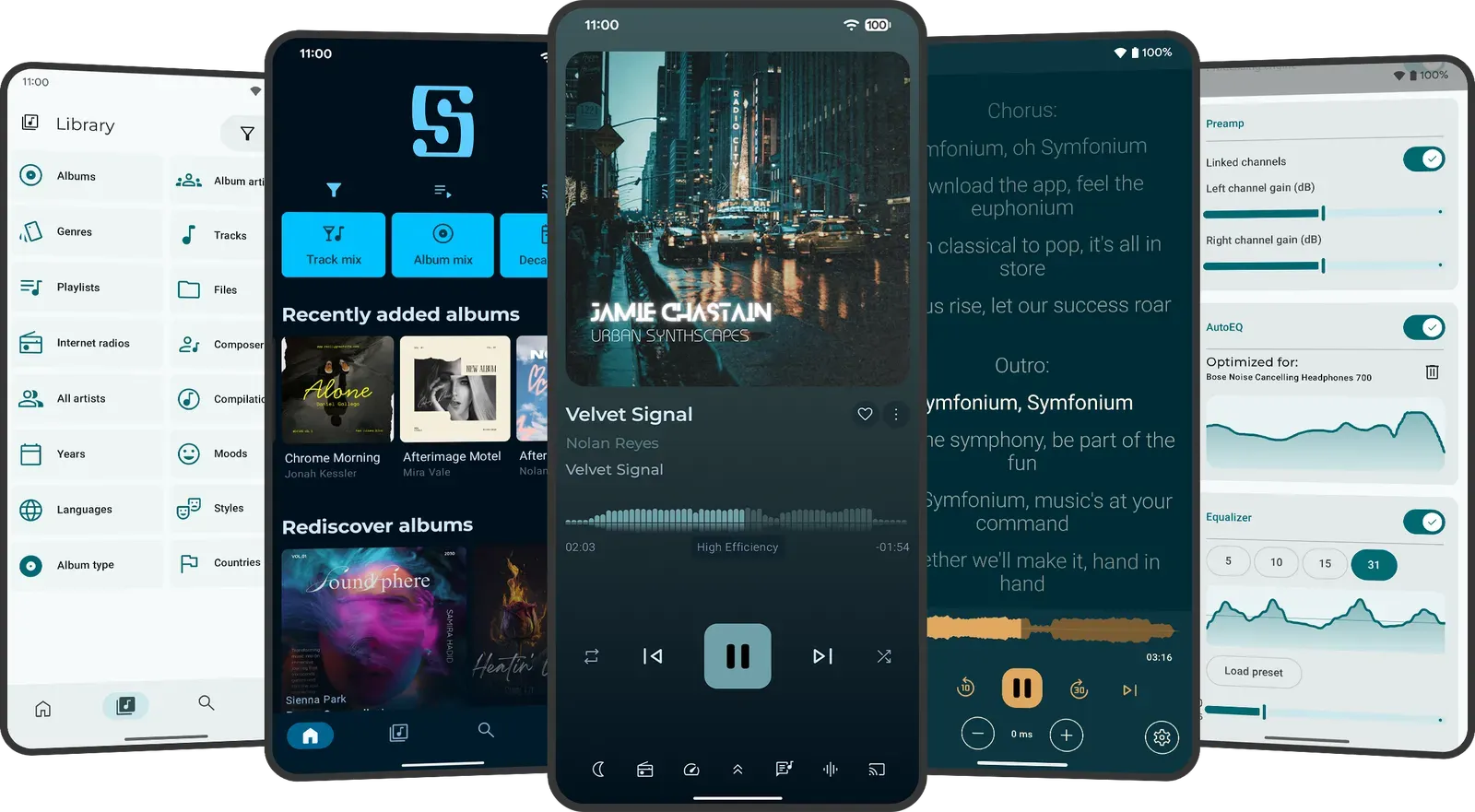
Symfonium player interface
Android / iOS: Stream Music
Free Stream Music — a cross-platform player built with Flutter, supporting both Android and iOS. The visual style leans toward QQ Music, with Subsonic / Navidrome API support.
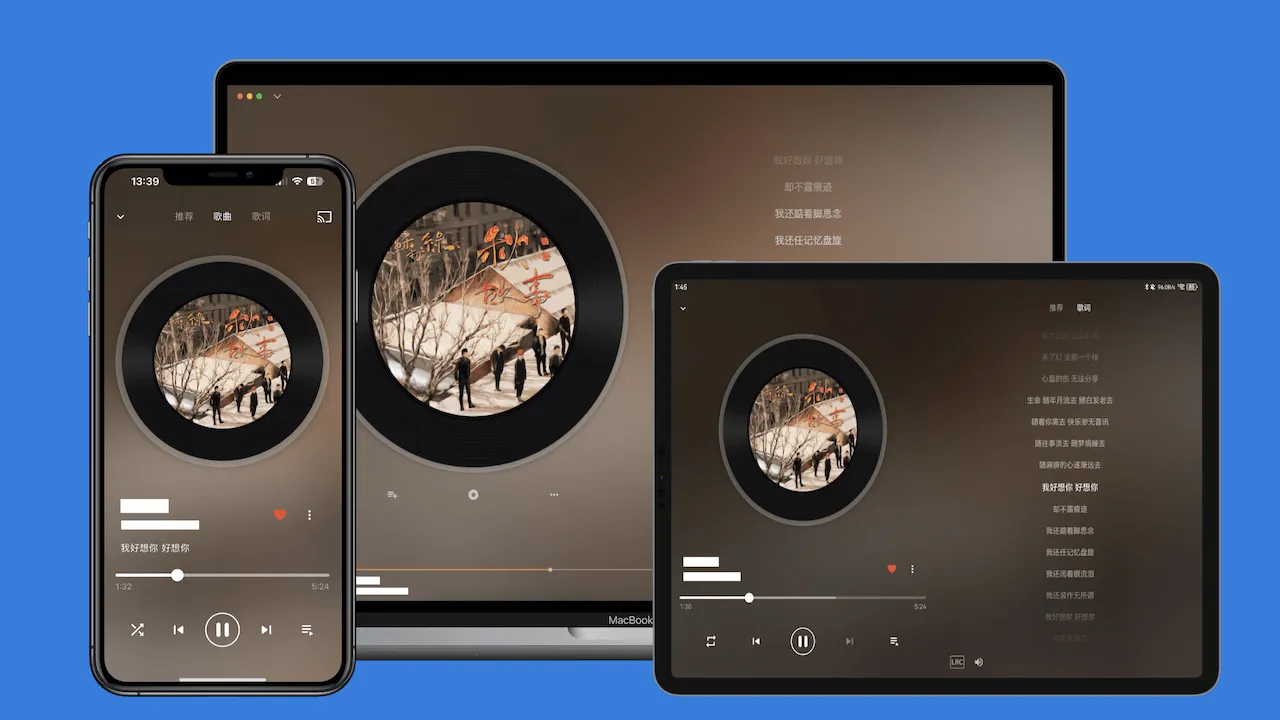
Stream Music player interface
iOS: Arpeggi
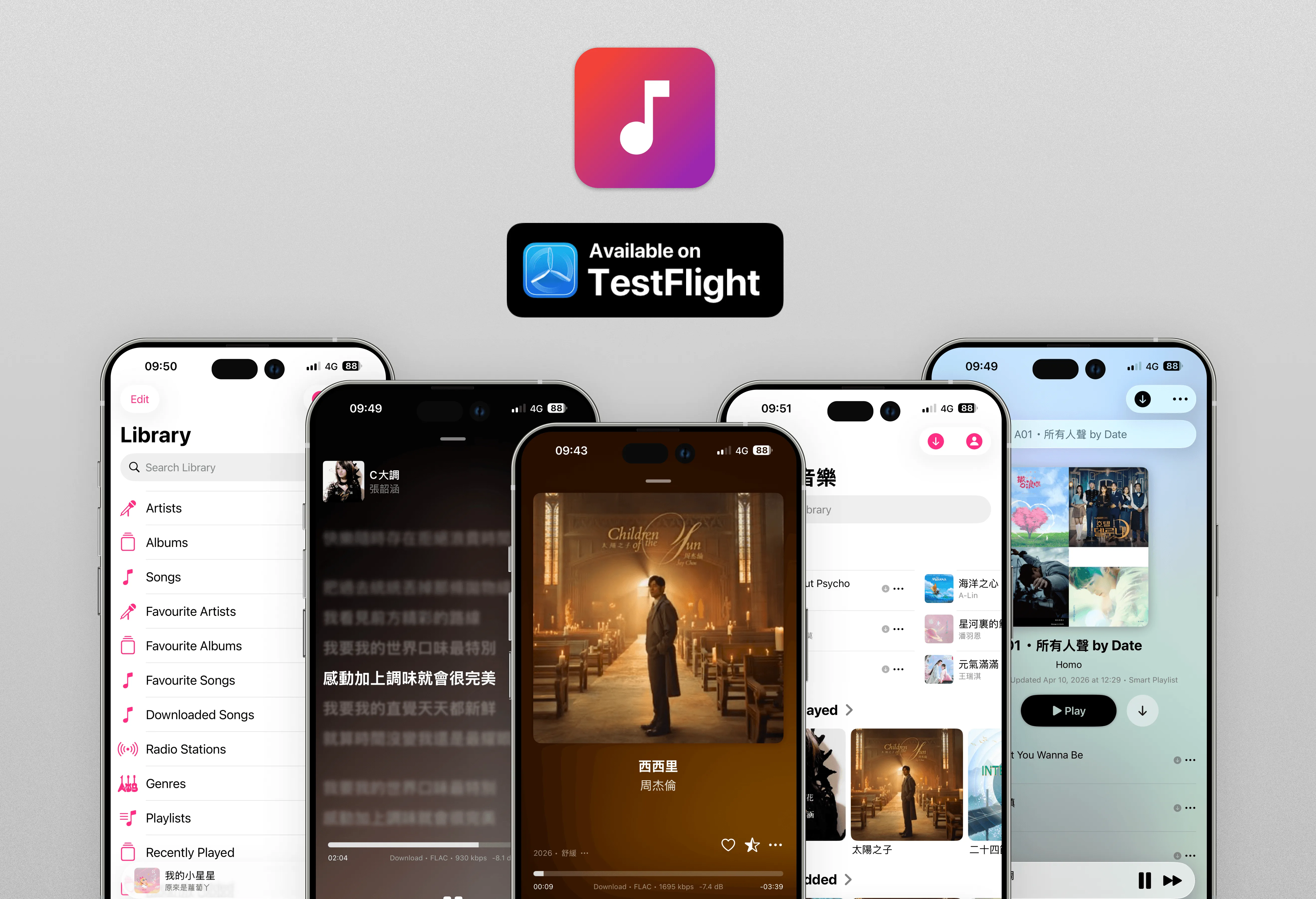
Free Arpeggi — currently the best Subsonic player experience on iOS. Available via TestFlight, with CarPlay support, stable offline caching, and a native iOS UI that feels very natural to use.
Arpeggi player interface
iOS: Manet
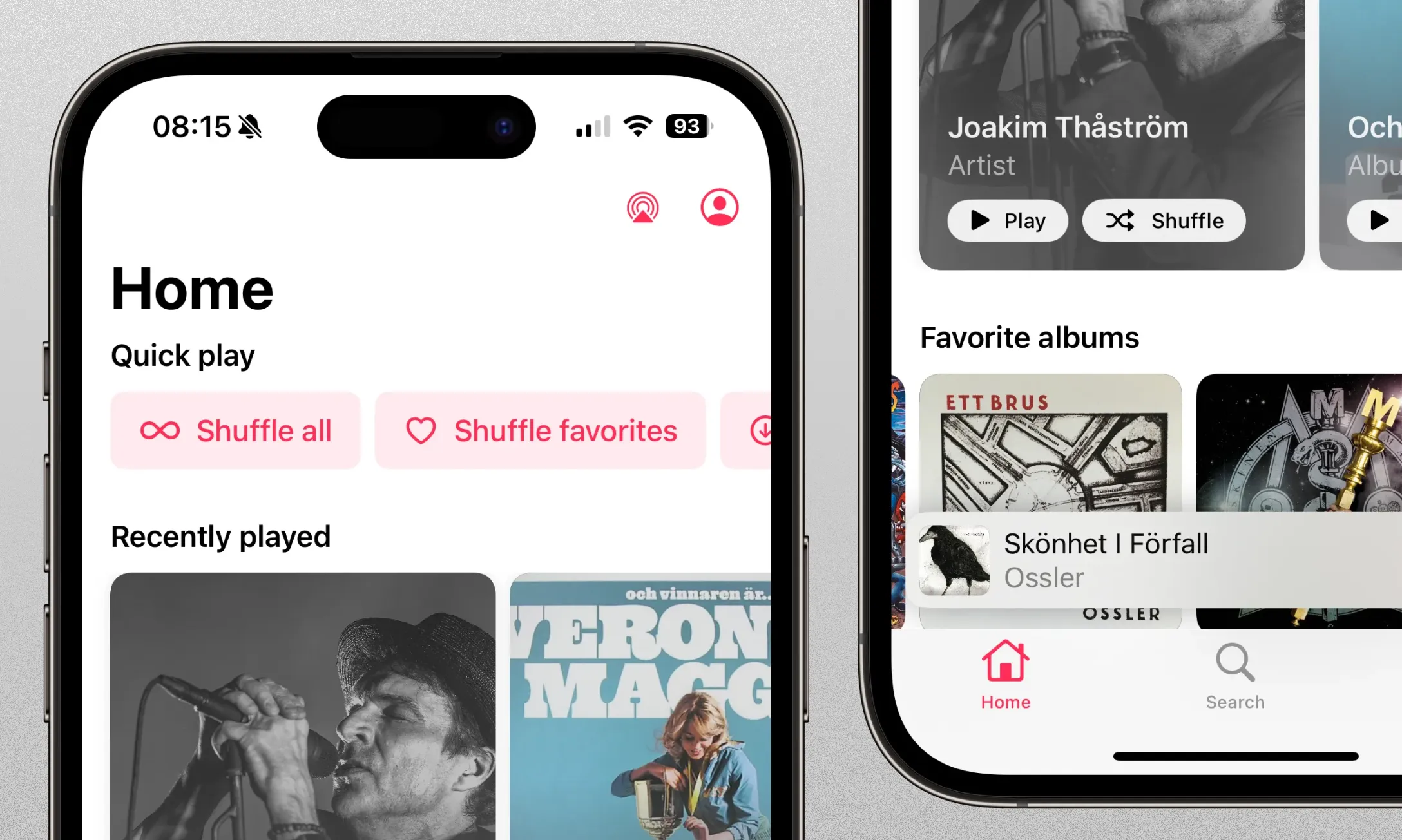
Freemium Manet — native iOS UI style, and the free version is already fully featured.
Manet player interface
iOS: LMP - Music Hub
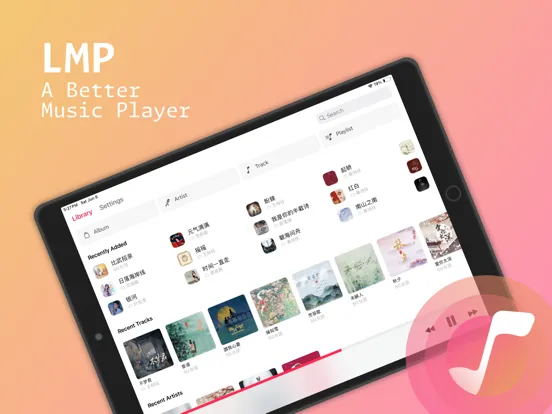
Paid LMP - Music Hub — supports Navidrome, Emby, WebDAV, SMB, and more. What makes it stand out is the ability to display content from multiple libraries simultaneously. Set up libraries A, B, and C, and you can browse all of them at once without switching — search works across all libraries too. For someone like me who manages multiple music collections separately, that’s incredibly convenient.
It’s also optimized for large libraries — reportedly handles 70,000+ tracks smoothly — and has solid CarPlay and Siri integration, plus LRC and word-by-word lyrics support. The downside is it only supports online streaming with no offline caching, which is a problem when you’re somewhere with unreliable internet.
LMP - Music Hub player interface
Desktop: Feishin
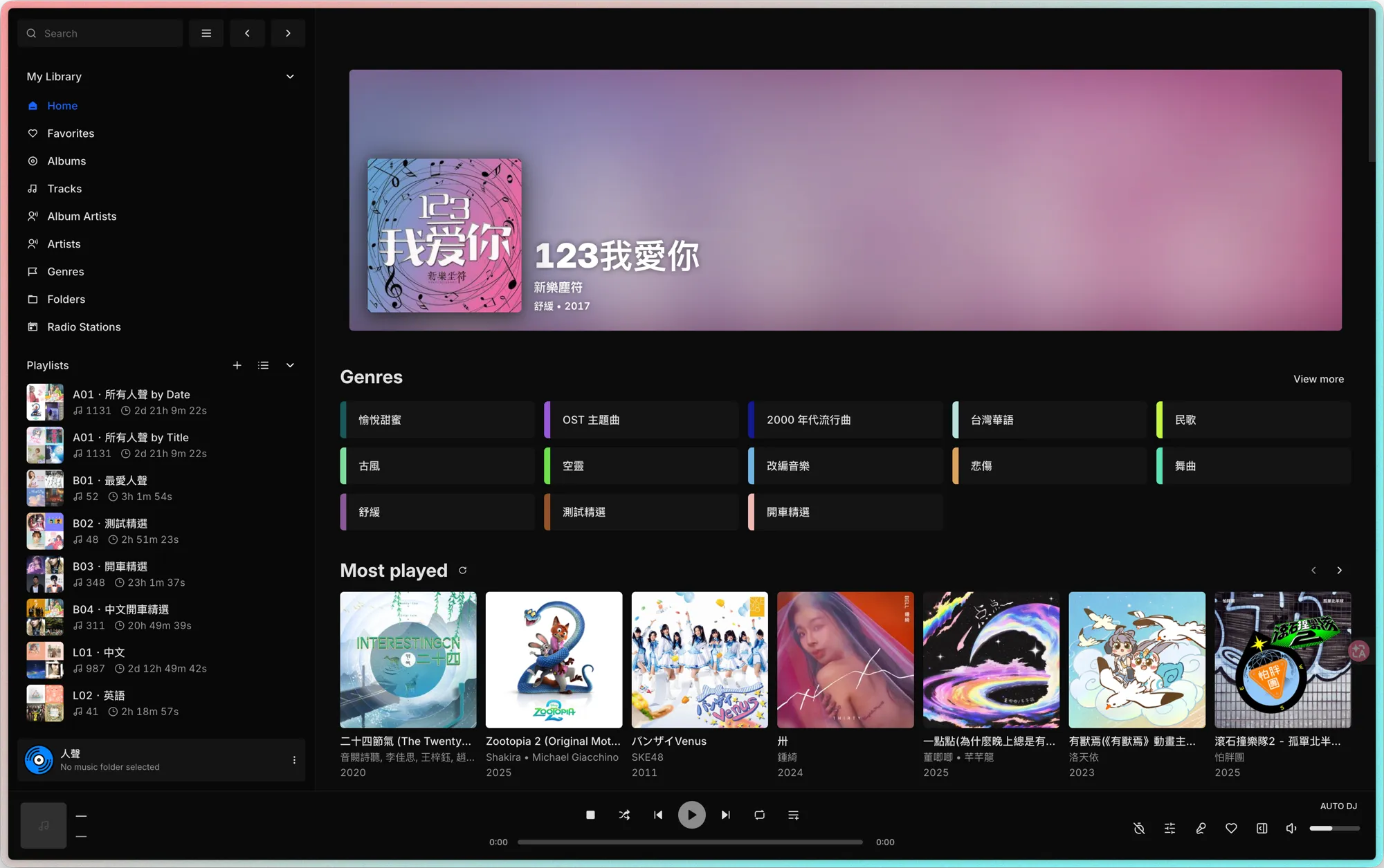
Free Feishin — an open-source desktop player supporting Navidrome and Jellyfin. Can be deployed with Docker as a web version, usable in any browser on any device.
Feishin player interface
From the early days of just using Plex to stream songs, to having a fully automated ingestion and management workflow — a lot of tinkering happened in between. But now, after buying a song, I open the browser, upload it, adjust the tags, hit confirm, and it’s filed in a few minutes. From that point on, any device with a player can stream it. The biggest value in this system isn’t the technical complexity — it’s that “managing music” no longer feels like a burden.
Appendix: Deployment
New: Single Instance + Multiple Libraries
Newer versions of Navidrome support multiple library databases. Just run a single instance, mount all your music folders into it, and add additional libraries through the Navidrome UI. Much simpler than the old approach of running multiple instances with Nginx.
docker-compose.yml
services:
  navidrome:
    image: deluan/navidrome:latest
    user: 1000:1000
    ports:
      - "4533:4533"
    restart: unless-stopped
    environment:
      ND_MUSICFOLDER: "/music/music-a"
      ND_ENABLETRANSCODINGCONFIG: "true"
      ND_LOGLEVEL: "info"
    volumes:
      - "./data:/data"
      - "/path/to/your/music-a:/music/music-a:ro"
- "/path/to/your/music-b:/music/music-b:ro"Legacy: Multiple Instances + Nginx Reverse Proxy
If your version of Navidrome doesn’t support multiple libraries yet, or you have other reasons to keep different music collections completely isolated, you can run multiple instances and use Nginx as a reverse proxy to distinguish them by path.
docker-compose.yml
services:
  nginx:
    image: nginx:alpine
    ports:
      - "8900:80"
    volumes:
      - "./nginx.conf:/etc/nginx/nginx.conf:ro"
    depends_on:
      - navidrome-a
      - navidrome-b
    restart: unless-stopped

  navidrome-a:
    image: deluan/navidrome:latest
    user: 1000:1000
    expose:
      - "4533"
    restart: unless-stopped
    environment:
      ND_BASEURL: "/music-a/"
      ND_ENABLETRANSCODINGCONFIG: "true"
      ND_LOGLEVEL: "info"
    volumes:
      - "./data/a:/data"
      - "/path/to/your/music-a:/music:ro"

  navidrome-b:
    image: deluan/navidrome:latest
    user: 1000:1000
    expose:
      - "4533"
    restart: unless-stopped
    environment:
      ND_BASEURL: "/music-b/"
      ND_ENABLETRANSCODINGCONFIG: "true"
      ND_LOGLEVEL: "info"
    volumes:
      - "./data/b:/data"
      - "/path/to/your/music-b:/music:ro"
nginx.conf
events {
    worker_connections 1024;
}

http {
    include /etc/nginx/mime.types;
    default_type application/octet-stream;

    upstream navidrome_a {
        server navidrome-a:4533;
    }

    upstream navidrome_b {
        server navidrome-b:4533;
    }

    server {
        listen 80;

        location /music-a/ {
            proxy_pass http://navidrome_a;
            proxy_set_header Host $http_host;
            proxy_set_header X-Real-IP $remote_addr;
            proxy_set_header X-Forwarded-For $proxy_add_x_forwarded_for;
            proxy_set_header X-Forwarded-Proto $scheme;
        }

        location /music-b/ {
            proxy_pass http://navidrome_b;
            proxy_set_header Host $http_host;
            proxy_set_header X-Real-IP $remote_addr;
            proxy_set_header X-Forwarded-For $proxy_add_x_forwarded_for;
            proxy_set_header X-Forwarded-Proto $scheme;
        }
    }
}
General Notes
user: 1000:1000should match the owner of the music folder on your host machine. If the permissions don’t line up, Navidrome won’t be able to read the files- Mount music folders with
:ro(read-only) — Navidrome only needs read access, not write access to your music files - If you have a Last.fm API key, you can set it via the
ND_LASTFM_APIKEYandND_LASTFM_SECRETenvironment variables. Navidrome will automatically fetch album art and artist info - The legacy
ND_BASEURLis for Nginx routing in the multi-instance setup; the new single-instance setup doesn’t need it - In the new setup,
ND_MUSICFOLDERsets the default library path, and additional music folders are added through the UI