Open a full-stack project and here’s the scene — fire up Docker Desktop with nginx, postgres, a Vite frontend, and a FastAPI backend, and before you’ve even typed a line of code the fans are already spinning, the battery percentage is visibly dropping, and building the FastAPI image takes long enough that you can walk out for a coffee. These symptoms all point to the same thing — running containers on Mac is slow, hot, battery-draining, and painfully slow to build, and it’s not the containers’ fault — Docker Desktop just isn’t Mac-native enough.
This article is about OrbStack, a Docker Desktop replacement rewritten from scratch for Apple Silicon. Below I’ll first cover why it can be faster and lighter (the underlying architecture), then unpack what switching actually feels like (startup speed, UI, pricing), and finally walk through the complete install and uninstall process — because OrbStack modifies a few system-level things, just dragging the app to the trash leaves residue. The uninstall bonus section turns out to be more important than you’d expect.
If you want to see where it fits in my broader Mac development setup, read this with my full-stack Mac dev tool stack. If your main use case is FastAPI with Docker Compose, it pairs well with my Python backend environment setup.
Why OrbStack Runs Faster and Lighter
OrbStack isn’t Docker Desktop tuned better — it’s architecturally different. Docker Desktop is a cross-platform product, and Mac is just one of its targets — while it does now support Apple’s Virtualization.framework as a VMM option, everything surrounding it (filesystem sharing, networking stack, scheduling) is designed for generic cross-platform use. OrbStack was written from the ground up for Apple Silicon, and every layer in the stack is hand-optimized for Mac.
The three concrete architecture decisions below map to the three pain points from the opening.
Rewritten Natively for Mac: Fixes the Slowness and Heat
OrbStack also uses Virtualization.framework underneath, but the real differentiator is everything rewritten around it — filesystem sharing, networking stack, and the bridge to the macOS scheduler are all hand-tuned specifically for Mac, not a cross-platform generic implementation. The user-facing result: lower CPU usage when containers run, smaller context-switch overhead, and your machine no longer runs hot just because a container is alive.
Dynamic Memory Allocation: Fixes the Battery Drain
Docker Desktop makes you pre-allocate RAM in settings (say, 8GB), and whether containers actually use it or not, those 8GB are locked away. OrbStack switches to dynamic allocation — containers take what they need, the system reclaims idle memory. This matters a lot for battery life because when you’re not running containers there’s no persistent memory pressure sitting in the background.
Per OrbStack’s official benchmarks (measured in August 2023 on an M1 Max MacBook Pro — the numbers are dated but the architectural differences still hold), the power draw difference on identical workloads is striking: Sentry self-hosted drops from 726 mW on Docker Desktop to 180 mW (75% reduction); Kubernetes uses roughly 1/5 the power, Supabase about 1/2. These aren’t rounding errors — this is “plugged in while working, fans stay silent” territory.
Rosetta for x86 Images: Fixes the Slow Builds
Apple Silicon is ARM, but most Docker images are still x86. Docker Desktop uses QEMU to emulate x86, which performs poorly — like FastAPI’s pip install hitting packages that need native compilation (psycopg2, cryptography, pillow), where a single build takes long enough to question your life choices. OrbStack uses Rosetta to run x86 binaries at near-native ARM speed, so the same Dockerfile builds much faster.
Official benchmarks compare build times for several large images: Open edX drops from 45 minutes on Docker Desktop to 17 minutes (62% faster), and PostHog shows a similar margin. Daily small-image rebuilds might not feel this dramatic, but complex projects or full rebuilds regularly differ by the length of a coffee break.
What You Actually Gain by Switching
The CLI is fully compatible — docker and docker compose commands work as-is, Dockerfiles and compose files don’t need a single character changed — making the switch effectively zero-cost. What actually changes lives in three places: startup speed, UI, and pricing.
Startup and Idle Are Both Almost Imperceptible
Docker Desktop takes a dozen seconds to open — sometimes stalling on the whale icon spinning. OrbStack is essentially instant-on: one click on the menu bar and docker ps works almost immediately. The cumulative difference across a day of opening and closing adds up fast.
Pricing
Free for personal use, Pro license required for commercial use. I’ve hit no limits on personal use; the few paid-only features (like Debug Shell, mentioned below) I don’t generally need.
Free for personal, Paid for commercial Official WebsiteUI: The Four Container Tabs
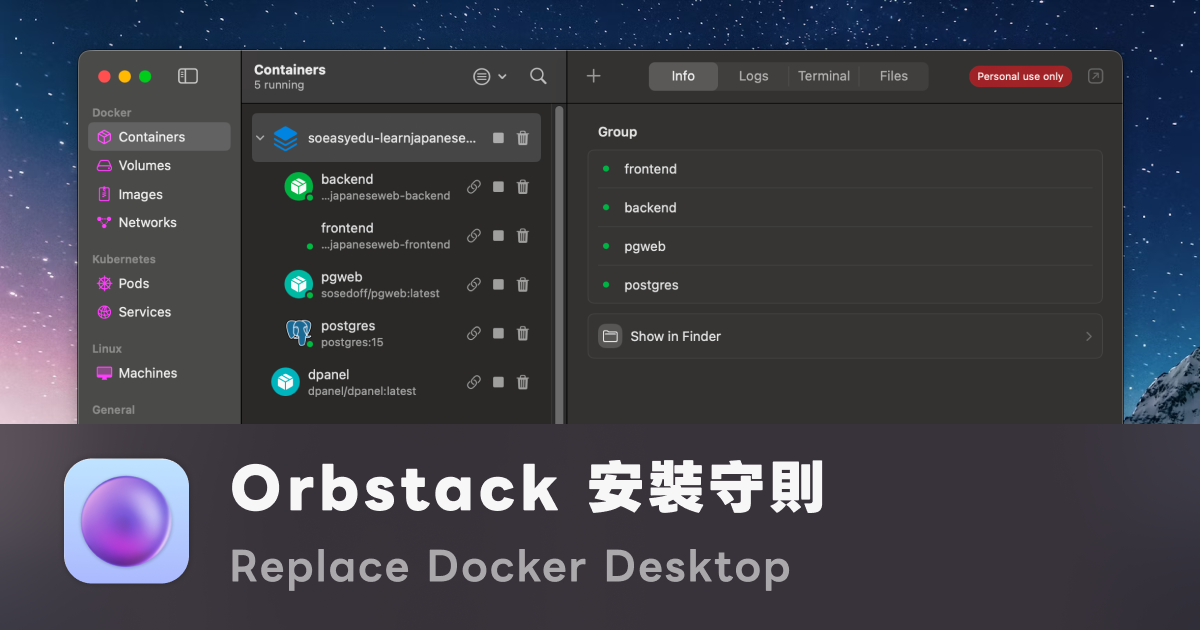
This is what I felt most after switching. OrbStack’s container detail view has four tabs — Info, Logs, Terminal, Files — turning the daily debugging actions into UI and saving a huge amount of docker exec and docker logs hand-typing and context switching. One at a time below.
Info Tab: All Port Forwards in One Glance
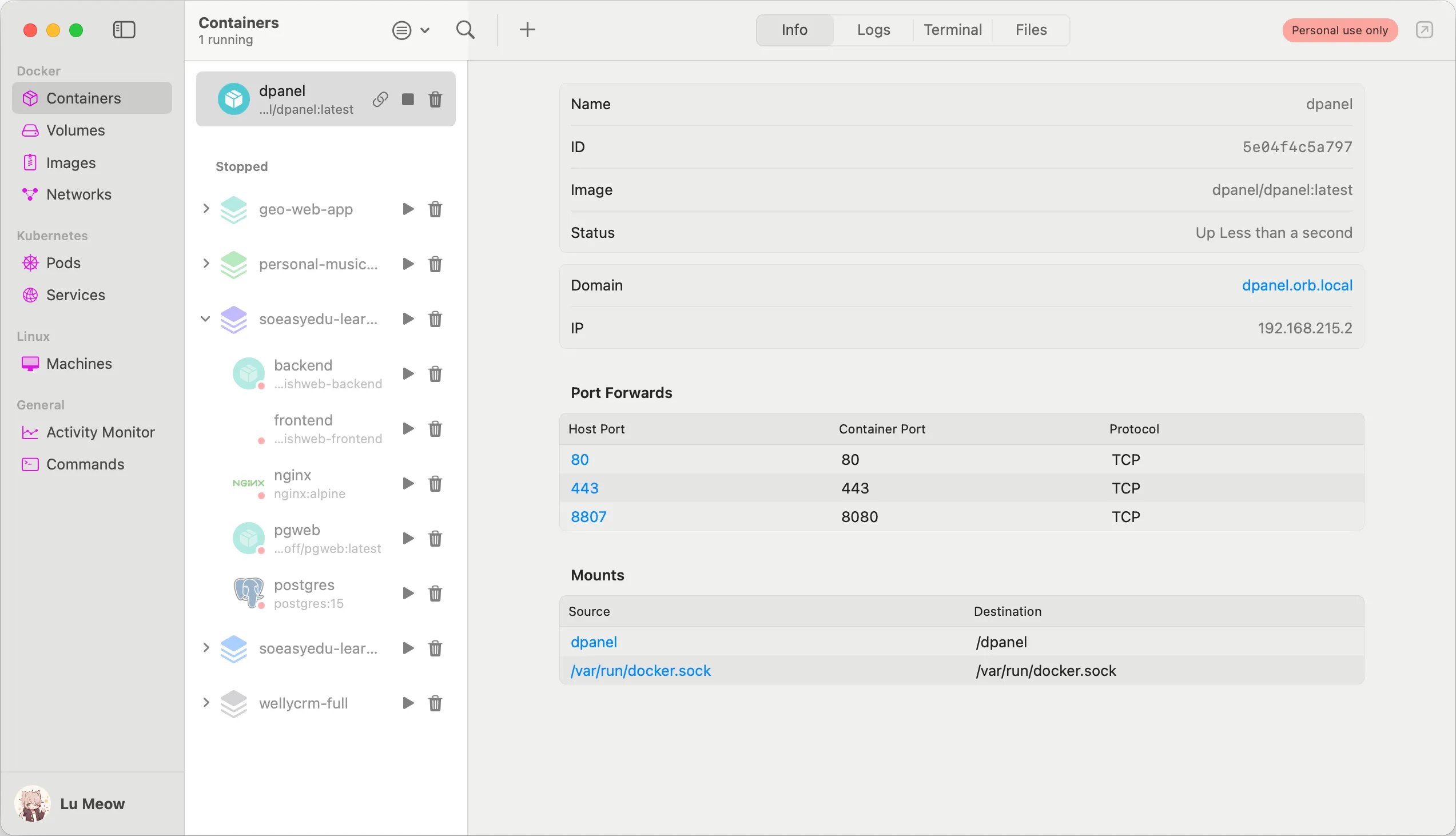
Container basics (ID, image, status), Port Forwards list, Mounts — all on one page. Previously, to check “which port is this container exposing, and what host port is it mapped to” meant flipping through the compose file or running docker port; now it’s right there in the table, with host ports as clickable links that open localhost in your browser.
Especially useful for full-stack workflows — nginx on 80/443, backend on 8080, pgweb on some debug port — one glance tells you where every service entry point is.
Logs Tab: Multi-Service Logs Don’t Clash
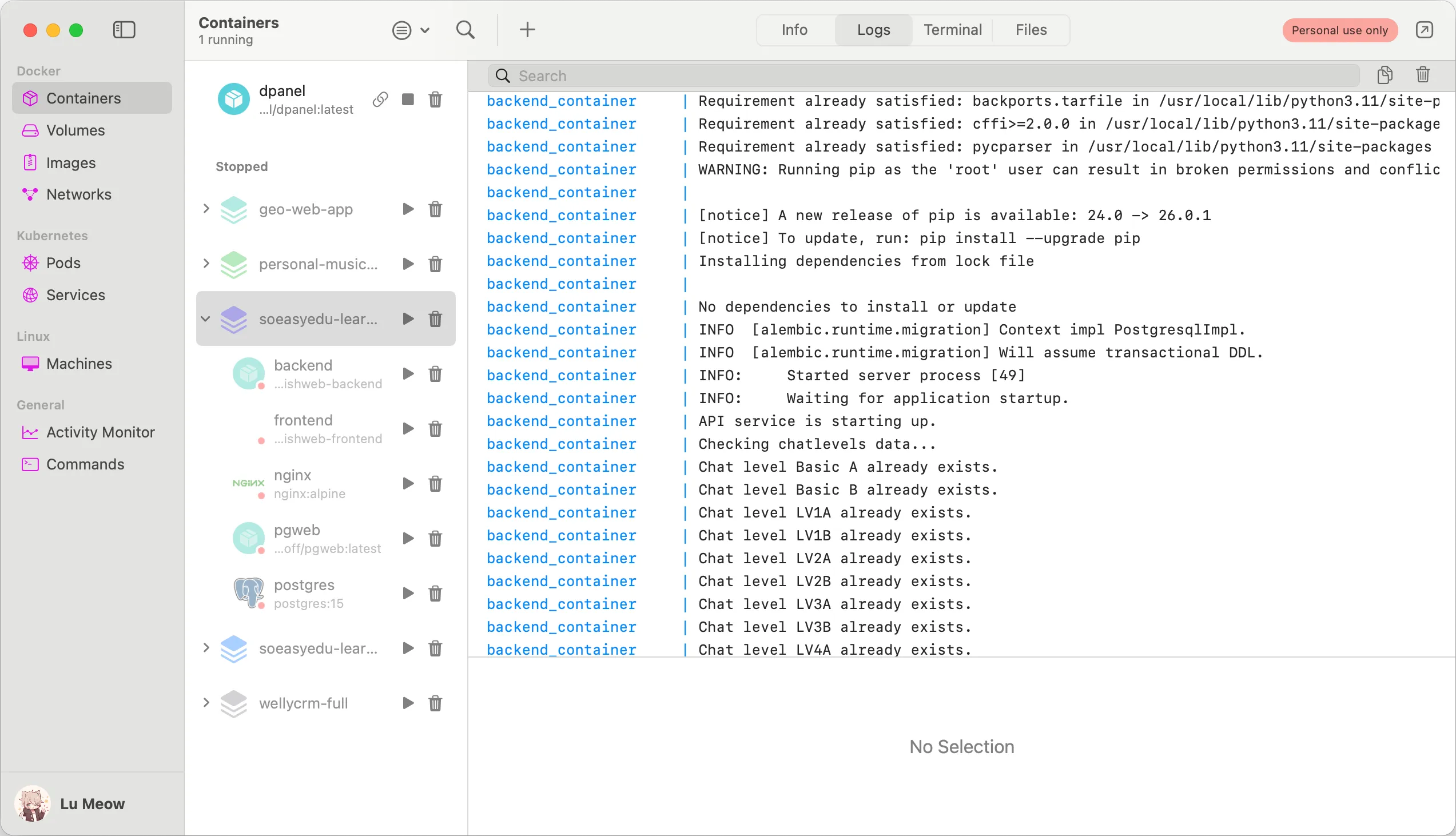
The Logs tab just shows them — no hand-typing docker logs -f. But what’s actually useful is — when you select at the container group level, it merges all service logs into one view, and color-codes each service’s name (that blue backend_container prefix in the screenshot).
The most annoying part of debugging a full-stack project is nginx, backend, and frontend logs each living in their own terminal window that you keep switching between. OrbStack merges all service logs into one stream and uses color to distinguish source, so you see the complete chain — “frontend made a request → nginx received it → backend responded” — at a glance.
Terminal Tab: One-Click Into Container Shell
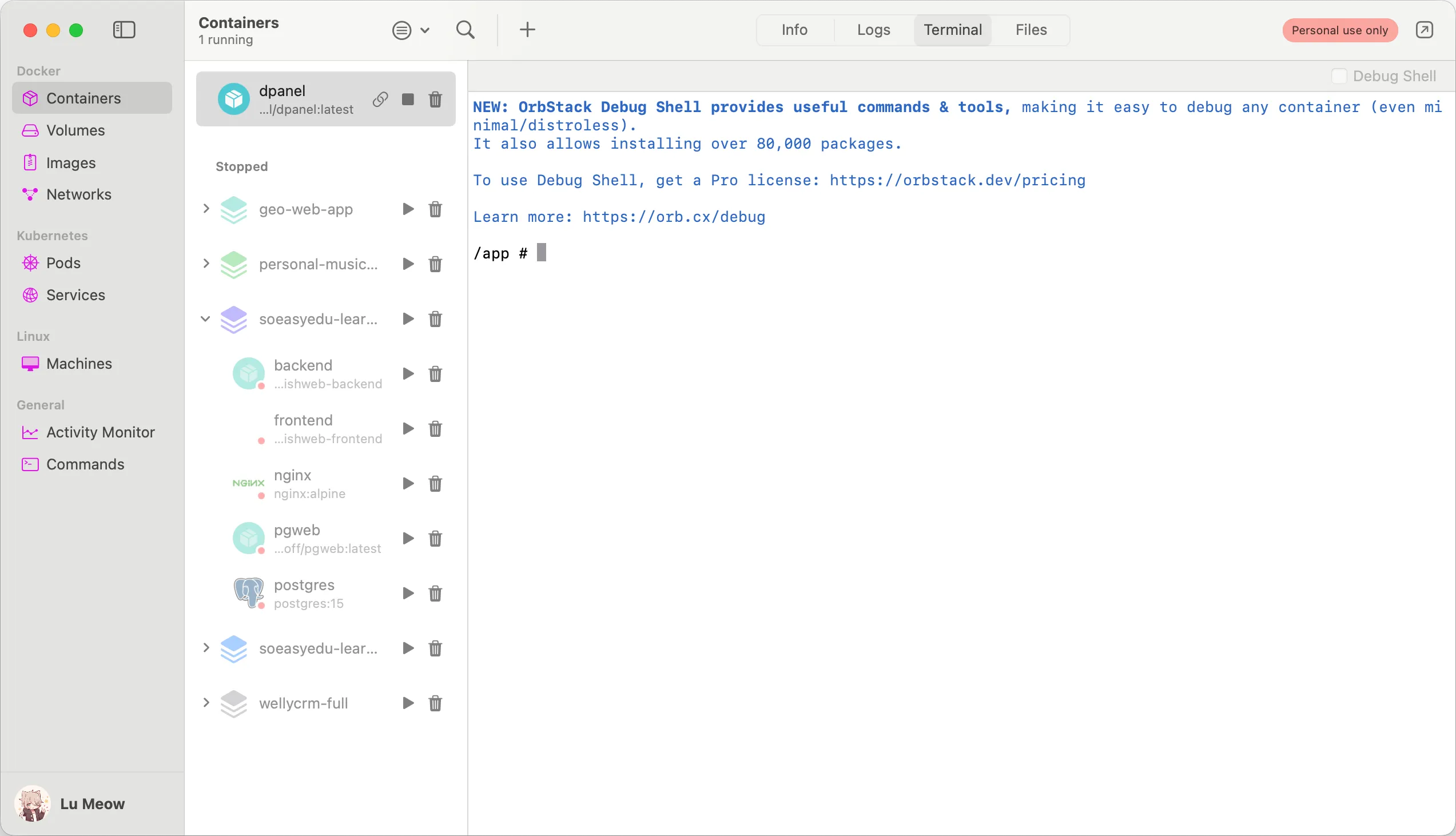
One click and you’re in the container’s shell, no hand-typing docker exec -it ... sh.
There’s also an advanced feature called Debug Shell — flip the toggle in the top right and it drops you into an environment packed with built-in tools (80,000+ packages available), and it even works on distroless/minimal images (ones that have no shell and normally can’t be entered at all). Debug Shell requires a Pro license; the regular terminal is free.
Files Tab: Browse Containers Like in Finder
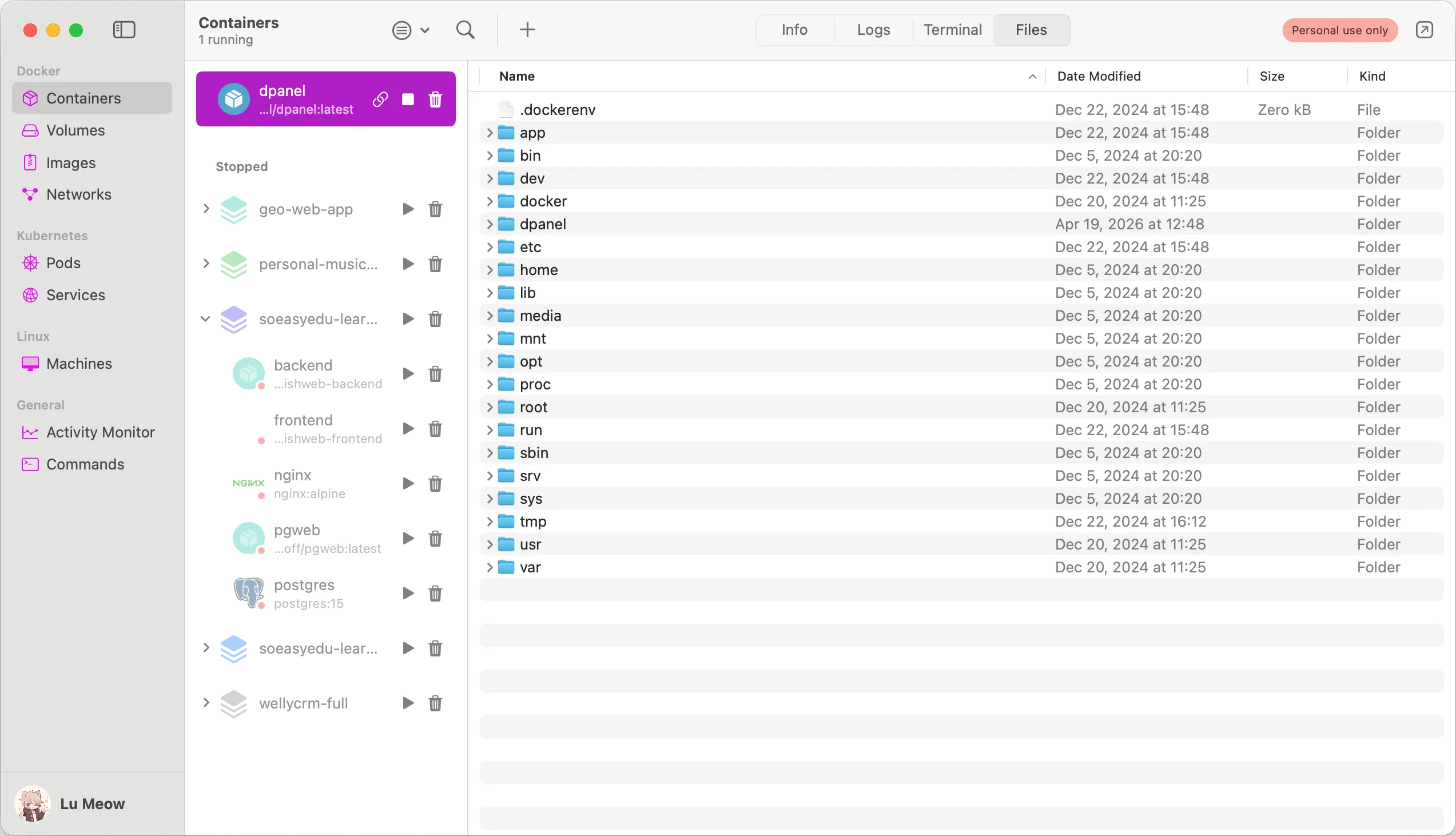
Browse the container’s filesystem directly in a Finder-style interface. Especially handy for debugging questions like “did my mounted config actually make it in” or “is this env file at the right path” — instead of docker exec-ing in and cat-ing, just open the Files tab and look; you can even open files for editing on the host side.
Installation
Step 1: Stop and Uninstall Docker Desktop
OrbStack and Docker Desktop both compete for the same /var/run/docker.sock socket, and running them simultaneously will absolutely conflict. So the first step before switching is to fully uninstall Docker Desktop — not just close it, actually uninstall.
Open Docker Desktop → the bug icon in the top right (Troubleshoot) → Uninstall. Or drag /Applications/Docker.app to the trash directly — that works too, but the built-in uninstaller cleans up more thoroughly.
Step 2: Install OrbStack
Via Homebrew:
brew install --cask orbstackOr download the .dmg from the official site and install manually — same result.
Step 3: First Launch and Data Migration
Once OrbStack opens, it detects leftover Docker Desktop data on your system and offers a Migrate from Docker Desktop option automatically. Click it and your images, containers, and volumes all migrate — no need to re-pull or rebuild manually.
If you miss the auto-migration prompt, you can trigger the same flow from the CLI:
orb migrate dockerAfter migration, run docker ps and you should see the same containers you had in Docker Desktop, now running on OrbStack’s engine. The same docker-compose.yml still works — same commands, same output — but with faster startup and a quieter machine.
Bonus: How to Uninstall OrbStack
This is a separate section because OrbStack modifies a few things at the system level when installed — it’s not just an app parked in Applications. If you only drag /Applications/OrbStack.app to the trash, the residue will cause socket conflicts and PATH issues the next time you try to install Docker Desktop or switch to a different container engine.
What OrbStack modifies:
- Puts a set of shims in
/usr/local/bin/, so commands likedocker,docker-compose,kubectl, andorbpoint to OrbStack’s own binaries - Registers its own Docker context
- Stores data in
~/.orbstackand~/Library/Group Containers/HUAQ24HBR6.dev.orbstack
Step 1: Switch Docker Context Back
If you plan to reinstall Docker Desktop or switch to another engine, switch the Docker context back first — otherwise docker will still try to find OrbStack’s socket:
docker context use default
docker context rm orbstack
Step 2: Remove the OrbStack App and Data
This is the full removal step from OrbStack’s official docs — drag the app from Applications to the trash, then:
rm -rf ~/.orbstack
rm -rf ~/Library/Group\ Containers/HUAQ24HBR6.dev.orbstack
Step 3: Clean Up /usr/local/bin Symlinks
This step isn’t in the official docs, but OrbStack puts a set of shims in /usr/local/bin that become dangling pointers once the app is gone:
rm /usr/local/bin/docker /usr/local/bin/docker-compose /usr/local/bin/kubectl
rm /usr/local/bin/orb /usr/local/bin/orbctl /usr/local/bin/docker-credential-osxkeychain
If you’re installing Docker Desktop next, it’ll create its own set of symlinks — you can skip this step. But for switching to something like colima or Apple Containers, you’ll want to do it. Finally, open a new terminal window and run which docker to confirm nothing points to OrbStack anymore — that’s clean.