There are more AI tools than ever, and the hardest part is no longer deciding which model is “the strongest.” The real problem is trying to force every task through the same tool. Research, coding, presentations, meeting notes — all of them can involve AI, but they need different source material, output formats, and levels of reliability.
My conclusion is that an AI engineer workflow should not be built around one universal tool. It should start by separating the work into scenarios, then assigning each AI tool to the job it is actually good at. This post breaks down how I currently combine Multica, Claude Code, Codex, and Gemini across knowledge gathering, development, design, and everyday tasks, while deploying the knowledge worth keeping to know.lumakes.com.
Core Logic: Split by Scenario, Then Pick the Tool
I no longer start with “which AI tool is best?” I start with the capability the task needs. For repeatable workflows, I use a tool that can schedule tasks, assign roles, organize outputs, and trigger the next step. For long-term knowledge, I use a structure that Git, Markdown, and agents can work with directly. If I need to write code, I use a tool that understands project structure and can edit files. If I need to operate on personal data, I use the tool most deeply integrated with my calendar, email, and cloud storage.
Once the work is split this way, AI tools stop competing with each other and start acting like a set of workstations: Multica handles scheduled tasks and deployment, Notion acts as the daily news workbench, know.lumakes.com stores long-term knowledge, Claude Code handles primary development, Codex provides a second review perspective, and Gemini covers Google ecosystem and multimedia tasks.
If everything goes through one AI, it becomes a universal but unstable entry point. When each tool is assigned to the scenario it handles best, the overall workflow becomes more reliable.
Knowledge Gathering
In my AI toolbox, knowledge gathering is not just “collecting more material.” I split it into two workbenches: a long-term knowledge site, and a daily news workbench. Both belong under knowledge gathering, but they operate at different time scales.
Notion helps me see, filter, and temporarily hold the news that comes in every day. know.lumakes.com stores the material that is actually worth keeping as long-term knowledge. Multica runs the automation and deployment behind the scenes: news tracking is delivered into Notion by scheduled tasks, and the knowledge site is updated through a Multica deployment action once enough material accumulates.
Knowledge Site, Personal Digital Brain Site
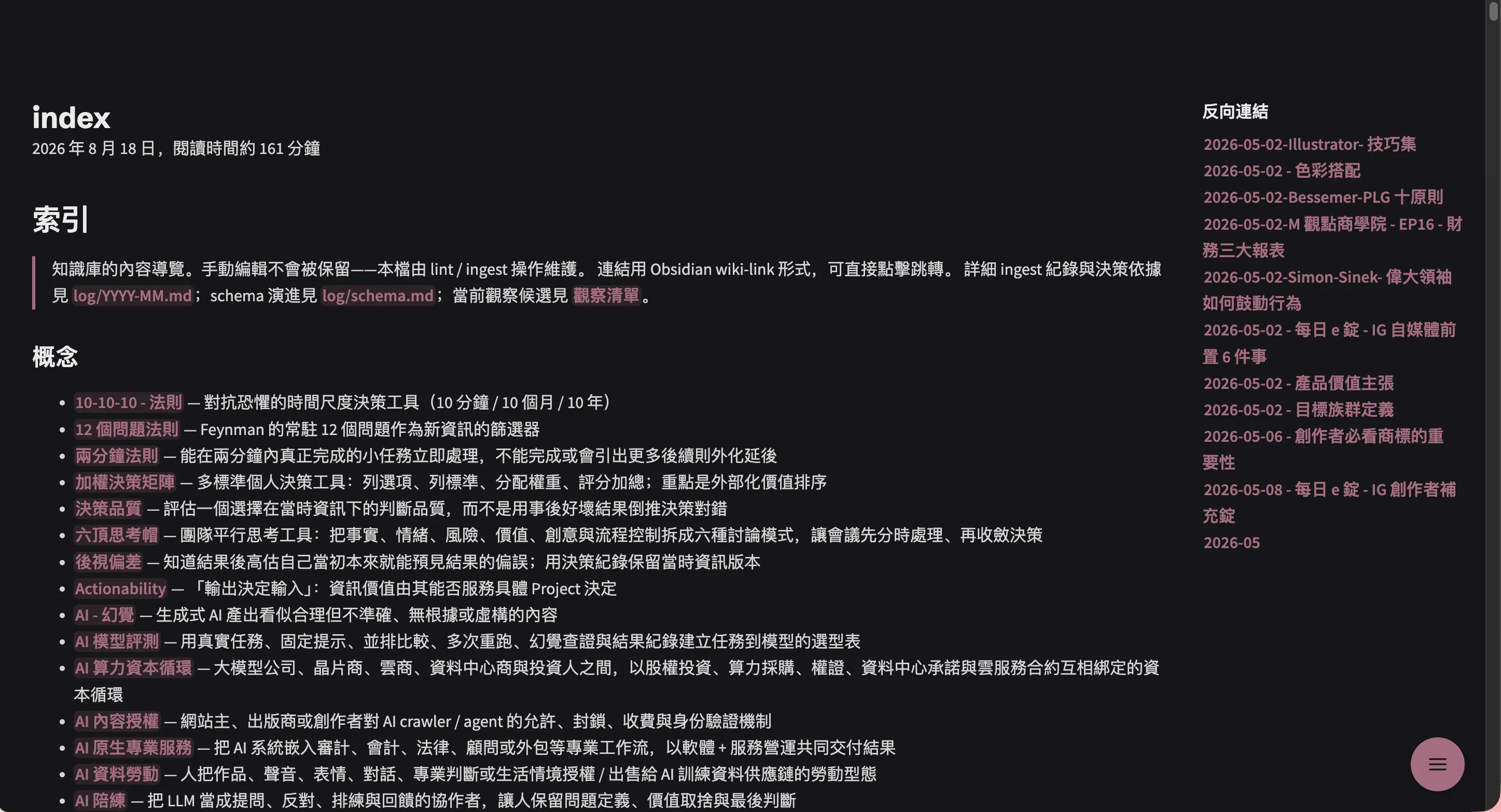
know.lumakes.com is my knowledge site, or personal digital brain site. It is not where every single news item goes. It is where organized knowledge goes after I decide it is worth keeping for long-term lookup.
The content is managed with Obsidian / Markdown, then exposed through the site as concepts, MOCs, recent ingest sources, and backlinks. For me, this layer answers “how do I find, connect, and extend what I kept?” rather than “what happened today?”
Daily News Workbench
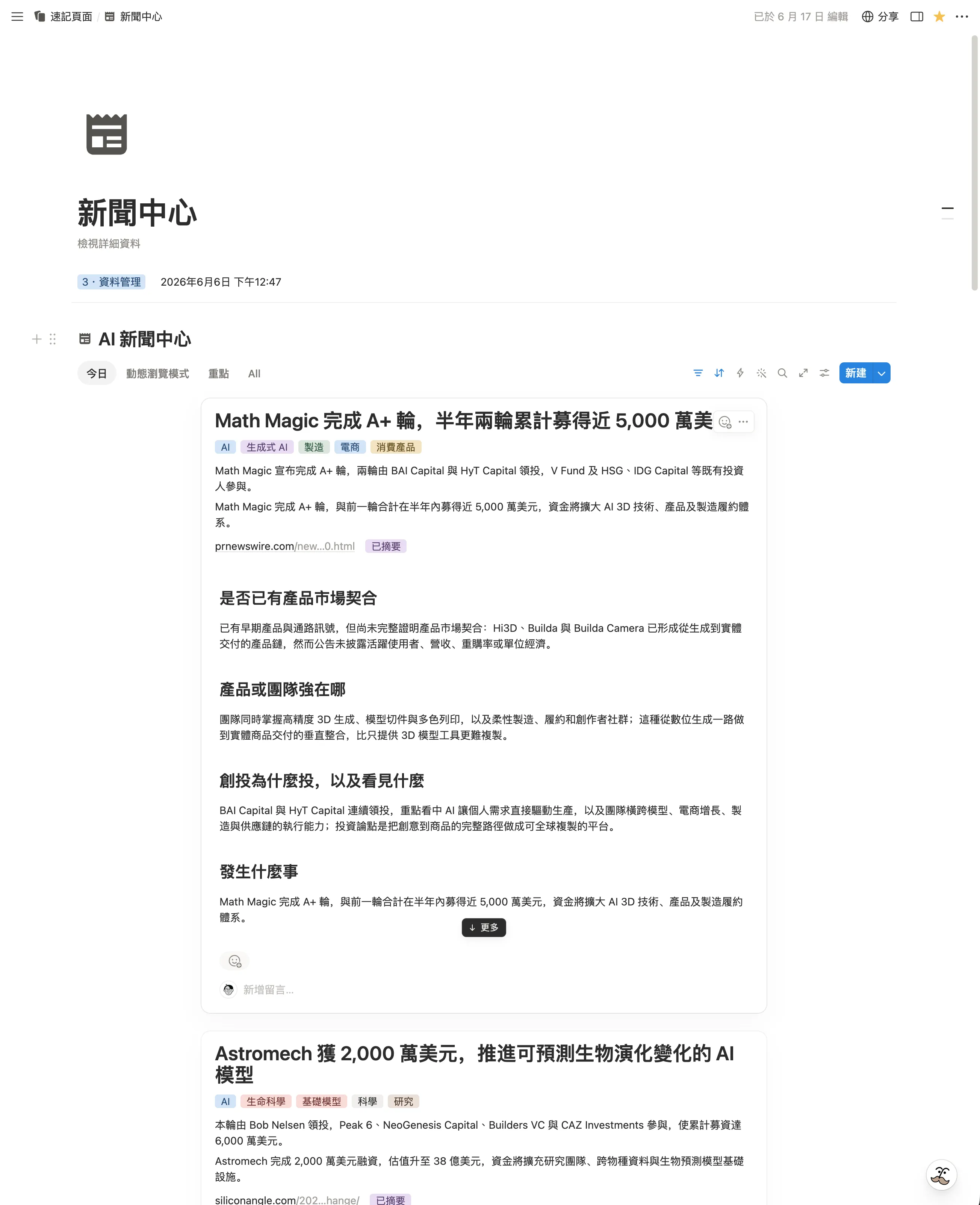
Notion is the daily news workbench in this flow. It receives AI news, product updates, and industry signals organized by Multica scheduled tasks, then gives me a database and browse mode for quick scanning.
The point of this workbench is not to turn every news item into long-term knowledge. It is to give incoming material a place to be seen, filtered, and tracked. Each news card exposes the title, tags, summary, and a few lines of judgment. I scan first, then move only the valuable material toward the knowledge site.
Execution Detail: News Enters the Daily Workbench First
For daily news, I let Multica handle the scheduled task. It follows the directions I set, organizes AI news, product updates, and industry signals, then writes them into the Notion news workbench.
When I actually read through them, I do not start from a table. I use Notion’s browse mode with the dynamic layout to scan cards first. That lets me quickly see what each item is about and which tags it may relate to. If something is interesting, I open it for the full context.
Execution Detail: Knowledge Moves Into the Digital Brain
Only after I decide that a news item, article, or source is worth keeping does it move into the knowledge-site layer. At that point, the goal is not to collect more. The goal is to turn the material into Markdown notes that can be looked up later, with concept links, MOCs, logs, or backlinks added where needed.
I do not deploy the site every time a tiny note changes. I let the material accumulate for a while, then trigger deployment from Multica so know.lumakes.com updates in batches. Notion handles daily browsing and tracking; the knowledge site handles long-term memory. Keeping those two roles separate makes the workflow much easier to maintain.
For the full workflow behind that knowledge site, I wrote more in How I Use AI for Personal Knowledge Management: My LLM Wiki Workflow. This post explains the tool split; that one explains how content becomes a knowledge structure that can be queried and maintained over time.
Software Development
For development work, I use a hybrid strategy: Claude Code as my primary tool and Codex for supplementary code review.
This section is about tool roles. If you are already running Claude Code and Codex side by side, I cover account switching and usage rotation in my multi-account Claude and Codex workflow.
Claude Code
 Claude Code
This is my primary AI development tool right now. In terms of code output, Claude strikes the best balance of speed and accuracy available today. My main use cases include:
- Writing code: Day-to-day feature development, refactoring, and debugging — all done inside Claude Code.
- Architecture discussions: Before starting a new feature, I discuss the architecture and implementation direction with Claude first.
- Documentation generation: I let Claude automatically generate technical docs and API documentation from the code.
Codex
 Codex
Codex
OpenAI’s AI development tool, which I mainly use for code review. The workflow goes like this:
- Once Claude Code finishes development, I have Codex review all the changes on the branch.
- I crank Codex up to its highest thinking level so it can thoroughly review the diff and produce a review report.
- I feed that report back into Claude Code for fixes.
- We go back and forth until Codex’s review comes back clean, then I push to remote.
Having two different AIs check each other’s work produces noticeably better code quality than relying on a single model.
Making This Combination Actually Work
The tool pairing is only half the equation — the other half is prompt quality. The same request, written well versus written sloppily, produces wildly different results, and the time spent debugging and reworking afterward is completely different. From “enter Plan Mode before you start typing” to “how to write an effective CLAUDE.md,” I’ve written up those principles in another post — My Claude Code Tuning Notes — Everyday Prompt Techniques. The principles apply to Codex and Cursor too.
Everyday Use
For day-to-day life, I reach for Gemini most often, mainly because of its deep integration with the Google ecosystem.
Gemini
 Gemini
Speech-to-Text (STT)
Gemini can process audio recordings and convert speech directly into text with a structured summary. This is something Claude and ChatGPT still can’t quite do. After meetings or when I finish a voice memo, I hand the recording to Gemini to organize into structured notes.
Google Ecosystem Operations
Since my calendar, email, and cloud storage all live in the Google ecosystem, Gemini can operate these services directly — creating events, checking schedules, searching cloud documents — without needing to switch between different apps.
Design and Presentations
Gemini Image Generation
Gemini’s image generation is solid, and I use it for image-based creative work. My technique for generating images:
- Use AI to analyze image structure first: Before generating, let the AI analyze a reference image’s composition, tone, and layout to produce a text description.
- Describe visual effects in text: Backgrounds, styles, atmosphere — describe these in words rather than supplying an image directly. Text communicates your intended direction more precisely, preventing the AI from misreading the intent of a reference image. You can also provide a reference image first, let the AI analyze it and produce an optimized text description, then use that description to generate.
- Only provide images when you need realistic reproduction: Things like logos or product photos that must be faithfully preserved — attach the original image for those. Everything else, leave it to the text description.
This approach gives the AI enough creative room while keeping the critical visual elements consistent.
Upscayl Image Upscaling
If a generated image doesn’t have enough resolution, I pair it with Upscayl for AI-powered upscaling — boosting resolution without losing quality. For more detail, check out the Mac Software — Design section.
Mac Software — Design — UpscaylAI Presentations
When making presentations with AI, I currently use three different approaches depending on what I need:
1. Canva — Template-Based Design
The most traditional and editable approach. I first use AI to organize the content outline for each section, then head into Canva to apply a template and finish the design. Best for situations where I need to produce something quickly and know I’ll be editing it repeatedly.
2. AI Image Generation — Custom Visual Style
Using AI image generation tools like Gemini to produce each slide as an image directly. This approach can achieve a highly custom visual style — much better-looking than templates — but the downside is that since the output is images, making text or content changes afterward is difficult.
3. AI Presentation Webpage — Beautiful and Editable
Ask the AI to generate a 16:9 presentation as a webpage. Just like image generation, you get a custom visual style, but because it’s a webpage, editing text, content, and styling becomes much simpler and more controllable. The only extra step is converting the webpage to PDF if you need to deliver a document.
Comparing the Three Approaches
| Canva | AI Image Generation | AI Presentation Webpage | |
|---|---|---|---|
| Editability | High, change anytime | Low, hard to edit images | High, edit HTML directly |
| Visual style | Limited by templates | Highly customizable | Highly customizable |
| Animation | Basic animations | None | Rich, supports CSS animations and interactions |
| Output format | PPT / PDF | Images | Webpage / PDF (requires conversion) |
| Best for | Quick output, frequent edits | Prioritizing visual style, no edits needed | Live presentations, demos |
My process usually runs in two steps: first have AI analyze the document and organize an outline, then use the outline to generate the presentation (defining the style at the same time). Here are prompt examples:
Step 1: Analyze the document and organize a presentation outline
Analyze the following document and organize it into a presentation outline.
For each slide, list:
1. Slide title
2. Core message (one sentence)
3. Key points to present (3-5)
4. Suggested visual elements (charts, images, icons, etc.)

Document content:
(paste document here)
Step 2 — Canva: Use the outline to apply a template in Canva
Take the outline and head into Canva to apply a template for each slide’s content.
Step 2 — AI Image Generation: Convert outline to slide images
Based on the following outline, generate 16:9 slide images one page at a time:
- Visual style: minimal, dark background, white text, rounded card layout
- Typography: modern sans-serif
- Color scheme: use ___ as the primary color

Outline:
(paste Step 1 result here)
Step 2 — AI Presentation Webpage: Convert outline to an interactive webpage
Based on the following outline, generate a 16:9 presentation webpage (HTML):
- Use fullscreen transitions between slides
- Support left/right arrow key navigation
- Visual style: ___

Outline:
(paste Step 1 result here)Tool Overview
| Scenario | Tool | Use |
|---|---|---|
| Knowledge gathering | know.lumakes.com | Knowledge site, personal digital brain site, long-term lookup |
| Knowledge gathering | Notion + Multica | Daily news workbench, scheduled tasks, browse-mode filtering |
| Development | Claude Code | Primary development, architecture discussions, documentation |
| Development | Codex | Code review, quality checks |
| Everyday | Gemini | Speech-to-text, Google ecosystem operations |
| Design | Gemini | Image generation, creative iteration |
| Design | Upscayl | AI image upscaling |
| Design | AI presentation webpage | 16:9 animated presentations, replacing traditional PPT |