I no longer think about input tools as “finding the best keyboard.” What actually affects input efficiency is broader than typing speed. There are three separate problems: how to get a large amount of thinking out quickly, how to keep everyday Chinese typing accurate and comfortable, and how to stop retyping things that should already be reusable.
So this post is not just a list of apps. It is my current input workflow: AI dictation for long-form and scattered thoughts, a regular Chinese input method for precise typing, and Raycast Clipboard plus Snippets for addresses, emails, templates, and other repeated text.
Split Input Into Three Layers
Input gets stuck when every situation is forced through the same tool.
If I am drafting a long message or trying to organize an idea, typing slowly can drag down the pace of thinking. In that situation, it is better to speak first, turn the rough thoughts into text, and then let AI help organize the result.
But if I am correcting words, choosing Chinese characters, entering punctuation, or writing a short precise sentence, dictation is not always faster. That is where a stable input method that matches my habits matters.
And for anything that should not be typed again at all, like addresses, email addresses, common replies, and fixed formats, the right answer is clipboard history and text snippets. The goal there is not to type faster. The goal is to avoid typing it again.
My current setup breaks down like this:
- Large-volume output: Typeless and SayIt
- Everyday Chinese typing: vChewing
- Reusable text: Raycast Clipboard History and Raycast Snippets
AI Dictation: Get the Rough Thoughts Out First
I use voice input not only to replace typing, but because my thoughts are often scattered by nature.
Sometimes one idea jumps to another before the previous one is fully formed. If I try to think, type, and edit at the same time, the whole process slows down. The biggest value of dictation is that I can speak everything out first and create a large amount of raw output.
Once the text exists, I can ask AI to group it into key points or rewrite it into clearer paragraphs. That saves a lot of manual restructuring.
Typeless
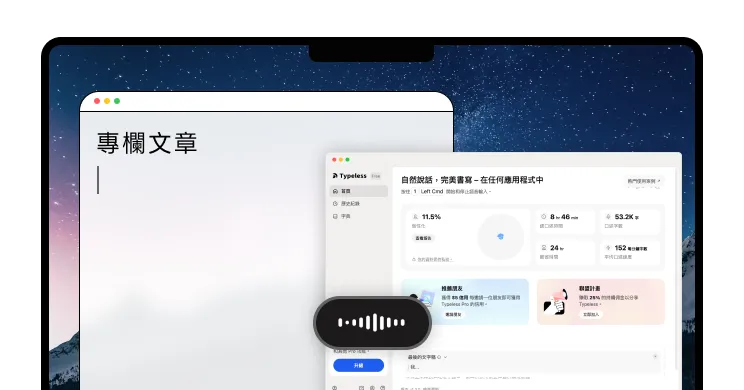
Typeless is my main AI dictation tool right now.
Its biggest strength is long-form dictation. When I speak for a longer period of time, Typeless is efficient, and after AI processing it is one of the more stable tools I have used for producing Traditional Chinese text. It is not just speech-to-text. It turns spoken language into writing that is easier to read.
After looking through its feature set, these are the parts that stand out to me.
First, Typeless does not simply generate a raw transcript. It adds an AI cleanup layer: removing filler words, deleting repeated phrases, detecting when you correct yourself mid-sentence, and keeping the version closest to what you actually meant. This is why I think it works well for long-form input. The hardest part of dictation is not always recognition accuracy. It is whether the output becomes a messy transcript that takes too much effort to clean up.
Second, it auto-formats what you say. If you speak out a list, a sequence of steps, or several key points, Typeless can turn that into cleaner paragraphs or bullet points. That makes it useful for long messages, article drafts, rough notes, or preparing AI prompts.
Third, it supports personalized style, a personal dictionary, and multilingual input. Typeless says it adapts to your tone, phrasing, and writing habits over time, and the dictionary helps names, terms, and repeated expressions stay accurate. This matters for long-term use, because if a dictation tool keeps getting your proper nouns wrong, all the time you saved gets spent fixing terminology afterward.
Fourth, it is not limited to one text box or one app. Typeless is designed to work across apps and supports macOS, Windows, iOS, and Android. That makes it feel more like a voice keyboard layer than a speech-to-text feature inside a single app.
The downside is also clear: my current usage is constrained by a weekly 8,000-character quota. For occasional use, that might be enough. But if you use dictation as a daily input tool, the limit starts to feel tight.
Limited free quota, subscription for full use Typeless Official SiteSayIt
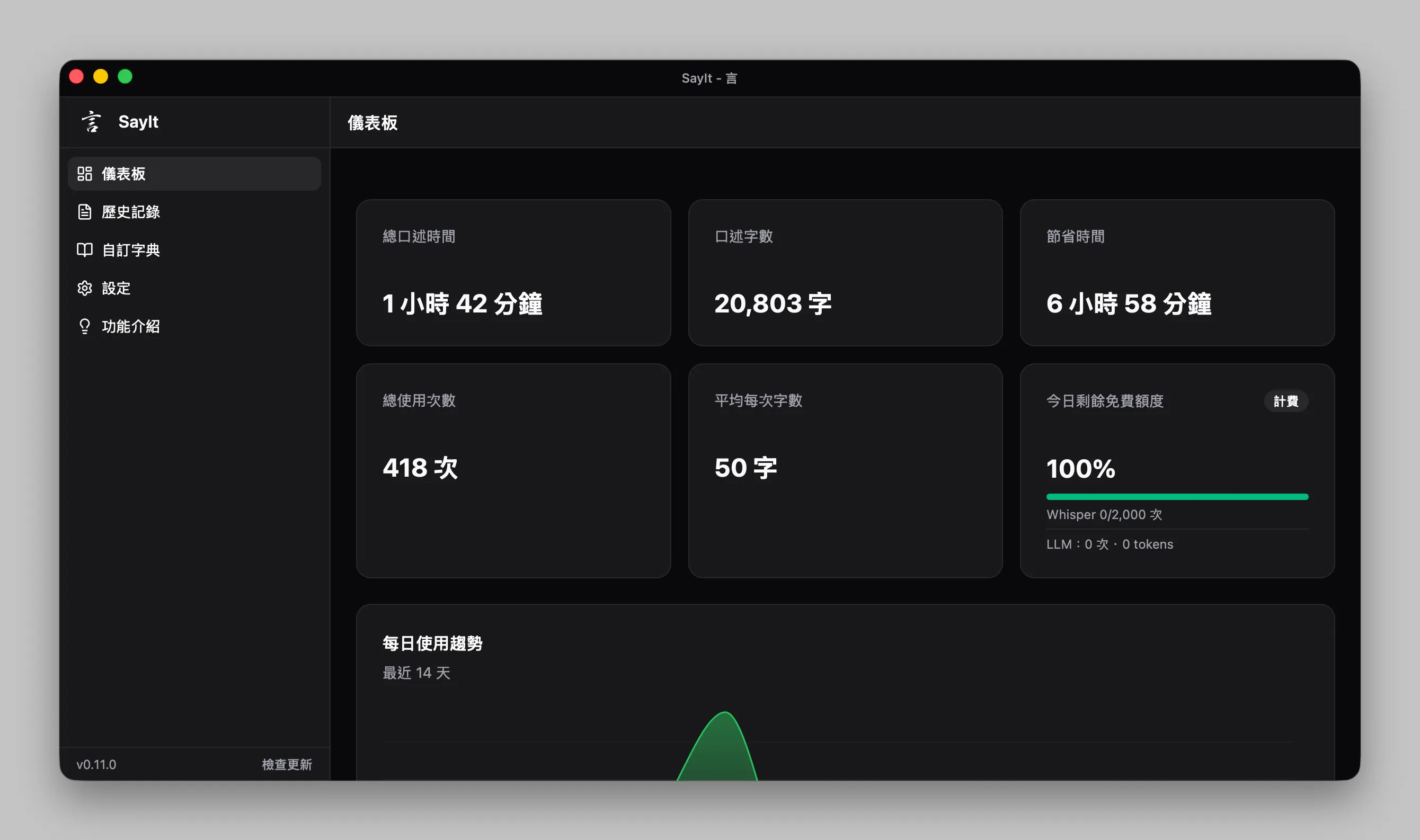
SayIt is more of a backup tool for me.
The interaction is straightforward: hold a hotkey, speak, release, and the text gets pasted at the cursor. This “hold to talk, release to paste” model is great for quick daily input. You do not need to switch windows or manually copy text back into the original app.
What makes SayIt interesting is that it uses a BYOK model, short for Bring Your Own Key. You provide your own API key and connect to providers like Groq, Google Gemini, OpenAI, or Anthropic. There is no extra subscription layer for the tool itself. For me, that makes the cost structure much more transparent: the app is open source, and the actual cost depends on which API you use and how much you use it.
The most notable part is its support for Groq’s Whisper API. Groq’s Speech-to-Text documentation currently lists whisper-large-v3 and whisper-large-v3-turbo, both aimed at fast multilingual transcription. SayIt wraps that into a desktop app that is much easier to use day to day: set the API key, trigger recording from any app, transcribe the audio, then let an LLM refine it into written text.
I also like the dashboard. It shows dictation statistics, usage trends, and how much daily free API quota is still available. This is very practical, because the most stressful part of API-based tools is not knowing how much you have used. SayIt makes the remaining quota and usage visible, which lowers that mental overhead.
There are also several useful customization options. It supports a custom dictionary so proper nouns are less likely to be misrecognized. The AI refinement mode can be conservative, only fixing typos and removing filler words, or more active, restructuring the output into bullet points. You can also use a custom prompt to control the output style. There is also a short-text threshold: below a certain word count, SayIt can paste the raw transcript directly instead of letting AI over-edit a short command.
For long-form dictation, I still think SayIt is not as strong as Typeless. When the recording is long and the ideas are scattered, Typeless usually produces a more stable result. But SayIt is still a very usable open-source option, especially as a backup when the Typeless quota runs out.
That is why I keep SayIt in the second slot: Typeless as the main tool, SayIt when I hit quota limits, need a different cost model, or want more control over prompts and providers.
Open source, API usage billed separately SayIt Official SiteRegular Chinese Input: Precision Still Belongs on the Keyboard
AI dictation is great for high-volume output, but it does not fully replace a regular input method.
For correcting text, writing short sentences, choosing Chinese characters, and entering punctuation, the keyboard is still more precise. Since I type a lot every day, small differences in character selection, symbol input, and language switching become real friction over time.
The reason I wanted to move away from the native macOS input method is that its character selection, punctuation flow, and switching behavior do not fully match my habits. For low-frequency use, that may not matter much. But when your input volume is high, these details start to affect overall efficiency.
McBopomofo
I previously used McBopomofo, and it is a very good input method.
McBopomofo focuses on being lightweight, stable, and easy to use. If you simply want something smoother than the native macOS Zhuyin input method, it is already a strong choice.
I did not switch away because McBopomofo was bad. I switched because I wanted more detailed control, especially around symbol input, language switching, and personalization. That is what led me to vChewing.
Open source, free McBopomofo Official SitevChewing
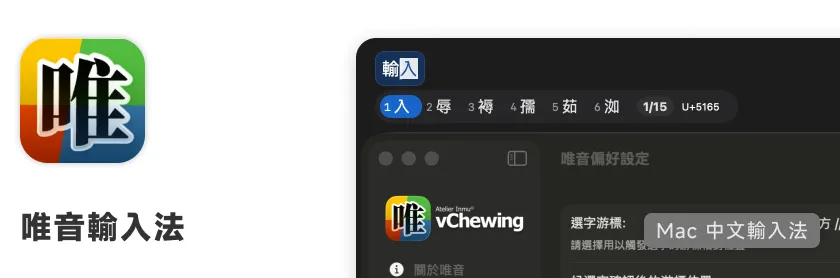
vChewing is the Chinese input method I switched to and currently recommend more.
There are three main reasons.
First, the symbol selection is better organized. The interface is cleaner and easier to use. This sounds minor, but if you often enter punctuation, brackets, or special symbols, the flow directly affects typing rhythm.
Second, vChewing supports a Windows-like Shift language switching mode. For people who recently moved from Windows to macOS, this is very friendly. The hardest part of switching to a Mac is often not the tool itself, but the fact that your muscle memory suddenly stops working. vChewing makes that transition smoother.
Third, vChewing has a lot of settings for detailed personalization. For heavy typists, that matters. Everyone has slightly different habits for character selection, punctuation, and language switching.
So if you want a simple and stable replacement input method, McBopomofo is already very good. But if you want to tune the details closer to your own typing behavior, vChewing is worth trying.
Open source, free vChewing GitHub ReleasesRaycast Clipboard: I Do Not Need a Separate Clipboard Manager
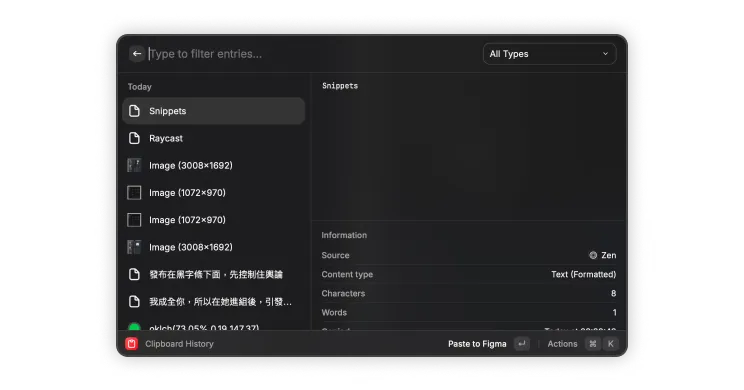
Clipboard tools are one of the most underrated categories of productivity tools.
When people talk about input efficiency, they usually think of keyboards, input methods, or dictation. But in daily work, a lot of text should not be retyped at all. Links you copied a minute ago, a paragraph you need again, an address, an account name, or a fixed format: if you keep searching for them or typing them again, that is wasted effort.
Right now I use Raycast Clipboard History directly. Raycast’s built-in clipboard history is good enough for me, so I do not feel the need to buy a separate clipboard manager.
Once the hotkey is set, I can quickly bring up the list of recently copied items. My shortcut is Command + Shift + V. It is easy to remember because it is just normal paste with one extra Shift.
My usage is simple: copy things as usual, and when I need something from a few copies ago, press Command + Shift + V, select the item, and paste it. That covers most of my daily clipboard needs.
Raycast Snippets: Turn Fixed Text Into Templates
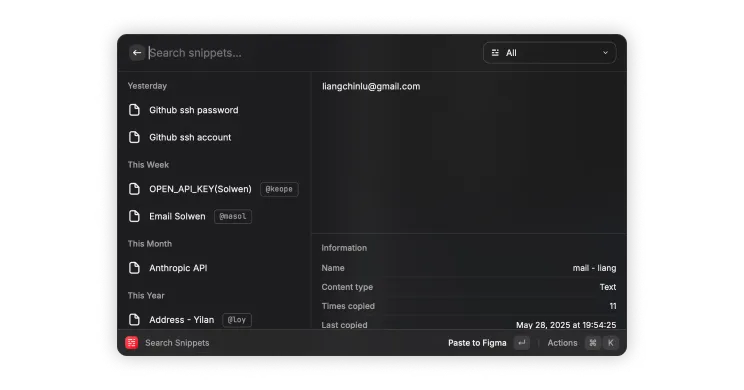
Clipboard history handles things I copied recently. But if a piece of text is something I know I will reuse again and again, I put it in Raycast Snippets.
For example: common addresses, email addresses, and fixed-format text. These should not live in a note that I have to search through, and they definitely should not be typed from scratch every time. Once they are in Snippets, I can call them up directly.
My shortcut is Command + Shift + Space. It only takes a small hand movement to open the window, choose the snippet, and paste it.
I separate Raycast Clipboard History and Snippets like this:
- Clipboard History: recover something I copied recently
- Snippets: store fixed text I reuse on purpose
Together, these two features cover most of my desktop clipboard and template needs.
Free to use, some features require a subscription Raycast Snippets DocsI Am Not Recommending a Mobile Clipboard Tool Yet
I originally considered including a mobile clipboard tool in this list, such as 水獺輸入工具.
But it seems to have been removed from the store, so I am leaving it out for now. The worst kind of tool recommendation is one where readers follow the article and cannot find the app, or the current version no longer works properly. It is better to keep watching than force it into the list.
For now, this article focuses on the tools I still use reliably and that readers can actually get: Typeless, SayIt, vChewing, Raycast Clipboard History, and Raycast Snippets.
Conclusion: Build an Input System, Not Just a Better Keyboard
The point of this setup is not to find one ultimate input method. It is to split different input situations into the right layers.
When I need to produce a lot of raw thought, I use Typeless as the main tool and SayIt as the backup.
When I need precise typing, character selection, and punctuation, I go back to vChewing. McBopomofo is still a strong option, but right now I need vChewing’s symbol handling, Shift switching, and detailed settings more.
For repeated text, I stop relying on memory or manual typing and use Raycast Clipboard History plus Raycast Snippets.
For me, this improves input efficiency more than simply switching to a different keyboard. What I save is not only typing time. The entire flow becomes smoother: getting thoughts out, cleaning up text, and reusing fixed content.