The built-in Cmd+Shift+4 and Cmd+Shift+5 are fine for casual screenshots and quick recordings, but the moment your work gets a little more demanding they hit a wall — capturing a long scrolling page, measuring pixels on a design mockup, producing a tutorial video that actually looks edited. None of that comes out of the box.
This is the toolkit I use on my Mac to handle the full screenshot and recording workflow: Shottr for static captures, Bob to step in when OCR isn’t accurate enough, and Recordly for tutorial videos (especially if you, like me, find Screen Studio too pricey). Three tools, each with a clear job, and the result looks polished without the hassle.
Static Screenshots: Shottr and Bob
Daily captures, measurements, redaction, and pinning all go through Shottr. Bob only steps in when I need OCR or translation and Shottr’s built-in recognition isn’t sharp enough. They aren’t competing — they split the work cleanly.
Shottr
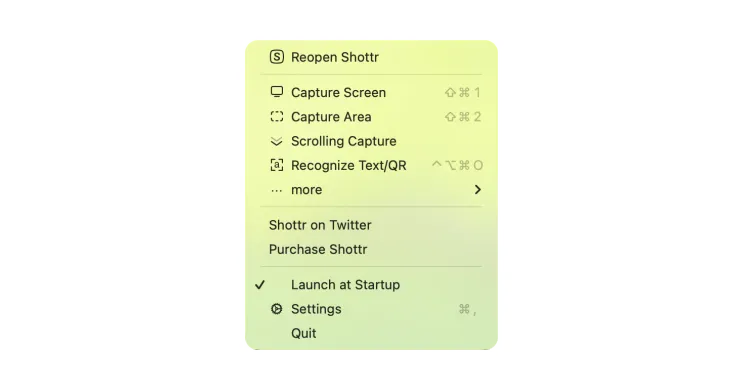
This is what I use to replace the macOS built-in screenshot tool. Native Swift, blazing fast to launch, and a tiny memory footprint — taking a screenshot never slows the system down. From the menu bar I can pick a capture mode directly, and these four are the ones I cycle through every day:
Four Capture Modes That Cover Every Scenario
- Full screen capture: grabs the entire screen, default shortcut
Shift+Cmd+1. For when you want to show the whole working context. - Manual area selection: drag to select any region, default shortcut
Shift+Cmd+2. Same logic as the macOS native tool, but more responsive and with smarter edge snapping. - Window/App capture: automatically frames the window of a chosen app, with edges, shadows, and rounded corners cleanly handled — the result is ready to drop into an article or a presentation.
- Scrolling capture: the feature that earned Shottr its place in my toolkit. Long web pages, long chat windows, long PDFs — one shortcut and it auto-scrolls and stitches everything into a single image. The seams are clean enough that you can’t tell where the captures join. The native macOS tool simply can’t do this.
Pixel Measurement and Color Picking
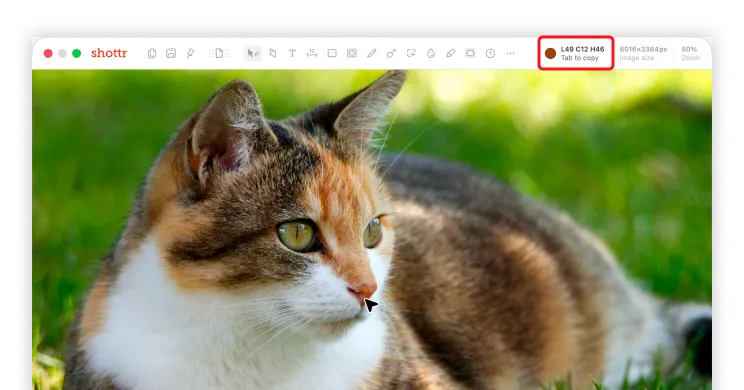
I lean on this constantly when I’m doing frontend work, reviewing design mockups, or syncing with a designer. Once you have the screenshot, you can measure distances and spacing and pick colors directly on the image — no need to reach for Figma or DevTools just to grab a hex code or check padding.
Redaction Without Opening an Image Editor
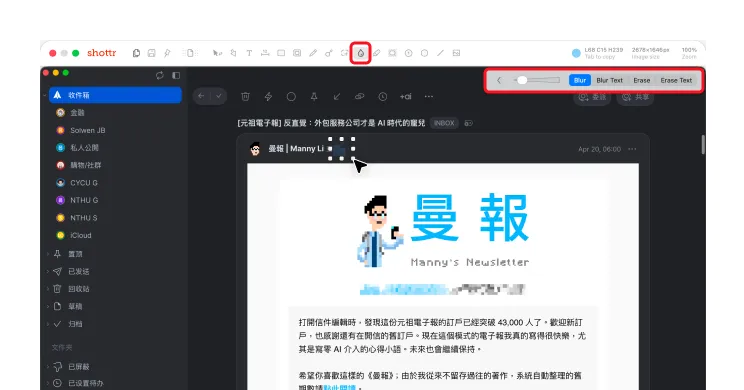
Drag a region and instantly blur or pixelate it. Indispensable for sharing screenshots of SaaS dashboards, emails, or chat threads. Beyond the standard blur and erase, there are also “Blur Text” and “Erase Text” modes that target text precisely, so you don’t end up smudging the whole layout into mush. Way faster than firing up Photoshop or Preview.
Pinning Screenshots as Reference Windows
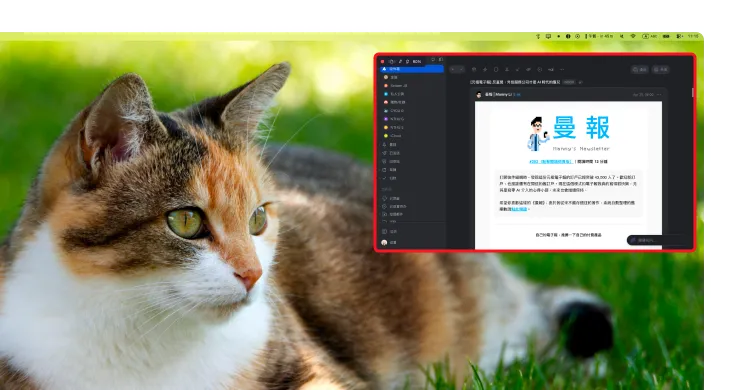
Pin a screenshot as an always-on-top floating window — perfect for design comparison, copying snippets, or any “look at this while I do that” workflow. No more Cmd+Tab ping-ponging; just leave the reference image floating in the corner.
Not Happy with the OCR? Try Bob for Sharper Results
Shottr’s built-in OCR is fine for English and numbers, but the moment you throw in Chinese (especially Traditional) or anything with a slightly tricky layout, accuracy drops noticeably. My fix: hand the OCR job over to Bob and let it back up Shottr.
Sharper Screenshot OCR
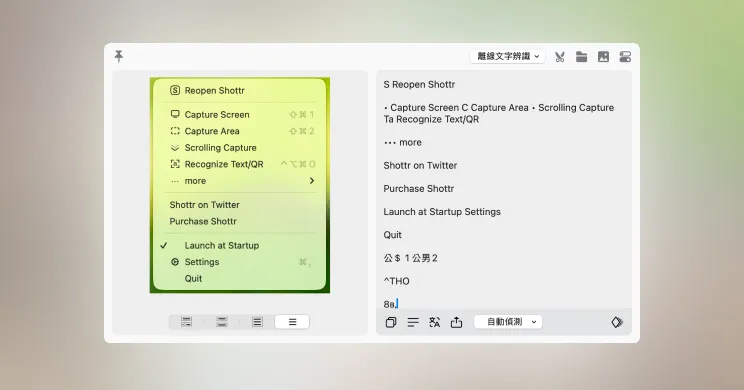
Bob’s OCR engine handles mixed Chinese-English layouts, small text, and low-contrast captures much better than Shottr’s built-in. Snap a Chinese document or an uncopyable on-screen dialog and almost every character comes back intact. Even on the example above — a menu with icons, indentation, and uneven contrast — Bob still pulls every line out cleanly.
Capture-and-Translate in One Shot
What really makes Bob shine is recognize-then-translate as a single step. Foreign-language video subtitles, screenshots of articles, anything you can’t select — capture it and you go straight from text to translation, no detours.
Multiple Translation Engines Side by Side
Bob supports Google, DeepL, OpenAI, and others, and can run several engines in parallel and place the results side by side so you can pick the most natural-sounding version. With technical terms, different engines produce surprisingly different output — and the side-by-side view is exactly what helps me choose.
My Workflow: Shottr First, Bob as Backup
Daily captures, measurements, pins, and redactions go through Shottr; the moment I need OCR or translation, I switch to Bob’s shortcut. The two shortcut sets don’t conflict, and the division of labor stays clean.
Free to use, paid one-time unlock for advanced features Bob Official SiteScreen Recording: Recordly (the Open-Source Alternative to Screen Studio)
You know that polished tutorial video where the camera auto-zooms wherever the cursor moves, transitions glide between actions, and everything feels designed rather than just recorded? Nine times out of ten, that’s Screen Studio. It really does look great — but the price isn’t friendly, and for someone who only needs to record a tutorial occasionally, the subscription feels hard to justify.
I use Recordly instead. It rebuilds the core experience of Screen Studio — capturing cursor positions during recording and turning them into automatic zooms and emphasis effects in post — as an open-source app. Free, runs locally, no subscription.
Recordly
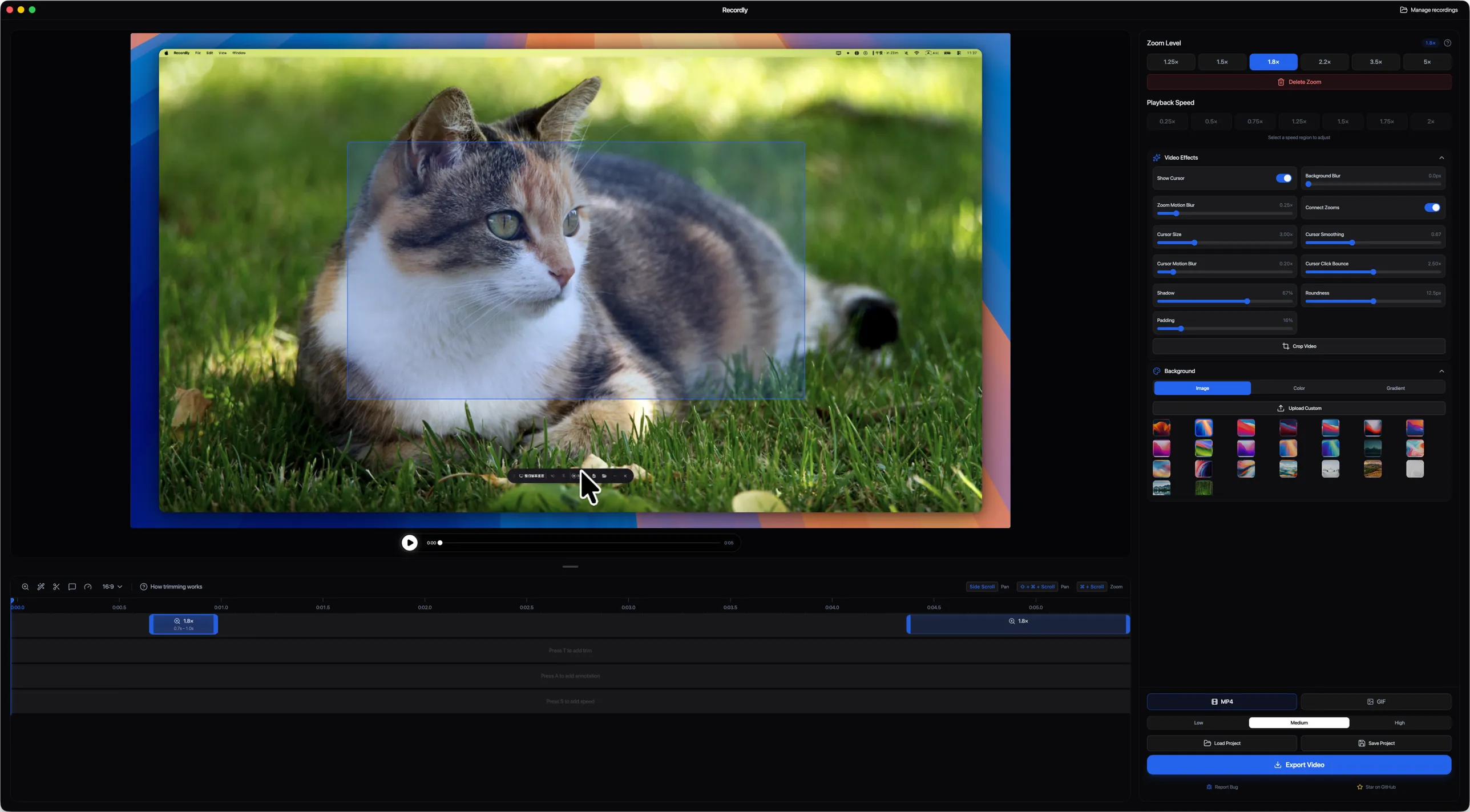
The moment you open Recordly’s editor, the inspiration is obvious — the right-side panel organizes zoom levels, playback speed, cursor effects, and background styles into clear categories, and you can drag zoom regions directly on the timeline. The whole layout will feel familiar instantly to anyone who’s used Screen Studio.
Auto-Zoom and Cursor Emphasis
While you’re recording, Recordly tracks cursor movement and clicks, and during editing it can auto-generate (or let you manually place) zoom-to-cursor effects. The biggest pain in tutorial videos is “wait, where am I clicking right now?” — auto-zoom solves half of that on its own. Click events can also be highlighted with a ripple effect so viewers can see exactly where you tapped.
Smooth Transitions and In-App Editing
Once you’re done recording, you don’t need to fire up a separate editor. Recordly has a built-in editing timeline — trim out dead air, add transitions, adjust speed — and the export is already a polished tutorial video. One stop, no need to install Final Cut or DaVinci Resolve just for this.
Why Recordly Instead of Screen Studio
Honestly, the price. Screen Studio’s polish is industry-leading, but for someone who only records a few tutorials a year, the cost just doesn’t pencil out. Recordly gets you maybe 70–80% of Screen Studio’s quality, but the cost is zero.
If recording is part of your job — content creator, product manager, engineer doing demos — and the budget is there, just go with Screen Studio. If you only need a screen tutorial once in a while, Recordly is more than enough.
This article focuses on Recordly. If your needs lean toward production-grade output where every detail of post-processing matters, take a look at the Screen Studio official site.