This is a roundup of the tools I use daily on my Mac — input methods, productivity utilities, system maintenance, and more. These tools often work in combination: Raycast acts as a central hub that ties everything else together, Pelmet keeps the menu bar tidy, BetterDisplay handles display settings, and so on.
Typing and Input
Typeless
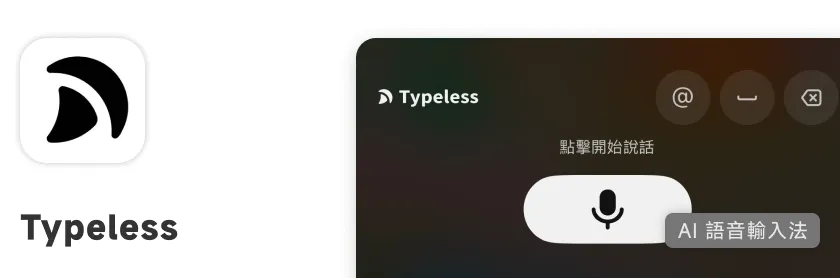
A voice input tool — but it goes well beyond simple speech-to-text.
Smart Cleanup
After transcribing your speech, Typeless automatically removes filler words and verbal tics, turning rough spoken language into clean, readable written text. You don’t have to go back and delete all the “uh,” “like,” and “so yeah” parts.
Content Organization
Even more useful: it can take a long, rambling stream of thoughts and reorganize them into structured, readable content. The output doesn’t read like a verbatim transcript — it comes out as something with clear structure that you can actually use.
Cross-Platform Support
Typeless works on nearly every major platform — Android, iPhone, and Mac. Wherever you are, you can use voice input to quickly produce text.
Free trial, then subscription-based Official siteSayIt
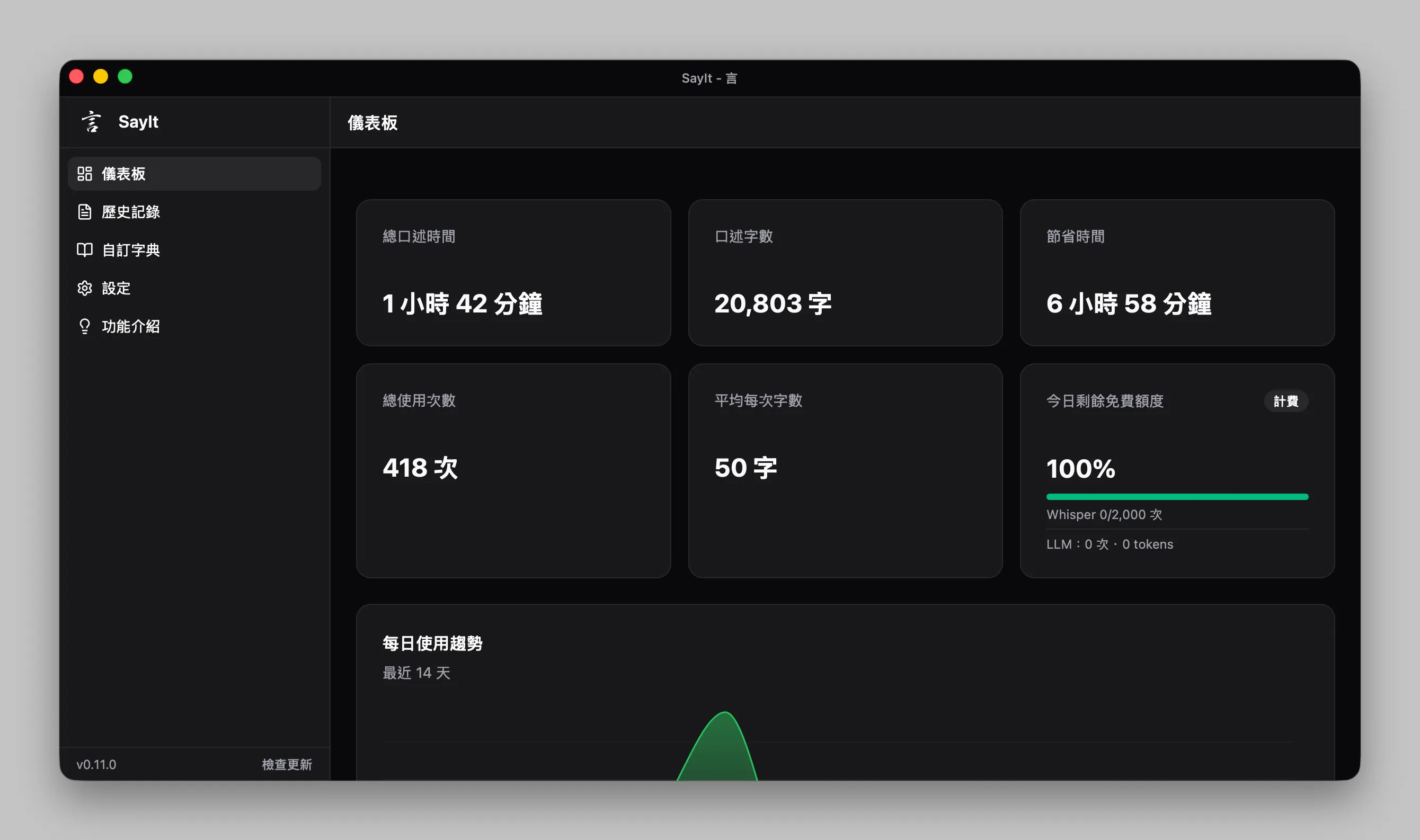
Also a voice input tool. I mainly use it as a backup when I’ve used up my Typeless free quota.
API-Based Pricing
Unlike Typeless, which requires a subscription, SayIt charges based on API usage — pay for what you use. More flexible for people with lower usage or who want tighter cost control.
How It Compares to Typeless
SayIt covers about 70–80% of the Typeless experience and works fine for everyday use. The more noticeable gaps: it handles very long transcriptions less well, and it’s less likely to read what’s currently on your screen to assist with context — so accuracy can be slightly lower in certain situations.
App is free, API usage billed separately Official siteCapsLockNoDelay

A tiny tool that fixes the delay you get when pressing CapsLock to switch input languages on a Mac. Once installed, the switch is instant — your typing rhythm never gets broken. If that native delay has ever annoyed you, this is the fix.
Open source, free GitHubvChewing (唯音輸入法)

An open-source Bopomofo (Zhuyin) input method. The overall typing experience and character selection logic are solid — it flows well. Occasionally there are minor bugs; stability could be better in some edge cases.
Highly Customizable
Supports on-the-fly phrase addition, deletion, and frequency adjustment, plus importing and exporting preferences via JSON. You have full control over your own lexicon and input behavior.
Typing Behavior Learning
Includes a phrase occurrence module (POM) that learns from your typing habits and adjusts character selection suggestions over time. The longer you use it, the more it reflects your preferences.
Multiple Keyboard Layouts
Supports standard Bopomofo as well as Hanyu Pinyin and other layouts, and can be combined with other input schemes.
Open source, free Official siteMcBopomofo (小麥輸入法) — occasional use

Another open-source Bopomofo input method, with a focus on being lightweight and straightforward. Easy to install, intuitive to use.
Smart Character Selection
Uses its own Gramambular2 segmentation engine with an n-gram language model for character selection, and achieves solid accuracy.
Cross-Platform Support
Besides macOS, there are Linux (fcitx5) and Chrome OS versions — seamless continuity if you also use a Chromebook or Linux machine.
Multiple Keyboard Layouts
Supports six layouts: Standard Bopomofo, Eten, Hsu, Eten-26, IBM, and Hanyu Pinyin.
Open source, free Official siteProductivity Tools
Raycast
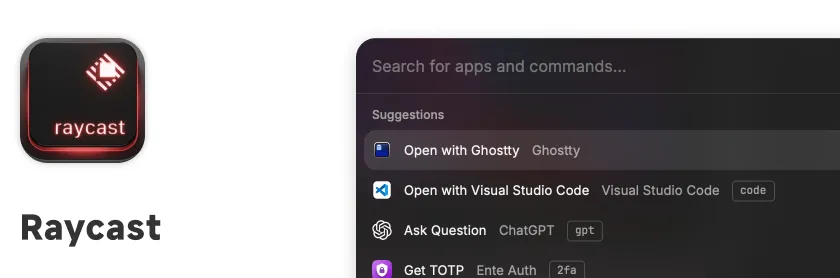
My replacement for Mac’s built-in Spotlight. Almost any routine task can be concentrated here.
Clipboard History
Built-in clipboard history lets you scroll back through everything you’ve previously copied — no more panic when you accidentally overwrite something on the clipboard.
Snippets for Quick Text Insertion
Set up custom text snippets with trigger keywords and expand them instantly. Useful for things like email addresses you type constantly or fixed response templates — type a few characters and the full text expands.
Store Plugin Ecosystem
Raycast has its own Store with a wide range of plugins. The ones I use most:
- Window Management: Raycast’s native window manager for quickly snapping windows to positions and sizes
- Homebrew: Install and manage services without opening Terminal
- Bitwarden: Quick password lookup
- Ente Auth: Search and copy 2FA codes directly from Raycast
- Calendar: Integrated calendar search, quick view of upcoming events
- Easy New File: Quickly create new files in any format
- Google Translate: Quick translations
- Amphetamine: Toggle sleep prevention on and off
- TinyPNG: Quick image compression
- Visual Studio Code: Quickly open recent projects or files
- Tabby: Quick SSH terminal session management
- Ghostty: Quick terminal access
Rectangle
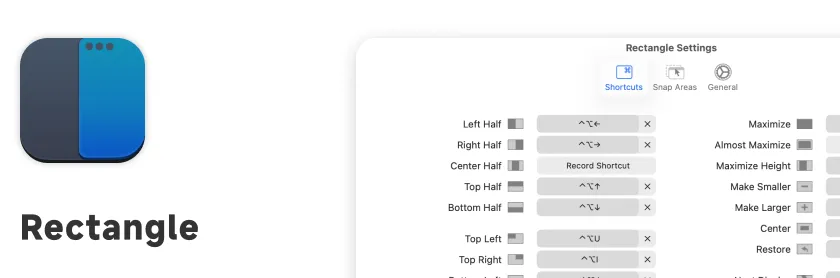
A free window manager. Keyboard shortcuts to snap windows to any position — left half, right half, quarters, and more. I always have a lot of windows open, and Rectangle makes organizing them much faster.
Open source, free Official siteShottr
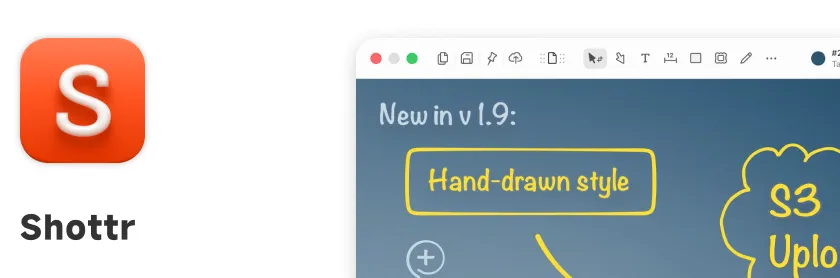
My main screenshot and annotation tool. Built with native Swift, it launches almost instantly and uses minimal memory.
Scrolling Screenshots
Captures content that extends beyond the visible screen area and stitches it into one long screenshot automatically. macOS’s built-in screenshot tool can’t do this, and it’s incredibly useful when you need to capture an entire page.
Pixel-Level Measurement and Color Sampling
Precise measurement and color picker right on the screenshot. I use this when working on front-end development or reviewing design specs.
Quick Blur and Mosaic
One-click blur or mosaic for sensitive content in screenshots — personal information, passwords, whatever you need to hide. Fast and easy.
OCR Text Recognition
Built-in optical character recognition. Extract text from a screenshot directly, without needing a separate tool.
Pin Screenshots
Pin a screenshot to float on top of everything else for reference — no constant window switching needed.
Most features free, paid version removes ads Official sitePelmet

Pelmet is the menu bar manager I switched to after moving to macOS 27. It separates items into Visible, Hidden, and Always Hidden sections, keeping unnecessary icons tucked away until I bring them back with a hover, click, or keyboard shortcut.
The reason I now recommend it is the menu bar architecture introduced in macOS 27, which lets the system natively hide and reflow items. Pelmet drives that mechanism directly, so collapsing, revealing, and rearranging icons feels more like part of macOS itself. In my experience, its animations and interaction speed have also been more stable than the tool I used before. Because it was rebuilt specifically for the new architecture, it only supports macOS 27 and later.
Open source, free, supports macOS 27+ GitHubDockDoor
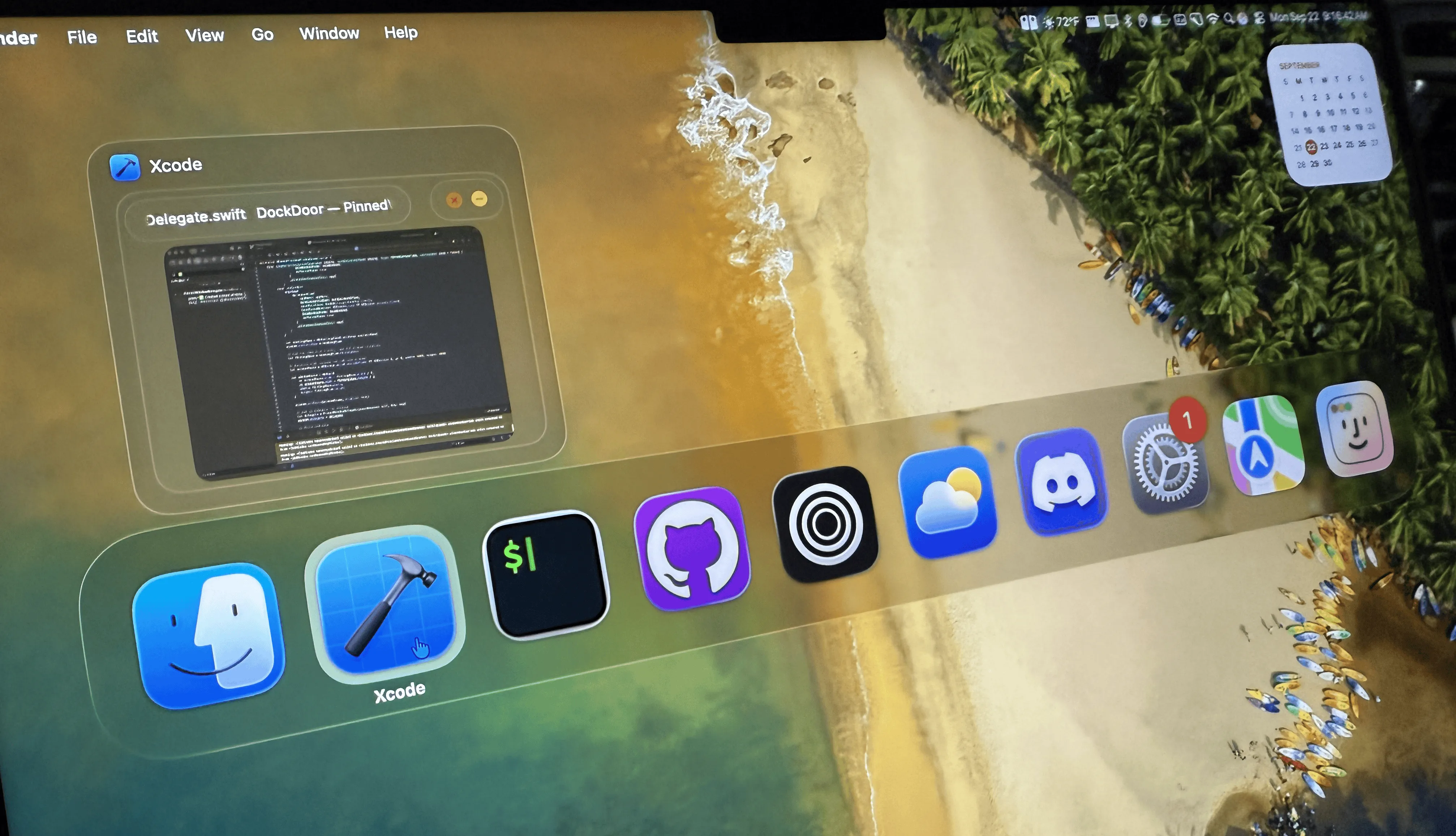
I recommend DockDoor because it is not just a replacement for AltTab. It fills in what the native macOS Dock is missing: visual window previews, search, and keyboard-driven window control.
Hover over a Dock icon to preview the window instead of switching through them one by one. When there are too many windows, use Option+Tab with search to get to the right one, then select, close, minimize, or quit from the keyboard. Native tabs in apps like Safari and Finder can also collapse into a cleaner preview. Since it is open source, free, and designed to stay lightweight, it fits people who want to keep the Dock but make window management smoother.
Open source, free, supports macOS 13+ Official siteBob
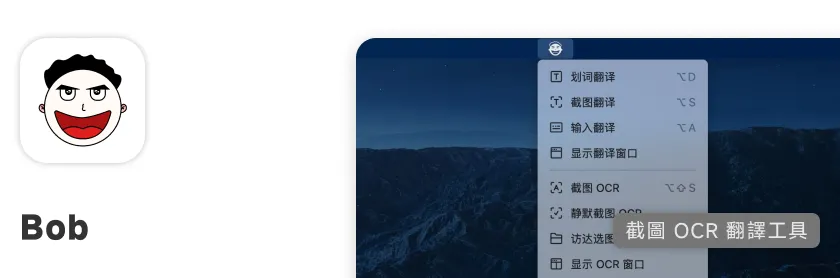
My translation and OCR tool on Mac. Works in almost any context without leaving the current window.
Select-to-Translate
Select any text and translate instantly. Works in virtually every Mac app — no window switching, no opening a browser, just select and go.
Screenshot Translation
Capture any area of the screen, recognize the text, and translate it. Great for images, video subtitles, and any text you can’t directly copy.
Multiple Translation Engines
Supports Google, DeepL, OpenAI, and more — and can show results from multiple engines side by side so you can pick the best one.
OCR Text Recognition
Offline OCR built in. Extract text from images and translate directly — very handy for content you can’t select.
Input Translation
Also works as a standalone translation window where you type text manually — for when you want to look something up proactively.
Free to use, paid one-time unlock for advanced features Official siteFile Management and Transfer
Dropover
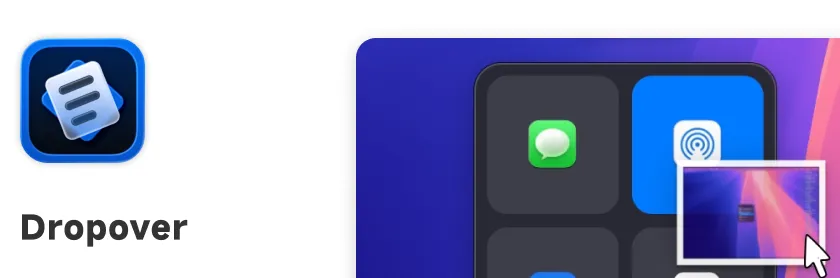
A drag-and-drop staging tool. When dragging a file, you can park it on a floating shelf and then drag it to its final destination from there. Especially useful when moving files between different windows or desktops.
Paid, one-time purchase Official site Further reading: Cross-Device File TransferBlip
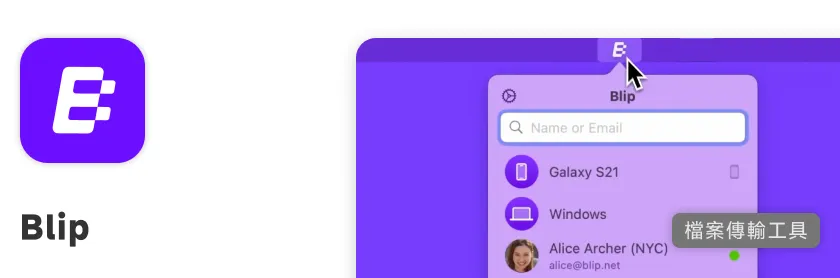
A cross-platform file transfer tool.
Transfer Across Networks
Unlike LocalSend, which only works on the same local network, Blip routes transfers through its own network infrastructure — so you can send files between devices in different locations without being on the same Wi-Fi.
All-Platform Support
Supports Mac, Windows, Android, and iOS — basically whatever device you’re holding.
Free, with some features requiring subscription Official site Further reading: Cross-Device File TransferLocalSend
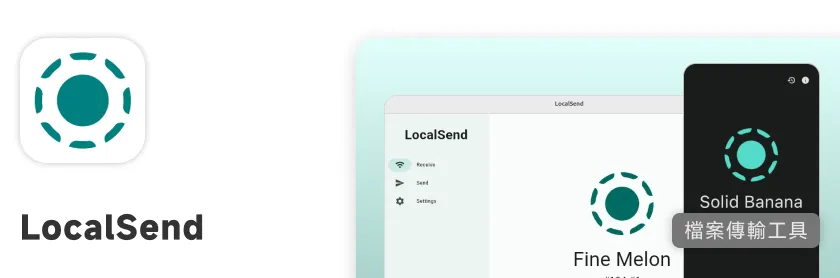
An open-source local network file transfer tool. As long as both devices are on the same network, you can transfer files directly.
Direct Local Transfer
No third-party servers involved — files go device to device. Compared to Blip, which routes through the cloud, LocalSend is faster when you’re on the same network.
Cross-Platform Support
Supports Mac, Windows, Android, and iOS. Open source and free — no subscription concerns.
Open source, free Official site Further reading: Cross-Device File Transferrclone
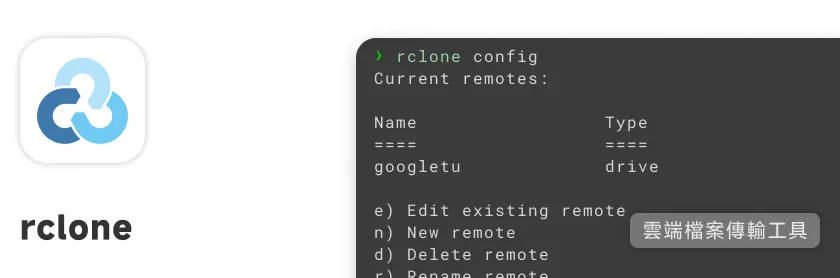
A command-line cloud storage management tool that supports a huge number of cloud services — Google Drive, OneDrive, S3, and more.
Sync and Backup
Sync, back up, and move files between local storage and the cloud with a single command. Invaluable if you need to run scheduled backups or migrate data between cloud services.
Mount Cloud Storage as a Local Drive
My most-used feature: mount a cloud drive directly into the local file system and edit cloud files as if they were local. No download-edit-upload cycle — the workflow just flows.
Open source, free Official site Further reading: File Management SystemSecurity and Privacy
Bitwarden

An open-source password manager for all passwords and passkeys.
Password and Passkey Management
Stores credentials for websites and services, with support for the newer passkey standard. The browser extension makes autofill seamless — no need to remember anything.
Folder Organization
Organize accounts into folders — work, personal, finance, etc. Much easier to navigate when you have a lot of accounts.
Nearly Free
Bitwarden is one of the few password managers you can use at very low cost. The free plan covers the vast majority of everyday needs — a stark contrast to other managers that charge hundreds in annual fees.
Why I Keep 2FA Separate
Bitwarden does have a 2FA code feature, but I don’t use it. Putting both your password and your two-factor code in the same place means if Bitwarden is compromised, both lines of defense fall at once. So I manage 2FA codes separately in Ente Auth.
Open source, free Official site Further reading: Password and Account ManagementEnte Auth
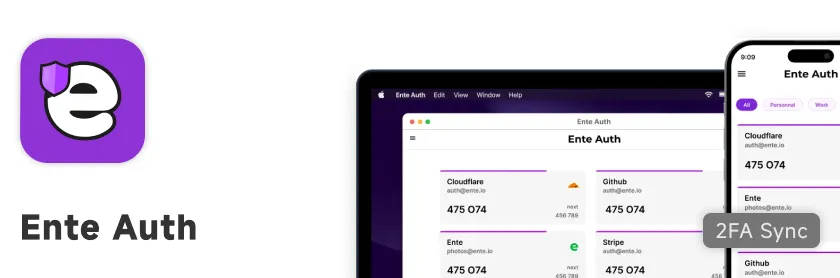
An open-source, free two-factor authentication (2FA) tool for managing verification codes across services.
Open Source and Free
Ente Auth is fully open source and all features — including end-to-end encryption and cloud backup — are free. You won’t lose your codes when switching devices, and you don’t have to pay for basic functionality.
Tag-Based Organization
Organize 2FA codes with tags — work, personal, social, etc. With a lot of accounts, filtering by tag is much faster than scrolling.
Raycast Integration
Works with the Raycast plugin system. Search and retrieve a verification code directly from Raycast, copy it, and paste — no need to open the Ente Auth window separately.
Setup steps:
- Install the Ente CLI tool and sign in.
- In Raycast’s Script Commands, add a new script with the
ente exportcommand. - Use the Raycast plugin’s import function to read the exported data and enable code search from within Raycast.
Tailscale
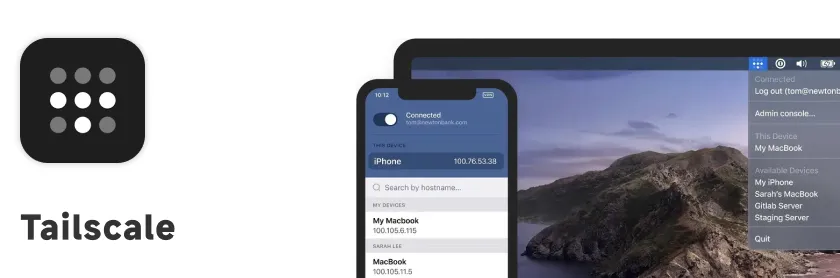
A WireGuard-based private network tool that connects devices in different locations into a single secure virtual LAN.
Access Internal Services
I don’t have a public IP, so I use Tailscale to reach services on my home network. Once set up, I can securely connect to home or office machines from anywhere — as if I were on the same local network.
Windows Remote Desktop
Combined with Windows Remote Desktop (RDP), Tailscale’s virtual network makes it easy to connect to a remote Windows machine even without a public IP. Stable connection, simple setup.
All-Platform Support with a Generous Free Tier
Tailscale is available on Mac, Windows, Linux, iOS, and Android. The free tier is generous — personal use almost never hits the limit. Easy to get all your devices connected.
Generous free tier, enterprise plans are paid Official siteSystem Maintenance
Homebrew

The most widely used package manager on Mac. Install, update, and remove software from the command line quickly. Most of my developer tools and everyday apps are installed through Homebrew — one command and it’s done.
Open source, free Official siteAmphetamine
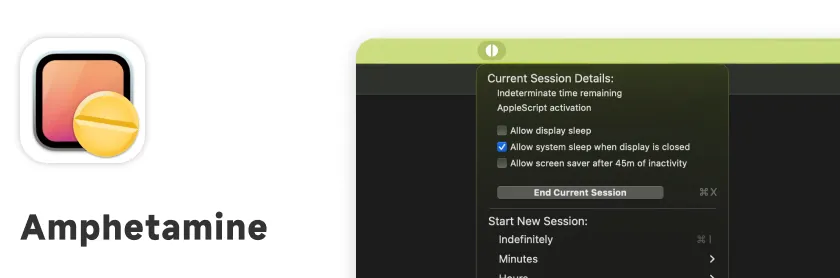
Prevents Mac from going to sleep automatically. You can configure conditions to keep the machine awake — useful when downloading large files or running long tasks so the computer doesn’t suddenly sleep on you.
Free App StoreTencent Lemon (腾讯 Lemon)

The Mac system cleaner I use. Free, clean interface, straightforward — covers most of what you’d need for routine maintenance.
Junk File Cleanup
One-click scan and removal of system junk, app caches, and leftover files to free up disk space and keep things running smoothly.
Large File Scanner
Quickly finds files taking up the most space so you can decide whether to delete them — especially useful when the disk is nearly full.
Duplicate File Detection
Scans for duplicates — photos, documents, music, etc. — and helps you remove the extras.
Complete App Uninstallation
Removes associated preferences, caches, and leftover data when uninstalling an app. Much more thorough than dragging to the trash.
Free Official siteMole
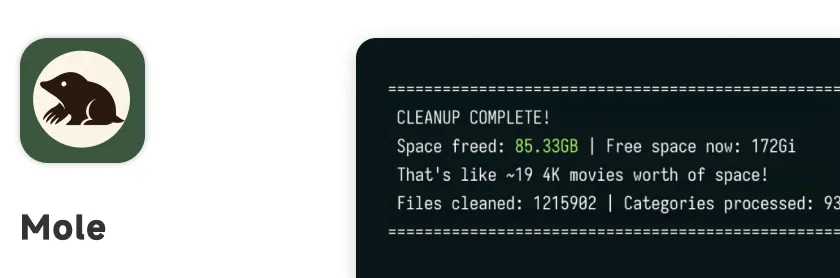
An open-source Mac system cleanup tool that runs from the command line and clears caches, temp files, and system junk in one sweep. Comprehensive and deep — good for people who want a more thorough clean.
Open source, free GitHubBetterDisplay
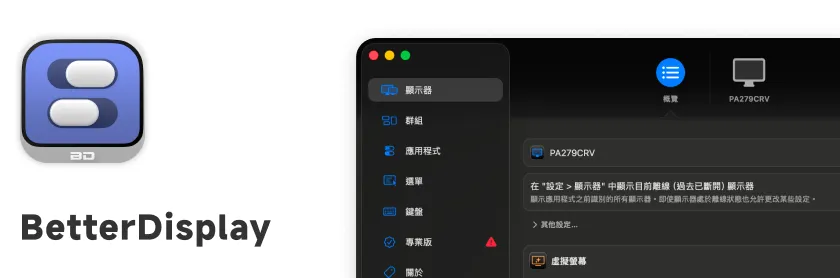
A display management tool for Mac that gives you finer control over external monitors — resolution, brightness, HDR settings, and more. macOS’s native display settings are limited; BetterDisplay fills in a lot of what the system doesn’t offer. Especially useful when working with external displays.
Free, Pro version is paid GitHubNetwork and Communication
Spark
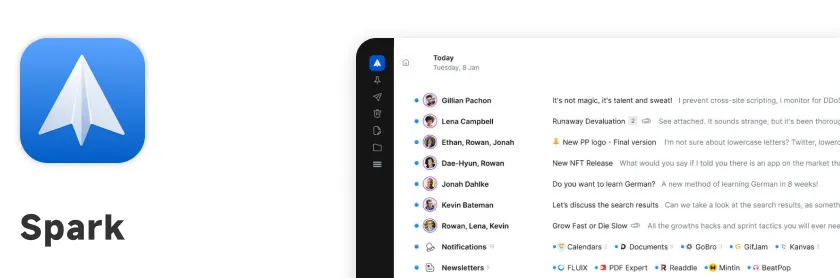
My main email client. Clean interface, handles high mail volume efficiently.
Multi-Account Unified Management
Combines Gmail, Outlook, iCloud, and other email accounts in one interface. No switching between apps — everything is in one place.
Smart Inbox
Automatically sorts email into Personal, Notifications, and Newsletters categories, so you can prioritize real messages and avoid being buried by notification floods.
Scheduled Send and Snooze
Schedule emails to send at a future time. Snooze read messages to have them reappear at the top of your inbox at a specified time — nothing falls through the cracks.
Calendar Integration and Meeting Reminders
Spark reads calendar information from your inbox. If there’s a Google Meet or similar meeting, it sends a desktop notification five minutes before the meeting — even without opening a calendar app separately.
Cross-Platform Support
Available on macOS, iOS, Android, and Windows. Same interface across all your devices.
Free, with paid advanced features Official siteNotion Calendar

My calendar management tool. Clean, good-looking, and completely free.
Multi-Account Integration
Manages multiple Google Calendar accounts in one place. Sign in with your Notion account and all linked calendars appear automatically — no extra configuration, all events visible in a single view.
Notion Database Integration
I run a system I call LifeOS in Notion, and Notion Calendar connects directly to those databases — so I can manage and track related tasks and events right from the calendar.
Menu Bar Mini Calendar
Shows a small calendar in the Mac menu bar for a quick glance at today’s schedule and upcoming events — no need to open the full calendar window.
Quick Meeting Link Creation
Quickly create meeting links and schedule events, with support for multiple calendar systems. For a free calendar tool, the scheduling and meeting experience is genuinely good.
Free Official site Further reading: Project Management and Task PlanningZen Browser
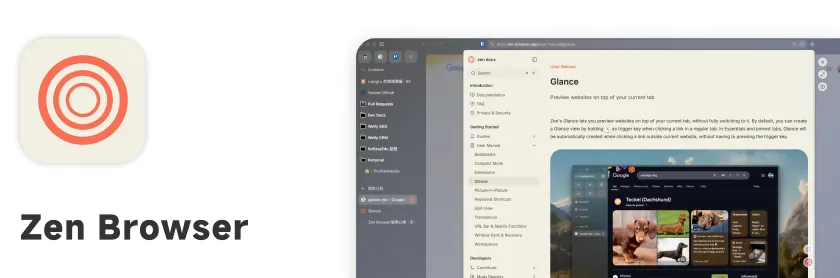
An open-source browser built on Firefox, reimplementing Arc’s workflow-centered UX on a Firefox foundation.
I used Arc for a long time — the best browser UX I’ve experienced. After Arc announced it was stopping development on major features, I switched to Zen Browser. Almost everything from the Arc workflow carries over, making it the closest successor I’ve found.
Workspaces + Vertical Sidebar
A vertical sidebar on the left manages tabs; swipe left and right to switch workspaces. Arc’s sidebar and Spaces, brought over intact. Each workspace has its own pinned tabs — work sites and personal sites stay separate without mixing.
Split View: Native Split Pane
Display two (or more) tabs side by side within the same window — no need to open two browser windows and manually position them. Great for comparing a document and code, or watching a video while looking something up.
Glance: Preview Links in an Overlay
Hold the trigger key (default Ctrl) and click a link, and the page opens in an overlay on top of the current tab. Close it when you’re done — no new tab opened. Inherited directly from Arc’s Peek. Looking things up without polluting your tab list, fully intact.
Command Bar: Keyboard-First Entry Point
Cmd+T brings up a Spotlight-like command bar for searching, opening new tabs, jumping to open tabs, and running commands — all from the keyboard. Efficient.
Multi-Account Container Isolation
Uses Firefox’s native container mechanism for account isolation. Your work Gmail and personal Gmail can be logged in simultaneously in different workspaces, without needing incognito or separate browser profiles.
Open source, free Official site Further reading: Switching from Arc to Zen Browser Further reading: Arc BrowserFirefox
Mozilla’s open-source browser, built around privacy. My second browser alongside Zen, and Firefox Sync also carries Zen’s history to mobile.
Enhanced Privacy Protection
Built-in Enhanced Tracking Protection blocks third-party cookies, social media trackers, and digital fingerprinting by default — solid privacy coverage without installing any extensions.
Rich Extension Ecosystem
Firefox’s add-on ecosystem is mature. From ad blockers to developer tools, there’s an extension for almost everything.
Container Tabs
Run multiple identities in isolated tabs within the same browser — work, personal, shopping, each with their own cookies and login state. No more incognito windows just to switch accounts.
Cross-Platform Sync
Sync bookmarks, history, passwords, and open tabs across devices through your Firefox account — seamless continuity between desktop and mobile.
Open source, free Official siteVelja

A browser chooser. When you click a link, Velja automatically decides which browser to open it in based on rules you set. Since I use both Zen and Firefox, Velja handles automatic routing between work and personal browsing.
Free Official site