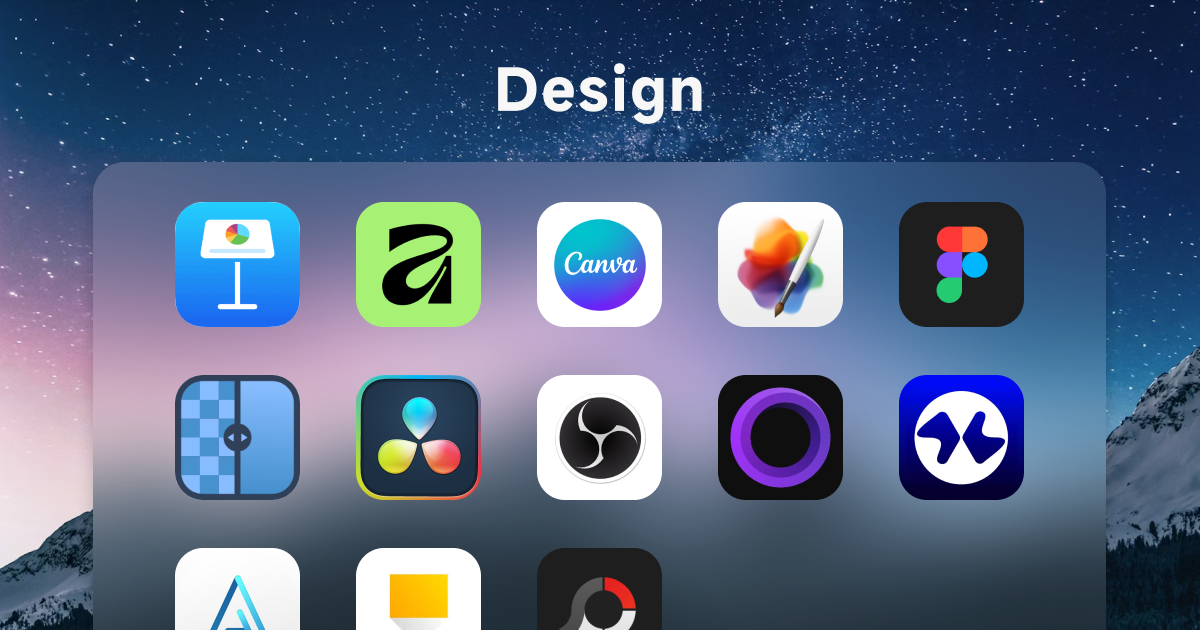
This is a roundup of all the design-related tools I use on Mac, covering presentations, UI design, image editing, and video production. My typical design workflow goes something like this: UI work in Figma or Pencil, image assets processed in Pixelmator Pro, upscaling done in Upscayl, presentations built in Keynote or Canva, and video editing handled in DaVinci Resolve.
Presentations
Keynote
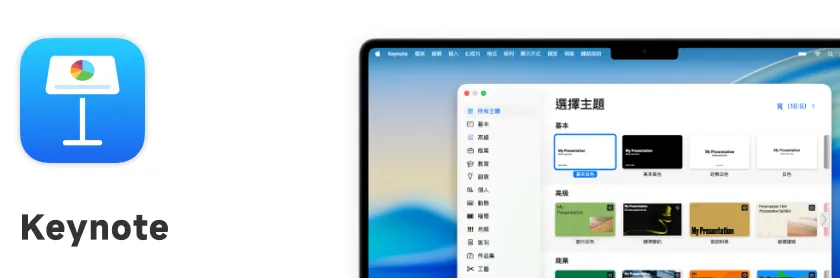
Apple’s built-in presentation tool. The animations and transitions on Mac are incredibly smooth — the visual quality is just on another level. Whenever I need to put together a more polished presentation, Keynote is my go-to. Its animation editor is far more intuitive than PowerPoint’s, and you can pull off some really refined transition effects with it.
Free Official WebsiteCanva
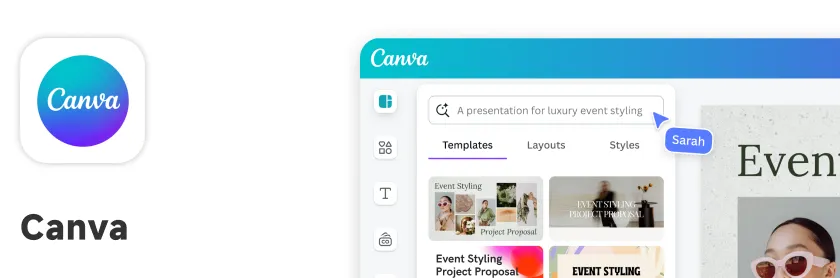
Beyond making graphics, Canva’s presentation feature is genuinely useful. The template library is massive, so you can quickly put together something that actually looks designed — perfect when you’re in a hurry or don’t want to start from a blank slate. For a more detailed breakdown, check out the services and subscriptions article.
Free to use, advanced features require a subscription Official WebsiteUI Design
Figma
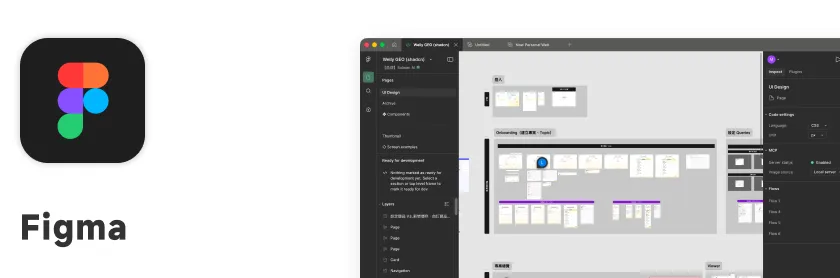
A long-established UI design tool and the one I’ve used the longest. It supports component-based design, which makes it a great fit for Atomic Design — building structured, well-documented design systems. The latest Figma also integrates with MCP and AI, making the handoff from design to development a lot smoother.
Free to use, advanced features require a subscription Official Website— or —
brew install --cask figmaPencil
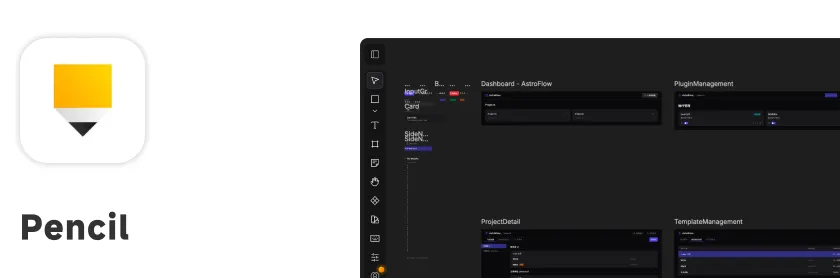
An AI-powered UI design tool that lets you describe what you want and have the AI build the design for you. The interaction feels more direct and intuitive than Figma. I mostly use it to let AI handle the UI drawing work, and I review the output rather than doing detailed edits myself.
Free to use, some features require payment Official WebsiteImage and Graphic Design
Pixelmator Pro
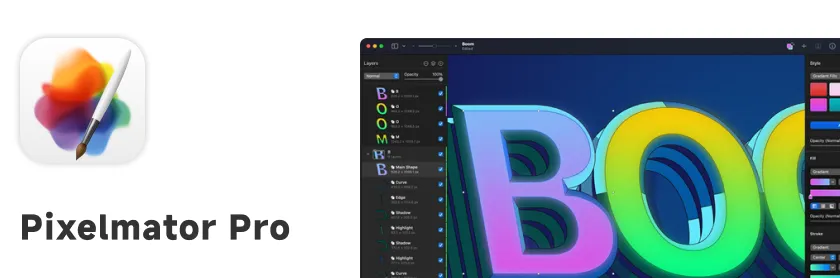
A native Mac image editor that’s now been acquired by Apple. The interface fits right in with macOS, and everything feels smooth to use. It comes with a solid set of AI features — background removal, smart repair, that sort of thing — so everyday image editing is a breeze.
Paid (one-time purchase) Official Website— or —
brew install --cask pixelmator-proAffinity
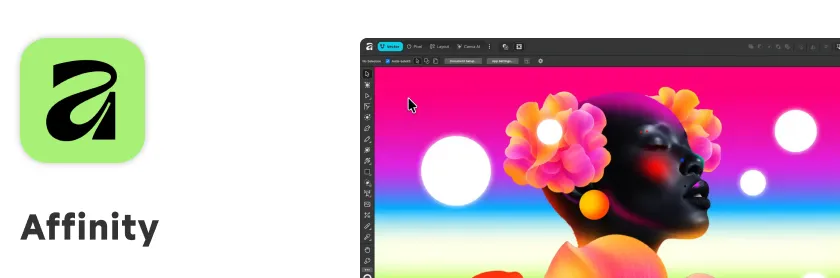
A professional design suite that includes Designer (vector), Photo (image editing), and Publisher (layout). After being acquired by Canva, it went free. The feature set is more than enough for most professional work — it’s honestly one of the best value-for-money design tools out there right now.
Free Official WebsitePhotoScapeX
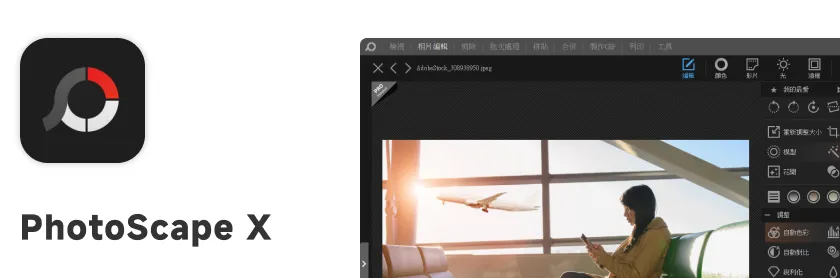
A lightweight image editor that’s simple and intuitive to use. I reach for it when I need to quickly crop, color-correct, add text, or collage images — no need to fire up something Photoshop-level for small tasks.
Free to use, advanced features require payment Mac App StoreUpscayl
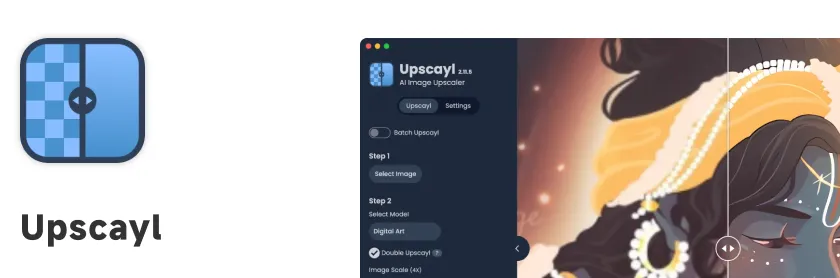
An open-source AI image upscaler that can enlarge low-resolution images without losing quality. Super useful when working with old photos or when you need high-resolution assets. The results are dramatically better than traditional interpolation-based upscaling.
Open source, free Official Website— or —
brew install --cask upscaylVideo
DaVinci Resolve
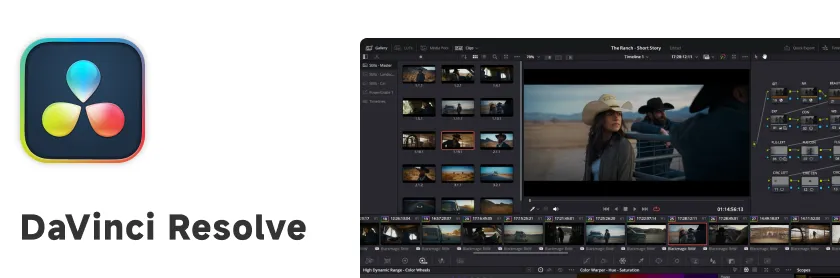
A professional video editor from Blackmagic Design, and the free version is already incredibly capable. Its color grading tools are industry-standard level, and editing, effects, and audio processing are all fully featured. If you don’t want to pay Adobe Premiere’s subscription fee, DaVinci Resolve is the best alternative out there.
Free to use, Studio version requires payment Official Website— or —
brew install --cask davinci-resolveScreen Studio
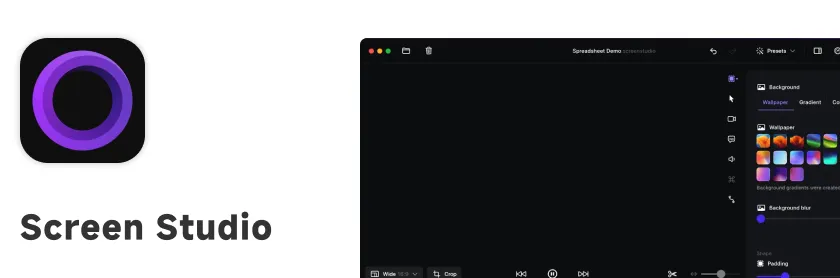
A tool specifically built for recording product demo videos. After you record, it automatically adds zoom effects, cursor tracking, and other motion touches to make the footage look polished and professional. It’s incredibly handy for product demos or tutorial videos — it cuts out a lot of post-production work.
Paid (one-time purchase) Official WebsiteRecordly
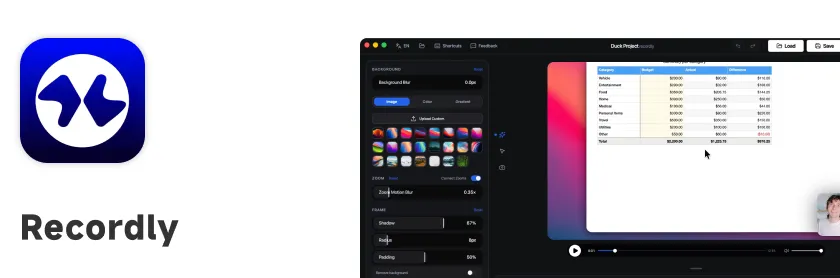
A lightweight screen recorder that’s simple to use and exports quickly. Great when you just need to capture a quick walkthrough without dealing with the complex setup OBS requires.
Free to use, advanced features require payment Official WebsiteOBS
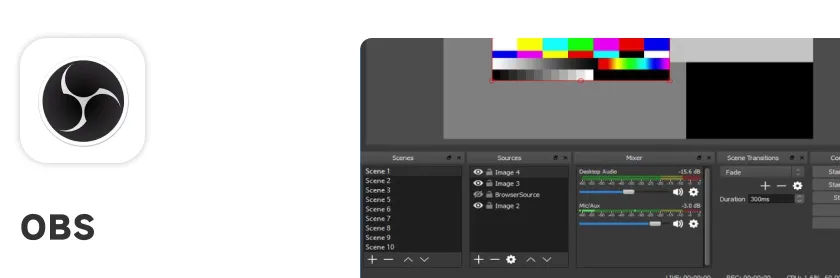
An open-source live streaming and recording tool with a ton of functionality. I mainly use it for screen recording — the scene management and source settings are flexible enough to record from multiple inputs at once.
Open source, free Official Website— or —
brew install --cask obsArcTime Pro
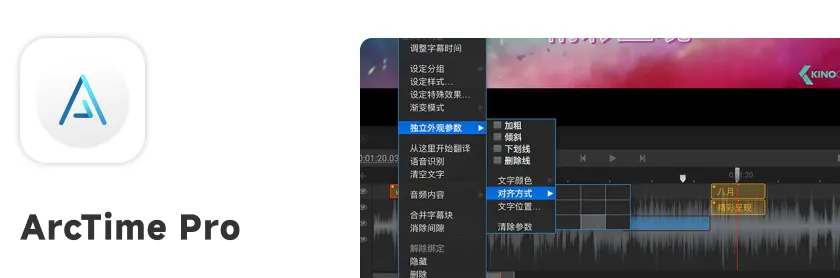
A subtitle creation tool for quickly adding captions to video. It supports timeline alignment and batch editing, making the whole subtitling process significantly faster than using the built-in caption tools inside a video editor.
Free to use, advanced features require payment Official Website