This isn’t a recommendation post — it’s a collection of notes. Arc has stopped major feature development, but it’s still the best browser UX I’ve ever used. Peek, Spaces, the Command Bar, and the vertical sidebar combine into something that genuinely changed how I think about what a browser should look like. I’m in the process of switching to Zen Browser now, but the UX ideas Arc left behind are worth documenting — and they’re the benchmark I use when evaluating my next browser.
Arc has stopped major feature development: The Browser Company has shifted resources to a new AI browser called Dia. Arc currently only receives basic maintenance with no new features. Everything described below still works, but if you’re evaluating whether to try it, I’d point you directly to Zen Browser.
Peek: Preview Links Without Polluting Your Tabs
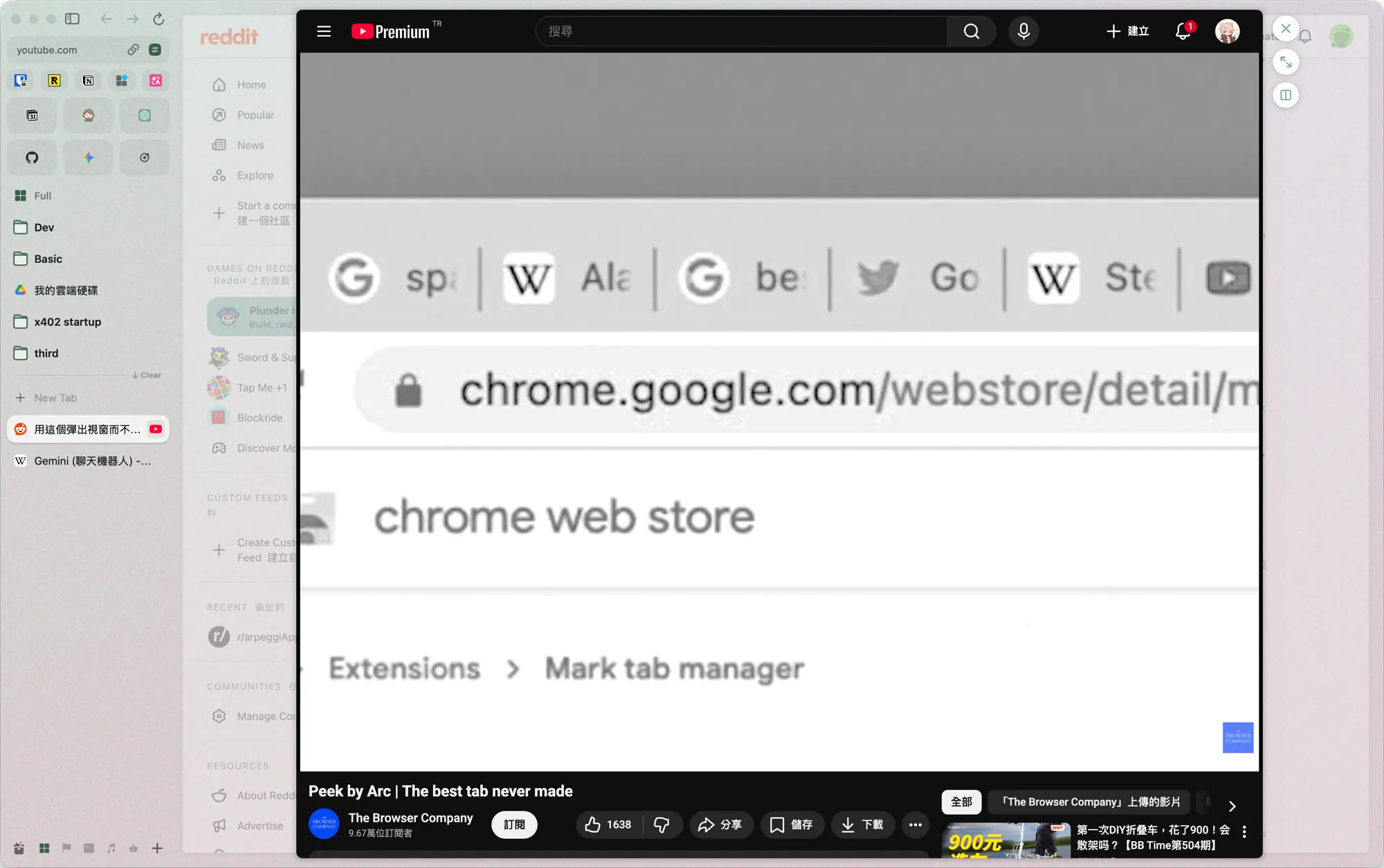
Arc’s Peek is a genuinely clever preview mode. When you open a link — especially one coming from a chat app, social media, or another app — Arc doesn’t immediately dump a new tab on you. Instead, it opens a large preview layer floating over your current window. If you’re done, just close it; if you want to keep it, pin it to the sidebar. The whole flow is clean and efficient.
Before, opening a link meant opening a new tab, and if you forgot to close it, tabs just kept piling up. With Peek, it becomes a “preview, then either close or keep” two-path decision. Your main window’s tab environment stays completely uncontaminated.
Switching Spaces: Context Switching in an Instant
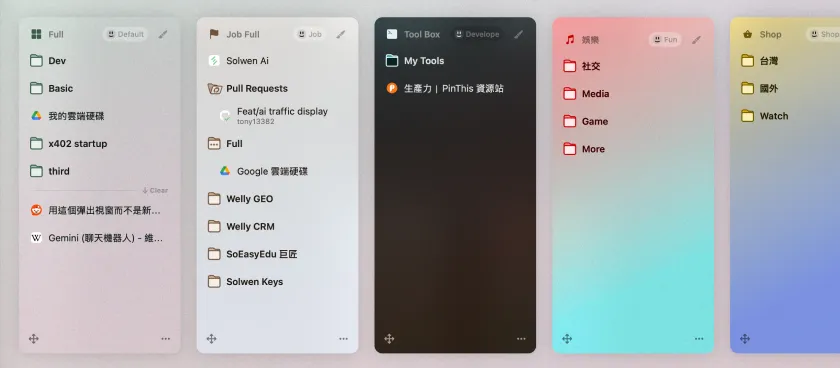
Spaces are Arc’s core concept. You open a separate Space for each context — work, personal, experiments, reading — and swipe left/right or press a hotkey to switch instantly. The entire window, including pinned tabs and open tabs, switches with it. This sounds minor, but in practice the focus benefit is enormous. In work mode, YouTube is nowhere in sight; in personal mode, the company Notion doesn’t exist. The mental load drops a level.
Previously, achieving this kind of context separation meant opening a bunch of separate browser windows, then hunting through them using Mission Control or Alt+Tab — slow and chaotic. Arc integrates this directly into a single window, bringing the switching cost down from “hunt across windows” to “swipe left or right.”
Each Space Has Its Own Independent Pinned Tabs
Every Space has its own set of pinned tabs, which is excellent. My work Space has work-relevant pinned sites (internal tools, project docs); my personal Space has personal ones (email, music, shopping) — they never mix. Anything I access regularly gets pinned; just click and it’s there, faster than a traditional bookmarks bar.
Different Accounts per Space
This is what I think is Arc’s most elegant design — you can log into different accounts on the same service in different Spaces. I have both work and personal accounts for Gmail, Google Calendar, and Notion. Previously, switching between them meant going incognito or using a profile extension — both ugly solutions. In Arc, Spaces handle the separation directly: the work Space is always the work account, the personal Space is always the personal account. You switch over without re-logging in, and there’s no cross-contamination. Multi-account management in Arc is the best I’ve experienced.
Command Bar (Cmd+T): Where Everything Starts
Arc’s Command Bar is invoked with Cmd+T (Windows: Ctrl+T). Search, open a new tab, jump to an already-open tab, execute commands — all unified into one entry point. Once you’re used to it, you realize the browser’s toolbar and bookmarks bar don’t actually need to exist. Just call the Command Bar when you need something. The whole experience starts to feel like using Raycast or Alfred — your hands never leave the keyboard.
The most common scenario for me: “I know I had a tab open somewhere but I can’t find which Space it’s in.” Hit Cmd+T, type a few keywords, it jumps straight to that tab. No digging through the sidebar manually.
Vertical Sidebar: No Tab Explosion No Matter How Many You Have
With a traditional browser’s horizontal tab bar, once you have more than 10 tabs open, you’re guessing from favicons. Arc puts tabs on the left in a vertical list, with each tab’s title clearly visible — visually like reading a side menu, very readable. This is the biggest reason I couldn’t leave Arc.
Combined with Arc’s auto-archive feature (tabs that haven’t been touched for a certain amount of time get automatically tucked away), tab explosion simply isn’t a problem in Arc. In Chrome, having 30 or 40 tabs open was my norm. After switching to Arc, I typically stay at single-digit active tabs, with everything else quietly sitting in the archive until I need to find it.
The Honest Downside: Memory Usage
Arc’s downside is pretty clear: it eats memory. The underlying Chromium is already not light, and Arc keeps some background processes running, so long-term RAM usage runs higher than Chrome. On machines with limited RAM, this translates to sluggishness — a real trade-off to consider.
Closing Thoughts: The UX Is Still the Best
Even with development stopped and the memory issue, purely from a UX design standpoint, Arc is still the best browser I’ve used. Peek, Space switching, independent pins, independent accounts, the Command Bar, the vertical sidebar — these things together created a browser workflow that neither Chrome nor Safari have managed to replicate.
The main reason I’m switching to Zen Browser is that Zen has taken these UX concepts and transplanted them almost wholesale onto Firefox, and Zen is still actively being developed. I’ve written up the full migration experience in Switching from Arc to Zen Browser: Three Months of Notes.
If you want to see how I combine browser extensions for a reading workflow, check out Web Reading Workflow.