The most common mistake with web reading is thinking “how many articles I read” equals “how much I actually retained.” What determines reading quality isn’t volume — it’s a complete pipeline from signals coming in to knowledge sticking around. First, deciding what’s worth reading. Then, making the act of reading as frictionless as possible. Finally, making sure the valuable stuff actually gets kept. This article is about how I use a combination of tools to run that pipeline smoothly.
On a given day I go through thirty or forty pieces of content — technical articles, news, research, recommended reads. My old approach was to read and close, and whatever impression was left would fade in about two days. Over time I worked out a three-stage flow: Capture → Read → Save. The capture stage decides what signals come in. The reading stage brings friction down to its lowest point. The save stage decides what stays and turns into long-term knowledge. Here’s my current setup, from browser extensions to standalone apps.
If you want to see how I set up Arc or Zen as a whole, check out Arc Browser: The Best Browser UX I’ve Used and Switching from Arc to Zen Browser: Three Months In. Browser extensions for frontend development (React DevTools, Wappalyzer, JSON Viewer, etc.) are in Dev Environment: Frontend.
Capture and Noise Reduction
Stage one: deciding what’s worth reading. Most content quality problems happen before you even click — bad signal sources, algorithms pushing things you don’t actually want, RSS subscriptions left unmanaged. The tools in this stage handle the signal entry point and filter out noise before it ever reaches your eyes.
Kagi News
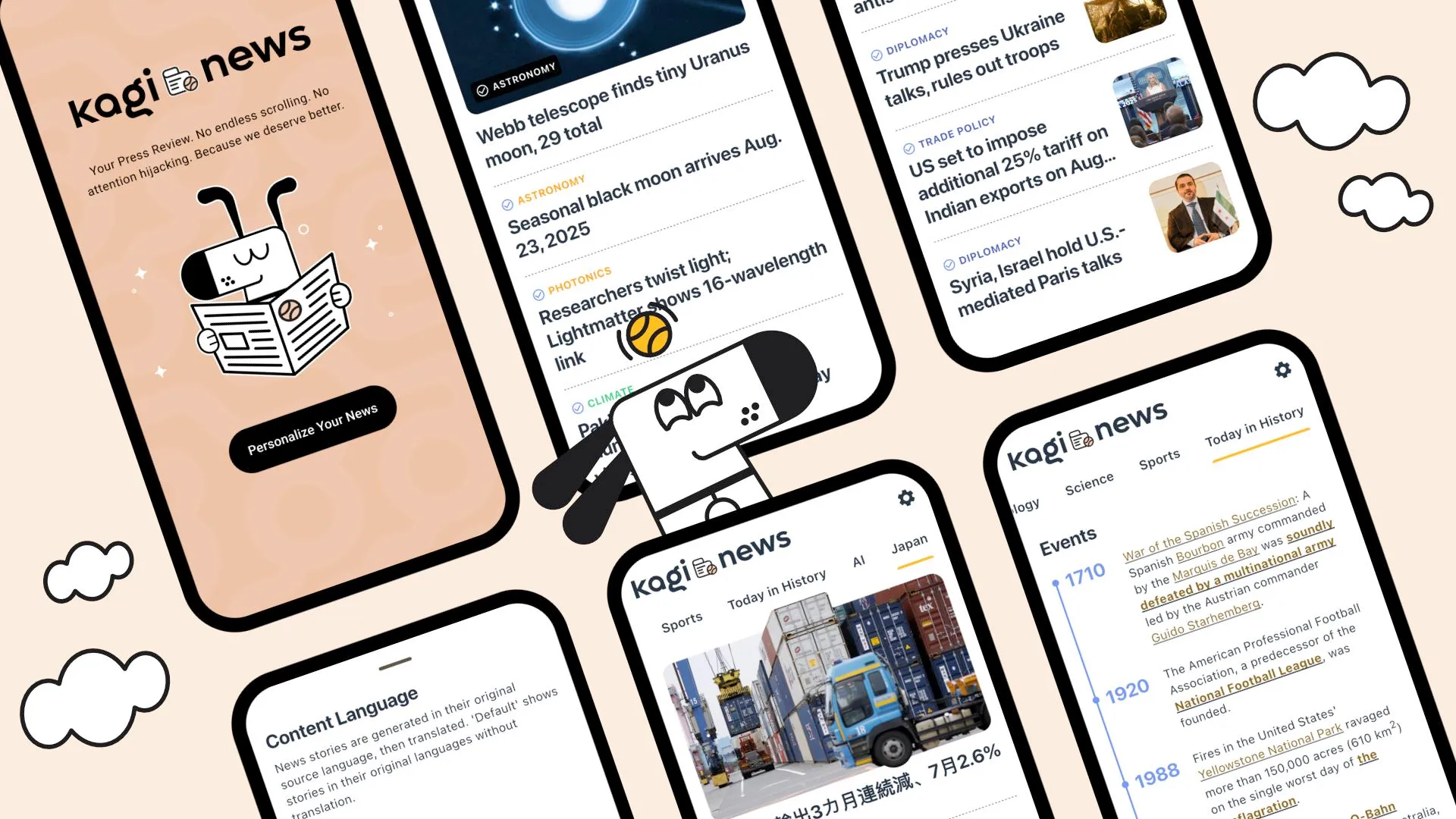
Kagi News is a news service from the Kagi search engine. It generates a daily news digest from a curated, hand-picked source list — no algorithms, no advertising, quality judged purely by the source itself. For me it solves the “baseline daily news signal” problem — I can keep up with what’s happening without scrolling through Twitter or Facebook, and the sources are high enough quality that I don’t need to do extra filtering on top.
Requires Kagi subscription Official SiteFolo
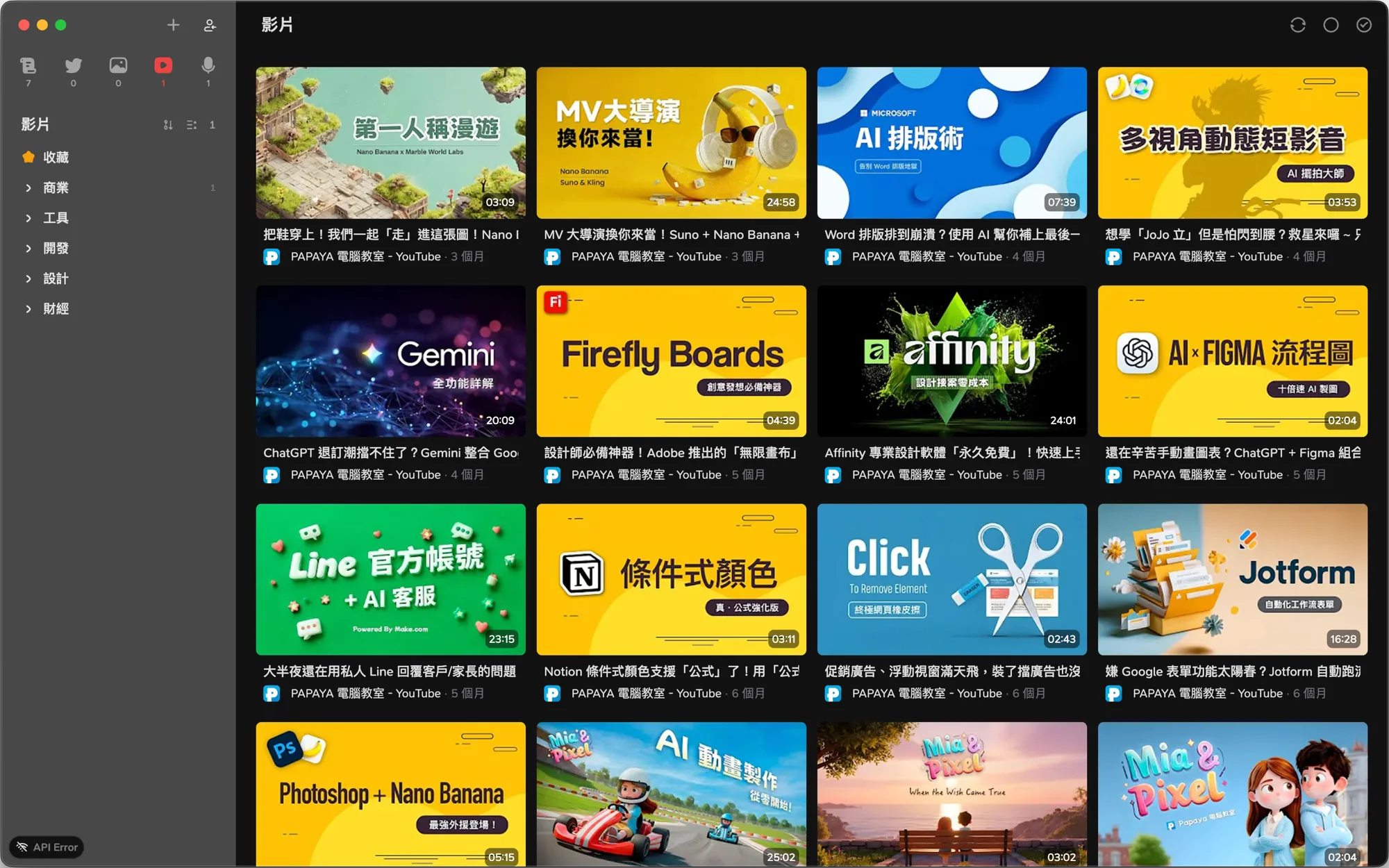
Folo is an open-source RSS reader that pulls various sources — RSS feeds, newsletters, YouTube channels, social platforms — into a single reading interface. The design philosophy is that you subscribe to the people and sites you want to follow, rather than being fed by an algorithm. I use it for more targeted personal interest tracking — technical blogs, specific creators, Substack subscriptions — content that almost never surfaces through algorithmic recommendations, but is reliably delivered through RSS.
Free to use, advanced features require subscription Official SiteNotion AI News Center
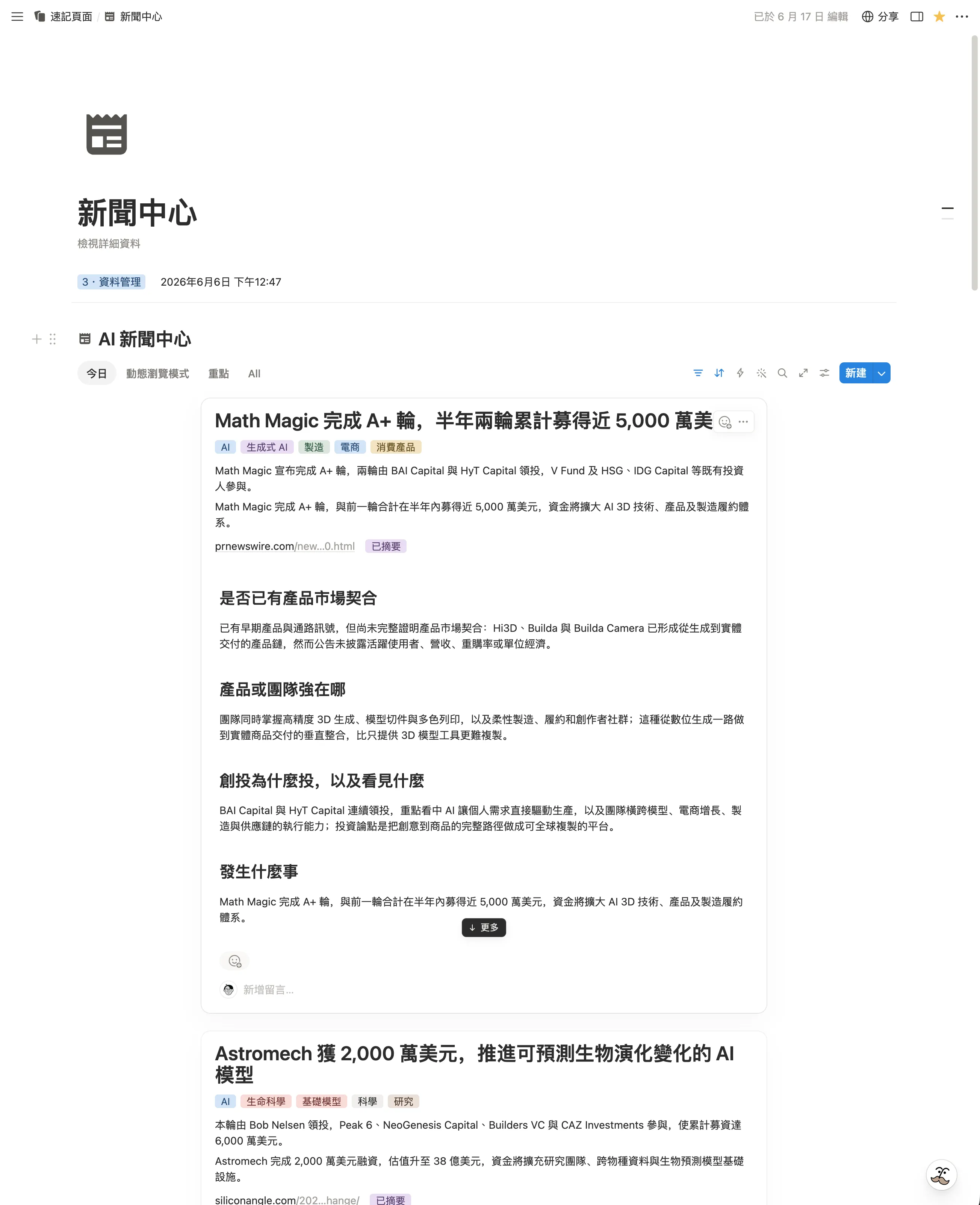
The news part of my workflow now uses Notion plus Multica’s daily scheduled tasks. Previously, it was closer to generating a morning AI briefing and moving on. The current version regularly writes the AI news, product updates, and industry signals I want to track into a Notion database called “AI News Center.”
The scheduled task actually lives in Multica, not in a manual daily chat with an AI app. At the scheduled time, Multica follows my prompt and source direction, collects the information, organizes the fields, and writes the result back to Notion. In this setup, Multica is responsible for bringing signals in consistently, while Notion gives me the database and browse-mode interface for deciding what is worth opening.
The difference is that news is no longer a one-off summary. It becomes a database I can search, filter, and revisit. Each item keeps the original URL, date, source, topic, importance, summary, why it matters, and next step. The full content stays in the page body in a smart-brevity-like structure: what happened, why it matters, industry context, and what to watch next.
When I actually read it, I use Notion’s newer browse mode with the Dynamic layout instead of staring at database columns. Each news item shows up more like a card, exposing the title, tags, summary, and a few judgment sections first. I can quickly scan what each article is about and what related tags it may have; if something looks useful, I open it for a deeper look.
I still keep a few Notion views: Today Inbox for newly added items, High Signal for high-importance entries, Follow-up for things that need tracking, and By Topic for looking things up later. The scheduled tasks keep the signals coming in. Browse mode helps me decide which items are worth opening.
Using all three together essentially takes back control of “what to read today” from the algorithm: Kagi News handles breadth (mainstream news overview, curated sources), Folo handles depth (my personally curated interest feeds), and the Notion AI News Center turns recurring news collection into a searchable long-term record.
Reading
Stage two: bringing friction down to its lowest point during reading itself. Foreign languages need translation, video subtitles need to keep up, mixed Chinese-English text needs spacing. The tools here lower the “I can actually understand this” barrier.
Immersive Translate
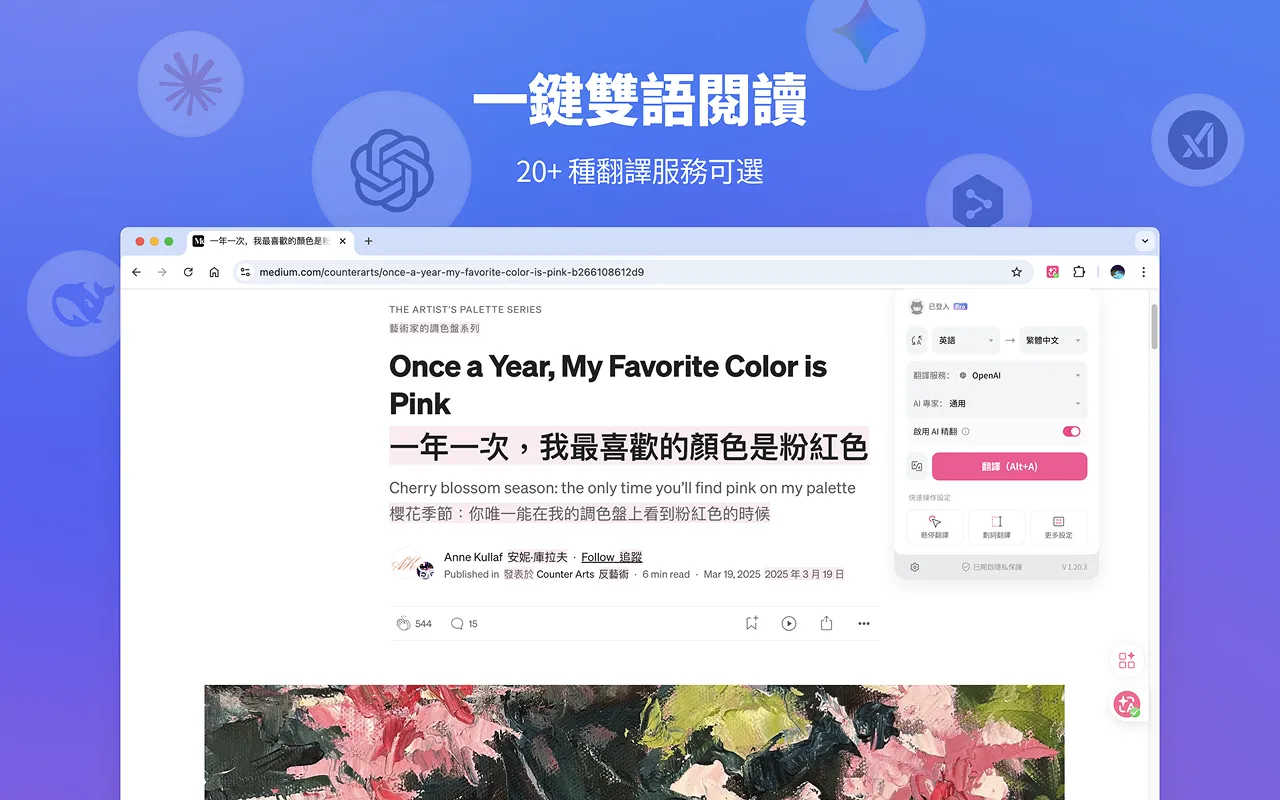
The web translation extension I use most. It displays translation results beneath the original text in a bilingual side-by-side format, without replacing the source content — unlike Google Translate which swaps out the whole page. Extremely useful for reading foreign-language articles while still seeing the original.
Free to use, advanced features require subscription Chrome Web Store Firefox Add-onsGlotDojo
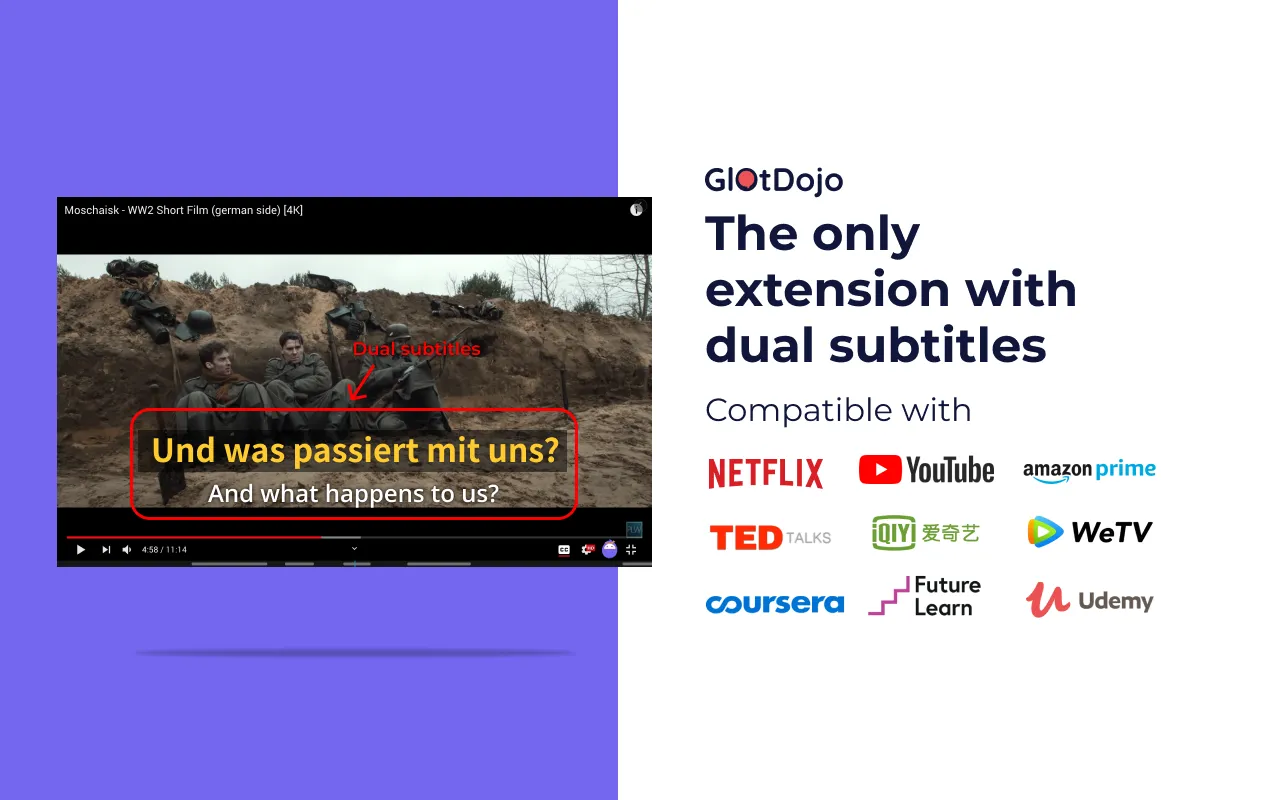
A real-time subtitle translation extension. When watching foreign language videos, it can display both the original and translated subtitles simultaneously — useful for language learning or just understanding content faster.
Free to use, advanced features require payment Chrome Web StorePangu Spacing (为什么你们就是不能加个空格呢?)
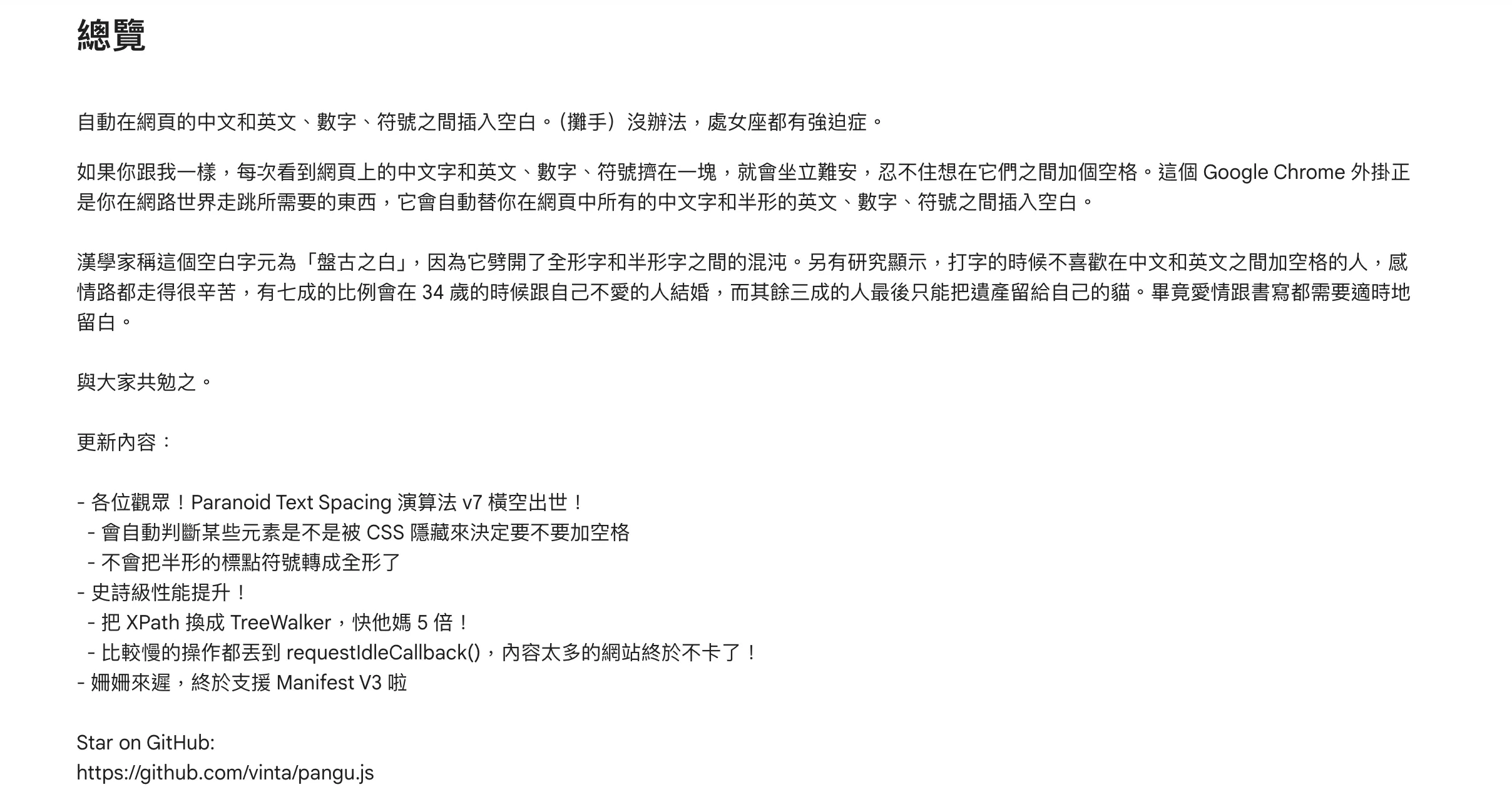
Automatically inserts spaces between Chinese and English characters on web pages, making mixed-language text much more readable. Once you have it installed, you’ll notice the difference immediately.
Open source, free Chrome Web StoreSave and Archive
Stage three: making useful content stick around. Content you’ve read without saving will fade in two or three days. Content you’ve saved but never revisited is effectively the same as not saving. I now split this stage into two layers: Notion handles fast capture and temporary organization, while the actual note records and long-term knowledge structure live in an LLM Wiki web layer.
Save to Notion
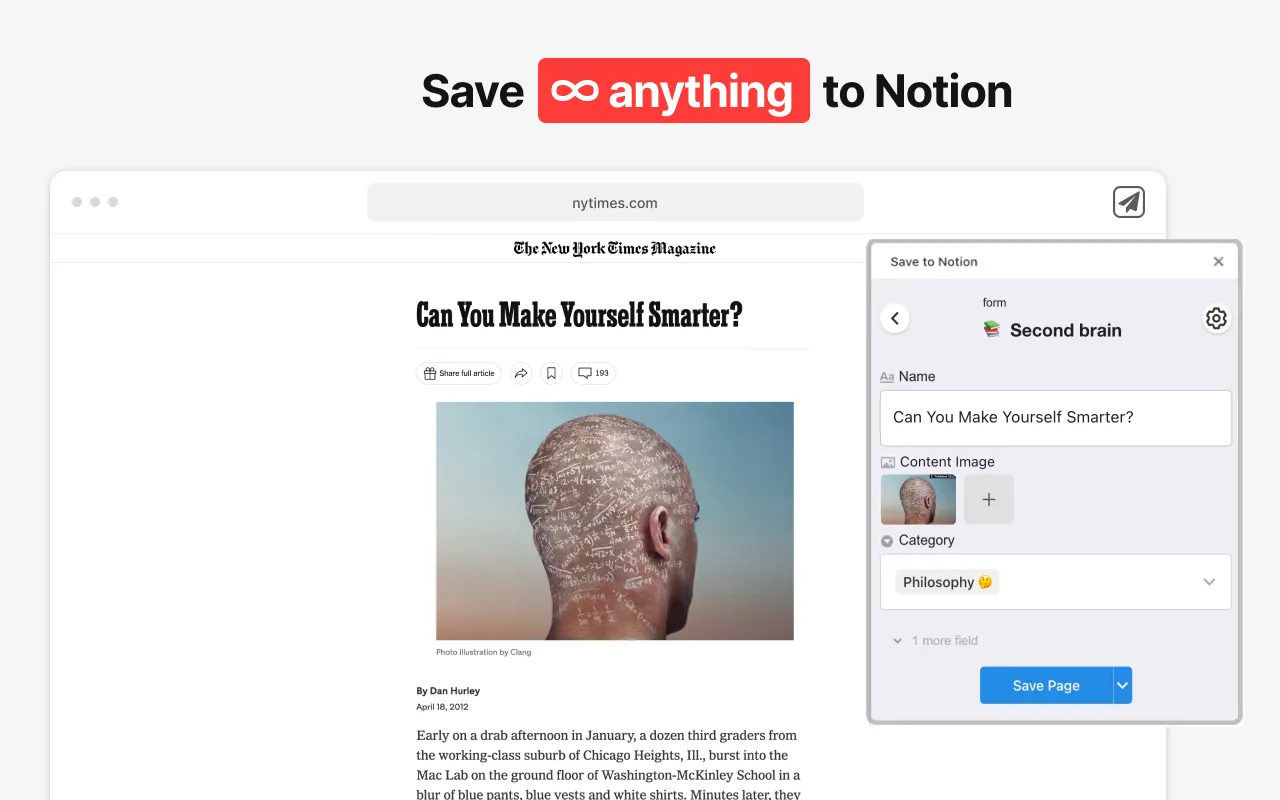
The fast capture path. Saves web page content straight into a Notion database — I use it to collect articles and resources worth referencing later. The key is speed — see it, save it, don’t spend time filling out fields right now.
Free Chrome Web Store Firefox Add-onsNotion Web Clipper
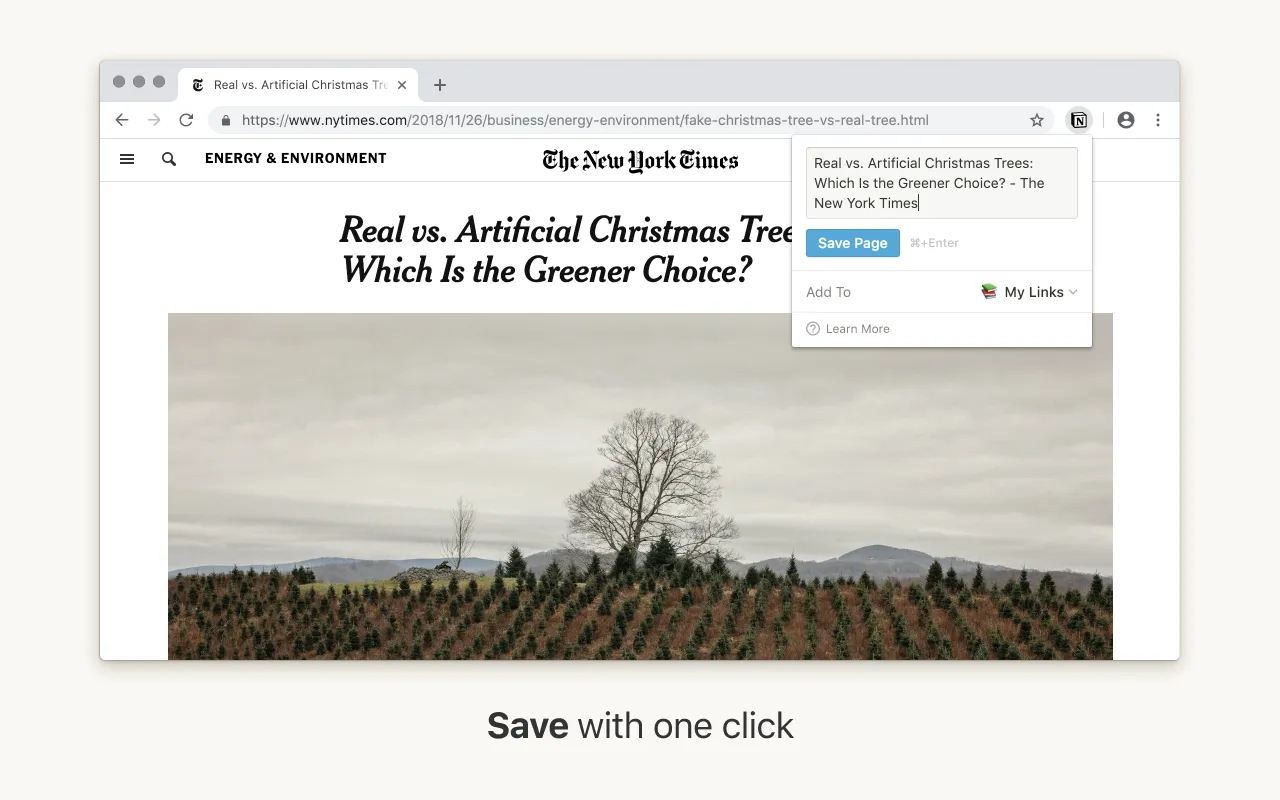
The complete capture path. Notion’s official web clipper pulls the full content of a page into Notion. Compared to Save to Notion, it captures more completely — better suited for long articles or documentation-style content.
Free Chrome Web Store Firefox Add-onsNotion
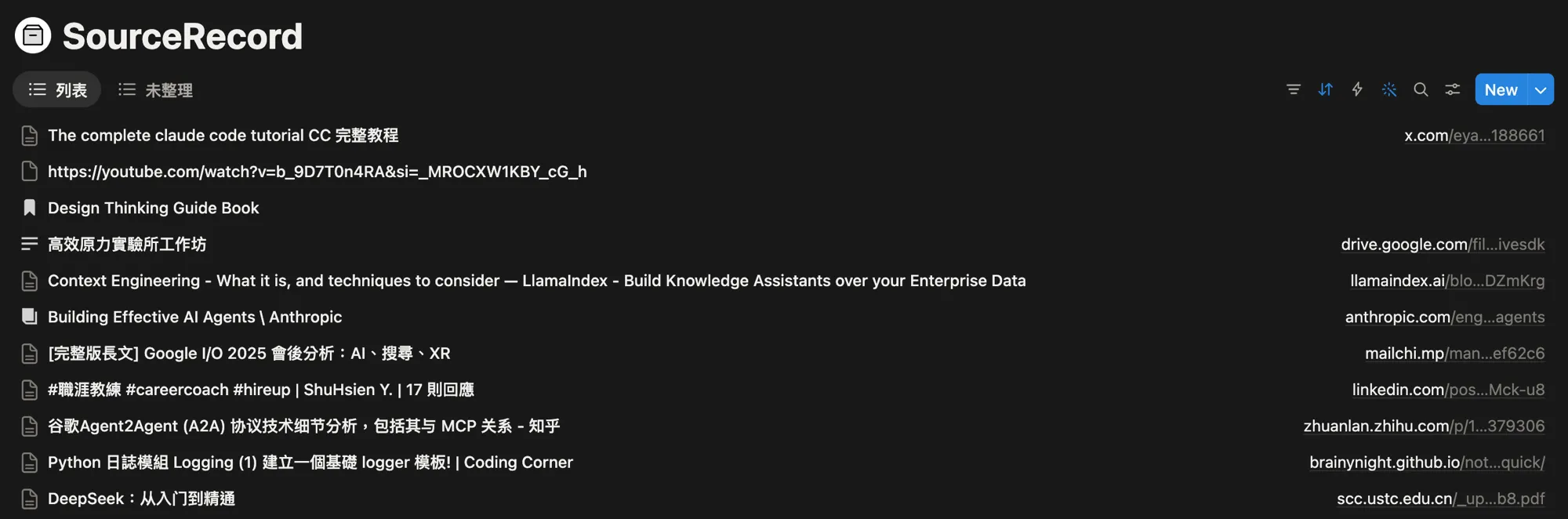
Notion is now more like my capture inbox. Clipped web pages, to-read material, and news entries first land in Notion so I don’t have to decide where every source belongs at the moment I save it. The point is to collect valuable sources into one entry point instead of scattering them across browser bookmarks, chat logs, and temporary messages.
When something actually needs to become a note, I move it out of Notion and into the longer-term system. That lets Notion keep doing what it is good at — databases, fast capture, and status management — while long-term knowledge moves into a structure that Git, Markdown, and AI agents can work with directly.
Free to use, advanced features require subscription Official SiteLLM Wiki / Web Knowledge Layer
The note-taking part has now moved out of Notion into a dedicated web knowledge structure. My current setup separates sources, my own interpretation, AI-organized Wiki pages, MOCs, and logs. Obsidian / Markdown serves as the data layer, and the web layer becomes the reading and lookup interface.
This solves the maintenance problem I kept running into with a Notion tag workflow. Notion works well as an inbox and database, but it does not actively maintain concepts, add links, update MOCs, or flag notes that have gone stale. The LLM Wiki workflow lets AI agents help with that work under explicit rules.
If you want the full version of how that knowledge layer works, read How I Use AI for Personal Knowledge Management: My LLM Wiki Workflow. This article is about the entry point for web reading; that one is about what happens after the material enters the system and becomes long-term knowledge.
Closing Thoughts
Web reading feels forgettable not because you’re reading too little, but because the pipeline from “signals coming in” to “knowledge sticking around” was never connected. The capture stage decides what’s worth reading, the reading stage brings friction down, the save stage makes useful content last — if any one of the three stages is missing, the whole flow stalls. Tools are just the execution layer. Build the pipeline first, then pick the tools to match.