After starting university, I found myself in meetings constantly. Clubs, student council, project teams, class groups — multiple meetings every single week. But after going through enough of them, I noticed a pattern: a lot of meetings were meetings for the sake of meetings. You’d walk in confused and walk out just as confused. That one or two hours in between felt like it just vanished.
I’ve always believed meetings exist to reach useful conclusions, not to share half-formed ideas. So over the years I’ve slowly put together my own meeting workflow, built around one core principle: every meeting needs to map to concrete actions or measurable outcomes. This post covers my complete process — before, during, and after — with Notion, Google Meet, and Miro as the main tools.
Before: Write the Agenda in Notion
Why Notion for Meeting Management
Most of my team management and knowledge systems live in Notion, so it made sense to bring meetings in too. I tried keeping notes separately in Google Docs, but it always led to the same problem — meeting conclusions in Docs, tasks in Notion, reference materials somewhere else. Tracing back the context later was a nightmare. Notion’s databases, bidirectional links, and page nesting make organizing notes feel a lot more natural.
Keeping meeting pages in Notion also means meeting notes can link directly to project pages, task cards, and the meeting archive. When you need to go back and find out “when was this decided?” or “what was the context at the time?”, it’s all right there.
Three Sections in My Agenda Template
My agenda template has three fixed sections. I copy a fresh one for every new meeting.
1. Pre-meeting resources + pre-work
This section holds the materials participants need to review beforehand (links, docs, videos) and any “pre-work” they need to complete before the meeting. Pre-work is done asynchronously — people take care of it whenever they have time, without waiting until the day of the meeting.
This might seem like a small detail, but it’s actually the single biggest time-saver in the whole workflow. Imagine four people taking turns sharing their initial thoughts at the start of a meeting — that round alone could burn 15 minutes. Making “sharing ideas” an async activity frees up the actual meeting time for things that genuinely need real-time judgment.
2. Agenda items + quick memo
A list of the topics to be discussed in the meeting, with a memo area under each item for live note-taking during the discussion. This isn’t the meeting conclusions section — it’s a working scratchpad for what’s happening in real time: important points someone raised, numbers that came up, ideas that got floated but haven’t been decided yet.
One small technique worth noting: you can label the type of each agenda item when you write the agenda — either “already aligned → quick confirmation” or “needs discussion → leave enough time.” Simple items get voted through quickly; complex ones get proper debate. This keeps the whole meeting’s pacing much tighter.
3. Meeting conclusions
This section is not written during the meeting — that’s important. Conclusions get written in the final 5 minutes, after you’ve reviewed the memos and discussion and done a proper wrap-up. That “5-minute close” is the single most critical ritual in this whole workflow. More on that in Part 3.
If you want to reference or copy my template, you can start here: Notion Meeting Template
Progress Check-In Meetings: The Four-Question Framework
There’s one type of meeting that comes up constantly — the progress sync, where everyone goes around and reports what they’ve been up to. These are especially prone to going off the rails. Without structure, some people talk for 30 seconds and others talk for 10 minutes, and no one captures the key points.
For this situation, I recommend a simple framework that keeps each person’s update under a minute. I call it the four-question framework:
- What have I done since last time?
- What am I working on right now?
- What’s coming up next?
- What do I need help with?
The fourth question is where the real value is. A lot of people wait until after a meeting to quietly ask for help. But the meeting itself is the perfect place to coordinate — when you say “I’m stuck here, and I need X from Y” in front of everyone, resources can be matched on the spot without a follow-up message. Write these four questions as fields in your agenda, have everyone fill them in, and you’ve got a complete sync update before anyone even opens their mouth.
During: Google Meet + Miro
Check-In: 5–10 Minutes to Warm Up
I always open meetings with a 5–10 minute check-in where everyone shares a bit about how things are going in their life. At first glance this looks like wasted time, but it actually serves three purposes:
- It relaxes the atmosphere: Especially in student teams or newly formed groups, jumping straight into hard topics tends to make people stiff. Fewer people raise their hand, discussion gets awkward. A quick social warm-up changes the whole temperature of the room.
- It helps people shift modes: Switching from whatever you were just doing to “meeting mode” takes a moment. The check-in is that buffer.
- It absorbs late arrivals: There’s always someone who shows up two or three minutes late. The check-in phase soaks that up without derailing the formal agenda.
Google Meet
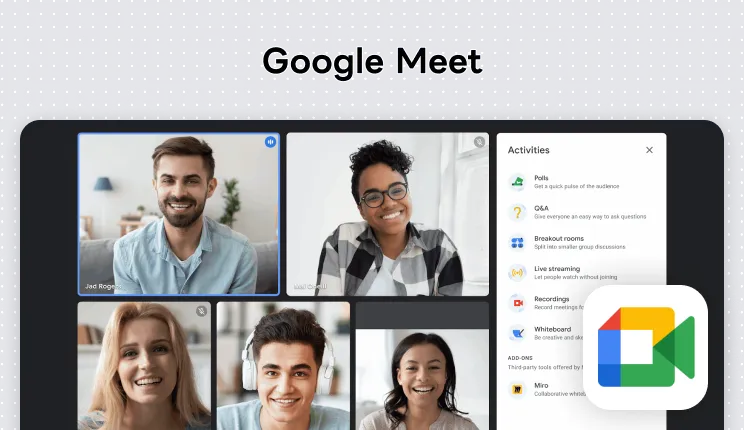
My go-to video conferencing tool — for straightforward reasons:
- I’m on the Google One 2TB plan, which includes Google Meet recording. I can use that recording for voice analysis or summaries later, without needing to set up a separate Workspace account.
- No app required — anyone can join by opening a browser. This is especially important for external meetings. You can’t expect everyone showing up for a meeting to install Zoom or Teams just for one session. The lower the barrier, the better.
I’m still experimenting with combining recordings and AI for transcription and summaries. There are a lot of options out there — Notion has a built-in meeting mode, and there are various Whisper-based tools too. I’m currently handling it with a script I wrote myself. Once the workflow stabilizes, I’ll write a dedicated post about it.
Free to use, advanced features require a subscription Google MeetMiro
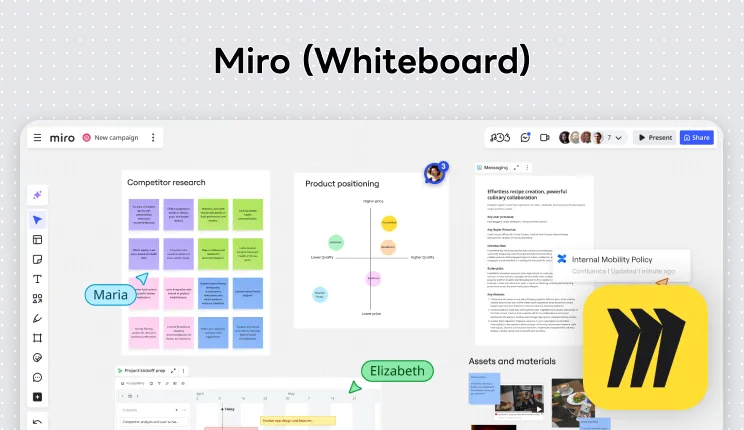
For meetings that need visual collaboration — flowcharts, brainstorming, user journey mapping — pure text discussion is inefficient. Getting everything up on a whiteboard where everyone can work together is just faster. I use Miro because it was the first tool I got into, has the richest template ecosystem, and I haven’t had a reason to switch.
Free to use, advanced features require a subscription MiroOther Whiteboard Tools Worth Trying
There are quite a few options in this category, and Miro isn’t the right fit for everyone. If your team already uses Figma, FigJam is the most seamless choice — same account, same permissions, and you can move content straight into Figma to develop it further. If your team finds tool-heavy interfaces off-putting or cares a lot about aesthetics, Canva Whiteboard is another friendly option: when the meeting ends, you can easily turn the whiteboard into a presentation or other design file.


Since the core features of all three (infinite canvas, sticky notes, collaborative cursors, templates) are pretty similar, here’s a comparison focused on meeting-specific features:
| Meeting Feature | Miro | FigJam | Canva Whiteboard |
|---|---|---|---|
| Voting | Built-in voting; supports anonymous, vote limits, reveal at end | Voting sessions; can hide results during voting, reveal at end | Sticker reactions as live voting |
| Timer | Basic countdown | Up to 99:59; synced alert for all participants at end | Team-synced countdown; can pair with playlist |
| Background Music | None built-in | Multiple built-in BGM options | Playlist selection within timer |
| Voice / Video | Built-in on paid plans | Built-in voice chat | None built-in |
| Template Ecosystem | Largest, tool-oriented | Medium, facilitation-oriented | Smallest but strongest visual design |
| Website | Miro | FigJam | Canva |
All three are priced at Free to use, advanced features require a subscription.
If you’re curious how I actually schedule meetings in the first place, check out Project Management and Task Planning, which covers Notion Calendar and multi-person scheduling tools. That post is about coordinating time before the meeting; this one focuses on the meeting workflow itself.
After: Making Conclusions Actionable
Check-Out: 5 Minutes to Close
I always keep the last 5 minutes of a meeting for a check-out. It’s the symmetric counterpart to the opening check-in, and it’s the one step in this whole workflow you absolutely cannot skip.
What happens is simple: look back at the memos and discussion from the meeting, distill the scattered information into a few concrete conclusions, and write them into the “meeting conclusions” section of the agenda. These 5 minutes aren’t extra time — they’re about doing in the meeting room, in front of everyone, what would otherwise happen individually afterward: “Wait, what exactly did we decide?”
The difference between doing this and not doing this is enormous. Without it, everyone leaves with a slightly different understanding of what was decided. When you try to track progress later, you start running into “I thought you were handling that” landmines.
Three Elements of an Effective Action Item
A conclusion isn’t just “we decided to do X.” Every action item needs three elements:
- Owner: Who is doing this thing. Not “everyone figure it out together” — a specific individual.
- Expected output: What gets delivered when it’s done. A document? A demo? A decision? Be specific.
- Deadline: When it needs to be done. Tasks without deadlines never get done.
All three are required. Missing any one of them is setting a trap for later. During check-out, I go through each conclusion one by one and read it aloud as “who, does what, by when.” Anything that can’t be decided on the spot gets marked “TBD” to sort out after the meeting.
Creating Task Cards in Notion
Since my task management system also lives in Notion, every action item from meeting conclusions gets turned into a new card in Notion’s task board, with a bidirectional link back to the meeting page.
This means no matter whether you’re looking at a task card or a meeting page, you can trace the full context. The task card shows which meeting it came from. The meeting page shows what tasks were created afterward and how many have been completed. Meetings stop being isolated events and become trackable nodes inside your whole work system.
Free to use, advanced features require a subscription NotionThe Mental Model for Effective Meetings
After walking through this whole workflow, my definition of an “effective meeting” is actually pretty simple:
Know what you’re going to discuss before the meeting. Know what the next step is after the meeting.
The tools are just vehicles. Notion, Google Meet, Miro — you could swap in any functionally similar tool and get the same result. What actually determines whether a meeting is effective is this mental model: every meeting needs to leave something actionable behind. It could be a decision, a deliverable, a set of tasks — but it can’t just be “we talked.”
If you’re finding that your meetings are increasingly “meetings for the sake of meetings,” start by checking these four things:
- Is there an agenda? Is there pre-work?
- Does the meeting end with a check-out?
- Do the conclusions map to “owner + output + deadline”?
- Do action items actually land in a task system where they can be tracked?
If you can’t answer any one of those questions, your meeting efficiency is getting dragged down. On the flip side, if you consistently do all four, it honestly doesn’t matter what tools you use. Meetings have never been a tools problem. They’re about whether you keep “moving people from confusion to action” front of mind.