My frontend projects mainly use the React ecosystem, with the framework choice — Astro, Remix (React Router), or Vite — depending on the project’s needs. This post covers my frontend dev environment setup: package management, code formatting, Tailwind CSS configuration, and more.
VS Code Extensions
Here are the extensions I use alongside VS Code for frontend development:
Prettier

A code formatter that supports JavaScript, TypeScript, CSS, HTML, and more. Auto-formats on save to keep code style consistent — no more time spent on manual formatting.
VS Code MarketplaceESLint

A static analysis tool for JavaScript and TypeScript that highlights potential errors and style violations in real time as you edit. Works best paired with Prettier.
VS Code MarketplaceTailwind CSS IntelliSense

The official Tailwind CSS extension — autocompletes class names as you type and shows a preview of the corresponding CSS on hover. Essentially required when working with Tailwind.
VS Code MarketplaceTailwind Snippets

Provides code snippets for common Tailwind CSS patterns, letting you quickly insert frequently-used style combinations and speed up development.
VS Code MarketplacePostCSS Language Support

Adds syntax highlighting for PostCSS, so VS Code correctly recognizes PostCSS syntax without flagging false errors.
VS Code MarketplaceJavaScript (ES6) code snippets

Provides snippets for ES6+ syntax — arrow functions, destructuring, Promises, and other common patterns that you can expand from short abbreviations.
VS Code MarketplaceLive Sass Compiler

Compiles Sass/SCSS files in real time — save the file and the corresponding CSS is generated automatically. No extra build tool configuration required.
VS Code MarketplaceAuto Close Tag

Automatically adds the corresponding closing tag when you finish typing an HTML/XML opening tag, reducing manual input and missed closing tags.
VS Code MarketplaceColor Picker

When you encounter a color value in code, this lets you visually pick or adjust it directly in the editor — no more switching to an external tool to convert color codes.
VS Code Marketplacei18n Ally

An internationalization (i18n) management tool that lets you preview translation results directly in the code and manage translation keys across multiple locales. When working on multilingual projects, it eliminates constant switching between translation files.
VS Code MarketplaceFigma for VS Code

Figma’s official extension lets you browse Figma designs directly in VS Code — check component dimensions, spacing, and color values without leaving your editor. Makes the design-to-code handoff much smoother.
VS Code MarketplacePencil

An AI UI design tool extension for VS Code that generates design mockups from text descriptions directly inside the editor — very convenient alongside a development workflow.
VS Code MarketplaceAstro

The official Astro extension — provides syntax highlighting, IntelliSense, and formatting for .astro files. A must-have when working on Astro projects.
MDX

Provides syntax highlighting and IntelliSense for MDX files. Makes the editing experience much better when writing content in MDX inside an Astro project.
VS Code MarketplaceFor more VS Code extension recommendations, see:
 VS Code Extension Recommendations
Browser Extensions
In addition to VS Code extensions, I have a separate set of browser extensions specifically for frontend development. Extensions related to reading (translation, noise reduction, capture, review) are in Web Reading Workflow — here I’m only listing the ones most directly relevant to the dev workflow.
React DevTools
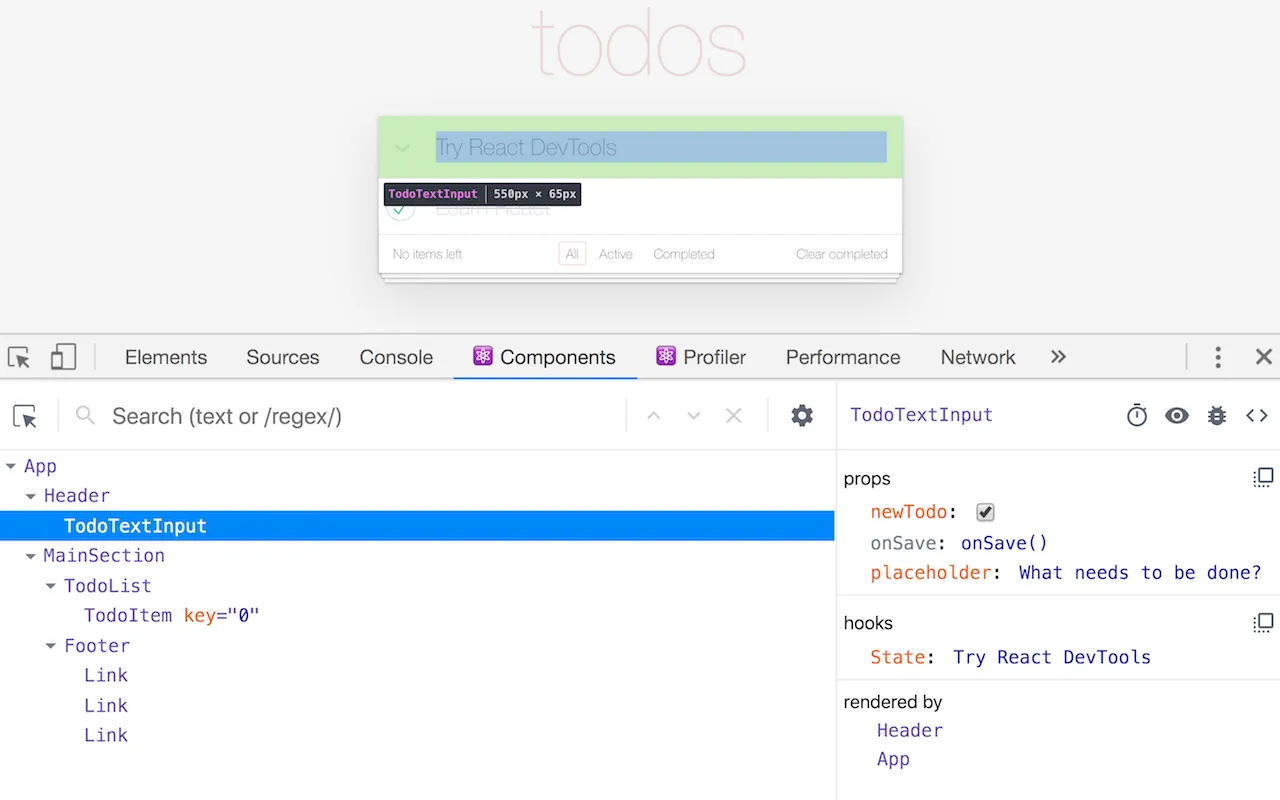
An essential extension for React development — inspect the React component tree, props, and state directly in the browser’s developer tools. Invaluable for debugging.
Free Chrome Web Store Firefox Add-onsWappalyzer
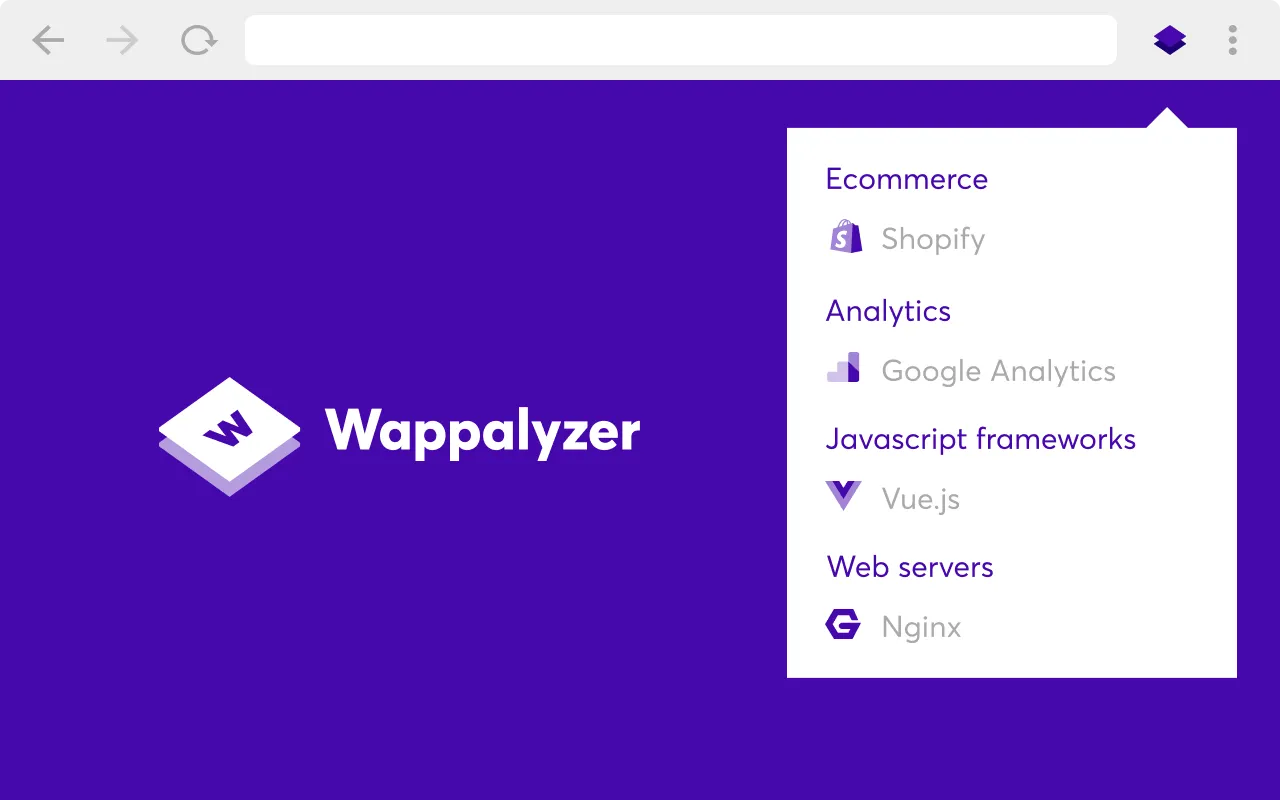
Analyzes the technology behind any website — frontend frameworks, CMS, servers, analytics tools, and more. I use it when researching other people’s sites or evaluating tech options.
Free to use, advanced features require payment Chrome Web Store Firefox Add-onsJSON Viewer
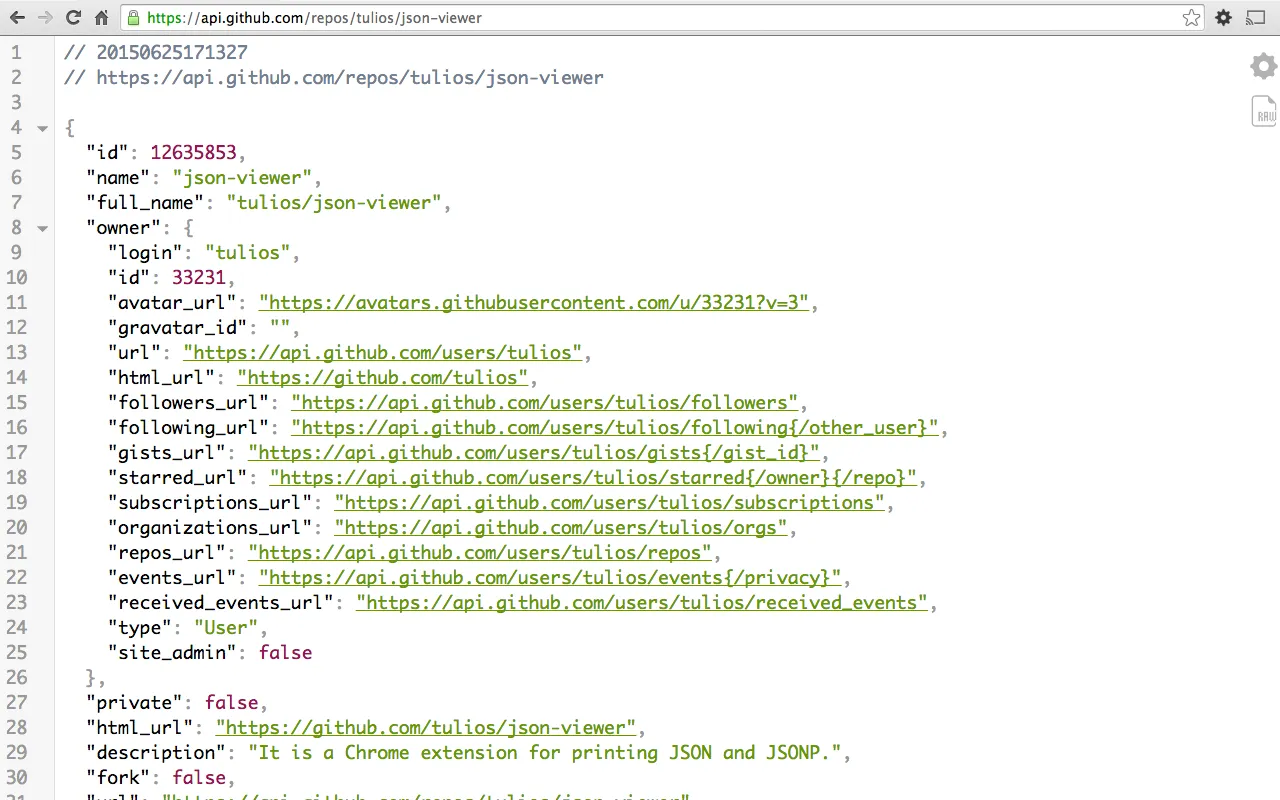
Formats JSON into a readable structure directly in the browser — no need to paste JSON into an external tool to pretty-print it. Very useful when debugging API responses.
Free Chrome Web StoreAccess Control-Allow-Origin - Unblock
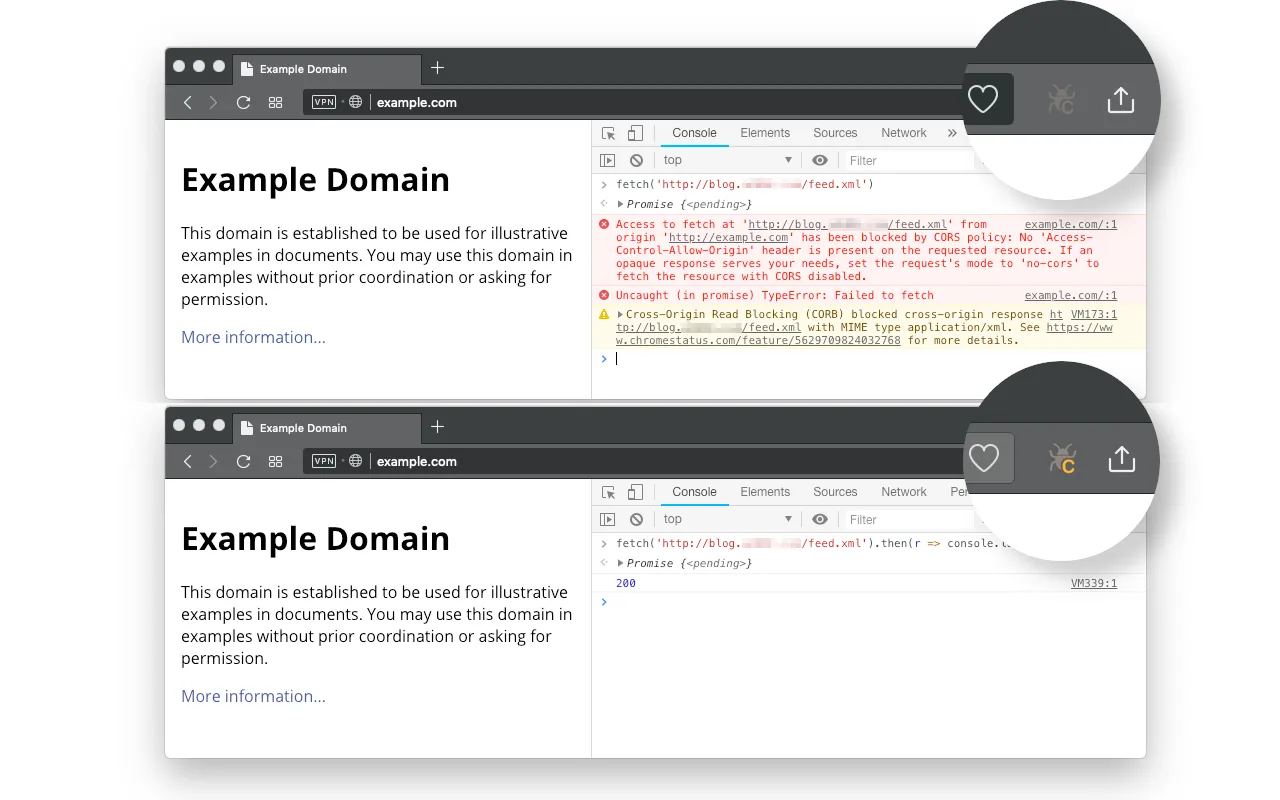
The most common issue in development is hitting a CORS block when the frontend on localhost tries to call a backend API before the backend has its CORS headers set up. This extension injects Access-Control-Allow-Origin: * into response headers to bypass the browser’s CORS restriction. It’s disabled by default — only enable it via the toolbar button when you actually need it, and remember to disable it when you’re done. It also supports per-domain configuration, URL pattern scoping, and the additional headers required for SharedArrayBuffer.
This extension is for development use only — don’t leave it enabled all the time. Disabling CORS allows any website to make requests to your browser tab, which is a security risk during normal browsing.
Package Management
npm
For most frontend projects I use npm to manage dependencies. It’s built into Node.js and requires no additional installation — more than enough for the majority of projects.
pnpm
For larger projects or monorepo setups, I switch to pnpm. It installs faster than npm and uses hard links to share packages across projects, making disk space usage much more efficient. You can specify the version in package.json using the packageManager field:
package.json
{
  "packageManager": "[email protected]"
}
Code Formatting
Prettier
I use Prettier across all my frontend projects for code formatting. My common configuration:
.prettierrc
{
  "semi": true,
  "singleQuote": true,
  "tabWidth": 2,
  "trailingComma": "es5"
}
The reasoning behind the main settings:
- semi: true: Semicolons at the end of statements, reducing potential issues from ASI (automatic semicolon insertion).
- singleQuote: true: Single quotes for strings — the more common convention in the JavaScript community.
- tabWidth: 2: 2-space indentation — the standard for frontend projects.
- trailingComma: “es5”: Trailing commas wherever ES5 allows them, making diffs cleaner and additions easier.
For some projects I also add @trivago/prettier-plugin-sort-imports to automatically sort import statements and keep file headers tidy.
ESLint
The static analysis tool I use alongside Prettier. My projects are now on ESLint 9+‘s flat config format:
eslint.config.js
import js from '@eslint/js'
import reactHooks from 'eslint-plugin-react-hooks'
import reactRefresh from 'eslint-plugin-react-refresh'
import tseslint from 'typescript-eslint'

export default tseslint.config(
  { ignores: ['dist'] },
  {
    extends: [js.configs.recommended, ...tseslint.configs.recommended],
    files: ['**/*.{ts,tsx}'],
    plugins: {
      'react-hooks': reactHooks,
      'react-refresh': reactRefresh,
    },
    rules: {
      ...reactHooks.configs.recommended.rules,
    },
  }
)
Flat config makes the configuration structure cleaner and conditional rule setup much easier.
Tailwind CSS
Nearly all my frontend projects use Tailwind CSS for styling. I currently work with two versions:
Tailwind CSS v4
Newer projects (like this site) use Tailwind v4, integrated via the Vite plugin:
astro.config.mjs
import tailwindcss from '@tailwindcss/vite'

export default defineConfig({
  vite: {
    plugins: [tailwindcss()],
  },
})
v4 configuration lives directly in CSS — no more tailwind.config.js needed:
src/styles/global.css
@import "tailwindcss";

@custom-variant dark (&:is(.dark *));
Tailwind CSS v3
Older projects still use Tailwind v3 configured via tailwind.config.js. I typically define the project’s theme colors and custom design tokens there:
tailwind.config.js
export default {
  content: ['./index.html', './src/**/*.{js,ts,jsx,tsx}'],
  theme: {
    extend: {
      colors: {
        primary: { /* custom color palette */ },
        secondary: { /* custom color palette */ },
      },
    },
  },
  plugins: [require('@tailwindcss/typography')],
}
TypeScript
All my frontend projects use TypeScript with strict mode enabled, plus path aliases to simplify imports:
tsconfig.json
{
  "compilerOptions": {
    "strict": true,
    "jsx": "react-jsx",
    "baseUrl": ".",
    "paths": {
      "@/*": ["src/*"]
    }
  }
}
Path aliases let imports use @/components/Button instead of ../../components/Button, and they stay valid even when the project structure changes.
UI Component Library
shadcn/ui + Radix UI
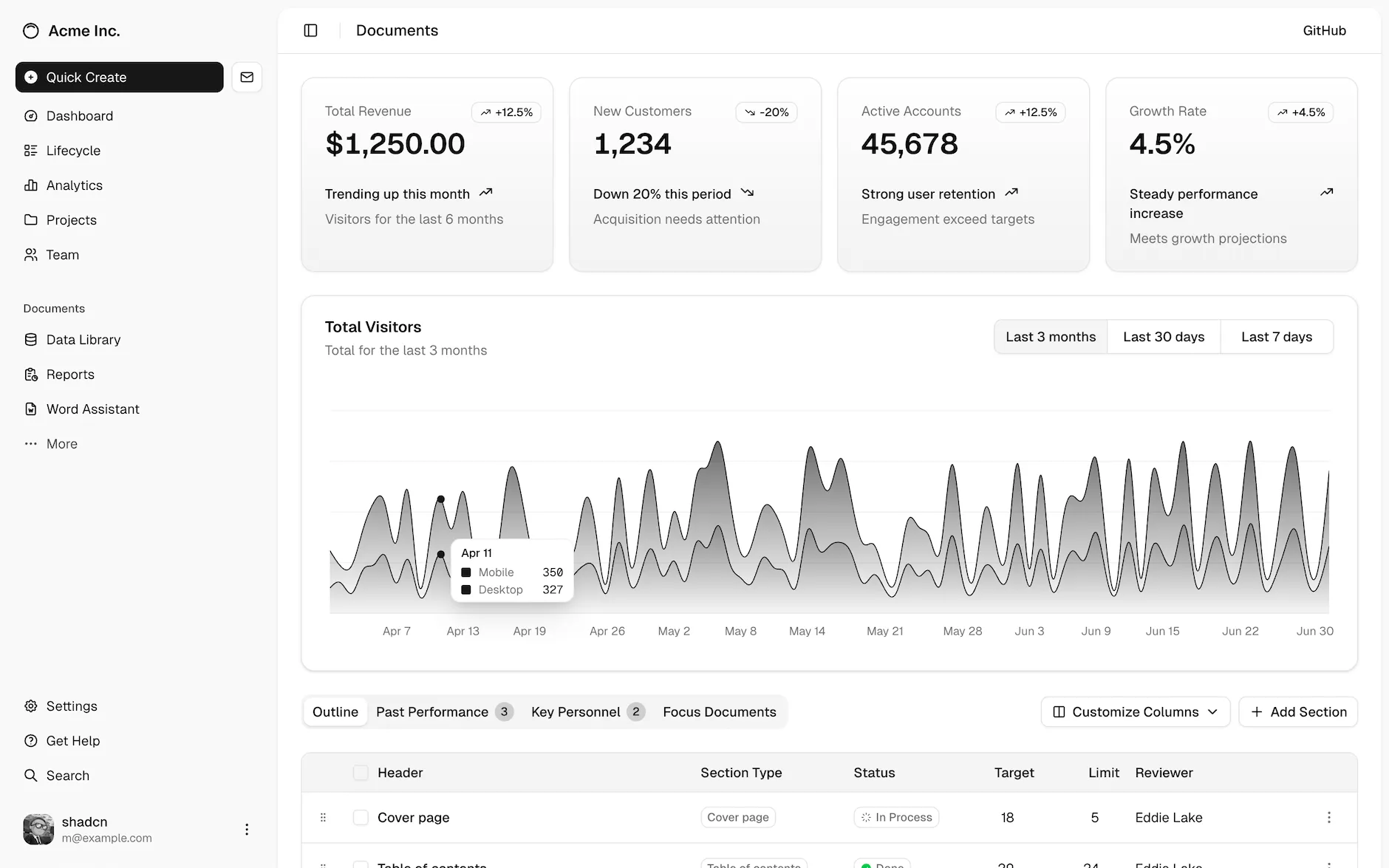
Most of my projects use shadcn/ui with Radix UI as the base component library. The advantage of shadcn/ui is that components get copied directly into your project — fully customizable, and unaffected by third-party package updates.
Combined with Tailwind CSS variables for theming, dark mode and custom brand colors become straightforward to implement.
Main Tech Stack Summary
A quick summary of the tech combinations I use for frontend development:
- Framework: Astro / Remix (React Router) / Vite + React
- Language: TypeScript (strict mode)
- Styles: Tailwind CSS (v3 / v4)
- UI Components: shadcn/ui + Radix UI
- Icons: Phosphor Icons / Lucide React
- Package Management: npm (primary) / pnpm (monorepo)
- Formatting: Prettier + ESLint (flat config)
- Deployment: Cloudflare Workers / static deployment