A lot of people I know complain about their inbox being out of control. Tens of thousands of unread emails, important messages buried under e-commerce notifications, spending ten minutes searching for an email from three months ago — these all sound like different problems, but I think they share the same root cause: everyone dumps everything into one pipeline, then uses their brain as the router.
This post is about my own email management system. The core idea is to treat your inbox like an information pipeline, not a catch-all bin. A well-designed pipeline does four things: route by type → auto-archive → reduce noise → read in layers, and then one more step most people miss: close the loop on sent mail. I’ll walk through the whole system, using Gmail, Spark Mail, and a free Chrome extension called Mailtrack.
The Mental Model Behind Email Management
Before jumping into tools, I want to lay out the mental model underneath the whole system — otherwise each tool will feel like an isolated trick with no connection to the bigger picture.
The real problem with email isn’t volume — it’s the lack of a pipeline. A good email system works like a factory conveyor belt: each message enters, gets classified, gets read, gets handled, gets tracked. Every step has a clear node and a rule. Nothing just piles up in a bin waiting for you to get around to it.
This pipeline has six actions. The first four are about controlling input; the last two are about finding and tracking:
- Route by type: Decide which pipeline a message belongs to before it even arrives (using multiple Gmail accounts)
- Auto-archive: Let Gmail rules handle the sorting automatically (using Filters and Labels)
- Reduce noise: Actively cut subscriptions you don’t need (using
unsubscribesearch and tools) - Read in layers: Use a dedicated app so important mail is always visible (using Spark Mail)
- Search: Your fallback when you need to find a specific message (using Gmail search operators)
- Track: Close the loop on mail you’ve sent (using Mailtrack)
One common misconception worth addressing: search does not replace archiving. Some minimalists argue that Gmail’s search is so powerful, why bother with folders? In practice, archiving and search solve different problems. Archiving gives you everyday order — you open your inbox and immediately know what deserves your attention. Search handles the occasional targeted lookup — when you need a specific email from three months ago. They’re complementary, not interchangeable.
Routing by Type: Multiple Gmail Accounts
The most fundamental reason inboxes get out of hand is that everything lands in the same inbox. Many people try to fix this with Gmail’s built-in labels or folders, but that’s still reactive — the mail arrives in the main inbox first, and you still have to triage each message individually.
My approach is to separate mail at the source: I use four Gmail accounts, each for a different category of email.
| Account | Purpose | Typical content |
|---|---|---|
| Banking | Financial | Transaction alerts, statements, credit card bills, bank verification codes |
| Shopping & Social | Registration noise | E-commerce promotions, membership notifications, social platform messages, login alerts |
| Newsletters | Intentional reading stream | Newsletters, Substack, Medium, column subscriptions |
| Professional | Work and formal correspondence | Collaboration proposals, interview notices, professional communication, document exchange |
The logic behind these four: financial risk should be isolated, noise should be contained, reading should have its own space, and work should stay clean. The key is not sorting by sender or subject — it’s sorting by the nature of the email. The same platform might send mail to different accounts (Google, for instance, might send a verification code to the banking account and a promotional email to the shopping account).
The one thing I’d especially recommend is giving newsletters their own dedicated inbox. Most people mix newsletters with other registration noise, so the newsletters get buried and never read even though you subscribed. Once newsletters have their own account, opening it becomes pure reading time — much lower mental load.
When signing up for a new service, I take 30 extra seconds to pick the right account. The time saved over the long run massively outweighs that small upfront cost.
Advanced Technique: Use + Tags to Track Email Sources
Gmail has a feature many people don’t know about: you can add +anytext before the @ in your address and the mail still arrives in the same inbox, but you can use that tag to trace where mail came from. For example:
[email protected]— used when registering with Shopee[email protected]— used when registering with Netflix[email protected]— used when subscribing to newsletters
There are two benefits. First, you can tell who leaked your address — if one day [email protected] starts receiving suspicious spam, you know it came from Shopee. Second, you can combine this with Gmail Filters for automatic sorting — set a rule: if the recipient contains +newsletter, apply a label and skip the inbox, without having to configure rules for each individual sender.
This technique pairs well with the multi-account routing above: accounts handle broad categories (finance / shopping / newsletters / professional), and + tags handle finer sub-categories within each account.
Auto-Archiving: Let Gmail Filters Do the Work
Even after routing mail across accounts, each inbox will still accumulate noise that needs sorting. At this point I don’t touch things manually — I hand everything off to Gmail Filters and Labels.
Gmail’s labels work differently from traditional folders: a single message can have multiple labels. This matters — it means you never have to agonize over whether an email belongs in folder A or B. Label it both, and it shows up in either place.
The three filter rules I use most:
1. Auto-label newsletters and skip the inbox
Condition: sender contains newsletter@ or subject contains keywords like Weekly, Digest, etc.
Action: apply “Newsletters” label, Skip Inbox, Mark as Read.
This combination means “archive this directly to the newsletters folder as soon as it arrives — don’t bother me.” I browse that label when I’m in the mood to read, and the main inbox stays clean.
2. Auto-star specific senders
Condition: sender is my manager, a client, or a specific collaborator. Action: Star it, apply the relevant project label.
This is the inverse operation — instead of removing noise, it flags high-priority mail so it doesn’t get buried.
3. Auto-file by keyword to project labels
Condition: subject or body contains a specific project name, invoice keywords, or system notification phrases. Action: apply the corresponding label, then archive or leave in inbox depending on needs.
I keep a set of standing rules for long-term projects. When a new project starts, I spend two minutes setting up a Filter for it, and all related mail auto-files from that point on.
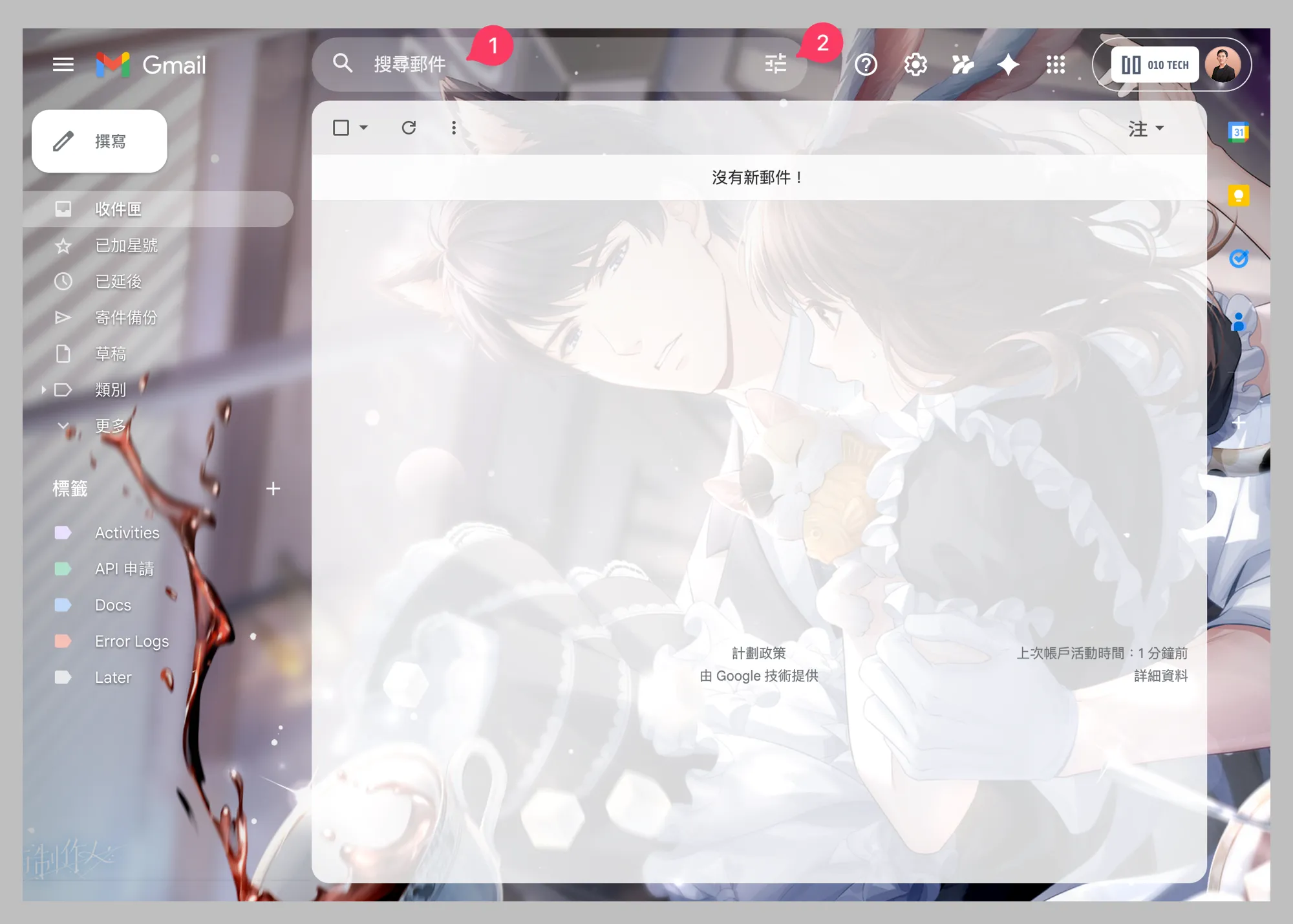
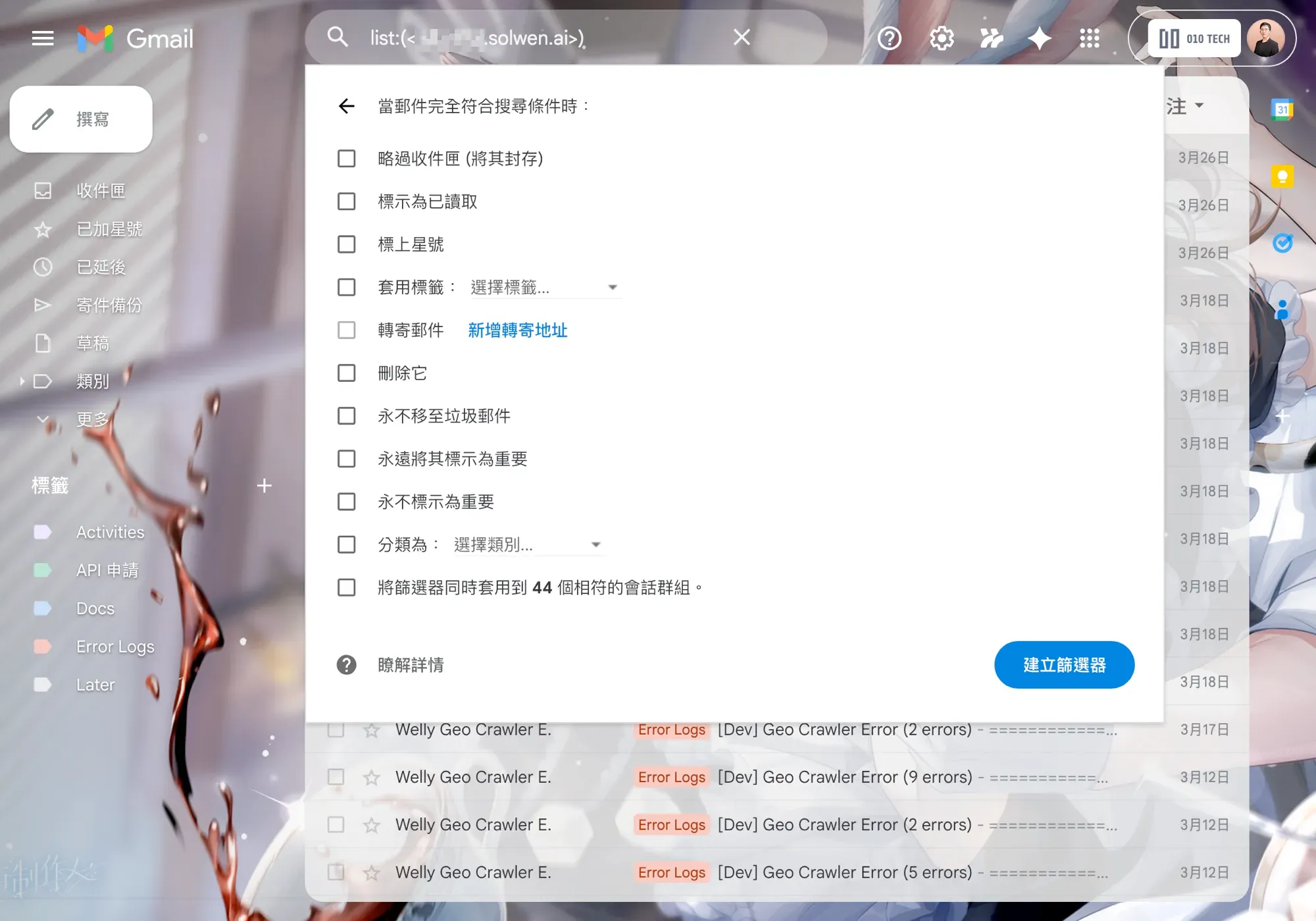
Where to configure this: In Gmail web, click the filter icon next to the search bar.
One important tip: test your conditions with a search before creating a Filter. After filling in the conditions in the filter panel, don’t click “Create filter” right away — click “Search” first. Gmail will show you all matching messages so you can preview the results. Confirm the output matches your expectations, then go back and create the filter. This saves you from building rules that turn out to be too broad or too narrow.
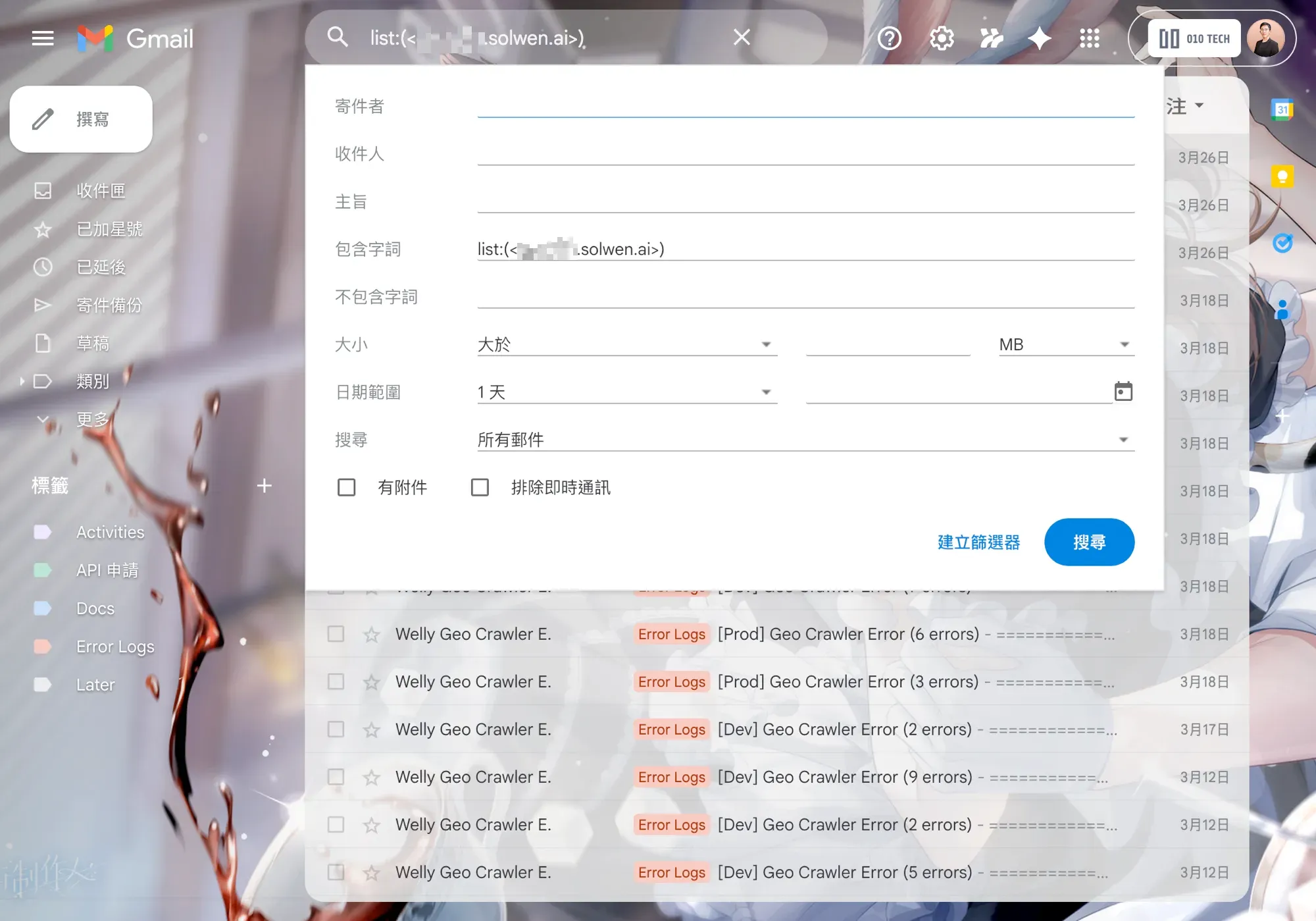
Once you’ve confirmed the conditions are right, set the actions — skip inbox, mark as read, apply label, etc. — according to your needs.
Search Is the Second Exit Beyond Archiving
One more thing worth covering: good archiving doesn’t mean you can skip learning search. Gmail’s search operators are powerful. The ones I use most:
from:[email protected]— specific senderhas:attachment— messages with attachmentsolder_than:6m/newer_than:7d— time rangeslabel:newsletters— specific labelsubject:invoice— subject keywords- Combined:
from:boss has:attachment newer_than:30d
Auto-archiving handles your day-to-day sense of order; search handles those moments when you need to pinpoint a specific message. You need both — that’s what it means to truly have your inbox under control.
Reducing Noise: Actively Cutting Subscriptions at the Source
Auto-archiving can hide noise, but the hidden mail still exists. The truly permanent fix is to actively cut off subscriptions at the source — do a cleanup pass on a regular basis.
I set aside a fixed time each month for this (usually early in the month). The process is simple.
Method 1: Gmail’s unsubscribe: search
Type unsubscribe in the search bar, and Gmail will automatically filter out all messages containing an unsubscribe link (which covers most newsletters and marketing mail). Go through them one by one: have I actually read anything from this sender in the past month? Do I still need it? If not, unsubscribe immediately.
Gmail’s unsubscribe flow has a hidden shortcut — many messages show an “Unsubscribe” button right next to the sender name in the preview. Click it and you’re done, without having to open the message and hunt for a tiny link buried at the bottom. This button is a massive time-saver when you’re doing a batch cleanup.
Method 2: Dedicated unsubscribe tools like Leave Me Alone
If you’d rather not do it one by one, there are third-party tools built specifically for this — Leave Me Alone, Unroll.Me, and others will scan your inbox, list all your subscriptions, and offer one-click unsubscribe or Roll Up (bundling newsletters into a daily digest).
My honest take after trying a few: these tools add limited value over Gmail’s native unsubscribe: search, and they require granting read access to your inbox, which is a privacy trade-off worth thinking about. Fine for an occasional pass, but for ongoing use I’d stick with the native approach.
The key mindset for reducing noise: if you haven’t read a subscription in three months, you almost certainly won’t read it in the future. It’s easy to subscribe impulsively to an interesting topic, but subscriptions are a continuous cost against your attention — not a zero-cost action. Cutting subscriptions isn’t losing something — it’s reclaiming your focus.
Reading in Layers: One Interface for All Your Accounts
After routing mail across four Gmail accounts, you run into a new problem: reading mail now means constantly switching between accounts. The official Gmail app does support multiple accounts, but each switch requires tapping an avatar to select one — which turns “routing” into “context-switching.”
This is where I use Spark Mail as my unified reading interface.

Spark’s value comes down to three things:
1. Unified Inbox: all accounts in one view
Spark merges mail from all four Gmail accounts into a single reading stream, with each message still showing which account it came from. You don’t need to switch accounts to read — but you can switch if you want to focus on a single inbox. The routing logic stays in the back end (four independent accounts); the reading experience is unified in the front end (one app). Neither side is compromised.
2. Comprehensive keyboard shortcuts, consistent across platforms
Gmail’s native shortcuts need to be enabled in settings and only work in the browser. Spark’s shortcuts are more complete — Archive, Snooze, Pin, Move all have dedicated keys — and the Mac shortcuts, iPhone swipe gestures, and iPad keyboard behavior are all consistent. One set of muscle memory works on every device.
3. Smart Inbox + Pin + Snooze as a layered reading stack
Spark’s Smart Inbox automatically sorts messages into Personal, Notifications, and Newsletters — one glance tells you what’s from a real person, what’s a system notification, and what’s a newsletter. Add Pin (keep important messages at the top) and Snooze (remind me to deal with this later), and your reading workflow has three modes: “handle now,” “pin for later today,” and “push to three days from now.” You don’t have to decide what to do with every message on the spot.
My usual morning routine: open Spark, scan the Unified Inbox, quickly Snooze anything I don’t need today, Pin whatever I need to reply to, and Archive the rest. The whole thing usually takes under 10 minutes. The rest of the day I can actually focus on work.
Free, with paid advanced features Spark MailClosing the Loop: Sent Mail Is Just the Beginning
Everything above is about incoming mail — but there’s one more piece most people overlook: mail you’ve sent.
A lot of people send an email and then it just disappears into a black hole. You have no idea if the other person opened it, when they opened it, or whether you need to follow up. That information matters a lot in collaboration, job applications, and business relationships.
Most tracking tools are paid services, but there’s a free option that handles this perfectly. I use Mailtrack, installed from the Google Workspace Marketplace — once installed, Gmail gains email tracking functionality.
Installation
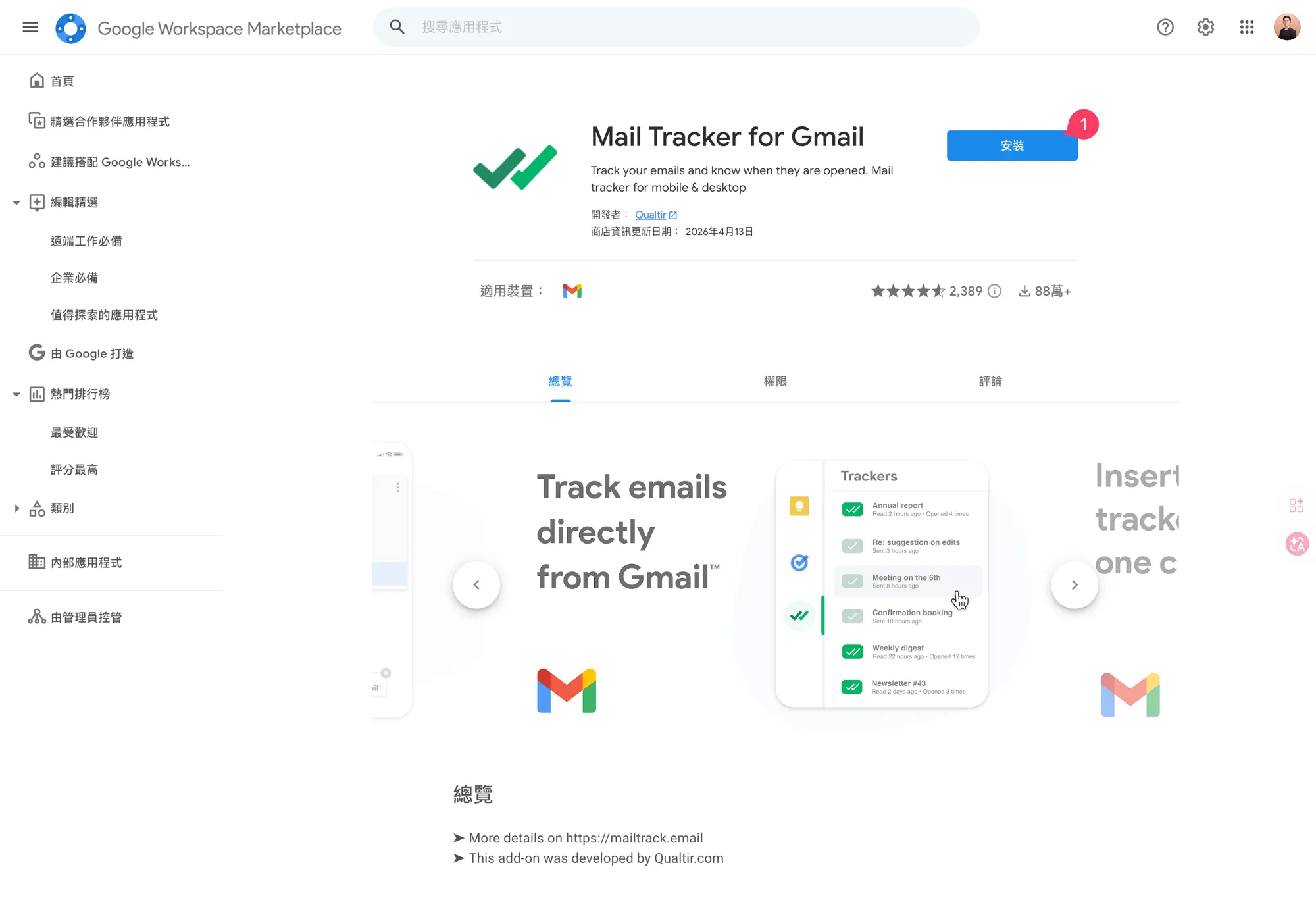
Easy to set up. Search “Mail Tracker for Gmail” in the Google Workspace Marketplace and click Install.
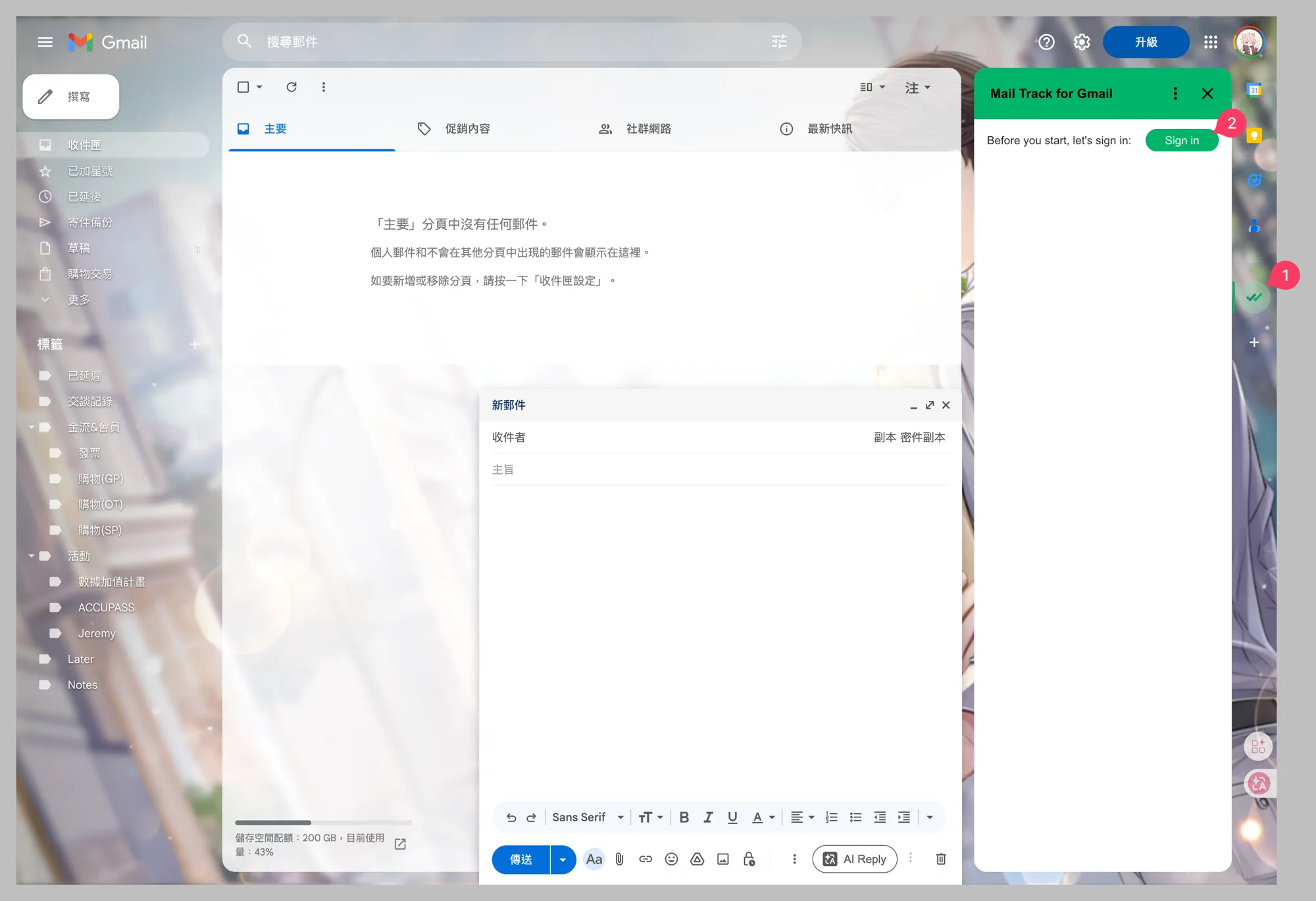
After installation, go back to Gmail — a Mailtrack prompt will appear in the top right. Click “Sign in.”
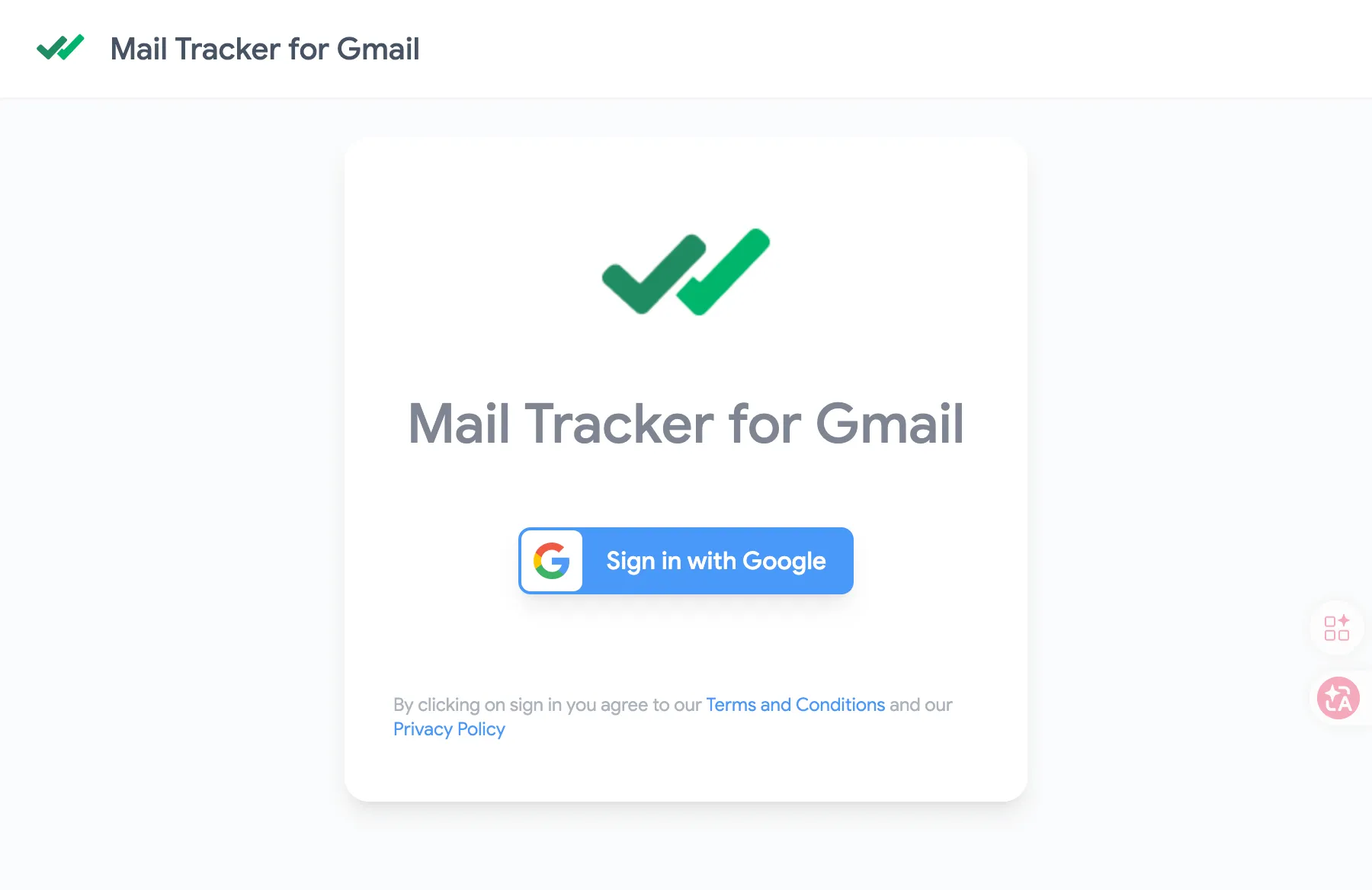
Sign in with your Google account directly — no separate registration needed.
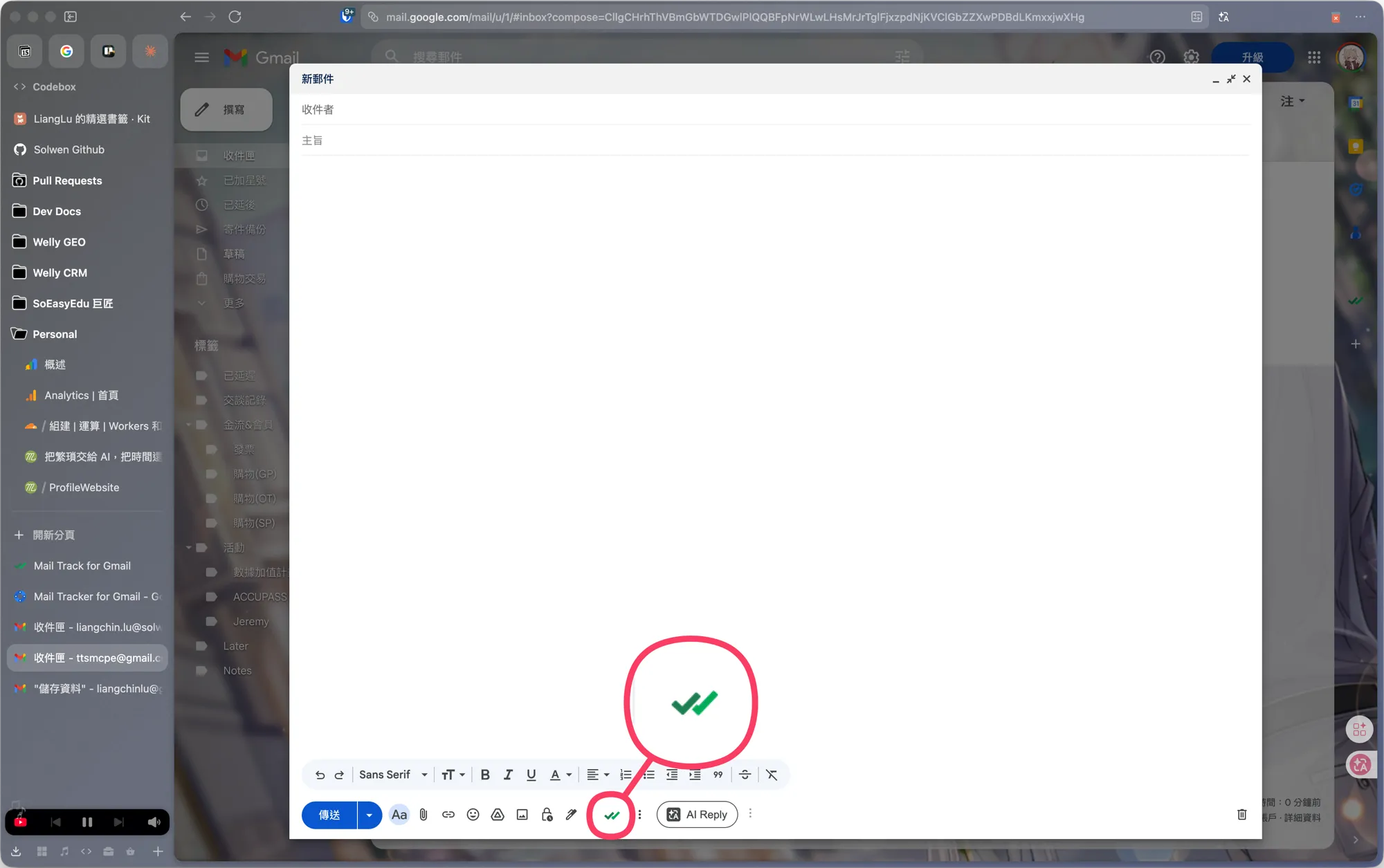
Once signed in, you’ll see a green double-checkmark icon next to the send button when composing a new message, indicating that tracking is active.
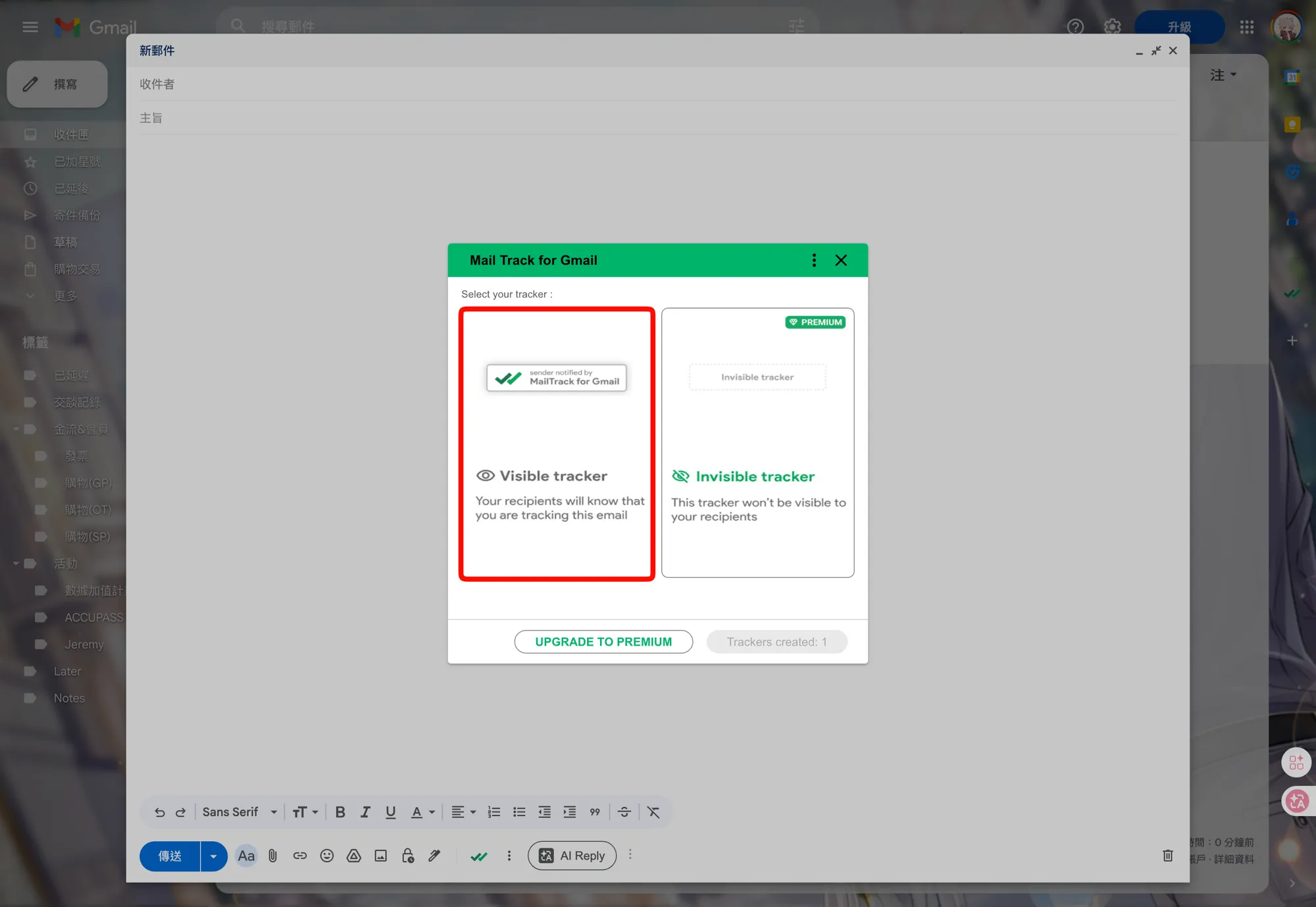
Click the icon to choose a tracking mode — the free plan offers Visible tracker (the recipient can see it), and the paid plan adds an Invisible tracker (the recipient can’t see it).
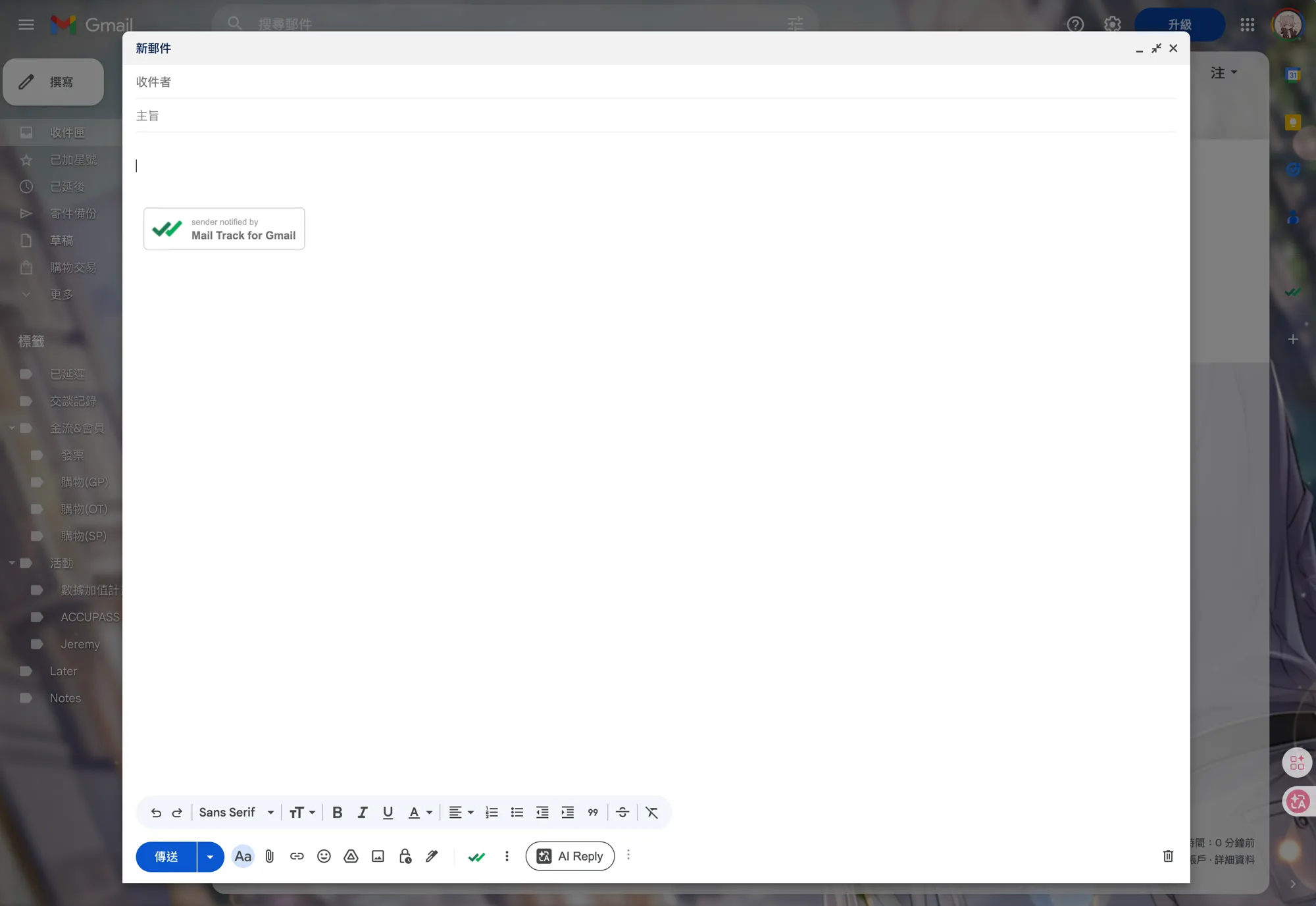
The one downside of the free plan: a line reading “Sender notified by Mail Track for Gmail” is appended to the bottom of every email. For personal correspondence it doesn’t matter, but if you’re concerned about it in professional settings, you can upgrade to a Mailtrack paid plan to remove the signature.
How I Actually Use Mailtrack
- Email tracking: Sent messages show a “read / unread” status with a timestamp in the message header — invisible to the recipient.
- Accessible across platforms: Mailtrack creates a corresponding tracking label inside Gmail, so tracking status isn’t limited to the Chrome extension. On your phone, open Spark or the Gmail app, browse to that label, and you can see which messages have been read and which haven’t. You’re not tied to your computer.
- Multi-account support: Works naturally with my four-account setup — one extension managing all of them.
The main scenario where I use tracking: if an important email hasn’t been opened 48 hours after I sent it, I follow up proactively. This simple rule prevents a lot of “they didn’t reply because they didn’t see it” misunderstandings.
Free, with paid advanced features MailtrackThe Mental Model for a Clean Inbox
After running through the whole pipeline, my definition of a “clean inbox” is actually pretty simple —
Every incoming message has a place. Every outgoing message has a way to be tracked.
The tools are just vehicles. Gmail, Spark, Mailtrack — swap them for functionally similar alternatives and the same system works. What actually determines whether your inbox gets out of hand is the mental model: an inbox isn’t for reading. It’s for filtering. Most messages don’t need your attention at all — they just need to be categorized, archived, or ignored.
If your inbox already feels out of control, start by checking yourself against these questions:
- Routing: Are different types of mail mixed into the same inbox? Is there any way to separate them at the source?
- Auto-archiving: Have you set up Filters? Or are you still processing every message by hand?
- Noise reduction: When did you last unsubscribe from something? Are you still receiving subscriptions you haven’t read in three months?
- Layered reading: Do you have to switch accounts to read mail? Do important messages get buried by noise?
- Search: Do you know how to use Gmail operators to find a specific message?
- Tracking: When you send something important, do you know whether the other person has read it?
If any of those answers is “nope” or “not sure,” that’s a starting point for improvement. You don’t have to do everything at once — pick the one that bothers you most and tackle that first. Email management is never a one-time fix. It’s a continuously evolving system — your mail changes, your subscriptions change, your work changes, and your system needs to adapt too.