Good file management isn’t something you maintain through willpower — it runs on a naming system and the right tools working together. This post covers my file naming conventions and management approach across different contexts: document management in Google Drive, repository naming for code projects, and the sharing workflow for Google Photos. The underlying logic is the same across all of them: establish rules, reduce decisions, and let the tools do the executing.
A lot of this system was inspired by Jeff Su’s file management video on YouTube, where he lays out a clean, practical framework for organizing files. I built on that foundation and extended it to code projects, multimedia, and other areas specific to my own setup.
The Logic Behind File Naming
Before getting into specific tools and contexts, let me walk through the general principles that run through everything. These principles apply whether we’re talking about cloud documents, code projects, or photo albums — the underlying logic is the same.
Ordering Is Navigation
The first purpose of a file name isn’t to describe content — it’s to control sort order. When you open a folder, the order of the files should let you find your target within three seconds. That’s why all my names start with a sortable identifier — numbered prefixes for top-level folders, dates for subfolders — so the filesystem’s default sort order becomes your navigation system.
Fewer Layers Is Better
Folder structures should be no more than five levels deep. Beyond five levels, you spend more time clicking in and back out than you do finding the actual file. If you find that a category needs a sixth level, that’s usually a sign the higher-level structure needs redesigning — not that you should keep digging deeper.
Names Should Survive Out of Context
A good file name should make sense to anyone who sees it — even if it’s been dragged to the desktop, dropped into a chat, or separated from its folder entirely. That’s why I include dates and organization names in file names, rather than just writing “report.pdf.”
Triage First: Temp vs. Keep
Before putting a file anywhere, I make one decision: is this temporary or permanent? Temporary means it’s for short-term use — a screenshot, a downloaded attachment, something you’re forwarding to someone. Use it, then delete it. It doesn’t go into any folder structure. Permanent means something I’ve decided to keep long-term — that’s what goes into Google Drive or a local project folder. These two paths use completely different tools and workflows. Mixing them is how folders get cluttered.
Temporary Files
Not everything needs to be archived. Plenty of things that come up during a workday are pure one-and-done material — an image grabbed from a webpage, a screenshot you’re about to send, an attachment you saved from a chat. The lifespan of these files might be a few minutes to a few hours. Forcing them into a folder structure is just creating noise.
My approach is to use dedicated temporary-holding tools for these. The core rule: fast in, fast out — grab it, use it, delete it. Don’t let it accumulate on the desktop or in the Downloads folder.
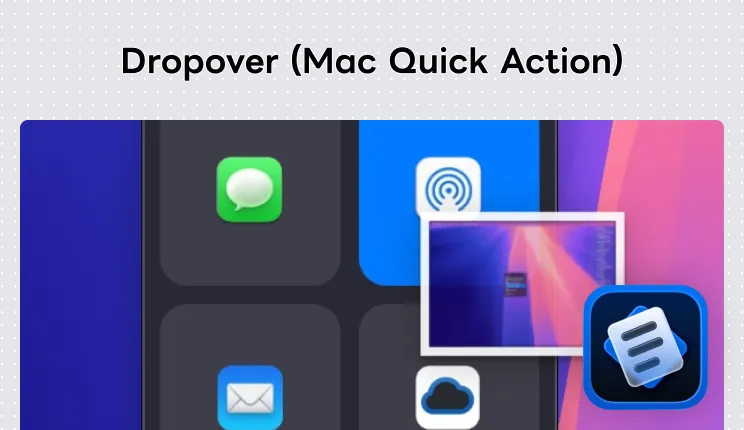
Mac: I use Dropover. Drag a file and shake it left and right, and a floating shelf pops up where you can drop things. You can collect files from multiple sources and then drag them all at once to a destination. After you’re done, the shelf disappears automatically — nothing lingers in the system.
Paid Official site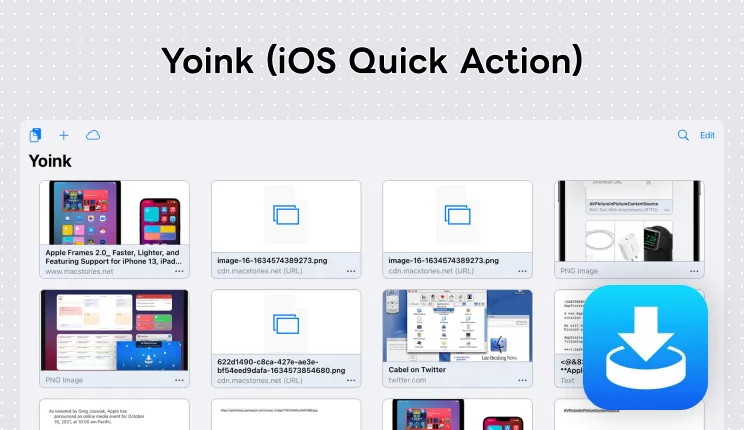
iOS: I use Yoink. From any app, use the share sheet to drop images or files directly into Yoink, where everything collects in one place. When you need something, drag it out from Yoink — no need to go through the Files app or the photo library. Clean it out when you’re done.
Paid Official siteGoogle Drive Management
Top Level: Numbered Folders
My Google Drive top level uses a numbered system for the main categories:
01 - Finance/
02 - Learning/
03 - Work/
...
99 - Archive/
The format is a two-digit NN number paired with a category name. A few intentional choices here:
100 categories max: Two-digit numbering means a maximum of 99 categories (excluding the archive). That limit is deliberate. If your top-level categories exceed that, you’re over-categorizing — merge, don’t add. In practice, I’m using fewer than 20 top-level categories.
Numbers can form groups: The numbering doesn’t have to be sequential. You can use ranges to group related categories logically — single-digit numbers for personal, tens for work, etc. — so related categories naturally cluster together. Adjust this to fit your own mental model.
99 is always Archive: Instead of deleting categories you no longer use, move them into 99. They won’t clutter your active workspace, but they’re still findable when you need to look something up.
Subfolders: Date-Based Naming
Subfolders under the main categories use date-based naming:
01 - Finance/
├── 240315 - Apple Contract Signing/
├── 240820 - Google Project Report/
├── 250110 - Personal Year-End Review/
The format is YYMMDD - Organization Project Name, separated by -.
YY instead of YYYY: The first two digits of years like 2021, 2022, 2023 are all 20, so writing the full year makes the names all look the same at a glance. Two-digit YY is cleaner and unambiguous for the foreseeable future.
Date goes first: This way, sorting by name automatically sorts by time — newest at the bottom (or top, depending on your sort preference). No manual organizing needed.
Organization name as the second identifier: Multiple organizations might have active projects in the same time period, so including the name lets you filter quickly. For personal matters, I write “Personal.”
Depth Limit on Folder Nesting
The folder structure under each top-level category should be no more than five levels deep. This is one of the hardest rules in the whole system:
01 - Finance/                          ← Level 1: Top-level category
├── 240315 - Apple Contract Signing/   ← Level 2: Project folder
│   ├── Contract Documents/            ← Level 3: File type
│   │   └── 240320/                   ← Level 4: Date folder
│   └── Meeting Notes/
Five levels is the ceiling, but that doesn’t mean every folder needs to go that deep. Something like contract documents — where files accumulate over time — makes sense to organize with date subfolders. But once you go past five levels, you start getting lost: you click in and forget where you are. If a project’s files are complex enough to need more depth, I rethink the structure — usually by splitting it into two separate project folders, rather than nesting further.
Quick Share Folder
At level 0, I keep a 04 - Quick Share folder specifically for copies I’m handing off to someone else. Example: you have a presentation with confidential information, but a colleague only needs a few slides. Instead of sharing the whole thing, copy the relevant slides, put the copy in the Quick Share folder, and send that link.
Three benefits:
- The original stays protected — you control exactly what gets shared
- The original folder stays clean — copies are managed in one place
- You don’t have to chase people to delete things — just clear the Quick Share folder periodically
Think of it as a “temporary sharing zone.” Same logic as the temporary file approach: fast in, fast out, clean up after.
Search and Quick-Access Techniques
Even with a solid naming convention, search is still how you’ll find most things. A few techniques that make it dramatically faster.
Use Search Operators
Google Drive supports search operators to narrow results:
type:presentation— Google Slides onlytype:spreadsheet— Google Sheets onlytype:document— Google Docs onlyowner:[email protected]— files owned by a specific person
If you’d rather not type operators, do a basic search and then use the filter bar above the results to narrow things down. And a small tip: if you’re looking for something someone shared with you, go to the “Shared with me” tab and use the People field to enter their name or email — much faster than trying to search from scratch.
Add Keywords to Files
Sometimes someone shares a folder with you and you can’t rename it, but you can press D in Google Drive to open the Details panel and add your own keywords in the Description field at the bottom. These descriptions are indexed by search, so even if the file name doesn’t include your keyword, the description will be found.
Mac users can do something similar for local files — press Cmd + I to open Get Info, add keywords in the Comments field, and Raycast or Spotlight will pick them up.
Star Selectively
Google Drive’s star feature lets you quick-access files from the sidebar, but starring too many things defeats the purpose. I follow Jeff Su’s three criteria:
- Used every day — not every week, every day
- Needed for quick access on mobile too — since starred items appear in the mobile app as well
- Five or fewer at any given time — more than five and it stops being useful
All three conditions need to be true before something gets a star. Everything else, search for it.
Shortcut, Copy, or Neither
When someone shares a file with you on Google Drive, there are three ways to handle it:
- Do nothing: The most common case. If it’s a one-time need — view it, do what you need to do, and leave it. No need to add it to your own system.
- Make a copy: Useful when you need it as a template or a reference you want to keep. Just be aware that the original won’t sync to your copy — so this only makes sense for “snapshot” content.
- Create a shortcut: Best for files that get updated over time and that you need to access regularly. For example, if your manager creates the 1:1 meeting notes, create a shortcut to it in your own system right away. They manage the file their way; you access it your way. Shortcuts show an arrow icon so you can always tell them apart from actual files.
Companion Tools
Google Drive’s built-in search is actually quite strong, and combined with the naming convention above, most files can be found directly by search — since file names already contain dates, organizations, and project names as searchable keywords.
Beyond the web interface, I use different tools on different devices to access Google Drive:
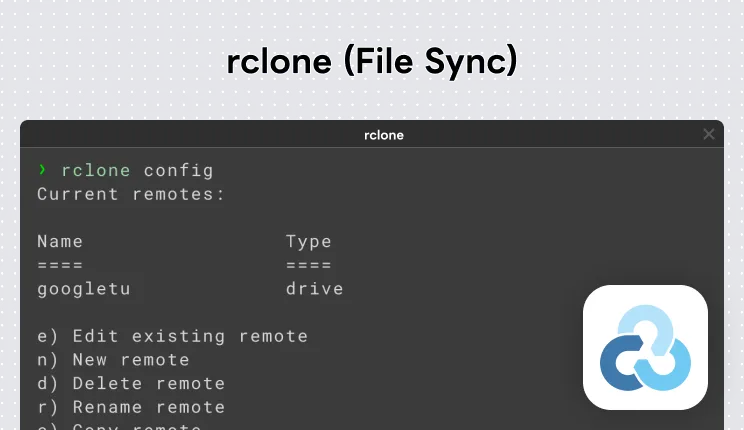
Mac: I use rclone to mount Google Drive as a local drive, alongside the Google Drive desktop app and Finder for direct file system access. The advantage of rclone is batch processing via the command line — moving and syncing files without having to drag things one by one.
Free Official site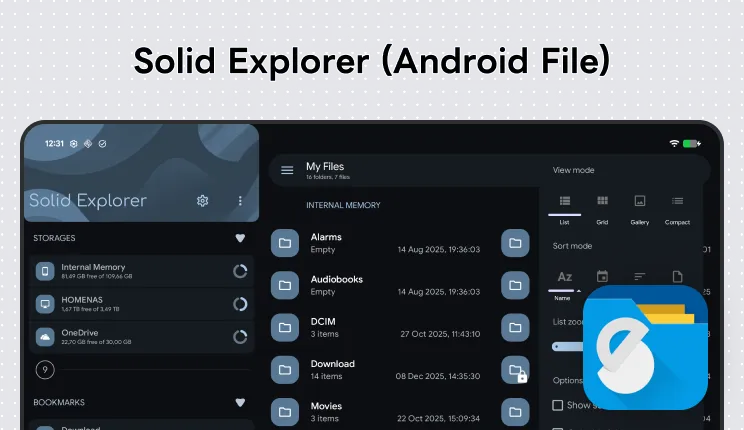
Android: Solid Explorer is my go-to. It connects directly to Google Drive and has a much better interface for actual file management than the official Google app — dual-panel view, batch renaming, and more.
Paid Official site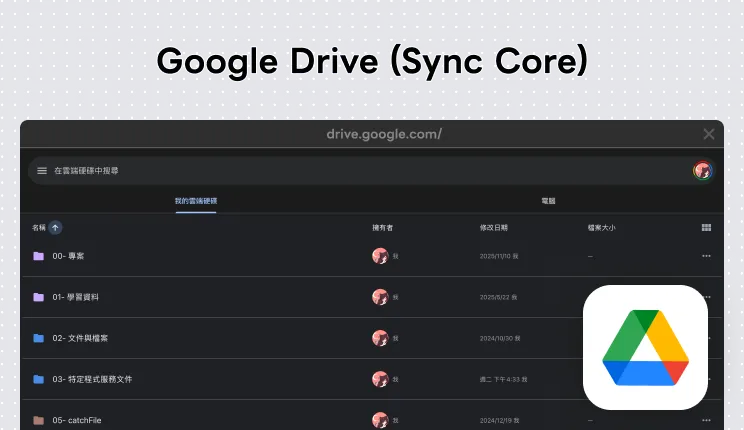
iOS: I use the Google Drive app alongside iOS’s built-in Files app. Google Drive handles browsing and sharing; Files integrates the Drive contents into iOS’s file system for cross-app access.
Free, with paid storage upgrades Official siteCode Project Management
Local Project Folders
All my local code project folders live under one parent directory, and they follow the same naming rules as my GitHub repositories:
~/Documents/github/
├── Apple-ProjectName/
├── Google-DashboardSystem/
├── Personal-OfficialWeb/
├── Personal-SideProject/
GitHub Repository Naming
GitHub repository names match the local folder names. Two formats:
Client/employer projects: OrgName-ProjectName, both using PascalCase.
Apple-ProjectName
Google-DashboardSystem
Personal projects: Personal- prefix followed by the project name.
Personal-OfficialWeb
Personal-SideProject
With this scheme, repositories for the same organization or my own projects automatically group together in GitHub’s repository list.
Multimedia Management
Photos and videos work differently from documents. Documents usually have a clear owner — a specific organization or project — so folder structure works well. But multimedia assets often span multiple projects and contexts. The same photo might relate to a trip, a design project, and a blog post simultaneously.
So I use two modes for multimedia:
-
Folder mode: For content with a clear timeline — travel photos, event documentation. I manage these in Google Photos, using date and event name as the album structure. Same logic as the folder naming above.
-
Tag mode: For assets that need cross-category access — design references, screenshots, inspiration collection. I manage these in Eagle, where each image can have multiple tags. It’s not constrained to a single folder, so search and filtering are much more flexible.
Eagle
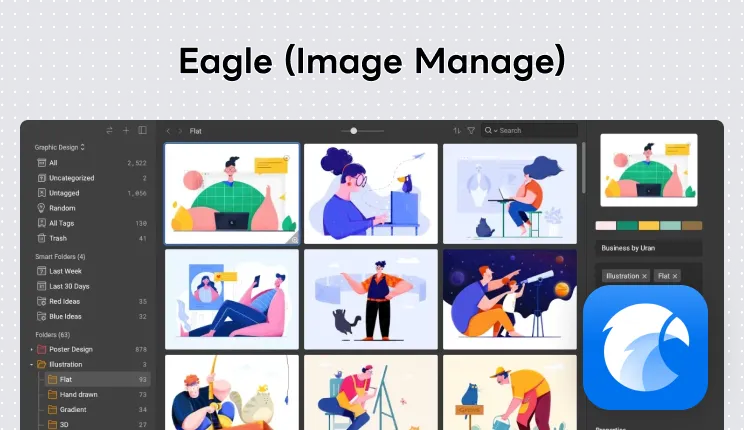
Eagle is a tool designed specifically for asset management. The key difference from traditional folders is that it uses a tag system. One image can be simultaneously tagged as “UI Reference,” “Dark Mode,” and “Dashboard” — and it shows up no matter which tag you browse.
A few features I find especially useful:
- Tag system: Supports nested tags, so you can create hierarchies like
Design/UIandDesign/Icon— organized without sacrificing flexibility. - Browser extension: See an image you like on a webpage? Drag it or right-click to save it to Eagle. The source URL is recorded automatically.
- Smart folders: Automatically filter by tag, color, file type, and more — dynamic views that update without any manual sorting.
- Color filtering: Search assets by color. Incredibly useful when looking for design references — for example, filtering for all blue-toned UI screenshots.
Eagle’s library lives in a local folder with an open structure, so you can pair it with any cloud sync tool (Google Drive, Dropbox, etc.) to sync across machines.
Paid Eagle official siteGoogle Photos
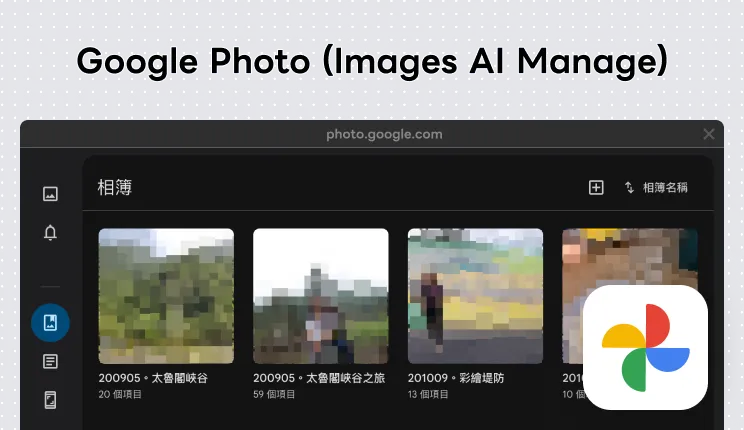
Album Naming
Google Photos album naming follows the same rules as Google Drive subfolder naming — date first, let sorting do the navigation:
240315 - Tokyo Trip
240820 - Company Year-End Party
250101 - New Year Celebration
Format: YYMMDD - Event Name, exactly consistent with Google Drive subfolder naming. One system across platforms — no separate rules to remember.
Sharing Manually with Friends
After taking photos, the most natural way to share is to create a shared album, drop the photos in, and send the link. A few details that make the experience smoother:
- Create a dedicated sharing album: Don’t share your main album directly. Create a separate album just for sharing and only put the relevant photos in it. You can add a note to the name, like
2024.03 Tokyo Trip (Shared). - Enable collaboration: Let friends add their own photos to the album so everyone’s shots end up in one place.
- Enable link sharing: So friends without a Google account can still view it.
Sharing Automatically with Friends
If you have a regular group of people you go out with, manually creating a shared album, adding people, and sending a link every time gets old fast. Google Photos has a “Partner Sharing” feature that automates this:
How to set up Partner Sharing:
- Open Google Photos settings.
- Select “Partner sharing” and add the person’s Google account.
- Set sharing conditions — you can share all photos, or only photos where specific people appear.
Once configured, qualifying photos will automatically appear in the other person’s Google Photos — no manual steps needed. This is especially useful for family photo sharing. Set it up to share only photos of your kid, and grandparents automatically receive everything relevant.
System Overview
The first decision when a file arrives is triage: is this temporary, or is it something to keep? After that, the file follows its path based on content type.
Temporary Files
| Platform | Tool | Purpose |
|---|---|---|
| Mac | Dropover | Floating drag-and-drop shelf, auto-dismisses when done |
| iOS | Yoink | Share-sheet staging area, manually cleared when done |
Archived Files
| Context | Naming format | Tool |
|---|---|---|
| Google Drive top-level | NN - Category Name | Google Drive |
| Google Drive subfolders | YYMMDD - Org Project Name | Google Drive |
| Google Drive quick sharing | 04 - Quick Share (centralized copies) | Google Drive |
| Client code projects | OrgName (PascalCase)-ProjectName (PascalCase) | GitHub |
| Personal code projects | Personal-ProjectName | GitHub |
Multimedia
| Mode | Naming/Organization | Tool | Best for |
|---|---|---|---|
| Folder mode | YYMMDD - Event Name | Google Photos | Travel photos, event documentation |
| Tag mode | Multiple tags | Eagle | Design assets, inspiration, screenshots |
The core of the whole system: triage first, then file it properly. Temporary things never enter the folder structure. Things meant to last get named correctly the moment they arrive. Keep the rules simple — simple enough to become muscle memory — and they’ll actually hold up over time.