The answer to cross-device file transfer isn’t finding a more powerful tool — it’s building a routing rule you don’t have to think about. Memorizing four apps is useless. Memorizing two questions is what matters — who are you sending to, and what network are you on? Answer those two, and the right app becomes obvious.
My devices span the Apple ecosystem and Android — a MacBook, iPhone, iPad, and a Pixel 7. I deal with “how do I get this file over there” almost every day. I tried relying solely on AirDrop, tried dumping everything in the cloud, tried finding one tool to cover all scenarios. The conclusion: no single tool handles every situation perfectly. I’ve settled on four tools with a decision framework, and this post is the whole routing system.
The Two-Question Method
Before transferring a file, I ask myself two questions. The answers determine which tool to use.
Question 1: Who am I sending to?
If it’s going to another device I own, this is a “self” transfer — no links, no actions required from anyone, devices just talk directly to each other. If I’m sharing with someone else, this is a “share” path — the other person may not have any specific app installed, so I need a universal method for them to receive it.
Question 2: What’s the network situation?
This only applies to the “self” path. If both devices are on the same local network (same Wi-Fi or hotspot), local transfer is fastest and most stable. If they’re on different networks, I need an internet-based solution.
That gives three routes:
| Scenario | Condition | Tool |
|---|---|---|
| Self + Apple devices | Both are Apple | AirDrop |
| Self + cross-platform + same network | Same local network | LocalSend |
| Self + cross-platform + different networks | Not on the same network | Blip |
| Sharing with someone else | Recipient may not have any app | Send Anywhere |
Between My Own Devices
My current lineup is a MacBook Pro, iPhone, iPad, and an Android phone (Pixel 7). Most days I’m moving photos, screenshots, and documents between these. Depending on the device combination and network situation, I use different tools.
AirDrop
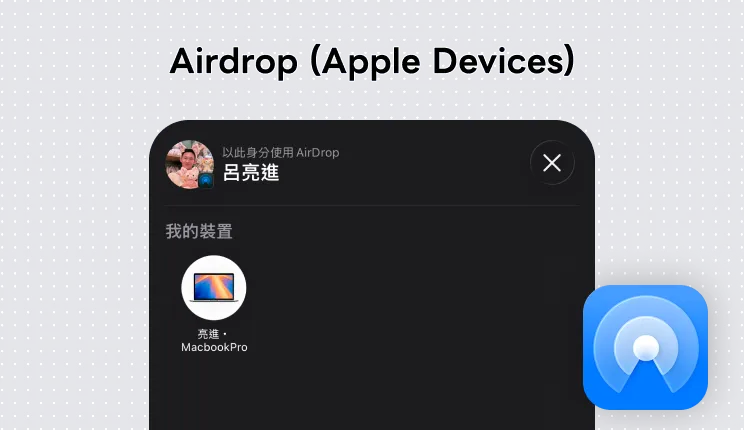
For transfers between Apple devices, AirDrop is still the no-brainer choice. No shared Wi-Fi needed, no app to open, no pairing code to enter — pick the file, tap Share, done. It’s fast, and files land in the right place (photos go to the photo library, documents go to Files).
I use AirDrop for almost everything between my Mac, iPhone, and iPad. There’s no reason to use anything else. The only limitation: it’s Apple-only. When I need to send something to my Pixel, I need something different.
FreeLocalSend
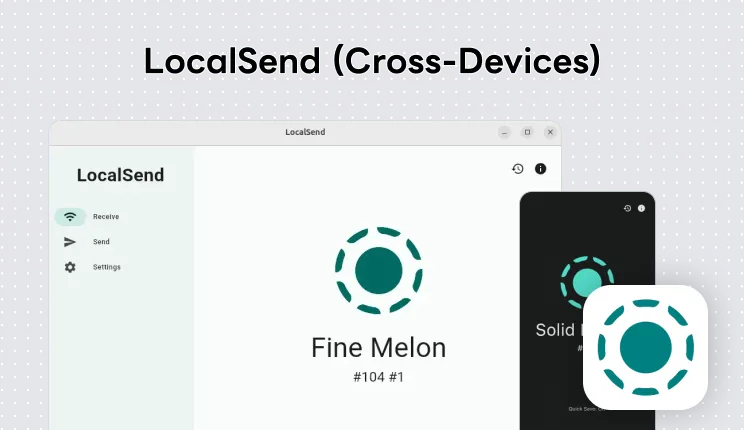
LocalSend is an open-source cross-platform transfer tool that supports Windows, macOS, Linux, Android, and iOS. The concept is simple: if two devices are on the same local network, they can transfer files directly — no cloud server involved.
I mainly use it for transfers between my Mac and Pixel. AirDrop doesn’t work with Android, but LocalSend on a local network is nearly as fast. Open the app, it automatically discovers other devices on the same network, select the file and send, the recipient confirms — done.
Because it’s a direct local connection, no data leaves your local network. Good for privacy. The trade-off: it only works when both devices are on the same network. If I’m out and about on mobile data, LocalSend won’t work.
Free Official siteBlip
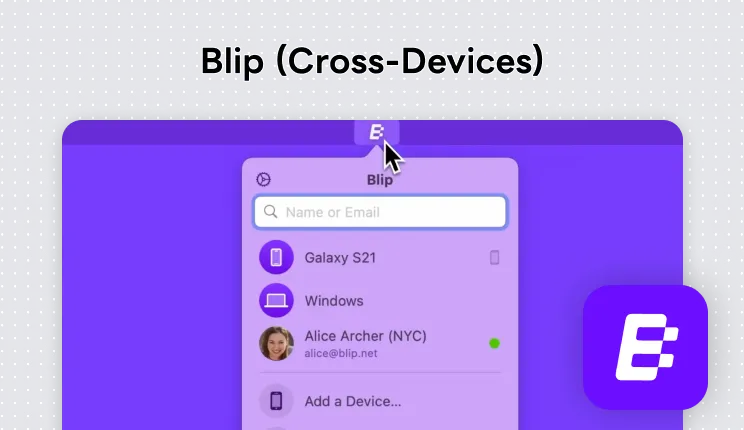
Blip fills the gap: cross-platform, different networks. When I’m out and my Mac and Pixel aren’t on the same Wi-Fi, LocalSend doesn’t work — that’s when I switch to Blip.
The experience feels a lot like AirDrop — log into the same account on your devices, and all your devices show up in a list. Pick a file, send it, done. No QR codes, no pairing codes. It transfers over the internet, so it’s not limited to local networks and works in any environment.
I think of Blip as “AirDrop for cross-platform over the internet.” At home with Wi-Fi I still prefer LocalSend (faster, fully local), but once I’m out I switch to Blip.
Free Official siteSending to Other People
When it’s my own devices, every device has the right app installed, so any of the tools above works smoothly. Sending to someone else is a different situation — you can’t assume they have LocalSend or Blip installed. You need a way for them to receive a file without installing anything.
Send Anywhere
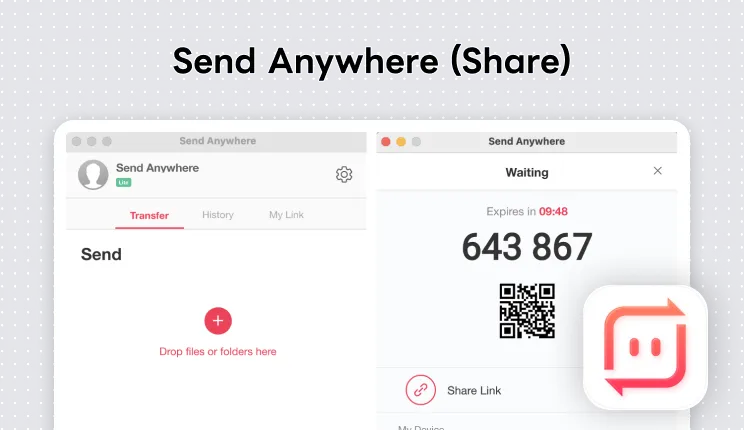
Send Anywhere solves exactly this. When you send a file, it generates a six-digit code. The recipient just enters that code on the Send Anywhere website to download — no account, no app required.
I use it when I need to send a file to a friend or colleague. The flow: select the file, tap send, share the six-digit code however you like (Line, Slack, whatever), and the recipient goes to the Send Anywhere website, enters the code, and downloads it.
Compared to sharing a Google Drive link, Send Anywhere doesn’t require uploading to the cloud first — transfer is immediate. And the code expires, so there’s no permanent sharing link floating around afterward.
Free, with paid advanced features Official siteTool Overview
| Tool | Best for | Platform | Network requirement | Recipient needs app? |
|---|---|---|---|---|
| AirDrop | Apple-to-Apple | Apple only | No shared network needed | No (built-in) |
| LocalSend | Cross-platform, same network | All platforms | Same local network required | Yes |
| Blip | Cross-platform, different networks | All platforms | Any | Yes |
| Send Anywhere | Sending to others | All platforms | Any | No (web-based) |
Four tools, four distinct scenarios, no overlap. AirDrop covers the Apple ecosystem, LocalSend covers cross-platform on the same network, Blip covers cross-platform across networks, Send Anywhere covers sharing with other people. Remember the two questions — who are you sending to and what network are you on — and the right app just emerges on its own.