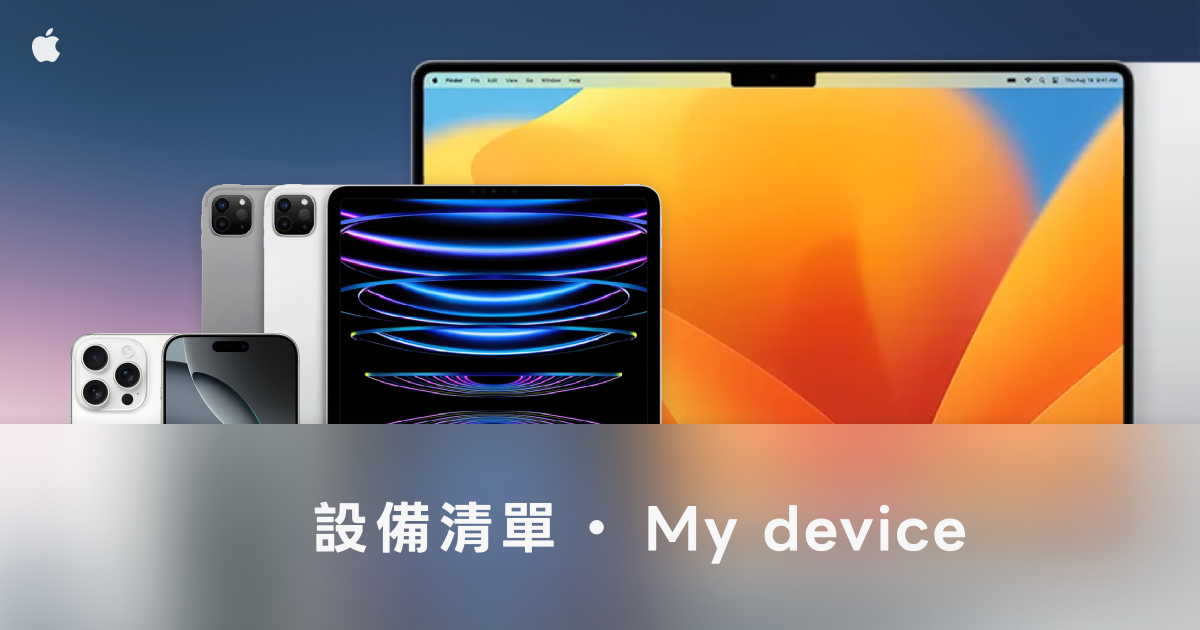
This is a rundown of the hardware I use for daily work and development. When choosing gear, what matters most to me is ecosystem integration and long-term reliability, so my primary devices are in the Apple ecosystem, supplemented by a few peripherals for specific needs.
Computers
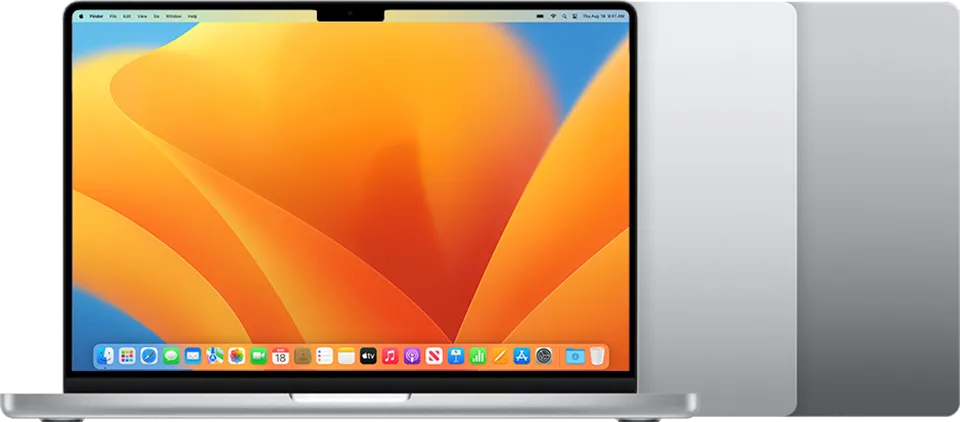
MacBook Pro 14-inch (M1 Pro)
This is my main development machine — all my day-to-day coding, compiling, and testing happens on it. At home I pair it with the ASUS ProArt external monitor, WOB Wave75 keyboard, and Logitech MX Anywhere 2S mouse to form a full desktop workstation. On the go I use it standalone, and M1 Pro’s battery life means I rarely have to worry about finding a power outlet.
Excellent Energy Efficiency
The M1 Pro’s low-power design gives this MacBook Pro exceptional battery life. Even with an editor, simulator, terminal, and browser all open at the same time, the battery holds up for a long stretch. That’s a practical benefit — whether I’m working at a coffee shop or heading out for a meeting, I don’t have to constantly think about where the nearest outlet is.
Unified Memory Architecture
Apple Silicon’s Unified Memory Architecture lets the CPU and GPU share the same pool of memory, so there’s no data shuffling between them. In practice, whether I’m running simulators, compiling a project, or juggling a bunch of dev tools at once, memory efficiency is noticeably better than traditional architectures.
The Best Choice for Cross-Platform Development
As someone who builds cross-platform apps with Flutter, macOS is the only OS that can build for both iOS and Android. With this MacBook Pro, I can develop, test, and debug both platforms on the same machine without ever having to switch devices.
Good Docker Support
When Apple Silicon first launched, Docker compatibility was a real concern for a lot of developers. But after years of updates and optimization, Docker Desktop on ARM has matured a lot. Most images I need for daily development have native ARM versions, and for the occasional x86-only image, Rosetta 2 translation gets it running without issue.
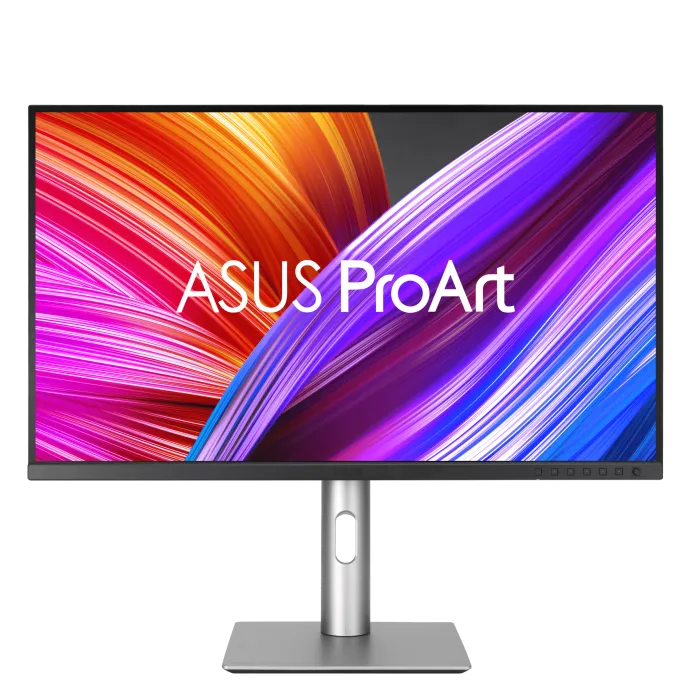
ASUS ProArt Display PA279CRV
My current external monitor — 27-inch 4K — and it pairs really well with the MacBook Pro.
Why 4K at 27 Inches Works So Well for Mac
For Mac users, a 4K external monitor makes a noticeable difference. macOS’s Retina scaling mechanism hits its ideal balance at 27 inches with 4K — text and interface elements are sharp and crisp, with no blurriness or aliasing. This size and resolution combination gives the most comfortable overall experience.
Single USB-C Cable Connection
This monitor supports USB-C single-cable connection: one cable handles video, data, and laptop charging simultaneously. It also has basic hub functionality, so you can plug USB devices directly into the monitor and skip an extra dock. Every morning I just plug in one cable and I’m ready to go — the desk stays clean and tidy.
Factory Calibration Report
The monitor ships with a calibration report verifying color accuracy. For UI design or image editing work, you get reliable color right out of the box without spending money on a separate colorimeter.
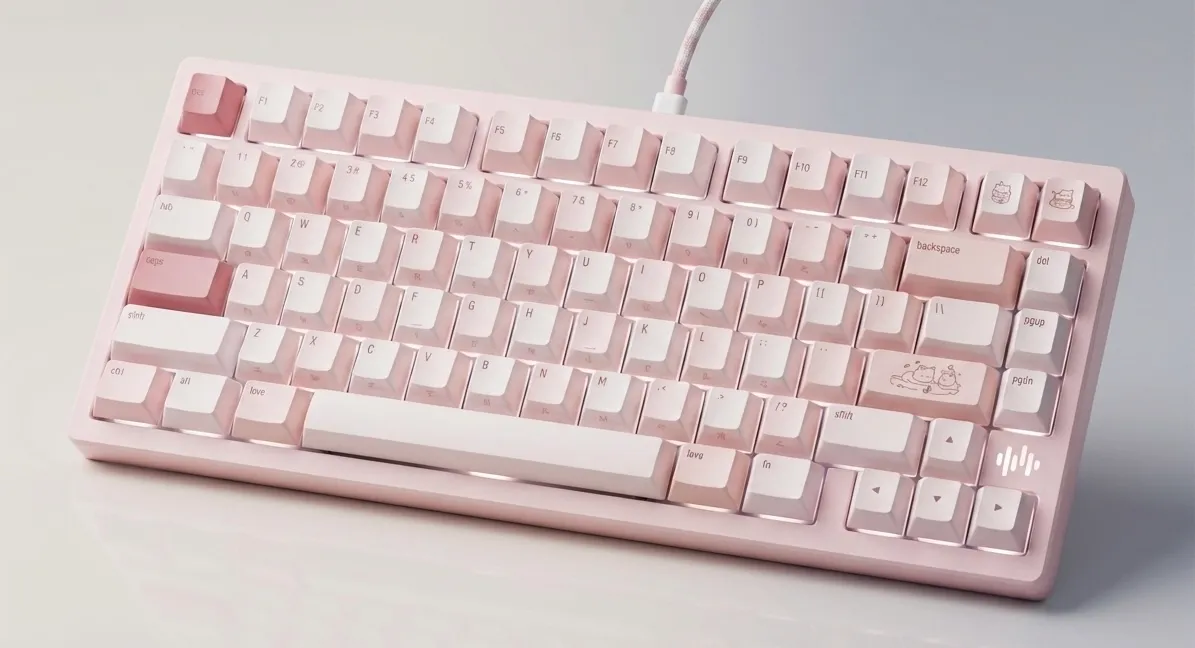
WOB Wave75 Mechanical Keyboard (Kailh Blue Sky switches)
The keyboard I use at home, with factory-installed Kailh Blue Sky switches.
Feel and Sound
The actuation force isn’t heavy — pressing keys feels crisp and responsive. The sound profile leans muted, which is the kind most people can live with; not overly clicky. Worth noting: the stabilizers on the larger keys are excellent for the price point. The overall typing feedback is satisfying.
Build and Layout
The keyboard has an aluminum chassis, which gives the whole typing experience a solid, substantial feel — nothing hollow or cheap about it. The 75% layout keeps the footprint compact without sacrificing too much functionality, making it highly practical for daily development.
Customization
VIA firmware support means you can deeply customize key mappings and shortcuts. For development work where I’m constantly using keyboard shortcuts, that flexibility is really valuable.
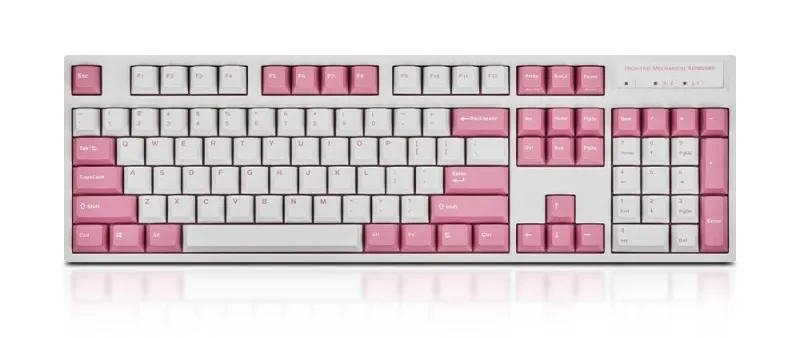
Leopold FC900RBT (Cherry Silent Red switches)
The keyboard I use in the office — also my very first mechanical keyboard. I’ve had it for about two or three years and it’s still rock solid.
Extremely Quiet
Silent Red switches are known for being very quiet. In an office environment where you need to be considerate of others, I can type without disturbing anyone around me.
Light and Springy
The actuation force is light, but with enough spring in the feedback that extended typing sessions don’t get tiring. For a scenario where you’re inputting large amounts of text in an office all day, it’s a very comfortable choice.
Details and Compatibility
The stabilizer tuning and overall build quality are well above par for this category. There’s no VIA-style driver software for remapping keys, but there’s a physical switch on the back for toggling into Mac mode, so macOS compatibility isn’t an issue.
Logitech MX Anywhere 2S
The mouse I use daily — compact and well-suited for fingertip grip.
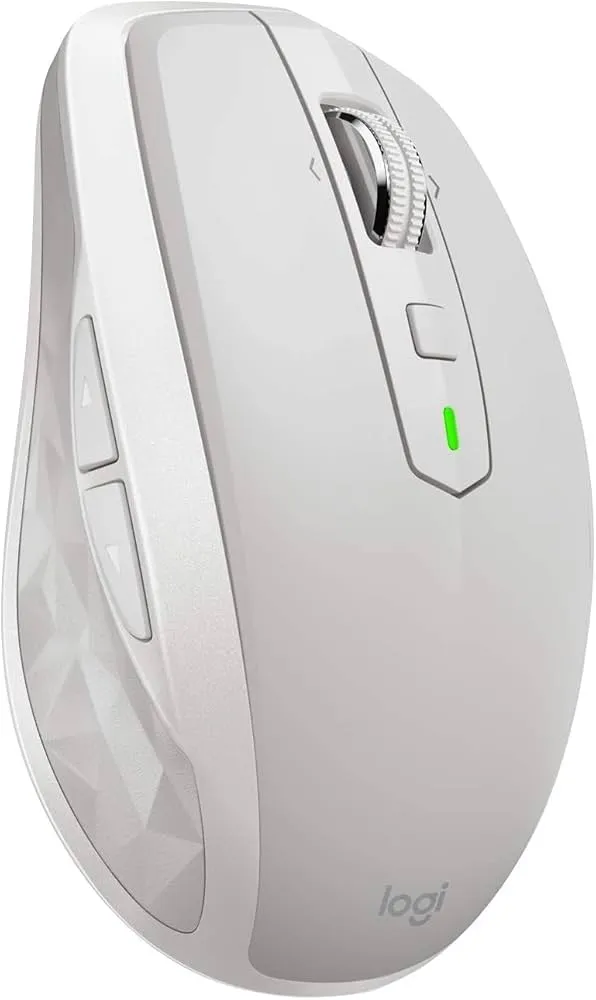
Compact Size for Fingertip Grip
I’m not someone who moves the whole arm to use a mouse — I control it with just my fingers, which is called fingertip grip. The Anywhere series is compact enough that I can comfortably do everything with just my fingertips, which suits this style perfectly.
Dual-Mode Scroll Wheel
The scroll wheel switches between “stepped” and “free-spin” modes. I use stepped mode for precise browsing through web pages, and flip to free-spin when I need to quickly skim through long documents. It’s a small thing that ends up being surprisingly useful.
Button Customization
The middle button can be remapped through Logitech’s driver software to custom shortcut combinations. I mainly use it for window management — switching desktops, arranging windows — all without leaving the mouse.
Tablet
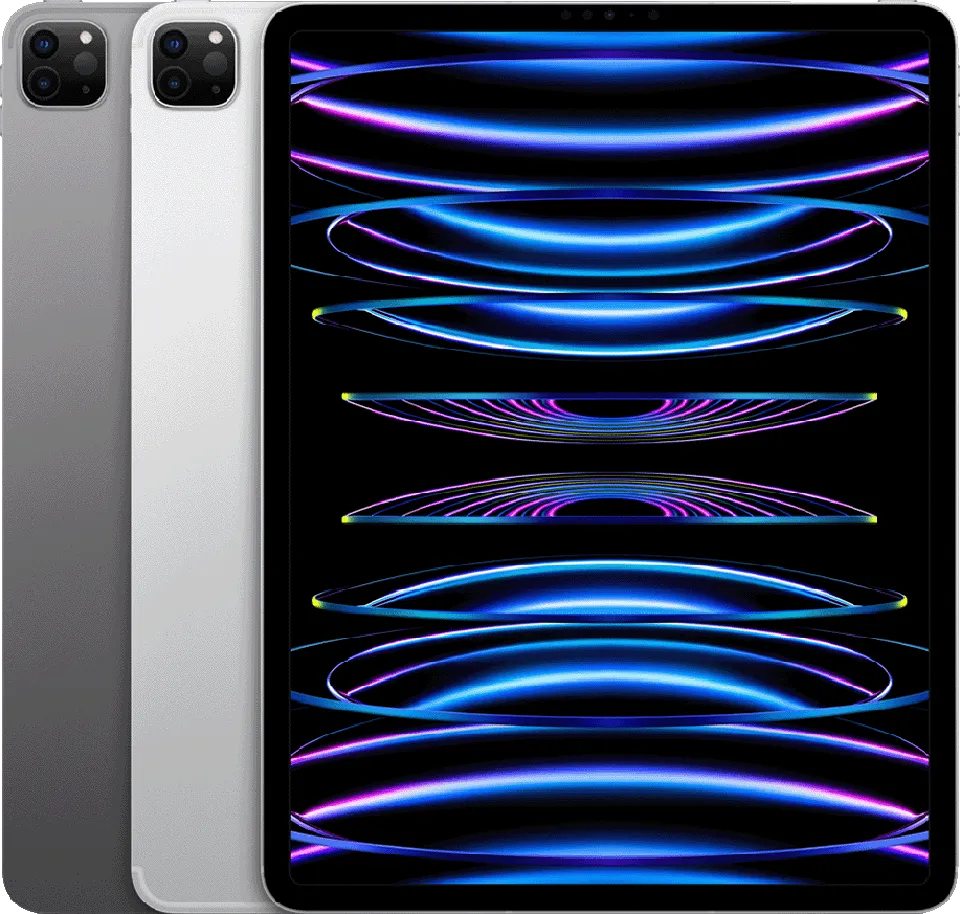
iPad Pro 11-inch (M2) + Apple Pencil 2nd Gen
Primarily for handwriting-related needs like note-taking and document signing, and as an entertainment device in my downtime.
Apple Pencil Writing Experience
With the Apple Pencil 2nd Gen, whether it’s handwritten notes or signing contracts, the writing experience is incredibly fluid. The latency is minimal — it feels almost exactly like pen on paper. That’s the main reason I chose iPad Pro as my note-taking and document tool.
That said, the iPad’s screen is glass, so writing directly on it with Apple Pencil has a slippery feeling — it lacks the slight resistance of real paper. To fix this, I added a paper-like screen protector, which gives the tip more friction and makes long writing sessions much more comfortable.
Handwritten Notes
For note-taking apps, I started out splitting between Notability and GoodNotes — each has its strengths, and I alternated between them for a while. Eventually I switched to an app called Noteful. It’s a one-time purchase, so no subscription to worry about, and it covers everything I need day-to-day. I’ll share more about my specific note-taking habits and methods in a future piece.
Document Signing
For signing contracts or working with PDFs, I use PDF Expert. With Apple Pencil I can handwrite a signature directly on the document — from opening the file to annotating to finishing the signature, everything happens on the iPad in one go, with no printing or scanning involved.
Entertainment
The 11-inch size is exactly right for me — not so big it’s hard to carry, just drop it in a bag and go. I read ebooks and play games on it regularly. The M2 chip makes everything smooth: page turns are fluid, and game performance is consistently impressive.
Phones
I use an iPhone and a Pixel simultaneously — the iPhone handles daily use and Apple ecosystem integration, while the Pixel covers Android daily use and development testing. Together with the MacBook and iPad, switching between platforms is seamless.
iPhone 16 Pro Max
My primary phone, and combined with the MacBook, it lets me take full advantage of Apple ecosystem features.
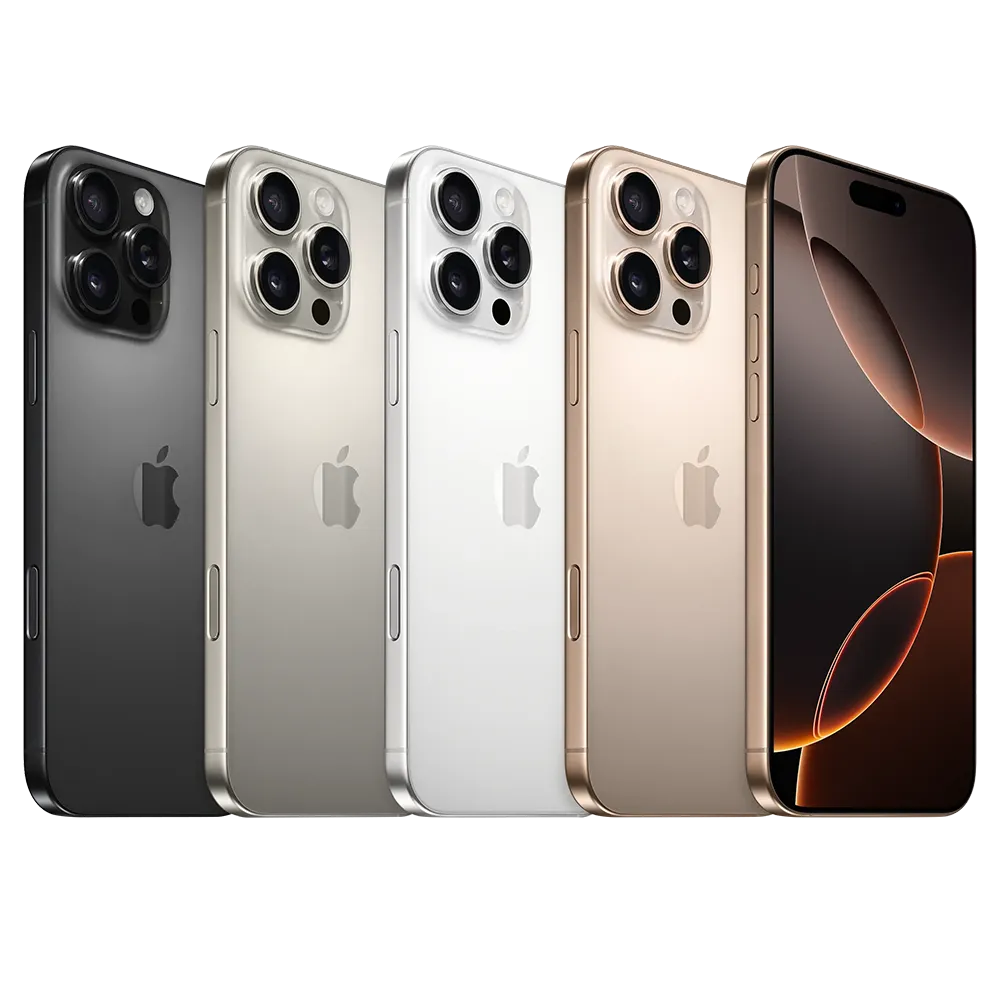
Since my main machine is a MacBook, having an iPhone means I get the full Apple ecosystem experience — AirDrop, Handoff, Universal Clipboard, and so on. The collaboration between phone and computer is incredibly smooth. Beyond that, there were a few more reasons to go with the 16 Pro Max:
Flagship Camera
At this price tier, the camera goes without saying. It handles everything from casual daily shots to high-quality scenarios effortlessly.
Large Screen Preference
My previous phone was a Samsung Galaxy Note 20 Ultra, so I’ve always been used to large screens. When I switched, going with the Pro Max size was an easy call.
Password and Passkey Management
For password management, I don’t use Google’s native tools — I use Bitwarden to manage both passkeys and passwords in one place. iOS’s system-level integration for third-party password managers is better designed than Android’s, and the experience is more stable and fluid.
Ecosystem and App Requirements
Some iOS-exclusive apps I use sync through iCloud, so being on iOS just makes life easier — and the integration with MacBook and iPad is seamless. Instagram also has a noticeably better experience on iOS than on Android.
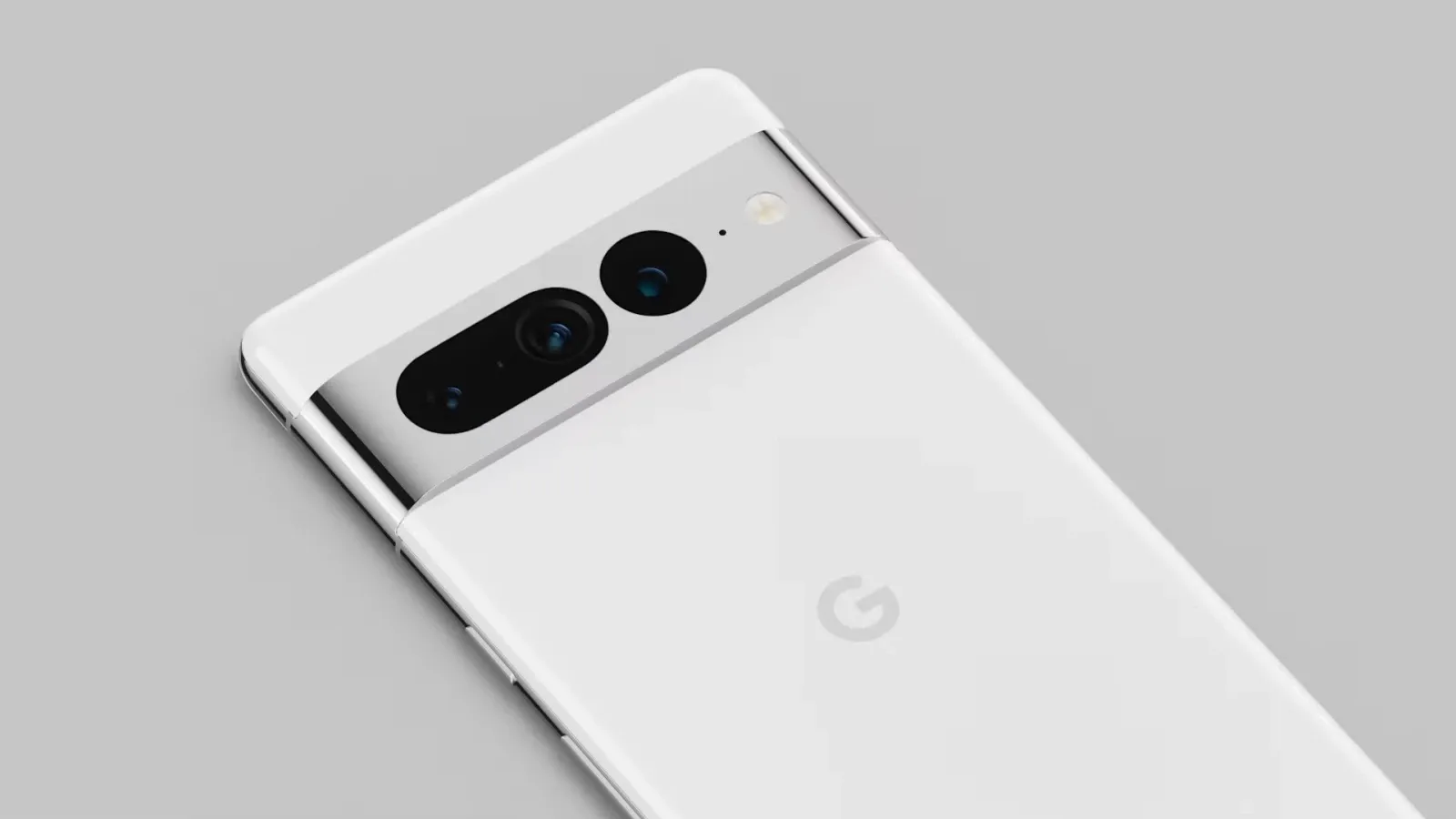
Google Pixel 7
My second phone, mainly for Android daily use and development testing.
Comfortable Grip
The Pixel 7 is slim and elongated, which makes it really comfortable to hold. Combined with the reasonable price, it’s a solid choice as a second device.
Native Multi-User Support
Android supports multiple user profiles natively, so I can switch between different usage contexts with completely separate apps and data. No cross-contamination between profiles. Compared to Samsung’s “Secure Folder” that I used before, the isolation feels more complete.
LDAC High-Quality Bluetooth
Because the Pixel runs stock Android, it has built-in LDAC support for high-resolution Bluetooth audio. Listening with Bluetooth headphones sounds noticeably better than with standard SBC or AAC codecs.
Low-Cost Development Testing
For device testing, Android lets you directly sideload APKs onto the device — the process is simple and fast. iOS, by contrast, requires either going through the App Store or dealing with IPA signing that has an expiration date, which is a much more complicated workflow. Having a Pixel on hand makes Android device testing significantly easier.