The more tools I install on my Mac, the faster the right side of the menu bar fills up. I used to recommend Ice or Thaw. After macOS 27 arrived, I switched my recommendation to Pelmet. It focuses on hiding, revealing, and rearranging icons, and those everyday actions feel faster and more stable to me.
My short answer: if you are on macOS 27 and just want a tidy menu bar, I would try Pelmet first. Ice and Thaw are still worth keeping if you want a free, open-source tool that already works for you. If you are willing to pay for a Command Bar, triggers, and deeper automation, look at Bartender 7.
This comparison reflects the official documentation and release status as of September 18, 2026. These apps are still being updated, and compatibility can change quickly around a major macOS release.
What changed in the macOS 27 menu bar
Tools such as Ice and Thaw have had to manage icon positions and visibility themselves. After a system update, that can sometimes mean jumping icons, odd spacing, or animations that do not look quite right.
macOS 27 rebuilt the underlying menu bar. Pelmet was designed around the new native mechanism, so it does not preserve a separate floating bar like Ice Bar or Thaw Bar. I miss having that extra way to view hidden items, but macOS now handles the hiding and reflowing itself.
Pelmet uses the menu bar hiding mechanism that macOS 27 uses in system assessment and lock-down contexts. When Pelmet hides an icon, macOS moves the other items into the freed space. There is no imitation menu bar layered on top.
Three sections for your menu bar icons
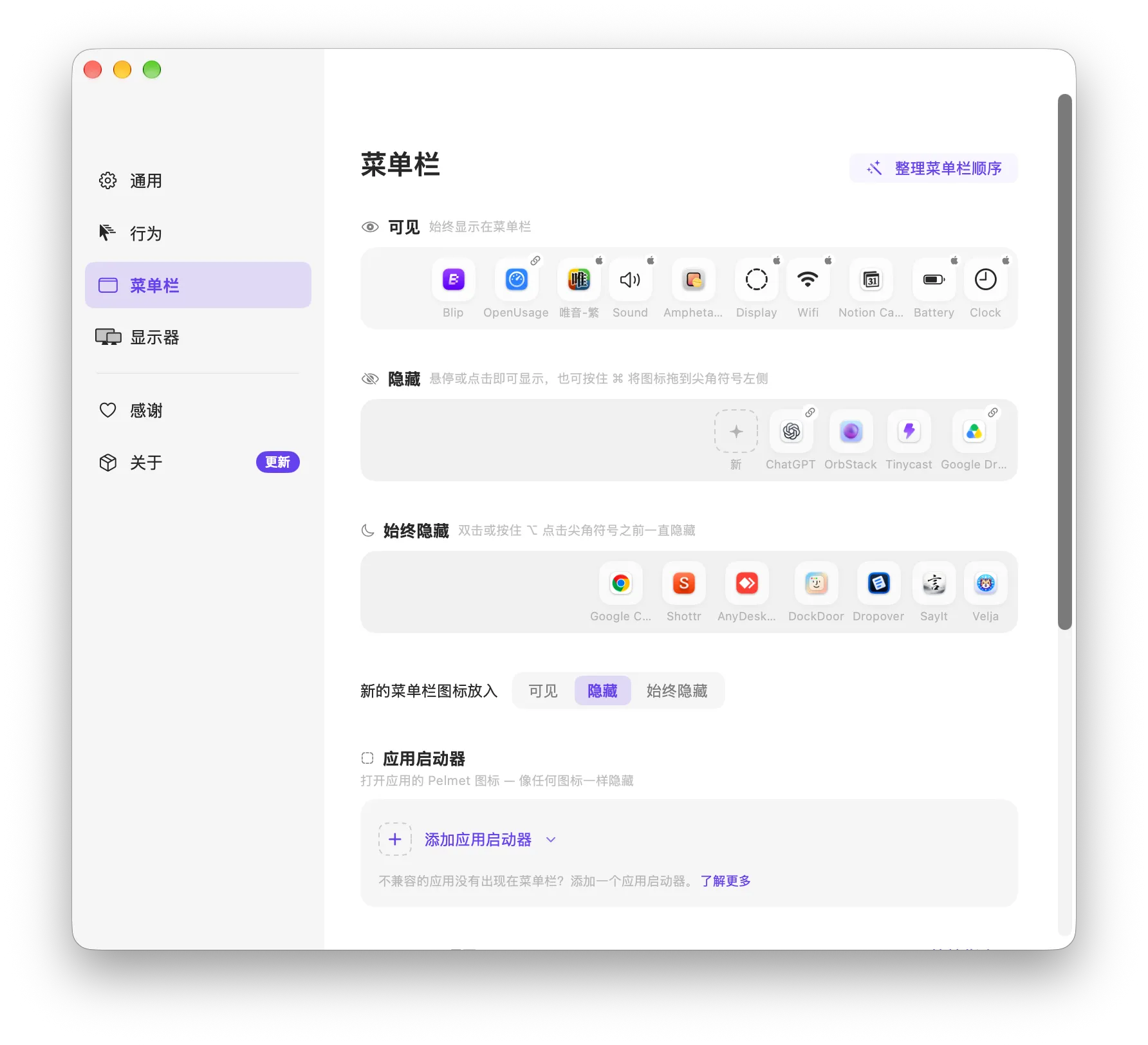
Pelmet divides menu bar items into three sections:
- Visible: Icons that always stay on the menu bar.
- Hidden: Icons that stay tucked away until you reveal them.
- Always Hidden: Items you use less often and reveal with a separate action.
You can arrange icons in Pelmet’s editor or hold Command and drag them directly in the menu bar. Hidden items can reappear when you hover, click empty menu bar space, or click the chevron. Always Hidden items can also be revealed by double-clicking or Option-clicking the chevron.
Collapsed: Only the icons I currently need remain visible.

Expanded: Hidden icons return to the same menu bar instead of opening in a separate floating bar.

The editor lets you change both the section and order of each icon:
Pelmet offers Instant, Smooth, and Fade animations. You can also set how long it waits before hiding icons again after the pointer leaves.
Why I switched my recommendation to Pelmet
I care less about the length of the feature list than about what happens every time I reveal an icon, click it, and hide the rest again. If that sequence stutters, I notice it all day.
With macOS handling the hiding and reflowing, Pelmet’s animations feel more continuous and revealing icons feels steadier to me. That is a personal impression, not a performance benchmark. But for something I open and close throughout the day, it matters more than extra settings.
Setup is also short: install Pelmet, grant the required permission, and put icons into the three sections. I treat it as a way to add the menu bar controls macOS is missing, without maintaining a complicated set of rules.
What else can Pelmet do?
Keep a separate state for each display
If you use an external monitor, each display can keep its own expanded or collapsed state. I can hide more icons on a cramped laptop screen and leave more visible on a larger external display.
Handle some system icons
Pelmet can hide some macOS system icons and provides replacement items for media controls, AirDrop, camera and microphone indicators, a timer, Focus, fast user switching, and Shortcuts.
The clock and Control Center are protected by macOS, while Siri and Time Machine have their own restrictions. If an icon refuses to move, check whether it is one of the items macOS limits.
Add launchers and separators
You can add launchers for apps, files, or folders, then use separators to organize the bar visually. This will not replace Raycast or Spotlight, but it is handy for things I only open occasionally and still want one click away.
Pelmet vs. Ice, Thaw, and Bartender
Ice and Thaw are both free, open-source tools, so it makes sense to consider them together. Bartender is the paid option with more extensive menu bar controls and automation.
| What matters | Pelmet | Ice / Thaw | Bartender 7 |
|---|---|---|---|
| Approach | Uses macOS 27’s hiding and reflowing mechanism | Free and open source, ranging from basic hiding to profiles and triggers | Paid app combining menu bar management with automation |
| macOS support | macOS 27 only | Ice supports macOS 14 and later; Thaw 2.x focuses on macOS 26, while its 3.0 alpha supports macOS 27 | Bartender 7 is built for macOS 27; Bartender 6 is the version for macOS 26 |
| Everyday organization | Three native sections, hover to reveal, auto-hide; no older-style separate floating bar | Hidden sections, search, and Ice Bar or Thaw Bar | Menu bar management, a rebuilt Bartender Bar, and Command Bar |
| Extra features | Launchers, separators, per-display state, and replacements for some system items | Ice has hotkeys and appearance controls; Thaw has profiles, triggers, groups, and deep links | Profiles, Automation, Widgets, hotkeys, Shortcuts, AppleScript, and custom menu bar items |
| Cost | Free and open source | Free and open source | Paid, with a trial, one-time purchase, yearly Pro plan, and lifetime option |
| Best fit | You are on macOS 27 and mainly want to clear up the bar quickly | You want a free tool, or your existing Ice or Thaw workflow is already reliable | You are happy to pay for deeper automation, commercial support, and licensing across versions |
| Watch out for | Relies on a private Apple framework that may need fixes after system updates | Ice’s stable release was older; Thaw 3.0 was still in alpha at the time of this comparison | Bartender 7 had just been rewritten, with known ordering, app-compatibility, and brief flicker issues listed by its developer |
On macOS 27 and just want a clean bar? Start with Pelmet
If you mostly want to hide icons you rarely use, reveal them quickly, and have smooth animations, Pelmet is where I would start. There is less to configure: install it and sort your icons into the three sections.
The missing floating bar is not just a feature Pelmet forgot. macOS 27 changed how the menu bar works, and Pelmet chose to use the system’s own hiding and reflowing mechanism rather than keep the separate Ice Bar or Thaw Bar approach. Bartender 7 rebuilt its own Bartender Bar, so it will feel closer to your old workflow if you still want a floating panel.
Want a free, open-source option? Look at Ice or Thaw
Ice supports macOS 14 and later, with hidden sections, Always Hidden, Ice Bar, search, gestures, and appearance controls. If it is already working well for you, there is no reason to move just because Pelmet is new.
Thaw can switch profiles for different situations, reveal items based on conditions, and search icons or show them in a floating bar. At the time of this comparison, macOS 27 support was still in the 3.0 alpha, and the project listed issues involving system items, icon spacing, reordering, and Accessibility stability. I would not make an alpha release my main menu bar tool yet.
Willing to pay for more automation? Consider Bartender 7
Bartender 7 is the commercial option rewritten for macOS 27. Alongside hiding and searching, it offers Bartender Bar, Command Bar, profiles, Automation, Widgets, hotkeys, and integration with Shortcuts and AppleScript. Screen Recording is optional; without it, Bartender shows app icons rather than captures of the actual menu bar items.
It does much more than Pelmet, but costs more and takes longer to set up. At the time of this comparison, Bartender offered a one-time purchase, a yearly Pro plan, and a lifetime option. I am not quoting a price here because the purchase page loads it dynamically. Bartender 7.0.1 had already reached a stable release, though the official release notes still listed some app compatibility, icon ordering, and brief flicker issues.
Switching from Ice, Thaw, or Bartender to Pelmet
You can install Pelmet with Homebrew:
brew install fif7y/tap/pelmetThis is the order I would follow:
- Take a screenshot of your current icon groups in Ice, Thaw, or Bartender.
- Quit the old tool completely so two menu bar managers are not adjusting the bar at the same time.
- Open Pelmet and grant the required Accessibility permission.
- Start by sorting icons into Visible, Hidden, and Always Hidden; leave animation settings for later.
- Use that layout for a day or two, then adjust how items reveal and hide, and decide whether to enable Screen Recording.
- Check that your usual icons still work before removing the old tool.
Pelmet was rewritten from scratch and does not share code with Ice. At the time of this comparison, I could not find an import option for Ice, Thaw, or Bartender layouts, so expect to set up the three sections again.
My pick for macOS 27
Pelmet has fewer features, and its use of a private framework could cause problems after a macOS update. But revealing, hiding, and rearranging icons are the actions I use every day. Right now, Pelmet handles them most smoothly for me.