Mac launchers such as Raycast and Tinycast put a search box one shortcut away. You can open an app, find a file, retrieve something you copied, or do a calculation from the same place. Instead of opening and switching between apps for small tasks, you type a few words describing what you want to do.
I have been using Tinycast more often lately, and I think it is worth recommending. It is free, its main app is open source and built with native macOS technologies, and it can run some Raycast extensions. Clipboard history, snippets, window management, and calculations have all been smooth for me. My usual extensions have also worked without major trouble. Tinycast has AI features too, but they are off by default.
Raycast served me well. Over time, though, it added more AI features and felt increasingly focused on an AI subscription. I do not need that from my launcher. Even with an AI master switch in its settings, having to turn off features I did not ask for started to bother me. That is one reason I tried Tinycast and gradually moved my everyday actions over.
How the Tinycast launcher works
Press the shortcut you assigned to Tinycast and it opens a search box with selectable results underneath. Type a keyword to open an app or run a command.
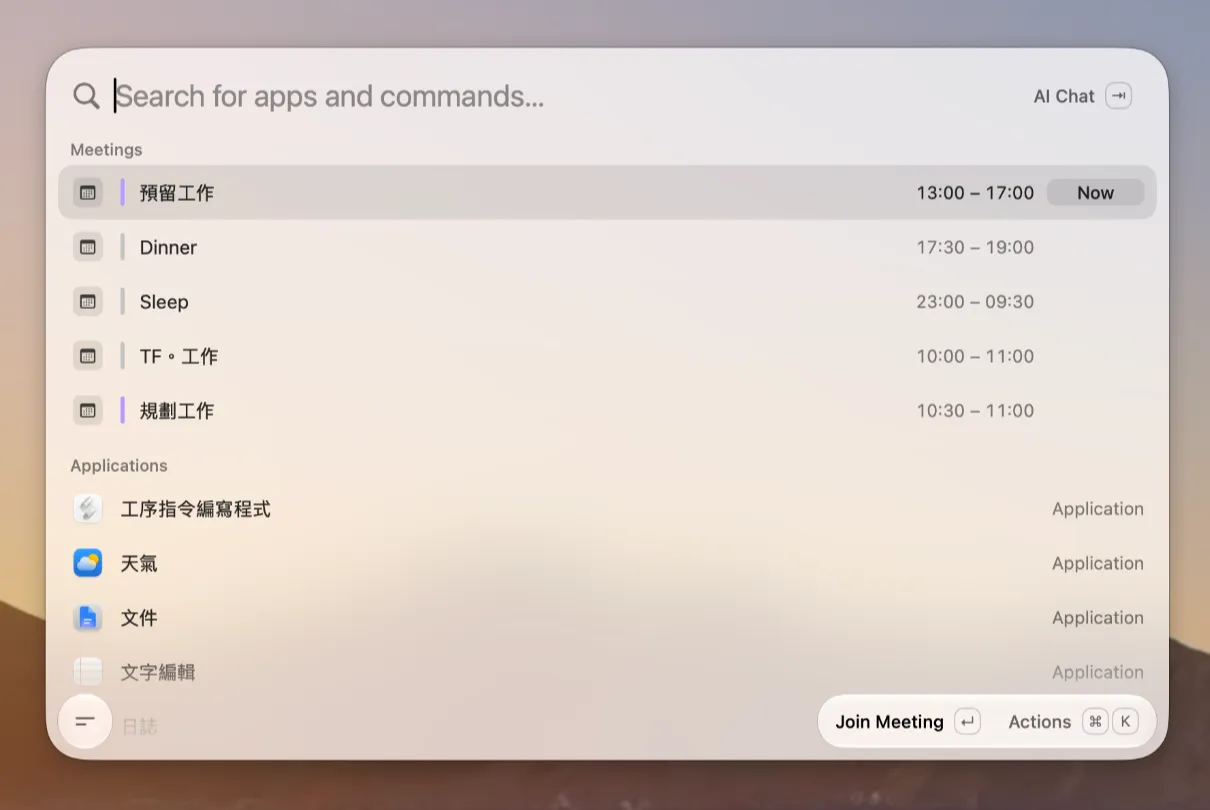
Search matches app and command names, but you can also give frequently used apps aliases so they are easier to find. Most of the time I summon Tinycast, type a few letters, and press Return. Once that becomes familiar, many small tasks take only a moment.
What else can Tinycast do besides search?
The features I care about most are clipboard history, snippets, window management, and inline calculations. I have moved all four to Tinycast and use them without much friction. My regular extensions still work, and file search responds quickly too.
Clipboard history
On a Mac, finding something you copied earlier used to mean installing a separate clipboard app, sometimes a paid one. Windows has had clipboard history for years, and Spotlight gained it in macOS 26. But I already use Tinycast to open apps and run commands, so keeping my clipboard there feels more convenient than buying another tool for it.
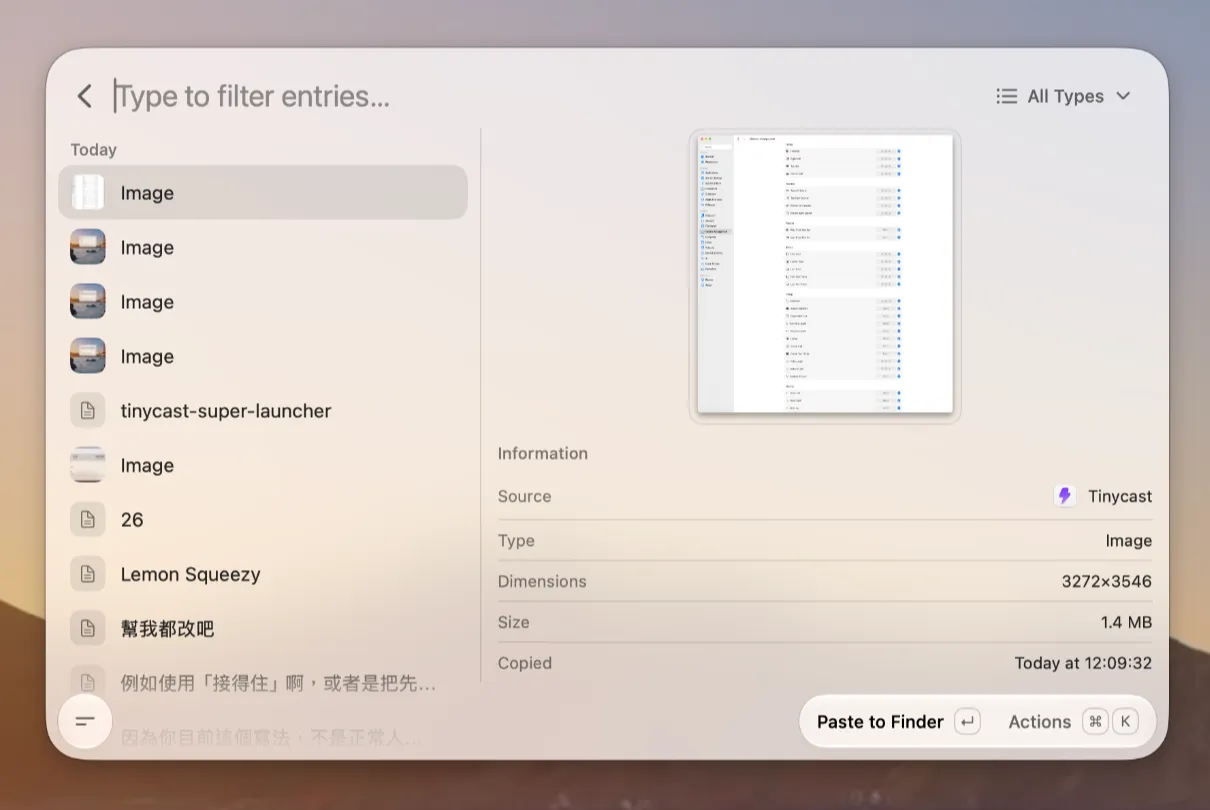
Tinycast saves copied text, images, and files. You can search past entries or filter them by type. I use this feature often, and selecting, searching, and pasting an item back into another app has been smooth. I suggest binding clipboard history to ⌘+⇧+V so it is always one shortcut away.
Snippets
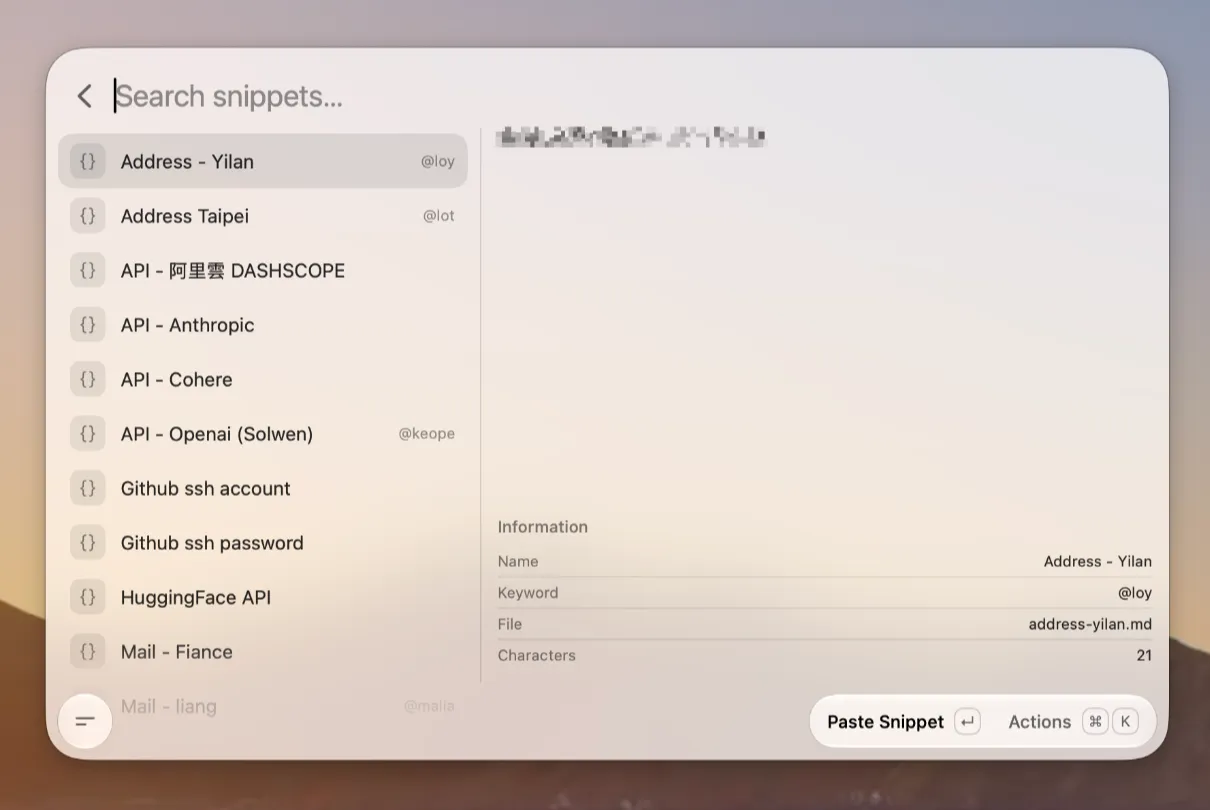
I already had a collection of snippet templates, so I imported them into Tinycast. The templates came across intact and I can keep using them. I suggest binding “Search Snippets” to ⌘+⇧+Space; that opens the snippet list directly instead of making you go through the main search box.
Window management
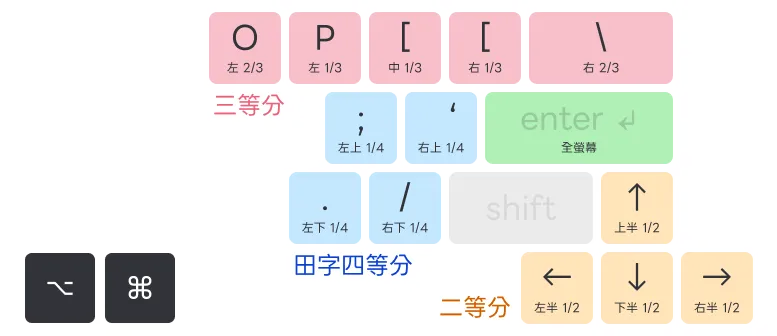
I like using Rectangle alongside Tinycast. With Rectangle’s drag-to-snap feature enabled, moving a window to a screen edge snaps it into place. For arranging windows with the keyboard, I use Tinycast. I moved my old window shortcuts over and they have felt quick and reliable. Since both apps can assign shortcuts, make sure their key combinations do not conflict.
The diagram below shows the layout that feels best to me after trying a few arrangements. ⌥+⌘ is my shared prefix: arrow keys place windows in halves, the top row handles thirds, punctuation keys map to the four corners, and Return toggles full screen. You do not need to copy the whole layout. Start with the halves you use most, then add more positions if they are useful.
Inline calculations
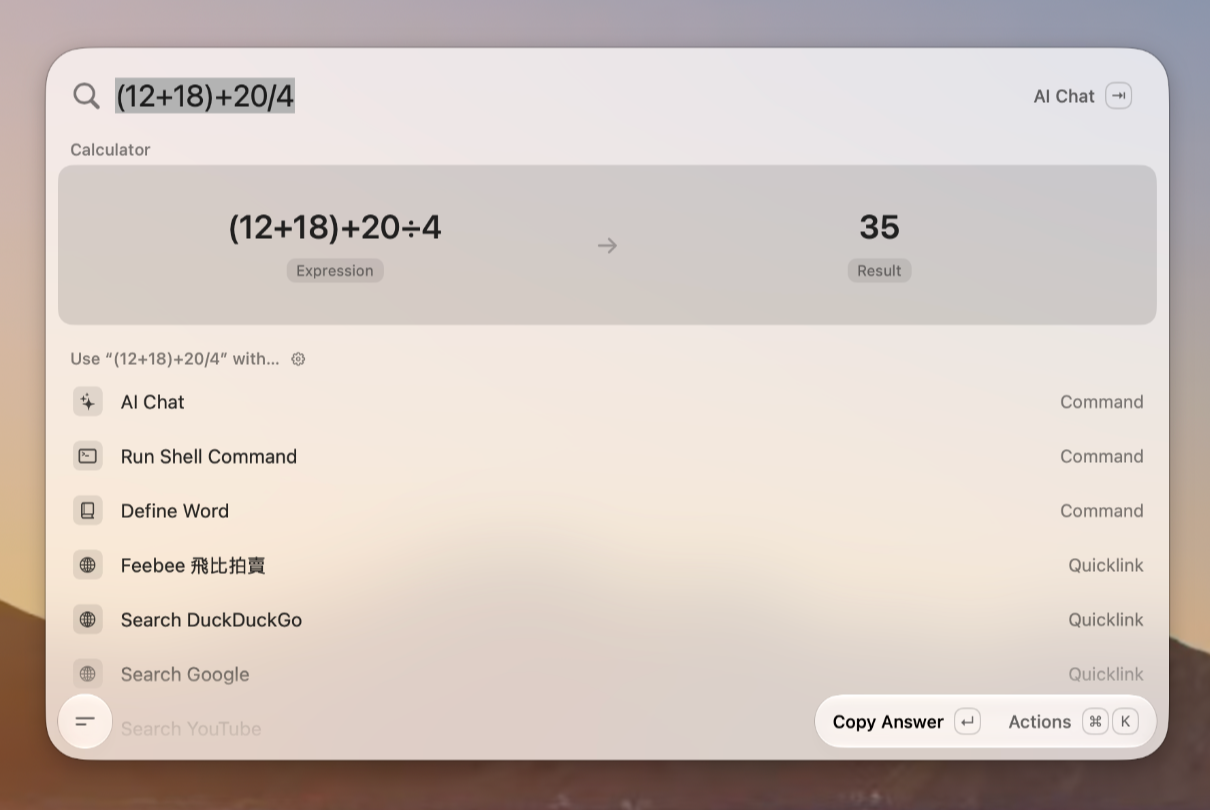
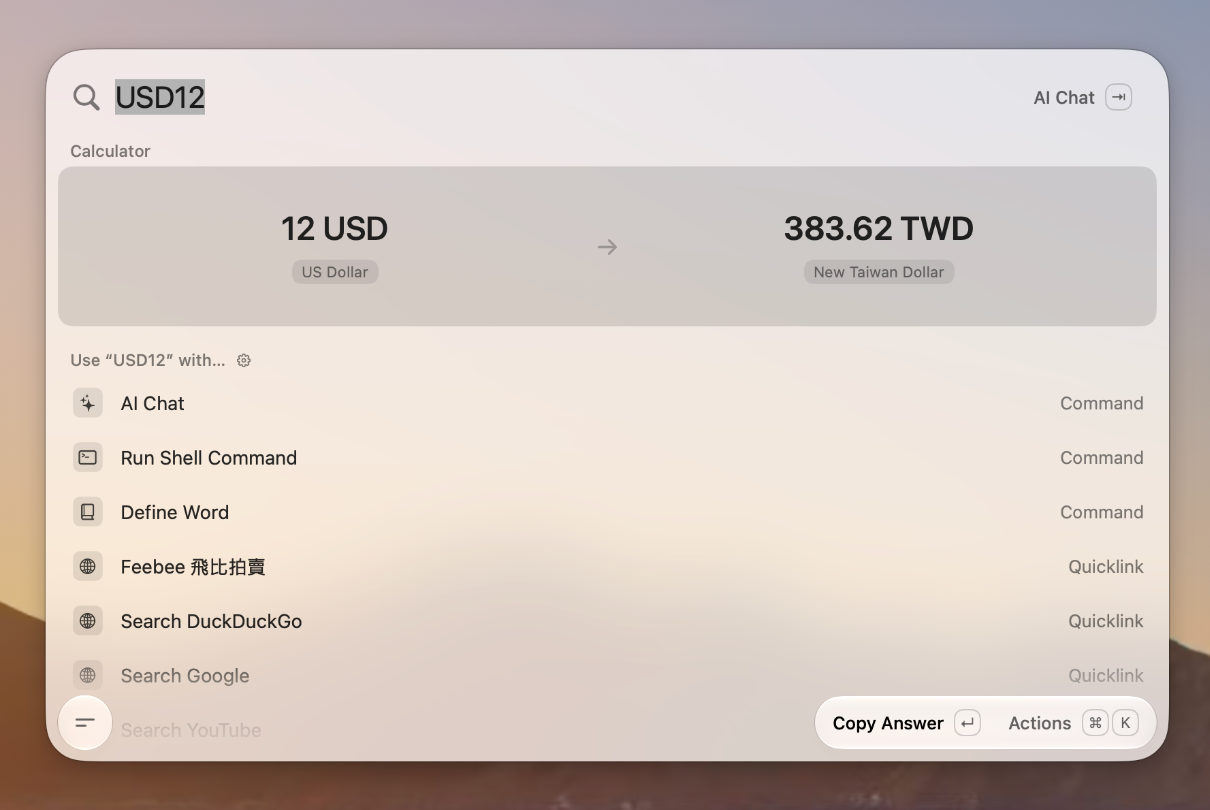
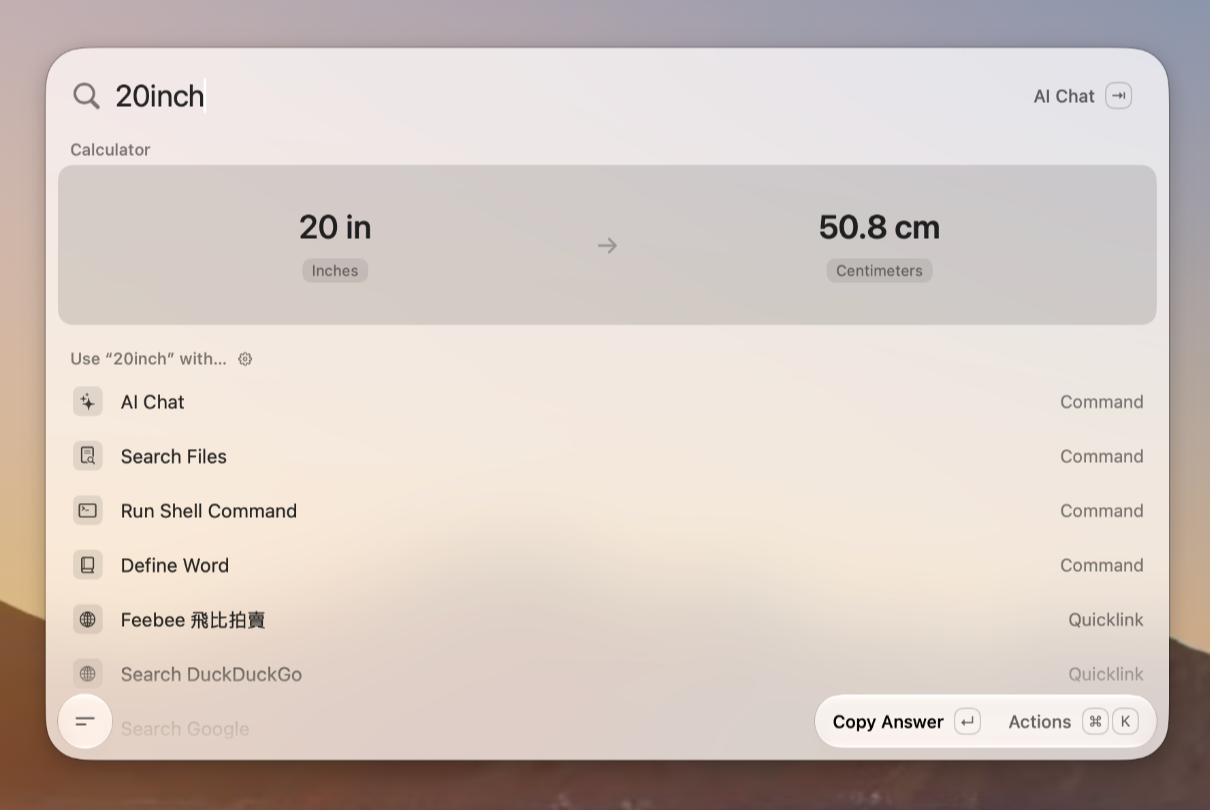
I have tried basic arithmetic, currency conversion, and length conversion. I type directly into the launcher and get the answer without switching to another app. So far, I have not run into problems with any of the three.
File search
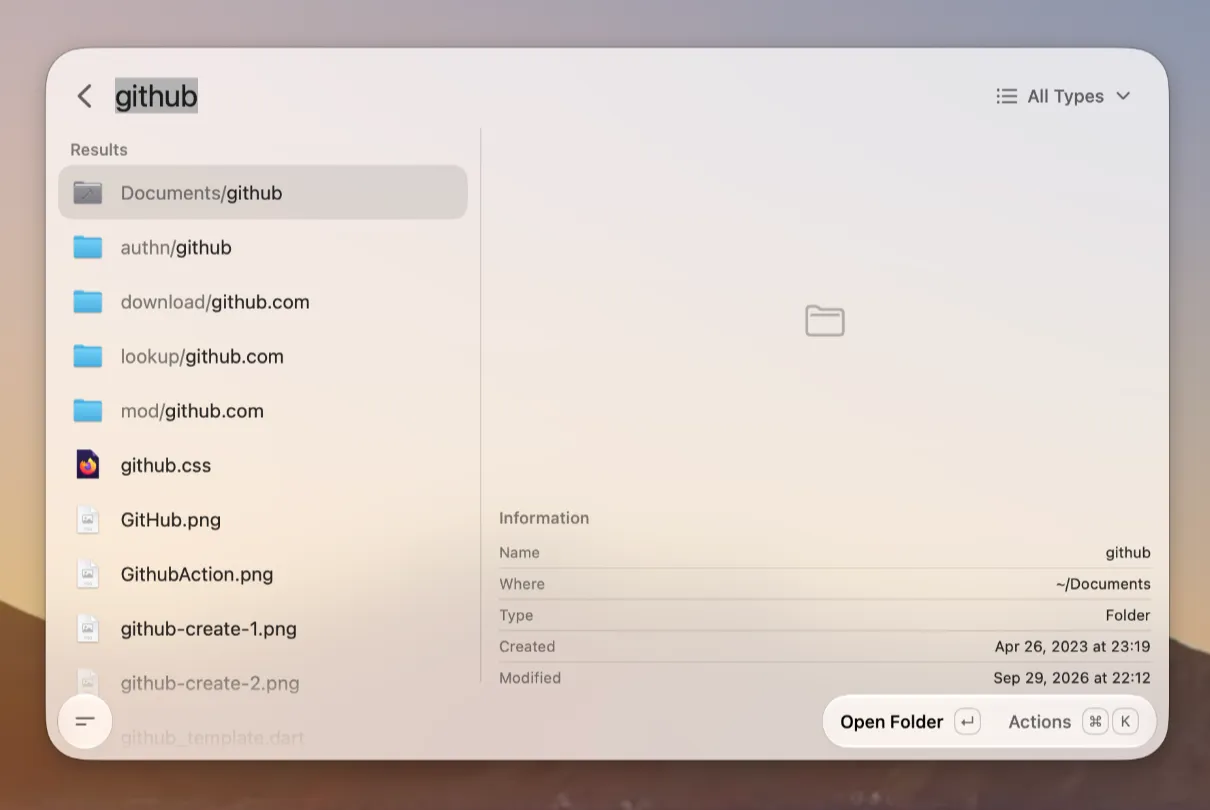
When I searched for github, Tinycast listed matching folders and files in about three seconds. That felt fast to me. Selecting a result also showed its location, type, and timestamps on the right.
Those four everyday features cover most of what I need. The official feature list also includes app search, Quicklinks, Apple Shortcuts, and system commands.
The main app uses SwiftUI and AppKit. The developers say it has no Electron or telemetry, and many features only turn on when needed. Clipboard and window actions already feel fast to me, but I have not run a same-Mac comparison of overall launch speed, memory use, or animations.
Being open source is another draw. You can inspect Tinycast’s main app and AGPL-3.0 license. Raycast’s public extension repository is open source too, but that is the extension code. What matters to me is that Tinycast opens up the launcher itself, not just its extensions.
The seven extensions I use most
My most-used Raycast extensions are Ghostty, Tabby, Zed, Bob, Ente Auth, Bitwarden Vault, and Amphetamine. I have continued to use all seven in Tinycast the way I normally would, including Ente Auth and Bitwarden Vault. I have not encountered major problems so far. Being able to keep my usual commands matters more to me than a broad compatibility claim.
- Ghostty is my most-used terminal. I gave “Open Ghostty” the search alias
CMD-H. After selecting a folder in Finder, I type that alias in Tinycast to open Ghostty in that folder without changing directories manually.CMD-His just the text alias I chose, not the macOS ⌘+H shortcut. - Tabby handles my remote connections. I mainly use its Profile command: Tinycast shows my saved connections, and pressing Return on one opens the corresponding remote terminal in Tabby.
- Zed is the editor I often use to inspect code. After selecting a folder in Finder, I find the command to open it in Zed and it becomes a project. The Recent list also lets me return to projects I opened earlier.
- Bob handles OCR and quick translation. When I cannot copy text from an image, I launch its recognition or translation command without opening the app first.
- Ente Auth and Bitwarden Vault manage my two-factor codes and passwords, respectively. I can search for the item I need from Tinycast instead of opening two separate windows. I explain why I keep passwords and verification codes apart in my account-security setup.
- Amphetamine is useful before I run a long AI task. Typing
Startin Tinycast finds the command to start a session, so I do not have to hunt for Amphetamine in the menu bar. Keeping the Mac awake also prevents an unattended task from stopping when the computer sleeps.
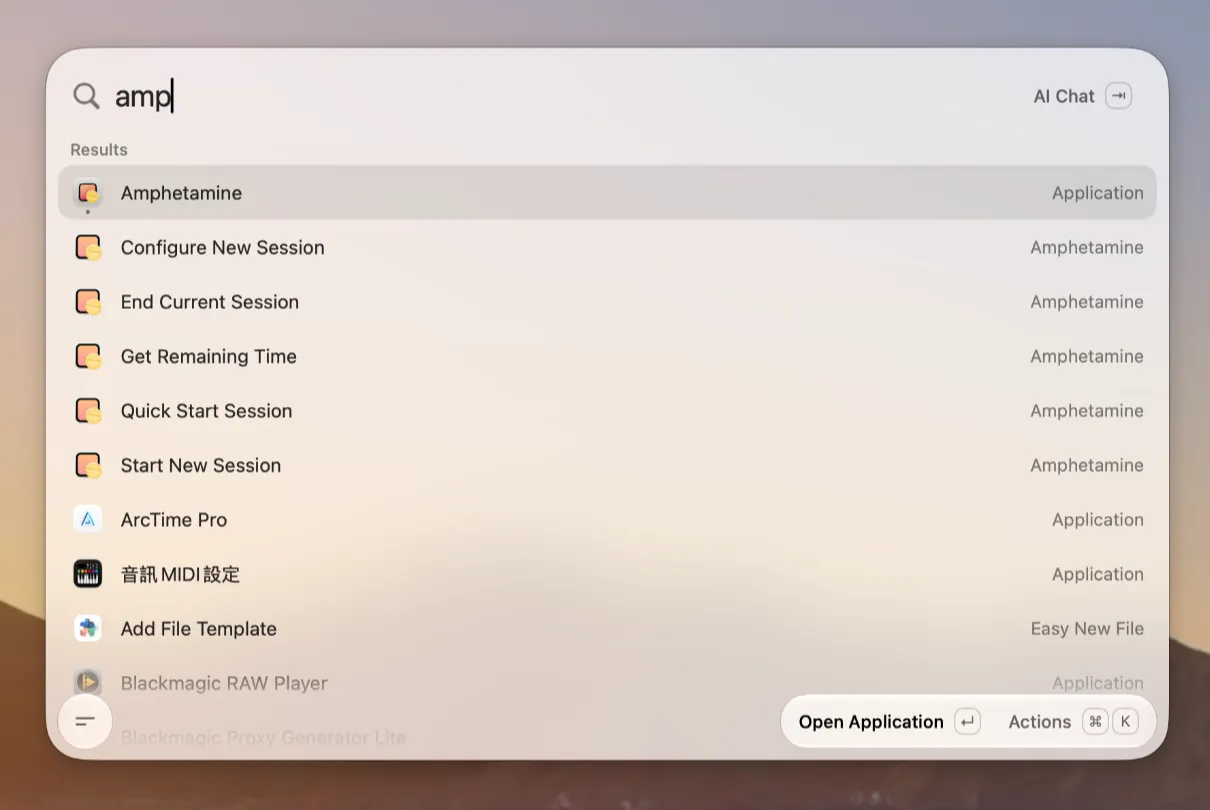
For example, searching amp shows Amphetamine commands for starting, ending, and configuring sessions:
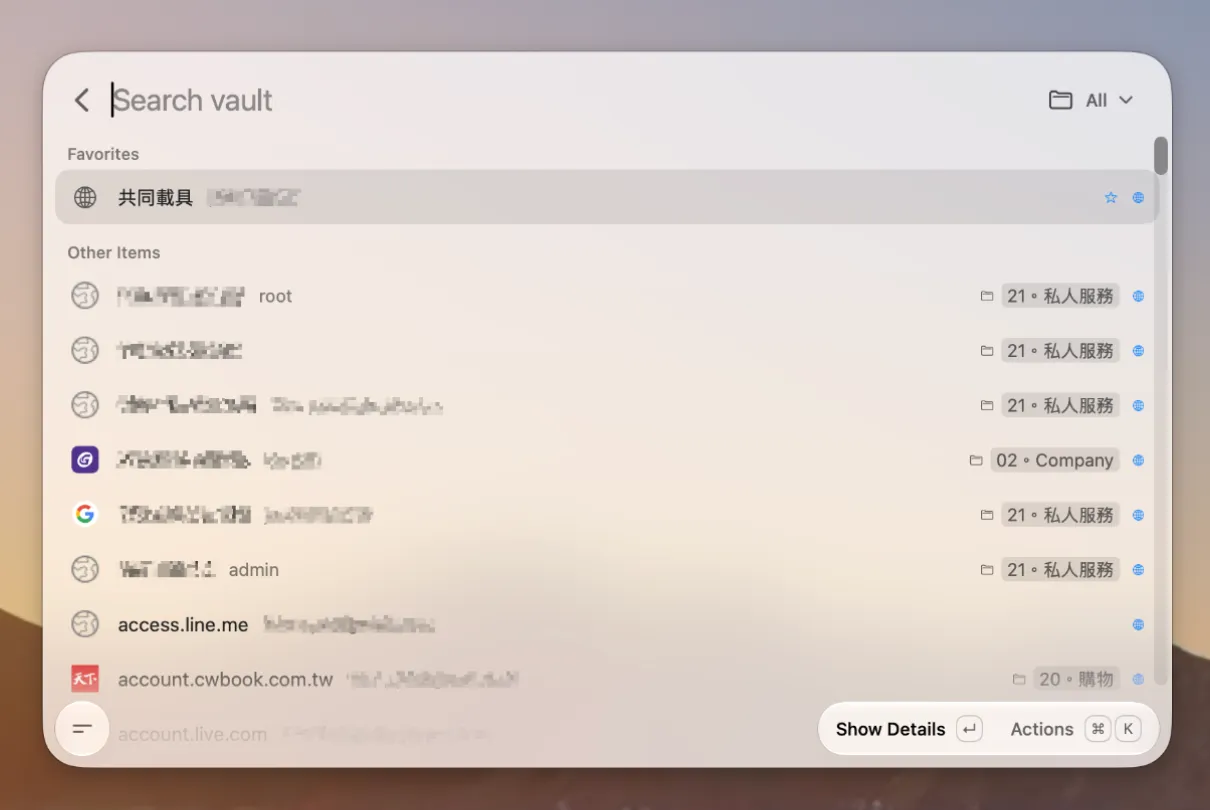
Here is Bitwarden Vault’s search screen. The account and item details in this screenshot have been obscured:
Tinycast can also import Raycast extensions already installed on this Mac. If you try it, run the commands you actually depend on; the compatibility documentation still lists unsupported features.
Extensions can occasionally have bugs. Tinycast is being updated frequently, and in my experience its developer responds quickly to reports. When something goes wrong, I give the error, the steps to reproduce it, and the Tinycast GitHub repository to an AI assistant to help narrow down the likely cause. That makes for a more useful report than simply saying “it does not work.”
I then search the project’s Issues. If someone has reported the same problem, I add my reproduction steps; otherwise, I file a new issue following the project’s guidelines. With a GitHub tool configured, an AI assistant can help draft and submit the report. Review it yourself before sending, especially to make sure it contains no passwords, verification codes, tokens, or private file paths.
Importing settings and data from Raycast
You do not have to recreate everything you saved in Raycast. With Raycast 2.0 or later, export a .rayconfig file, then go to “Settings → Backup → Import from Raycast” in Tinycast. Select the file, enter its export passphrase, and choose what to bring over. Shortcuts, favorites, snippets, clipboard history, and Quicklinks are among the options. See Tinycast’s import guide for the full steps.
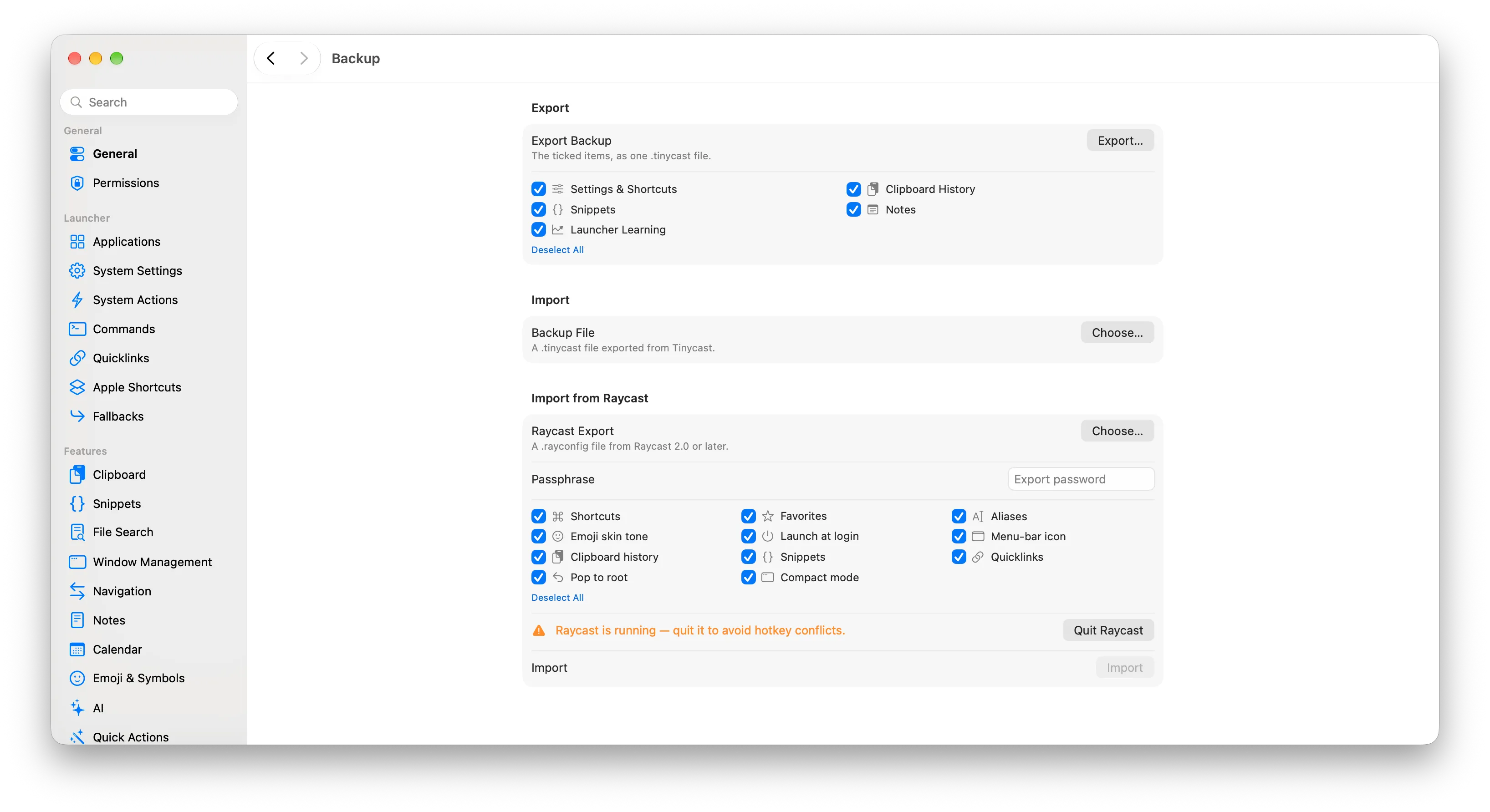
My snippet templates were still there after import, and I tested my usual shortcuts one by one. Quit and reopen Tinycast after importing so all settings take effect. The screen also warns that leaving Raycast running may cause shortcut conflicts. You can keep both apps installed while you check that Tinycast works for you.
This imports settings and data, not Raycast extensions. For extensions, use “Settings → Extensions → Import from Raycast.” You can choose individual extensions or select “Import All.”
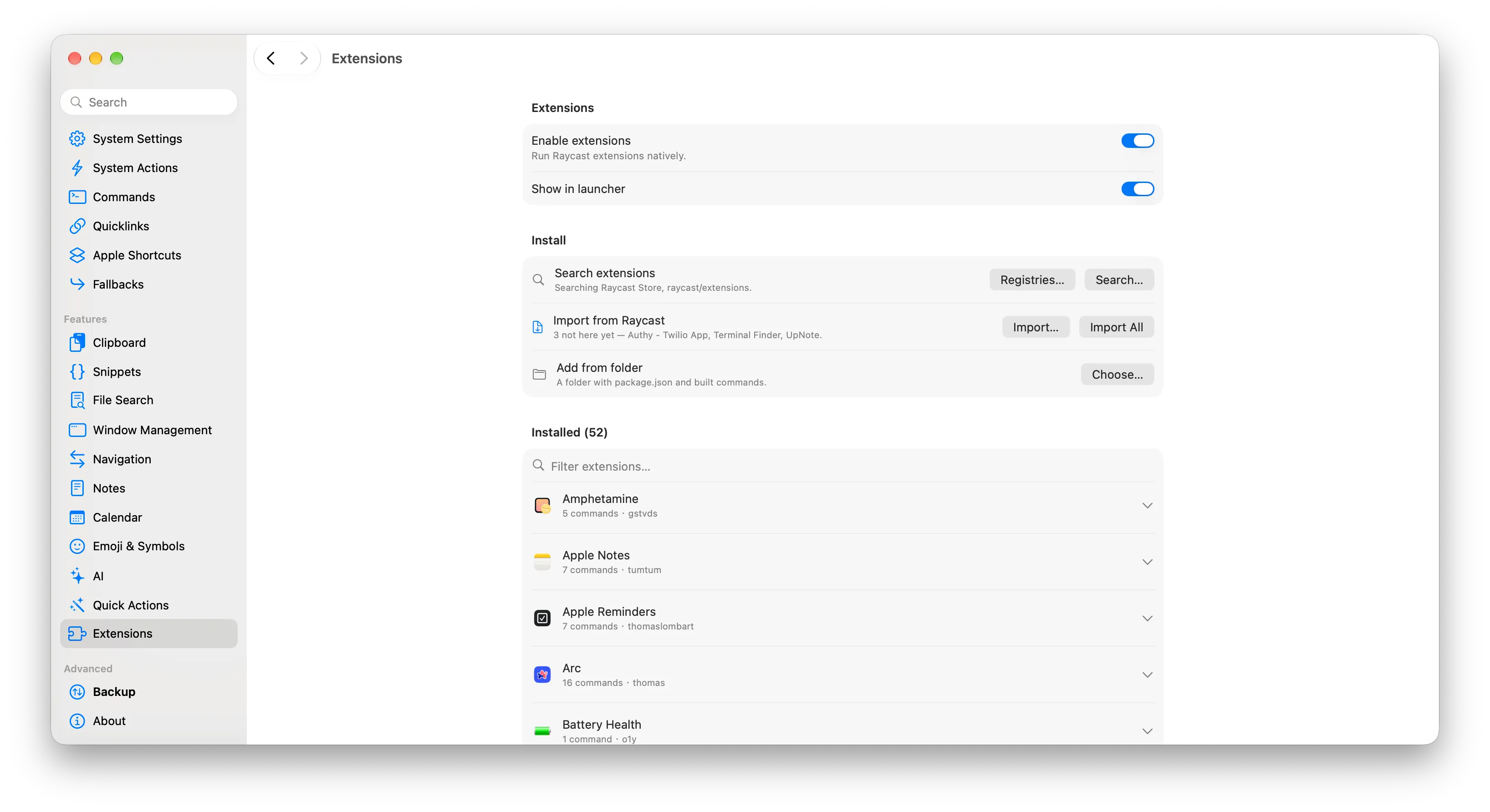
A Raycast export can contain clipboard and snippet contents, so do not upload or share it casually.
How is Tinycast different if you already use Raycast?
| What matters to me | Tinycast | Raycast |
|---|---|---|
| Main app | Open source under AGPL-3.0; native macOS app | Mature product with a public extension repository |
| Everyday features | App and file search, clipboard, calculations, window management, and more | Free plan includes clipboard, Quicklinks, calculations, snippets, window management, and more |
| Extensions | Can import and run some Raycast extensions; compatibility varies | Native support for Raycast Store extensions |
| AI and sync | Has its own AI features, which you can configure as needed | AI and cloud sync features vary by plan |
| Best fit | You want a native, open-source tool and are willing to test your key extensions | Your established workflow depends on the full extension ecosystem or cloud features |
Raycast’s pricing page confirms that clipboard history, window management, and public extensions are already available for free. I did not move to Tinycast because Raycast charges for those basics. Tinycast’s appeal is its open-source main app, native implementation, and ability to keep using some existing Raycast extensions.
If your Raycast setup is reliable and you depend heavily on particular extensions or cloud sync, I would not tell you to switch just because Tinycast is new.
If you want to try Tinycast
- Check your Mac’s chip and macOS version on the official installation page, then follow the matching installation steps.
- Set a global shortcut the first time you open Tinycast. Try app search and clipboard history; snippets and window management need to be enabled in settings. Tinycast will ask for Accessibility permission when it needs to paste into other apps.
- Import a few of your most-used Raycast extensions from Extensions settings. There is no need to move everything at once.
- Complete a real task with each extension, including sign-in, execution, and checking the result. If something fails, note exactly where it stopped.
- Run the two launchers side by side for a few days, then decide which one should keep your main shortcut.
Clipboard history, snippets, window management, and inline calculations have worked well for me. File search feels quick, and my seven most-used extensions have not given me major trouble. Based on that experience, Tinycast is a Mac launcher I am happy to recommend. If you use Raycast, it is especially worth testing with the commands you already reach for every day.